


GitLab Integration
This guide explains how to connect GitLab to Binadox using a GitLab OAuth application. After completing the setup, you’ll have a Client ID and Client Secret from GitLab that can be used to authorize Binadox.
Prerequisites
- Admin (or sufficient) access to GitLab to create an OAuth application.
- A Binadox account with access to configure integrations (connections).
Open GitLab Application Settings
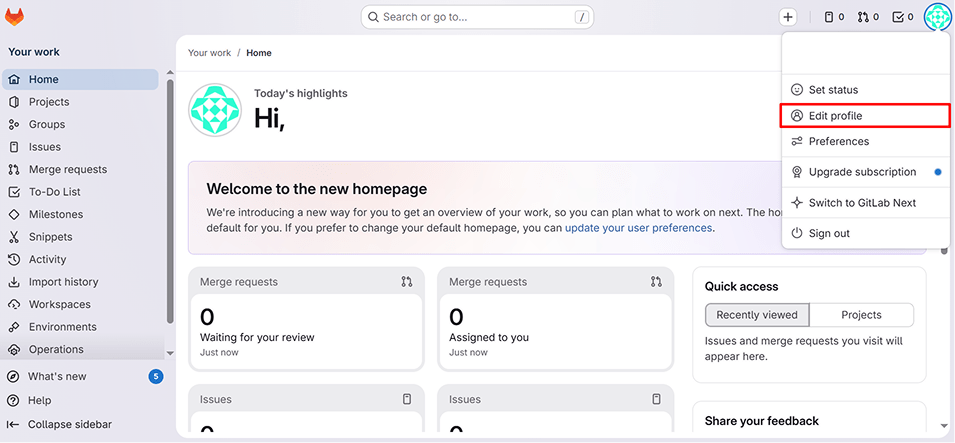
Log in to GitLab. Click your avatar (top-right) → Edit profile.
Add a New OAuth Application in GitLab
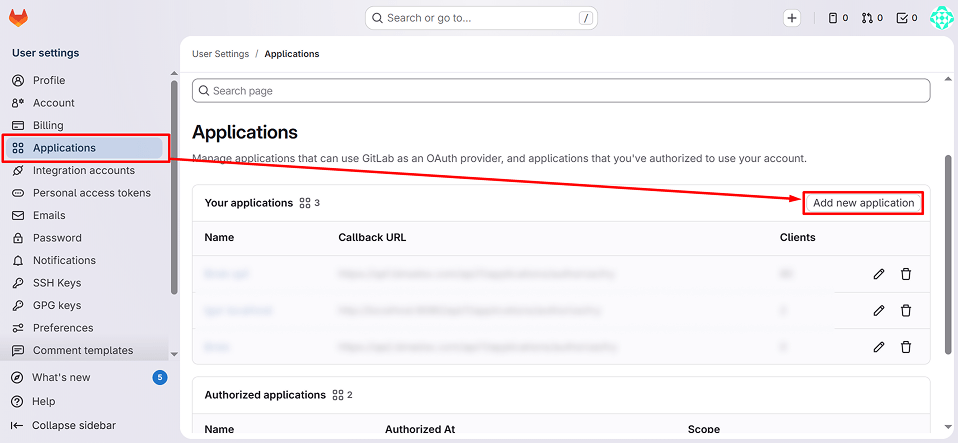
In the left sidebar, go to Applications. On the Applications page, click Add new application.
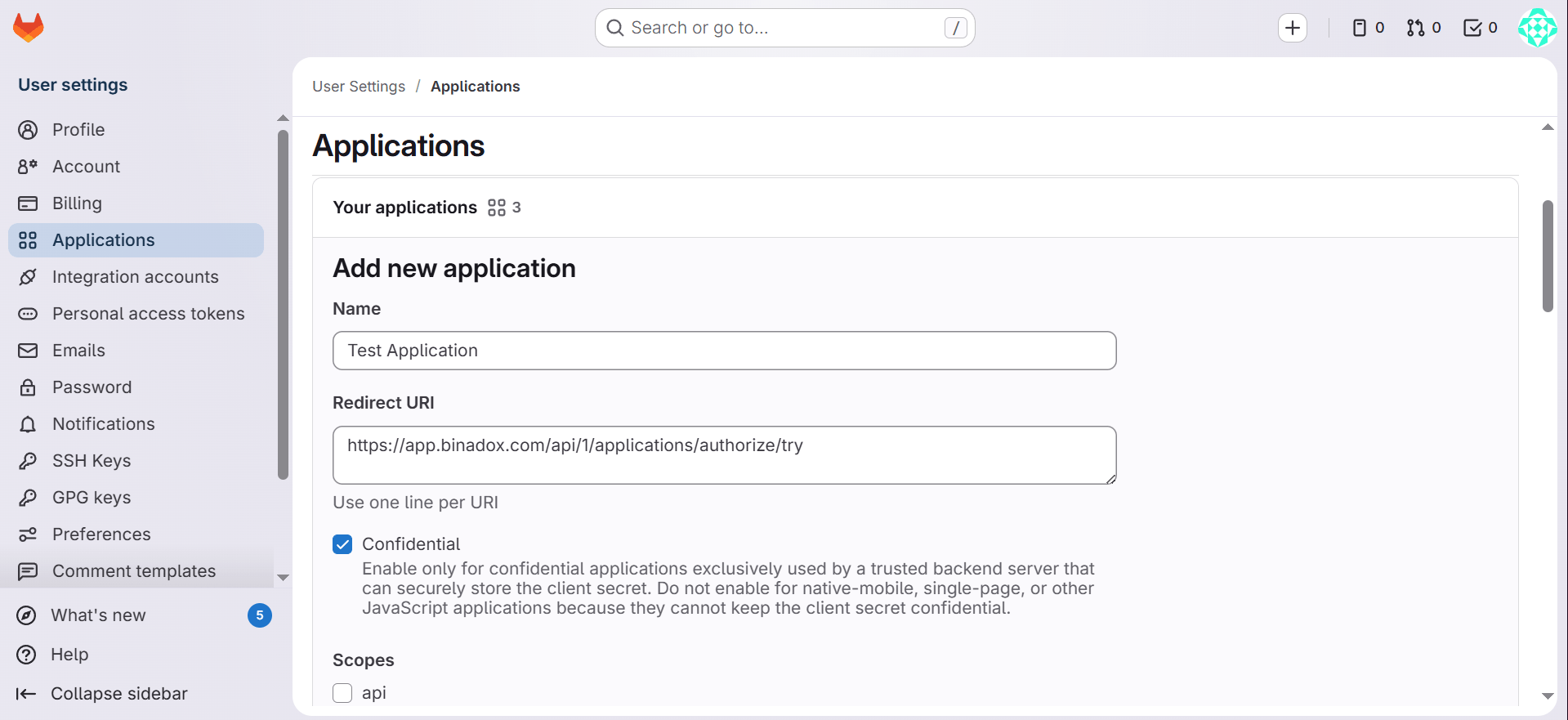
Fill in the form:
- Use a recognizable Name (e.g. Binadox Integration)
- Redirect URI: https://app.binadox.com/api/1/applications/authorize/try
Important:
The Redirect URI must match exactly (including scheme http/https, host, path, and trailing slashes).
In the Scopes section, enable:
- api
- read_api
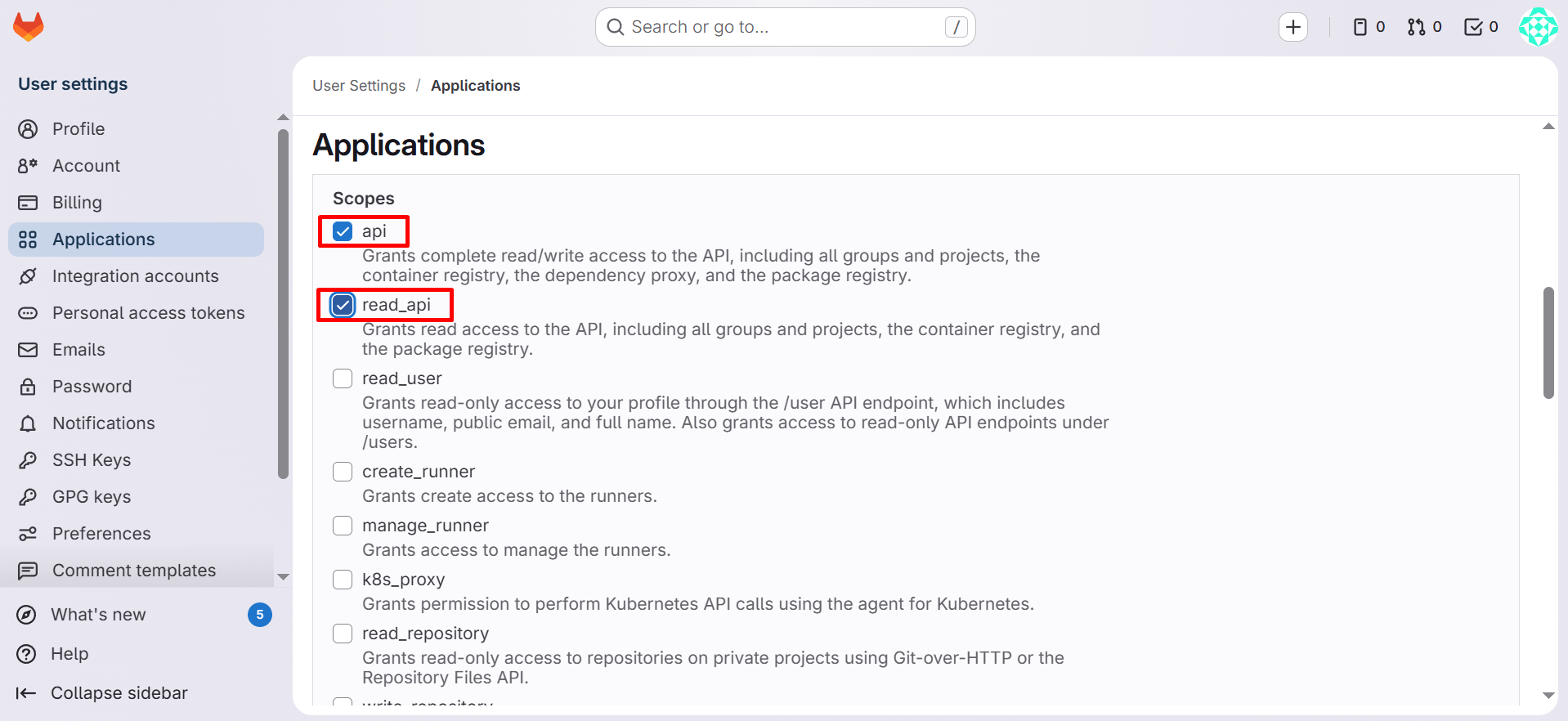
Click Save application.
Copy OAuth Credentials from GitLab
After saving, GitLab shows the application credentials:
- Application ID (Client ID)
- Secret (Client Secret)
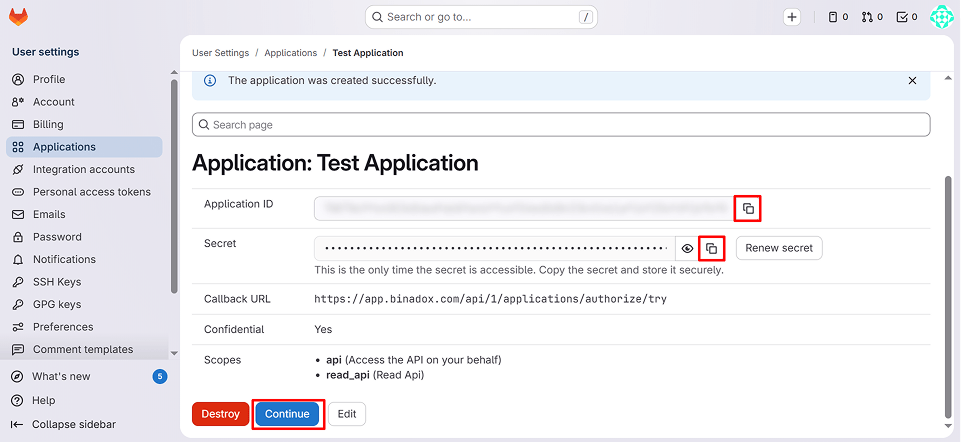
Copy and store them securely. GitLab confirms these are provided after you save the application.
Configure GitLab Connection in Binadox
Go to SaaS Connections (or your integrations area). Find and open GitLab.
Enter a Connection Name (any friendly label).
Paste:
- Client ID (Application ID from GitLab)
- Client Secret (Secret from GitLab)
Click Connect.
Troubleshooting
| Issue | Cause | Fix |
|---|---|---|
| The redirect URI included is not valid | Redirect URI mismatch | Ensure the Redirect URI in GitLab exactly matches the one Binadox expects. |
| Connect works but data is limited | Insufficient scopes | Re-check that api and read_api are enabled for the GitLab application. |
| “invalid_client” / token exchange fails | Wrong Client ID/Secret | Re-copy Application ID and Secret from GitLab and update in Binadox. |