


Notion Integration
This guide explains how to connect Notion to Binadox using a Notion Internal Integration. You will create a new integration in Notion, configure permissions, and use the generated secret in Binadox.
Create Internal Integration in Notion
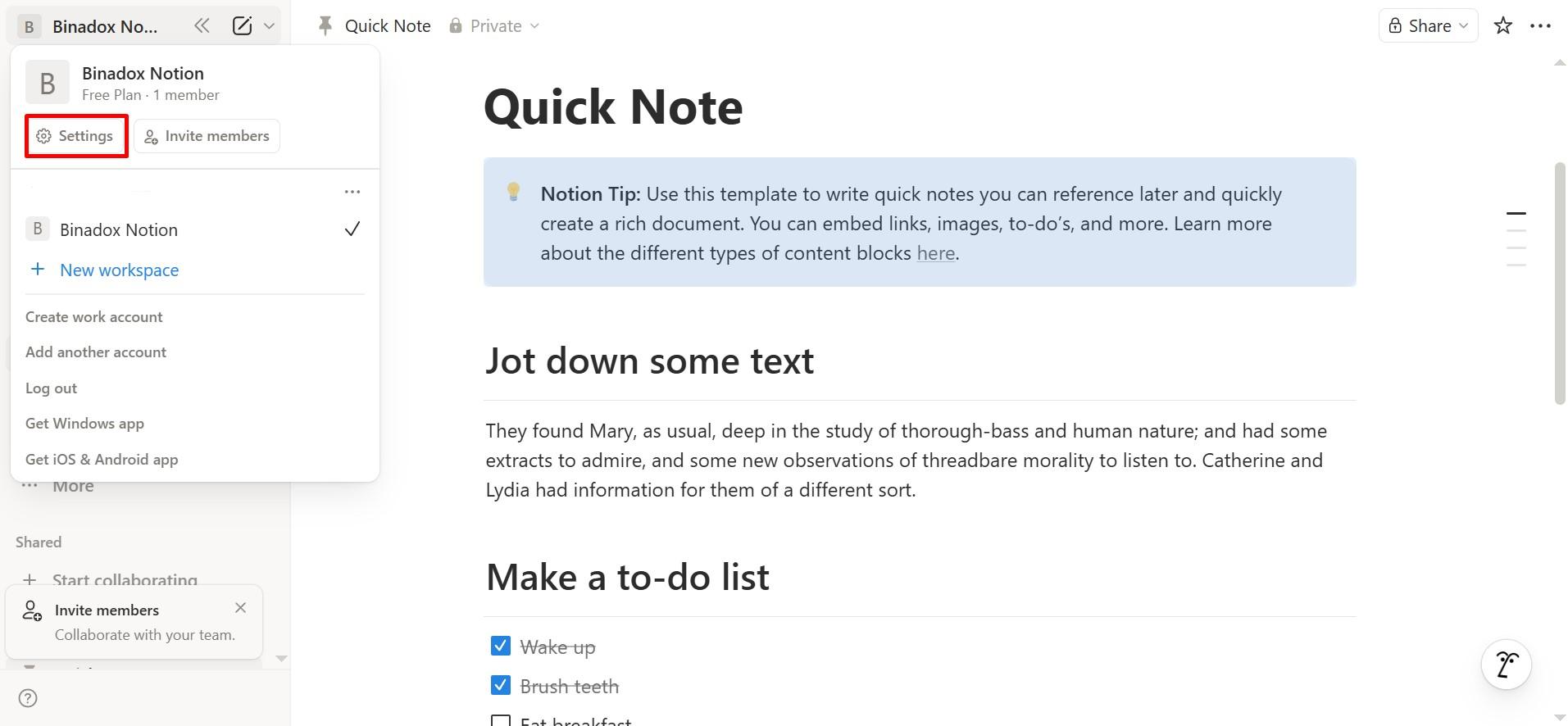
Open your Notion workspace. Click your workspace name in the top left corner and select Settings.
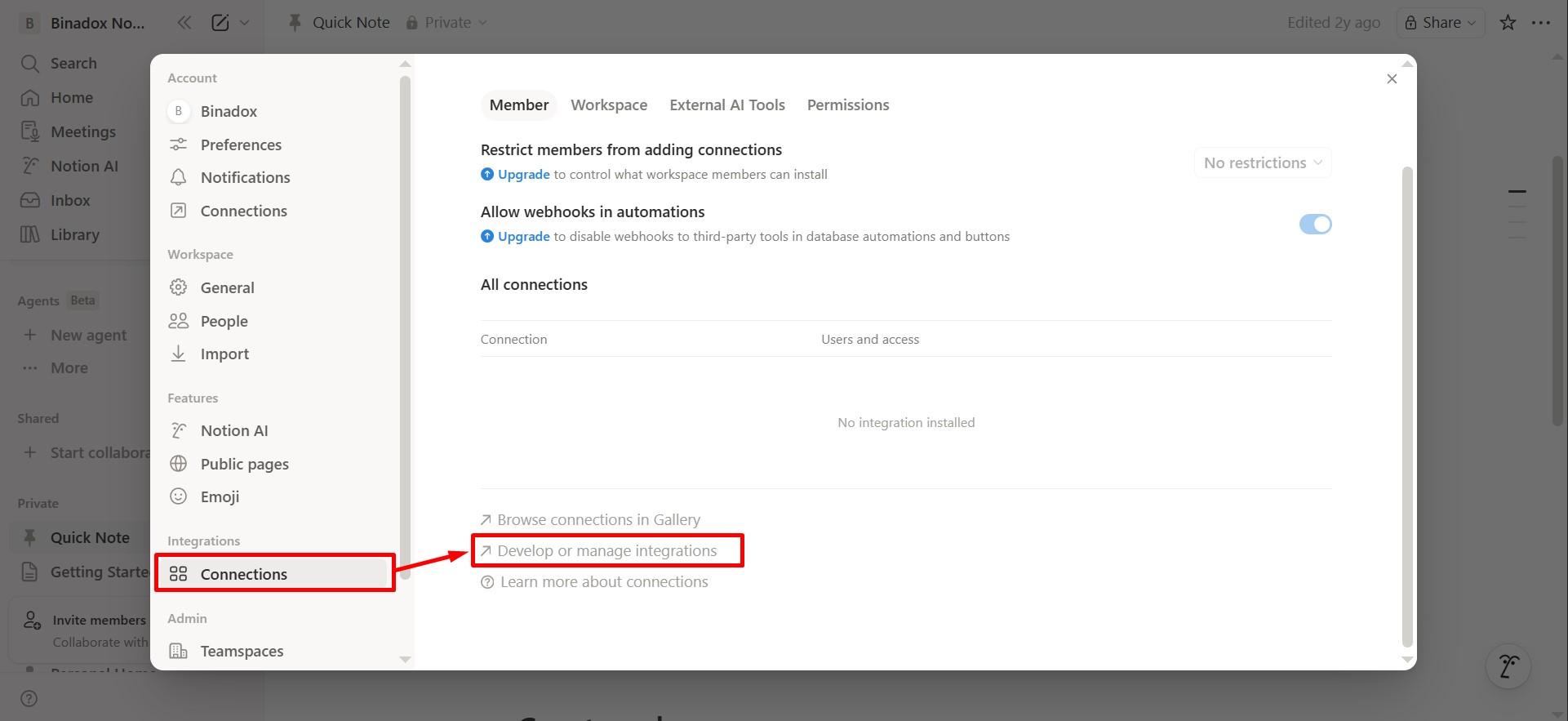
In the left sidebar, go to Connections, then click Develop or manage integrations.
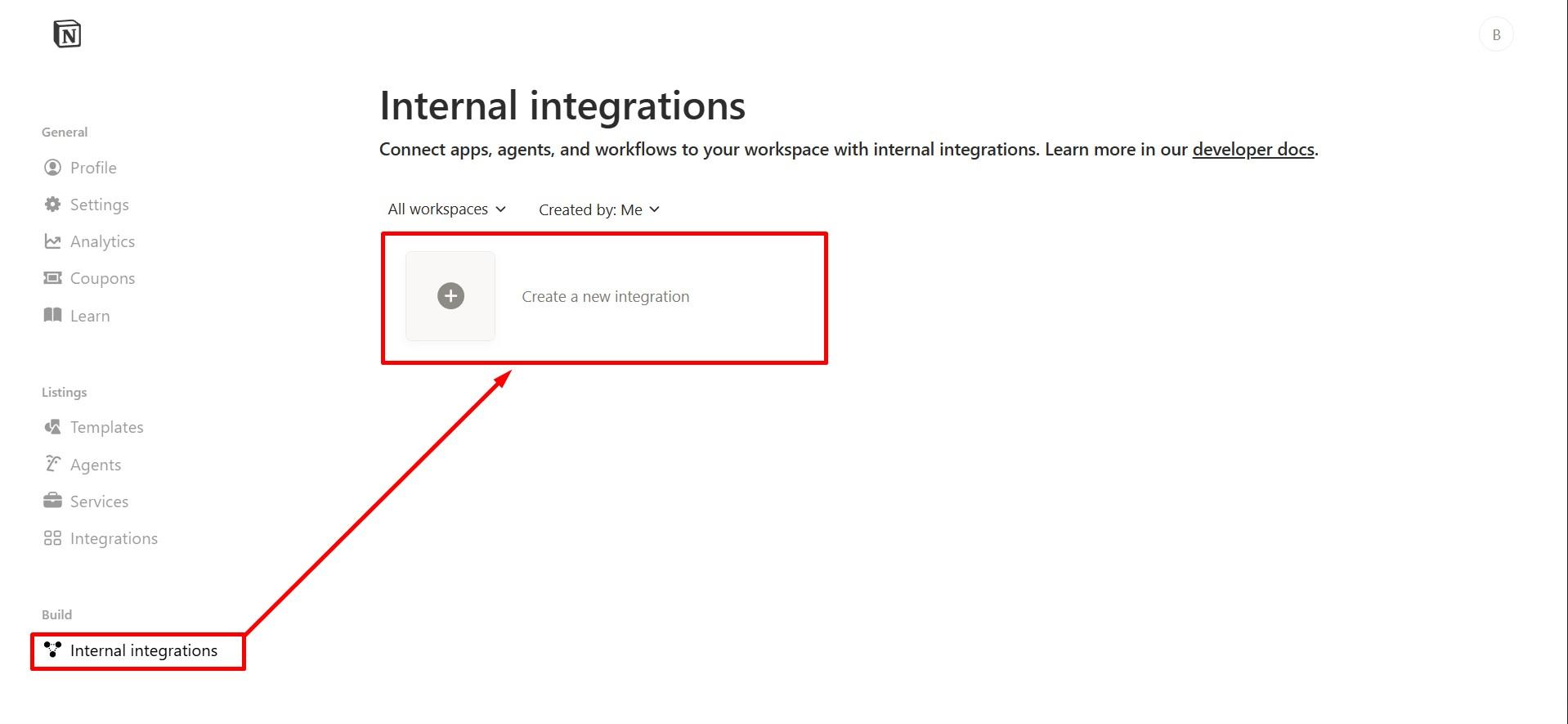
Open Internal integrations and click Create a new integration.
Fill in Integration Details
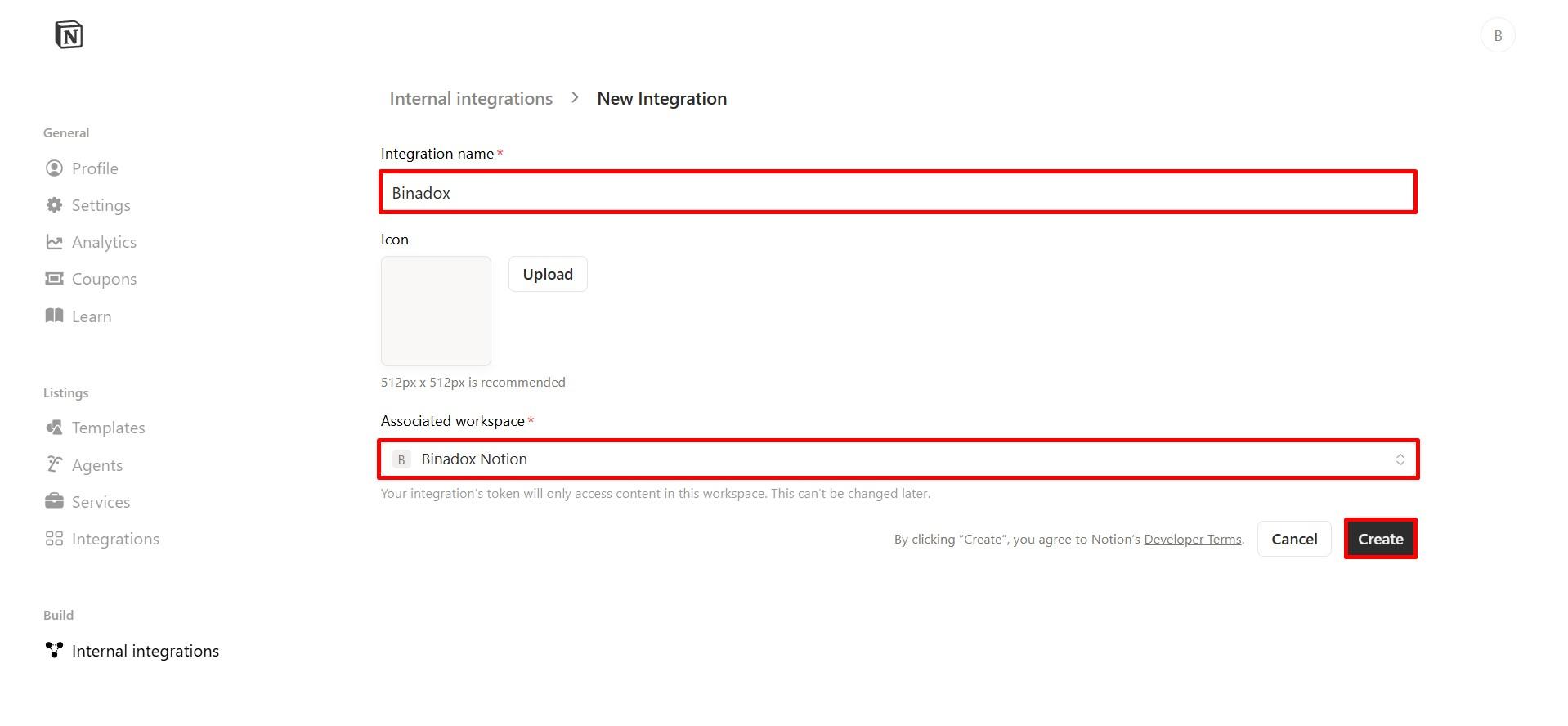
Complete the form:
- Integration name – Binadox
- Associated workspace – Select your workspace
Click Create.
Configure Content Access
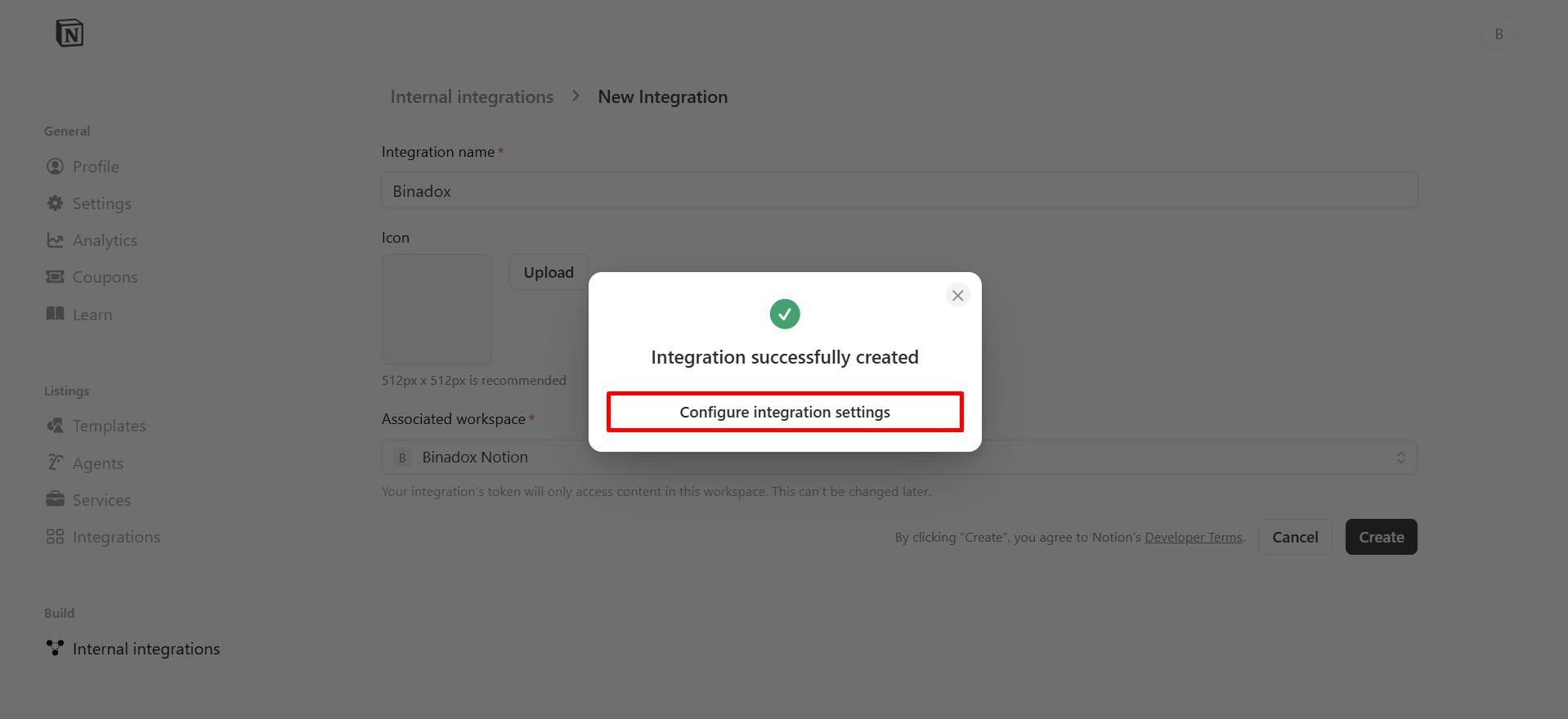
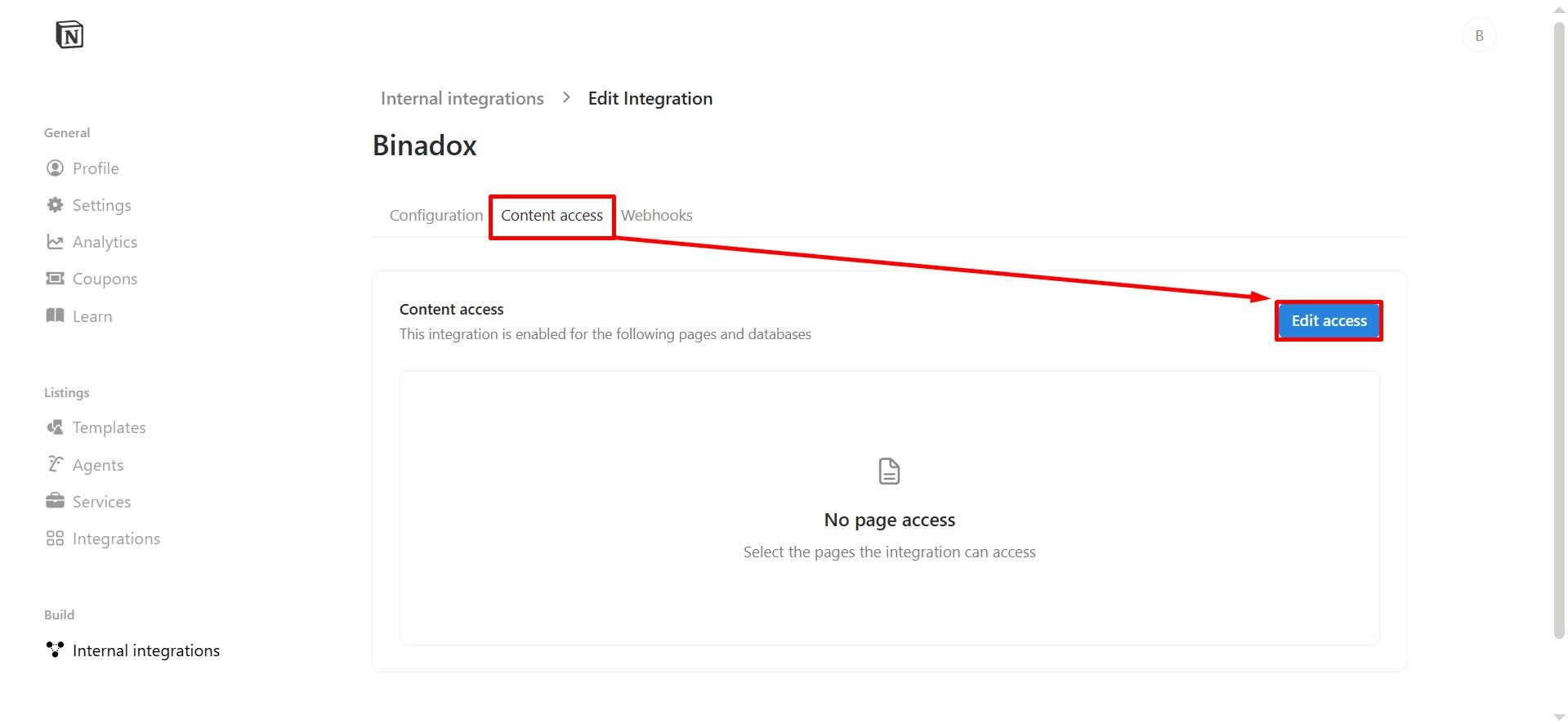
After creation, click Configure integration settings, then open the Content access tab and click Edit access.
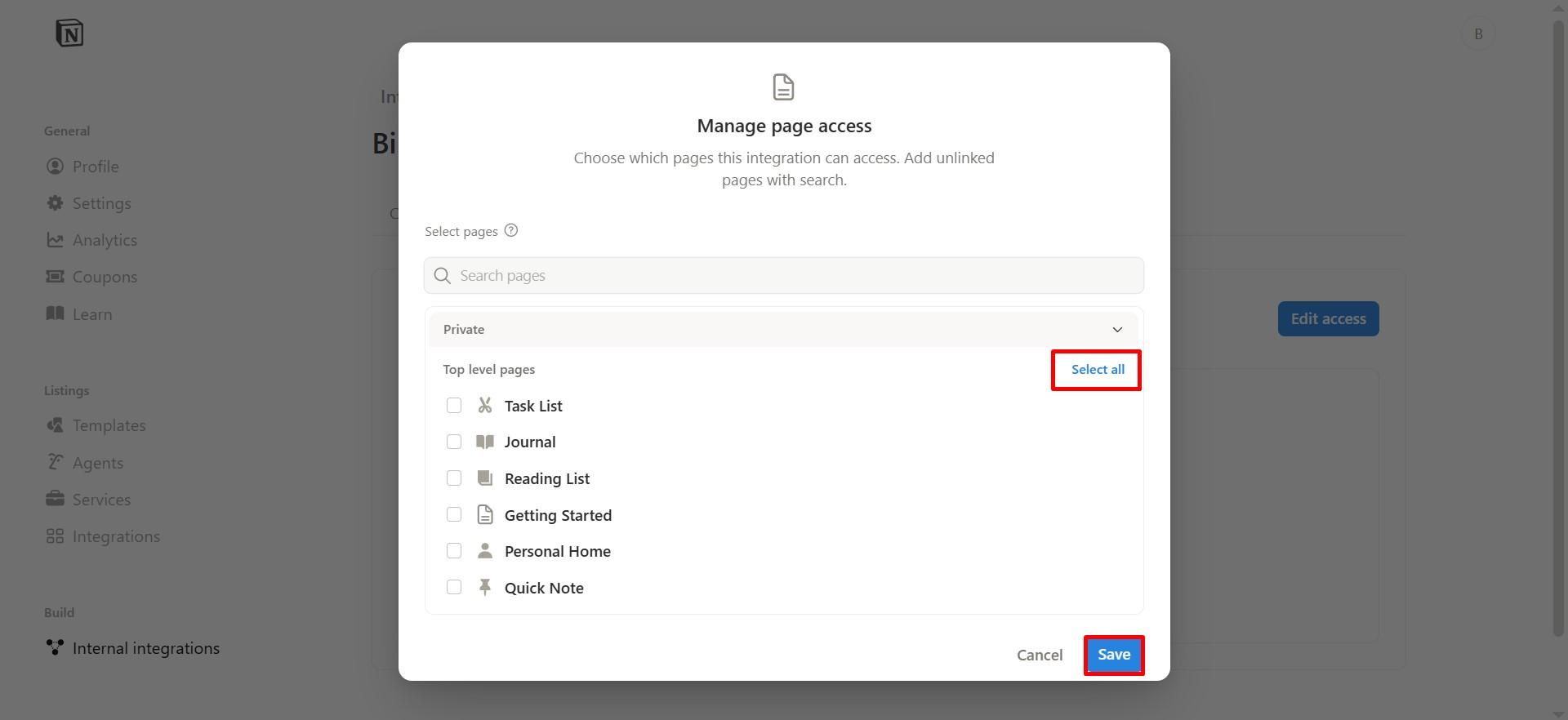
Select the pages the integration should access. To grant access to all pages, click Select all, then click Save.
Configure Capabilities
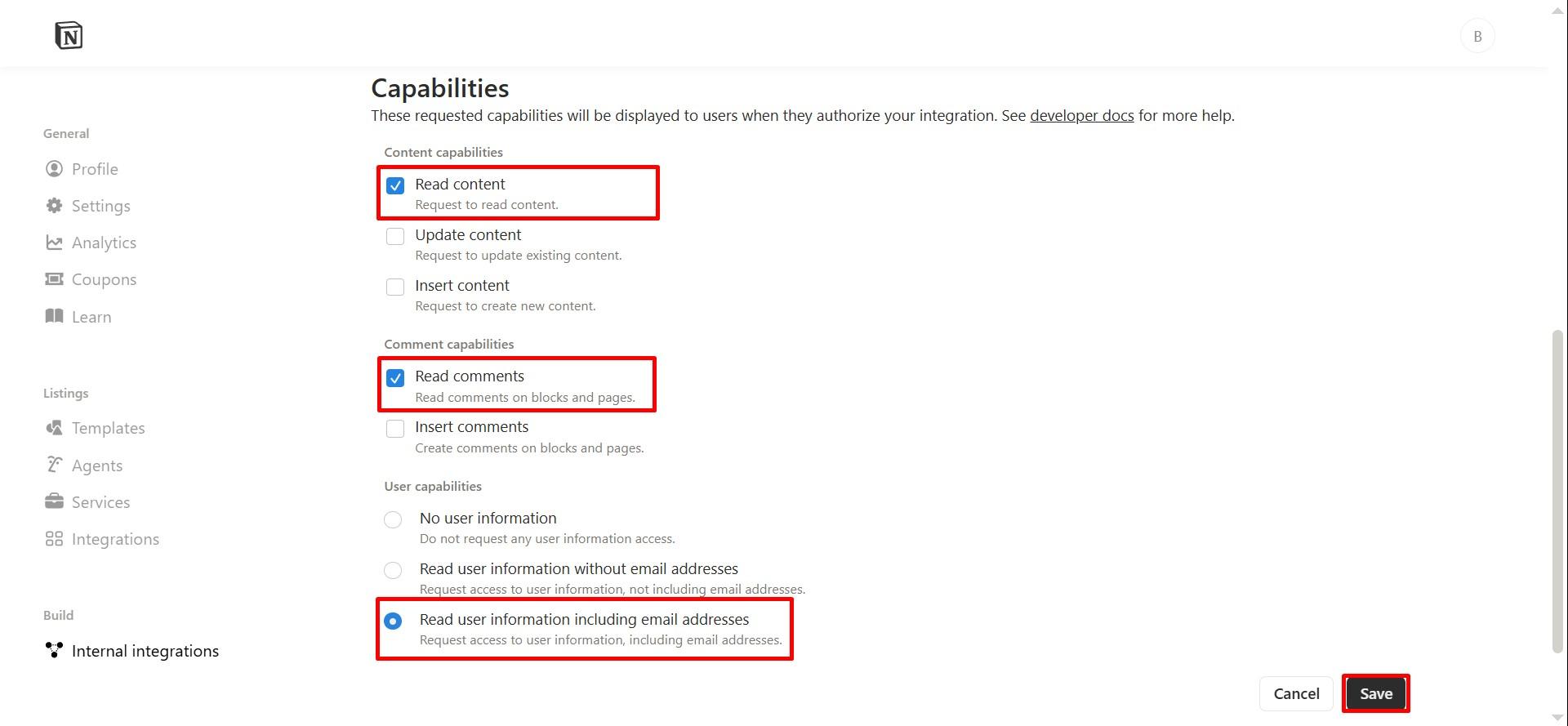
Scroll to the Capabilities section and enable:
- Read content
- Read comments
- Read user information including email addresses
Click Save.
Copy Integration Secret
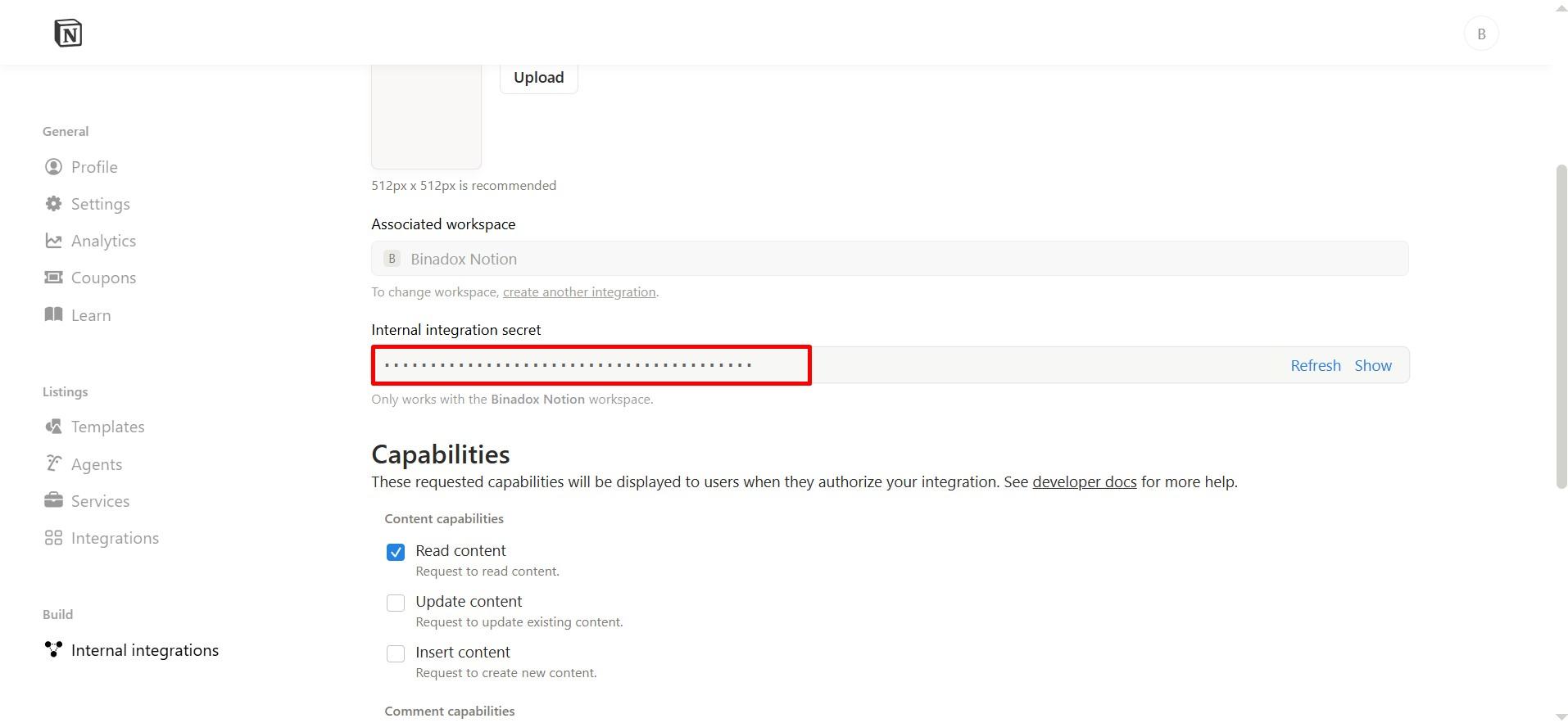
Scroll up to the Internal integration secret field and copy the generated secret key. You will need this value in Binadox.
Complete Connection in Binadox
In the Binadox dashboard, go to SaaS Connections and find Notion in the list of available integrations.
Enter a Connection Name.
Paste the Internal Integration Secret copied from Notion, then click Connect.
Once the connection is successful, Notion will be connected to Binadox.