



It’s a frustrating scenario: you sign up for the Google Cloud Platform (GCP) free trial, explore its features, and then discover an unexpected charge on your credit card. The GCP free trial is designed to be a risk-free way to learn, offering $300 in credits for 90 days. You shouldn’t be billed unless you manually upgrade to a paid account. Yet, a surprise GCP free trial charge can happen, and when standard support channels don’t resolve it, the situation can feel hopeless. This article provides a clear, step-by-step guide for what to do when you’re charged unexpectedly and how to proceed when your initial attempts to contact GCP billing support fall flat.
Key takeaways
- Prevention is Key: Actively manage your trial by setting budget alerts and understanding the difference between the Free Trial and the Always Free tier to avoid surprise charges.
- Document Everything: Before contacting support, gather detailed evidence, including screenshots of your billing reports, resource usage, and any relevant project IDs.
- Follow a 4-Step Escalation Path: If initial support fails, systematically escalate your case by requesting a manager, using public forums, and, as a final measure, considering a chargeback.
- Secure Your Account: After resolving the charge, immediately close the billing account or unlink projects to prevent any future unwanted costs.
Understanding Why You Might Get a GCP Free Trial Charge
The GCP Free Trial is explicitly designed to prevent automatic charges. When your $300 credit is used or the 90-day period ends, your resources are stopped, not converted to a paid plan. A charge typically only occurs if you manually click the “Upgrade” or “Activate” button, which converts your account to a paid “pay-as-you-go” model.
However, unexpected charges can still appear for a few key reasons:
- Accidental Upgrade: You or a team member might have upgraded the account without fully realizing the implications, thinking it was necessary to access certain features.
- Usage Beyond Free Tier After Upgrade: If you upgrade, you are responsible for any usage that exceeds your remaining trial credits or the limits of the “Always Free” tier.
- Misunderstanding Free Trial vs. Free Tier: The Free Trial gives you a $300 credit for most GCP services. The Always Free tier provides limited, non-expiring usage of specific services each month. Confusion between the two can lead to using services that aren’t covered by the Always Free tier after your trial credits are gone.
- Compromised Account or Leaked API Keys: In some cases, unauthorized activity on your account from a leaked API key can lead to massive, unforeseen bills.
Before taking action, use the GCP Console’s billing reports to investigate the source of the charge. Navigate to the “Billing” section and analyze the reports by project, service, and SKU to pinpoint exactly what service incurred the cost. This information is crucial for the next steps.
The Standard Procedure: How to Contact GCP Billing Support
When you first notice an incorrect charge, the standard procedure is to contact Google’s billing support directly. All Google Cloud accounts, including those on a free trial, come with free billing support. You must typically be a Billing Account Administrator to file a support request.
Step-by-Step Guide to Filing a Support Case
- Navigate to the Google Cloud Console: Go to the “Help and support” section.
- Select Billing: In the support menu, choose “Billing” as the product or category. This will direct you to the Billing Assistant.
- Create a Case: Follow the prompts to create a new support case. Provide as much detail as possible, including the exact amount charged, the date of the charge, the billing account ID, and the project ID associated with the cost. Attach the screenshots you gathered during your investigation.
- Use the Troubleshooter: If you are not a billing administrator, Google provides a billing concerns troubleshooter that can help you with issues like unknown charges and guide you toward the right contact path.
Once submitted, you will receive a case number. Keep this number for all future correspondence. The initial response time can vary, so be patient but prepared to follow up.
When Standard Support Fails: Your Escalation Strategy
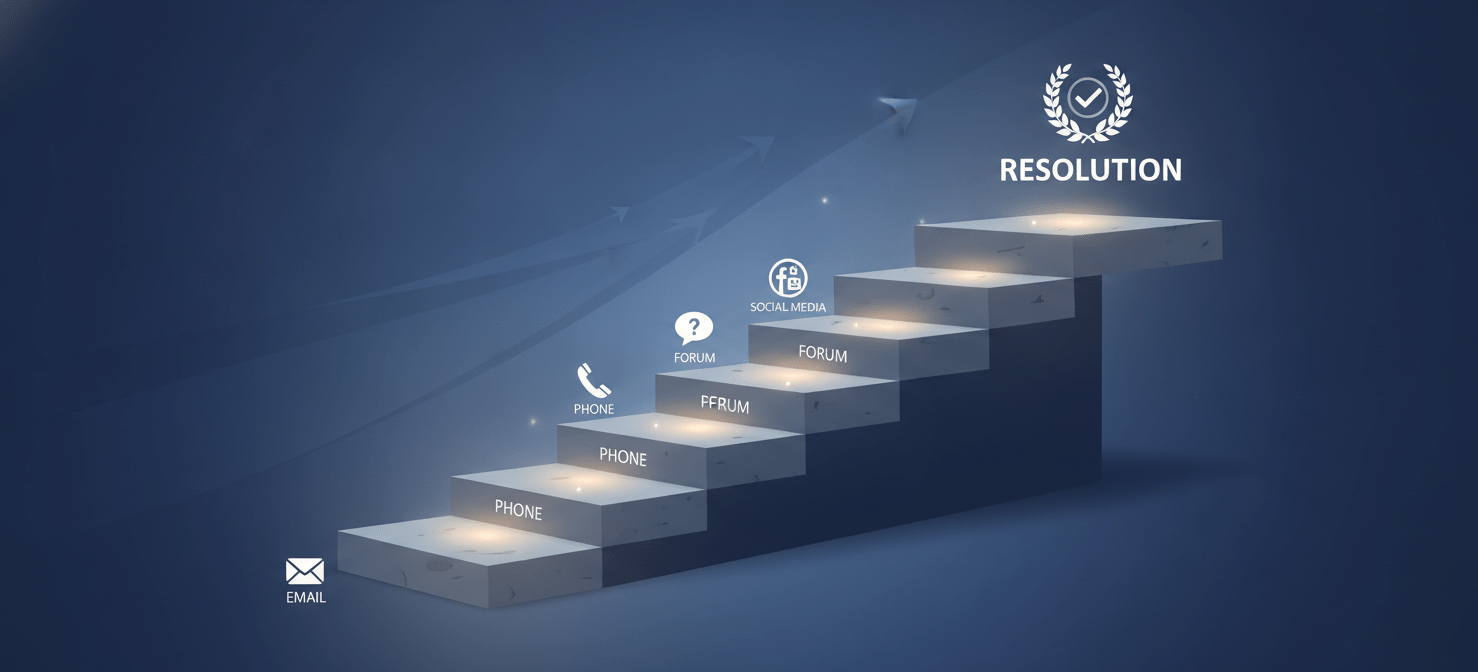
You’ve filed a ticket, explained the situation, and provided evidence, but you’re met with a generic response or, worse, silence. This is where a clear escalation strategy becomes essential. Don’t give up; instead, become more methodical.
Step 1: Re-engage and Request Escalation
Your first move is to reply to your existing support case email. State clearly and politely that your issue has not been resolved and you wish to escalate the case. You can do this directly within the support case in the Google Cloud Console by clicking the “Escalate” button, which typically appears 30 minutes after case creation. When escalating, you’ll need to provide a reason, such as “Business Impact” or “Resolution Time,” and a justification. This action assigns the case to an Escalation Manager who should contact you within an hour.
Step 2: Take the Issue Public (Carefully)
If direct escalation yields no results, the next step is to raise the issue in a public forum where Google employees are active. This creates visibility and can sometimes prompt a faster internal review.
- Google Cloud Community Forums: Post a detailed, professional summary of your problem. Focus on the facts: you were on a free trial, you were charged, and standard support has been unresponsive. Include your original case number.
- Social Media: Platforms like Twitter (now X) and Reddit can be effective. On Twitter, mention official accounts like
@googlecloudor@GoogleCloudTech. On Reddit, the r/googlecloud subreddit is a place where other users and sometimes Googlers can offer advice.
When posting publicly, never share sensitive personal information like your full credit card number or account credentials. Stick to the case number and a factual description of the problem.
Step 3: The Final Resorts
If all else fails, you have two final options. These should be used with caution as they can have lasting consequences.
- File a Chargeback: Contact your credit card company or bank and dispute the charge. This process, known as a chargeback, initiates an investigation by your financial institution. Be aware that this can be a slow process, sometimes taking up to 120 days, and may lead to the suspension of your Google Cloud account.
- Close Your Billing Account: To prevent any future charges, you can and should close your Cloud Billing account. This is a definitive action that stops all billable services linked to the account. You can do this from the “Account management” section within the Billing page of the console.
How to Prevent Unexpected Charges in the Future
Once you’ve resolved the immediate issue, it’s critical to secure your account and adopt practices to prevent it from happening again. Prevention is always better than a stressful and time-consuming dispute.
Proactive Cost Management
- Set Budget Alerts: This is the most important preventive measure. In the GCP Billing console, you can create budgets for specific projects or your entire account. Set alerts to notify you via email when your spending reaches certain thresholds (e.g., 50%, 90%, and 100% of your budget). While alerts won’t stop services from running, they give you an early warning.
- Understand Quotas and Limits: GCP imposes quotas on resource usage. While these are meant to prevent abuse, you can also use them to set hard limits on certain services, effectively capping potential costs.
- Regularly Audit Resources: Make it a habit to check for idle resources, such as unused virtual machines or storage buckets, and delete them promptly.
- Secure API Keys: If your work involves API keys, treat them like passwords. Restrict their use to specific IP addresses or services and rotate them regularly to minimize the risk of a costly leak.
Conclusion
Receiving an unexpected GCP free trial charge is a jarring experience, especially when the support system designed to help seems unresponsive. The key is to remain calm and methodical. Start by thoroughly investigating the charge within your billing reports, then follow the standard support procedure. If that fails, escalate your case through official channels before turning to public forums. As a last resort, a chargeback or closing your billing account can provide a final resolution. Ultimately, the best defense is a good offense: use budget alerts, secure your account, and actively manage your resources. A little proactive management ensures your exploration of the cloud remains an educational experience, not a financial headache.
The best way to avoid future billing surprises is through proactive management and robust cost visibility. For a comprehensive solution to manage your cloud spending and prevent unexpected charges, consider exploring a free Binadox trial or arranging a demo to understand its capabilities.
 7-day free trial