


Monday.com Integration
This guide explains how to connect monday.com to Binadox using a personal API token. You will generate the token in the monday.com Developer Center and enter it in Binadox to complete the connection. Once connected, Binadox collects license and user activity data from your monday.com account, so you can track subscription costs, see which seats are actually used, and reallocate licenses that sit idle.
Note:
Generate the token under an account with admin rights. A token issued by a regular member returns only the data that member can see, and the connection will show incomplete user statistics.
Get the monday.com API token
Log in to monday.com and click your avatar in the top right corner. In the Account column of the menu, select Developers.
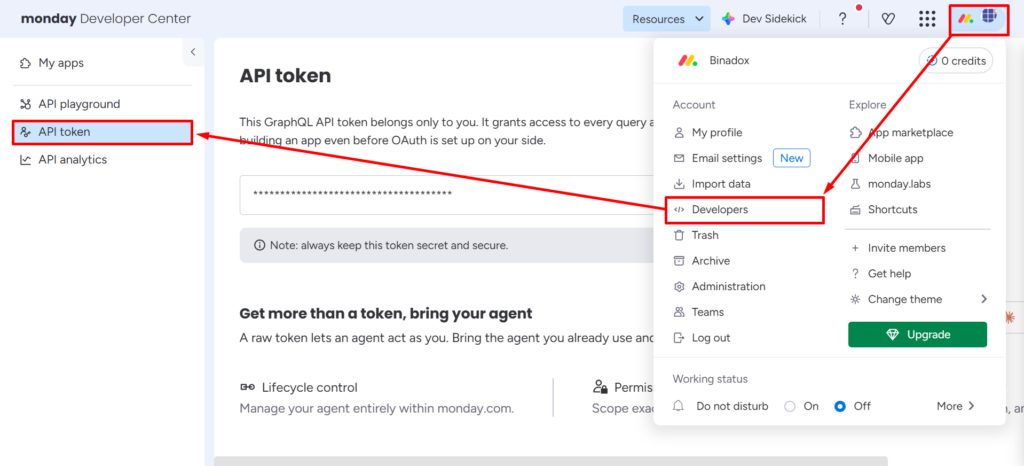
The monday.com Developer Center opens in a new tab. In the left sidebar, click API token.
Click Copy next to the token field. If you want to check the value first, click Show.
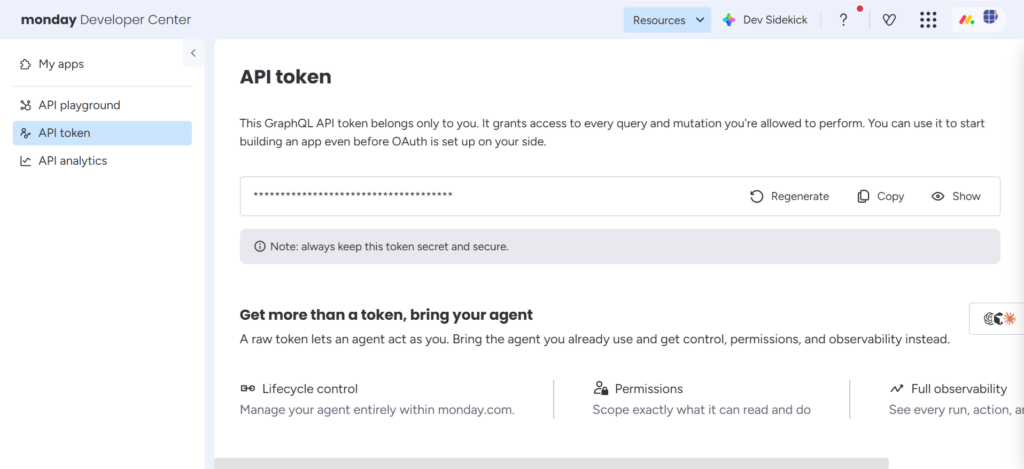
Keep the token secret. It grants access to every query and mutation your account is allowed to perform. If the token has been exposed, click Regenerate and update it in Binadox afterwards, otherwise the connection stops collecting data.
Complete connection in Binadox
Log into your Binadox account.
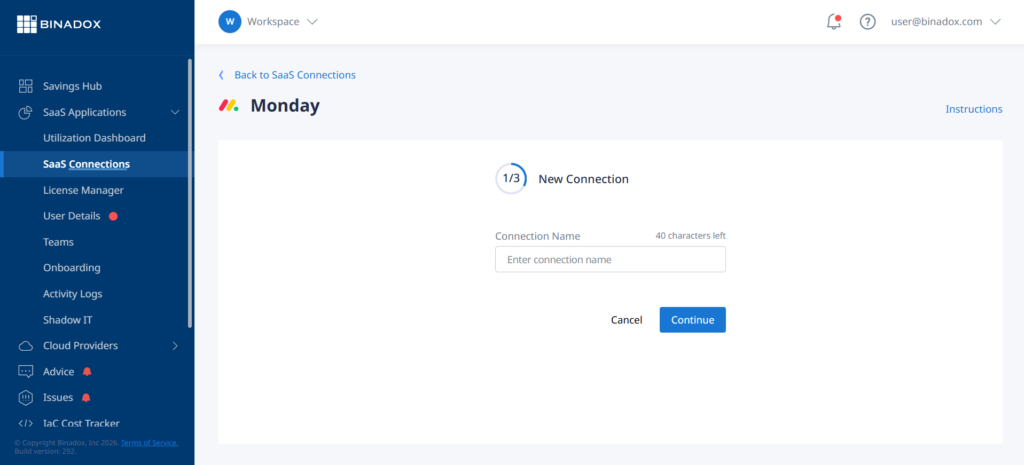
In the navigation pane on the left, click SaaS Connections. Click on the Monday icon. To quickly locate Monday in the list of supported applications, type in its name in the search bar.
Create a unique connection name. Click Continue.
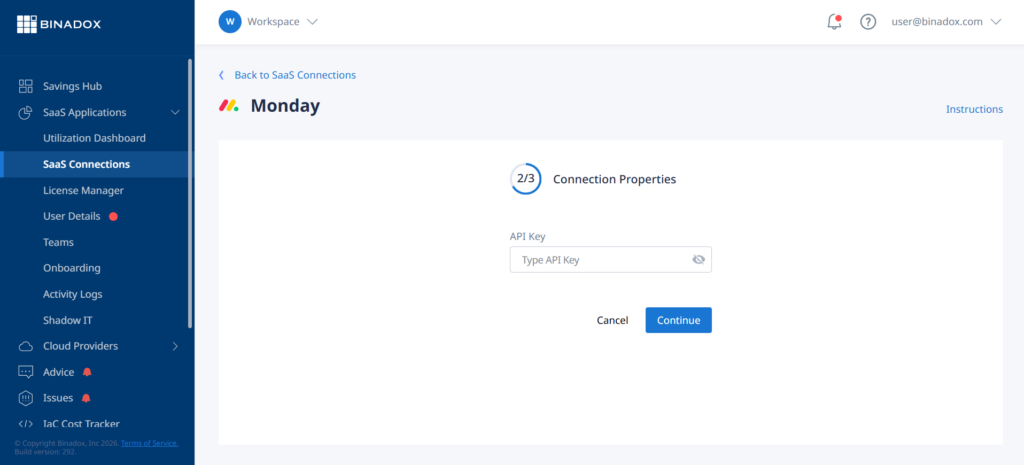
Paste the token you copied from the Developer Center into the API Key field. Click Continue.
In the First Billing Date field, specify the date your monday.com subscription was first charged. Binadox uses this date to build the payment history and to calculate the renewal cycle. Click Connect.
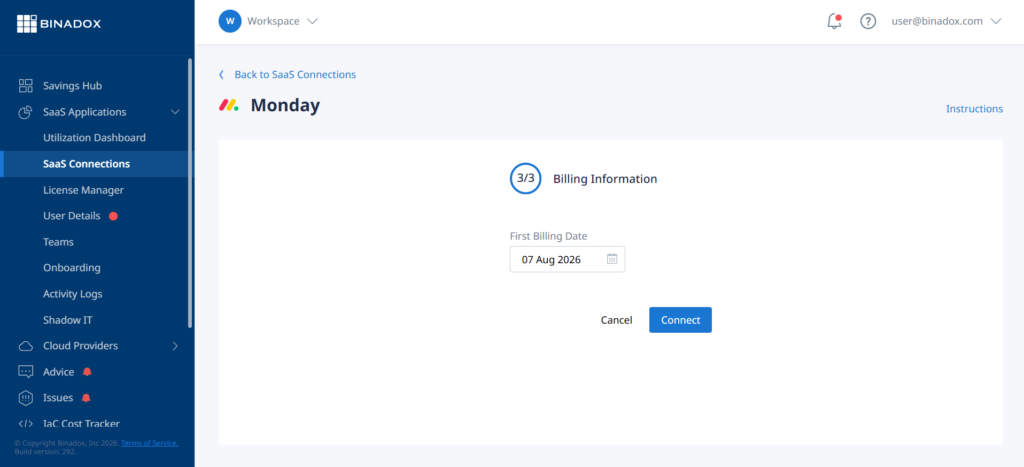
Upon successful Monday configuration, the connection status will switch into Connected. The first data collection takes several minutes. After that, usage and license data appear in the Utilization Dashboard, License Manager, and User Details sections.