


Basecamp Integration
This guide explains how to connect Basecamp to Binadox using a Basecamp OAuth 2 application. You will register the application in 37signals Launchpad, obtain the required credentials, and use them in Binadox to complete the connection.
Once connected, Binadox reads your Basecamp account and user data, so you can track subscription costs, see how many seats are actually in use, and reclaim the ones that are not.
Note:
Register the application under an account with administrator rights. An application registered by a regular member returns only the data that member can see, and the connection will show incomplete user statistics.
Register Basecamp Application
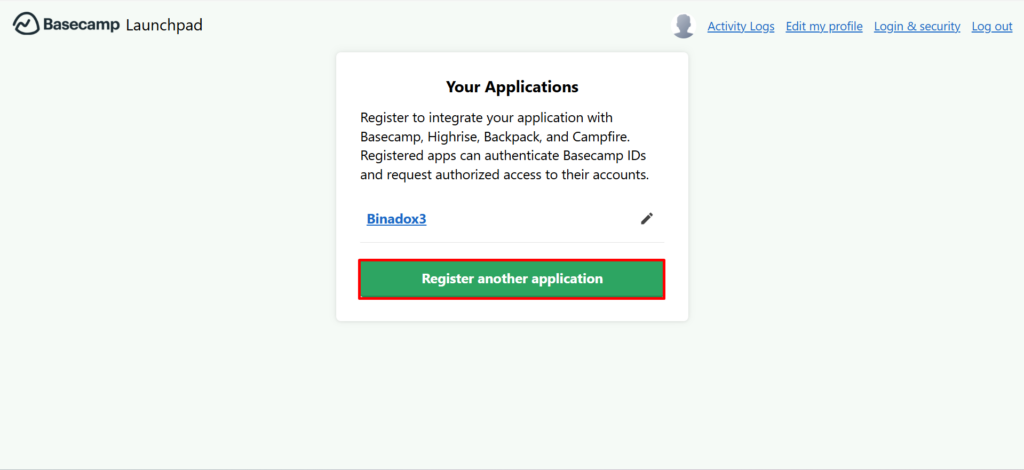
Open 37signals Launchpad and sign in with your Basecamp ID. On the Your Applications page, click Register another application. If you have no applications yet, the button is labeled Register one now.
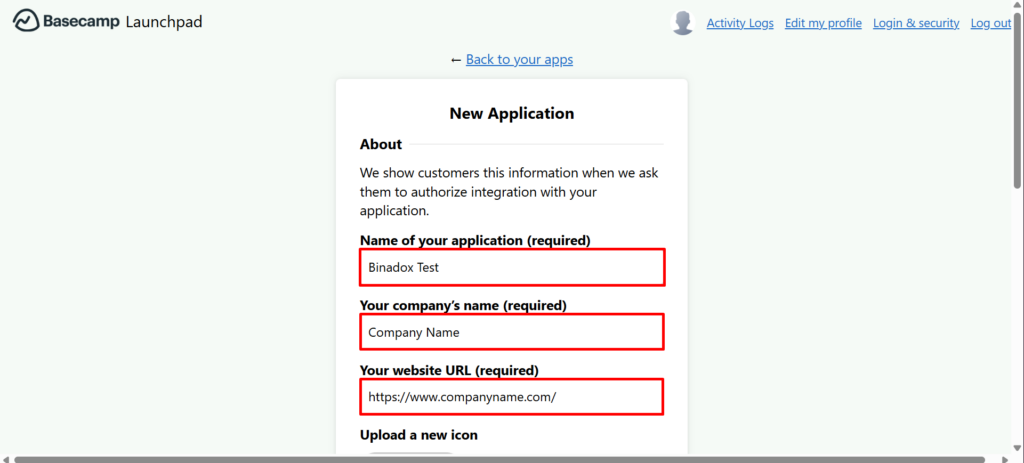
Fill in the About section of the form:
- Name of your application: Binadox
- Your company’s name: your company name
- Your website URL: your company website URL
Basecamp shows these details to users when it asks them to authorize the integration.
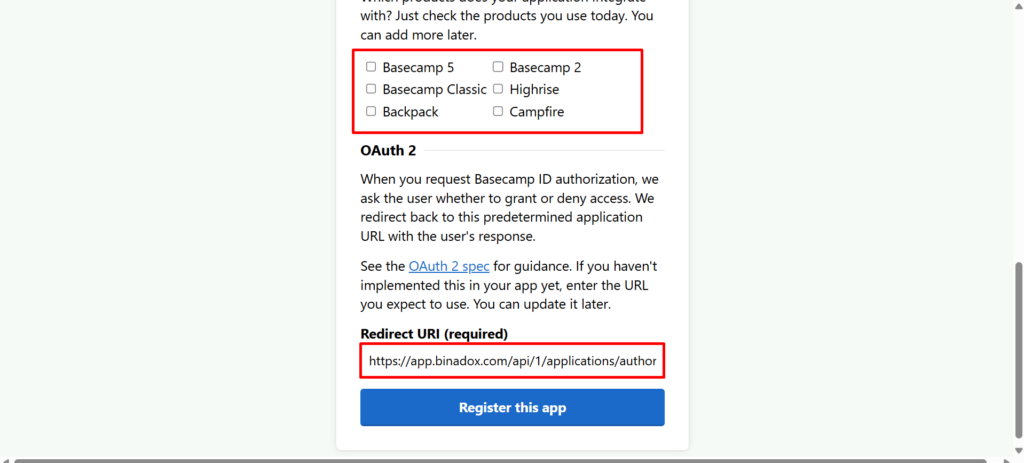
Scroll down to the Products section and select the Basecamp products your organization uses. You can add more later.
In the OAuth 2 section, enter the redirect URI: https://app.binadox.com/api/1/applications/authorize/try
Basecamp matches the redirect URI as an exact string, so copy it without changing the protocol, the path, or the trailing part of the address. Any mismatch causes an error during authorization.
Click Register this app.
Copy OAuth Credentials
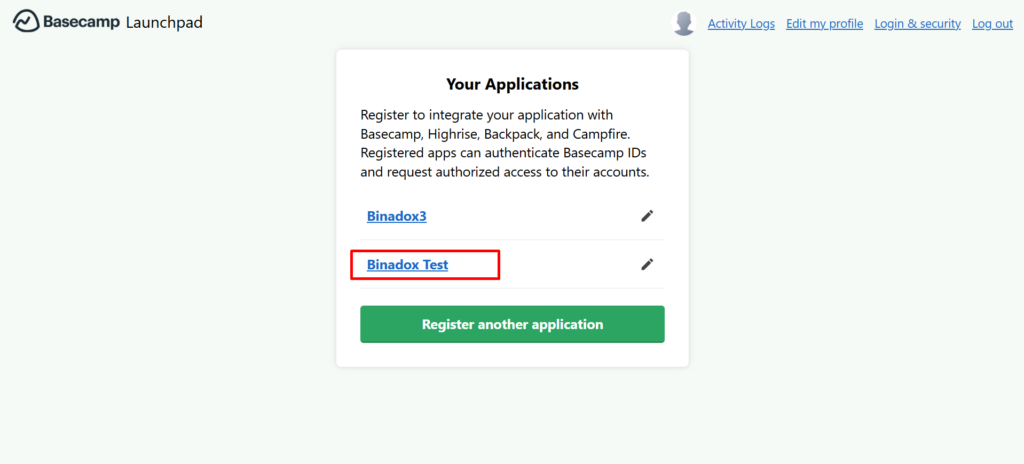
You return to the Your Applications page. Click the name of the application you just registered.
On the application page, scroll to the OAuth 2 section and copy the following values:
- Client ID
- Client Secret
You will need both values to complete the setup in Binadox. To change the application details later, use Edit app details on the same page.
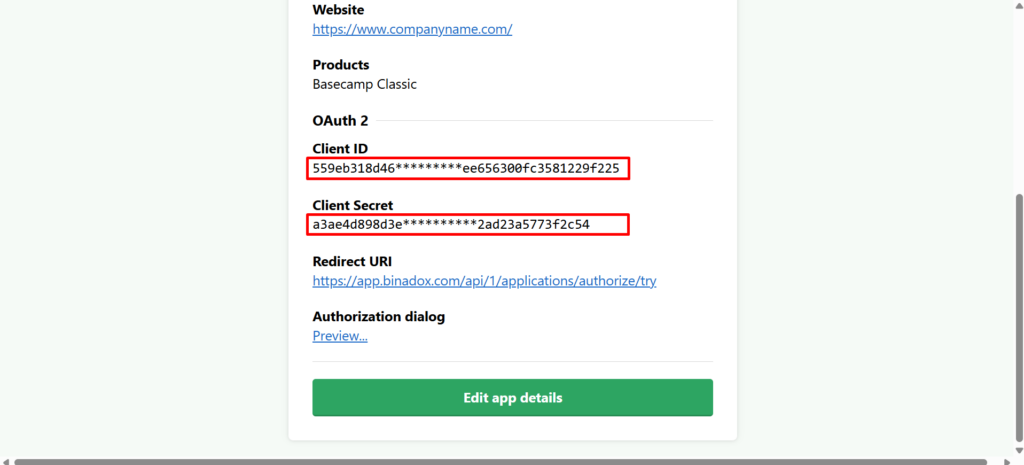
Keep the client secret private. Anyone with both values can request access to accounts that authorized the application.
Complete Connection in Binadox
Log into your Binadox account.
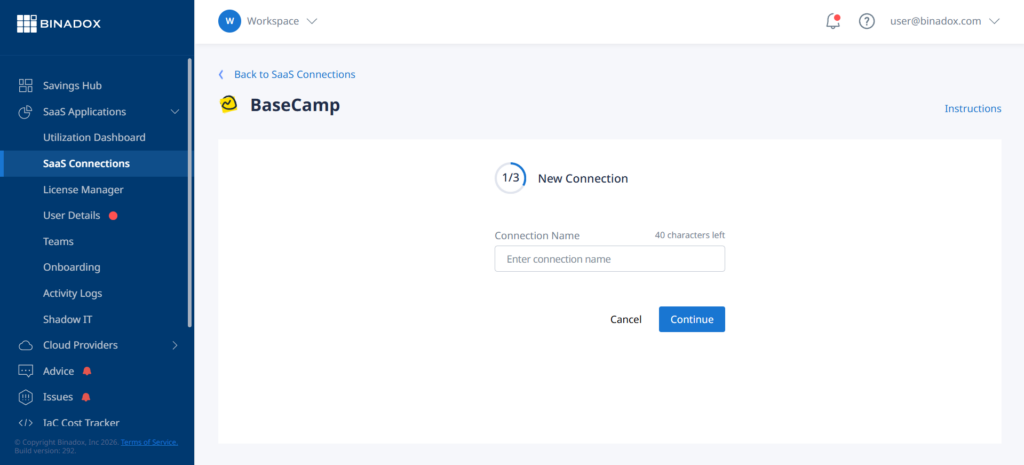
In the navigation pane on the left, click SaaS Connections. Click on the BaseCamp icon. To quickly locate BaseCamp in the list of supported applications, type in its name in the search bar.
Create a unique connection name for further differentiation. Click Continue.
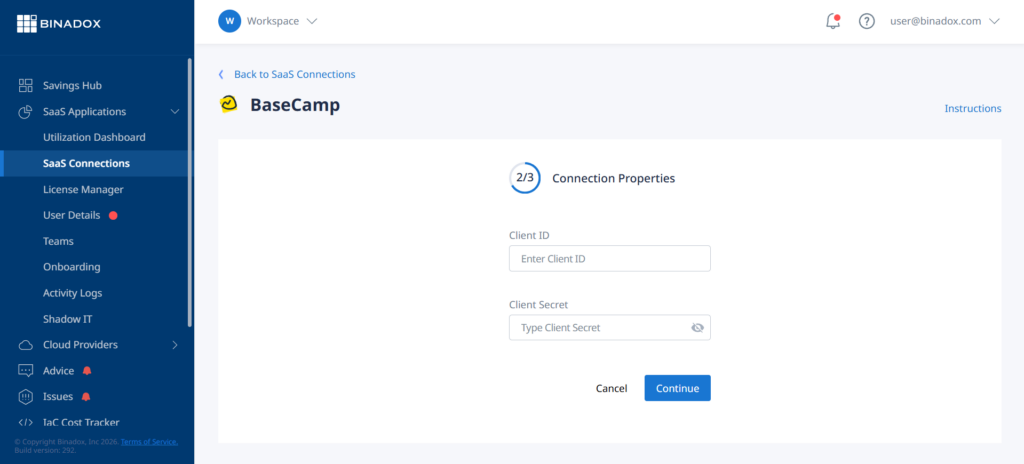
Enter the Client ID and Client Secret you copied from Launchpad. Click Continue.
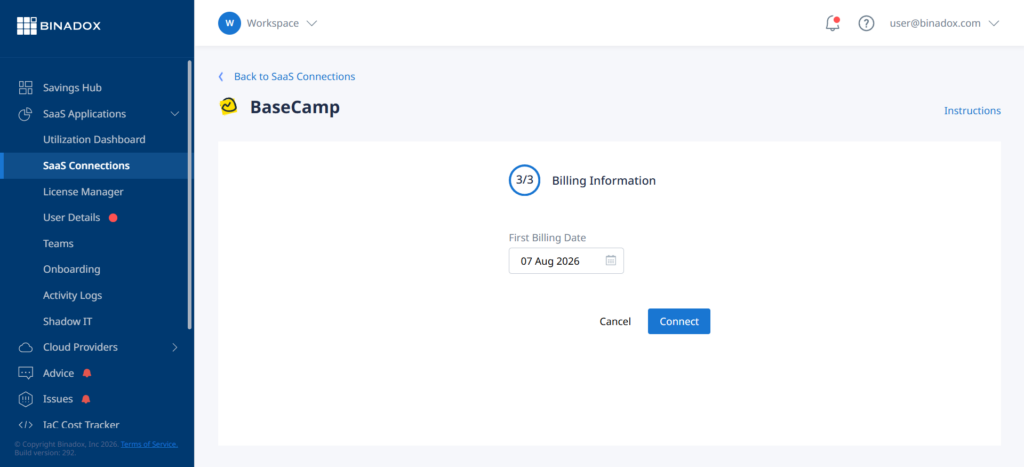
In the First Billing Date field, specify the date your Basecamp subscription was first charged. Binadox uses this date to build the payment history and to calculate the renewal cycle, so a wrong date shifts the whole cost timeline. Click Connect and complete the authorization process on the Basecamp side.
Upon successful authorization, the connection status will switch into Connected. The first data collection takes several minutes. After that, usage and license data appear in the Utilization Dashboard, License Manager, and User Details sections.