


DUO Security Integration
This guide explains how to connect DUO Security to Binadox via the DUO Admin API. After completing this setup, Binadox will be able to collect authentication data and user information directly from your DUO environment.
Prerequisites
- The Administrator access to the DUO Admin Panel.
- The Binadox account with access to Integration configuration.
1. Log in to the DUO Admin Panel
Sign in Admin DUO Security using your administrator credentials.
2. Create a DUO Admin API Application
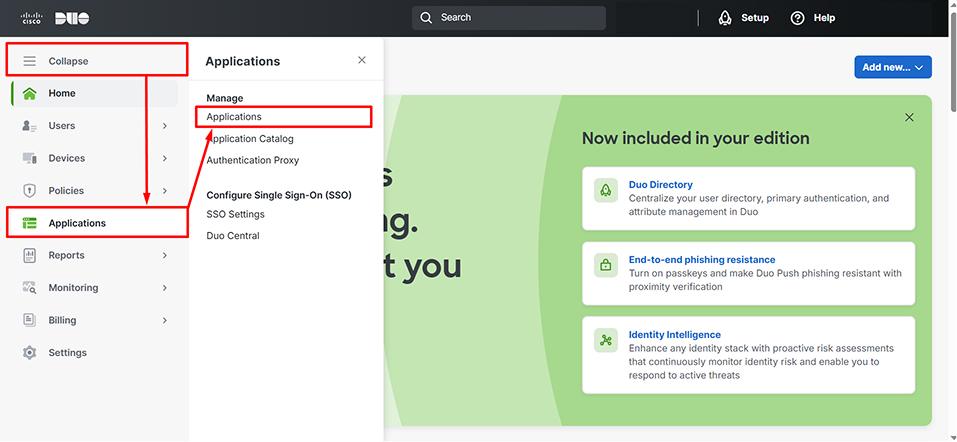
In the left navigation menu select Applications. Choose Applications from the submenu.
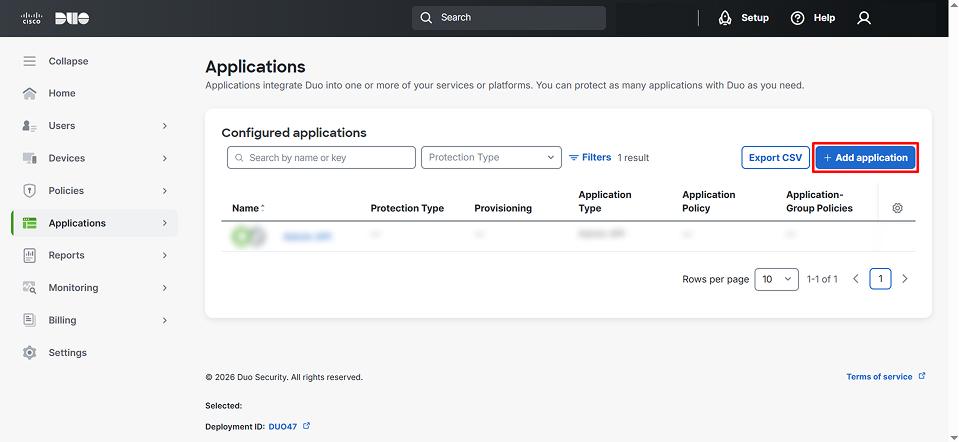
Click the Add application button in the top-right of the Applications list.
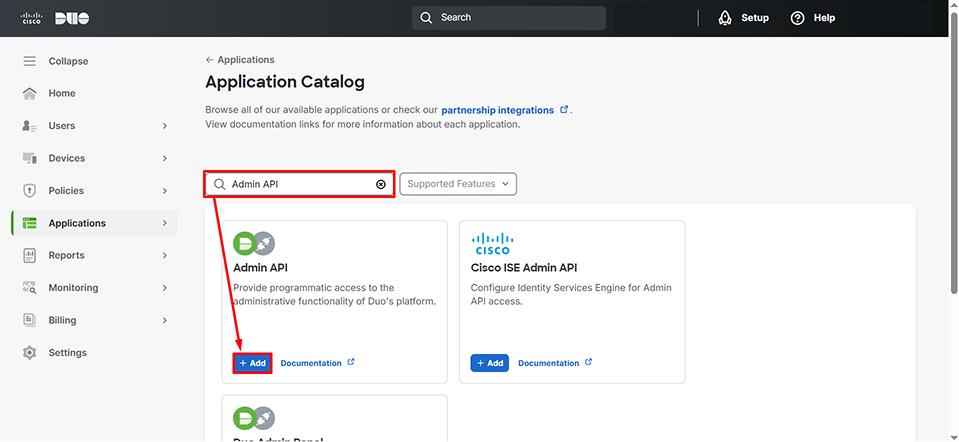
In the Application Catalog search bar, type Admin API. Locate the card labeled Admin API. Click + Add to create the DUO Admin API application.
3. Copy API Credentials
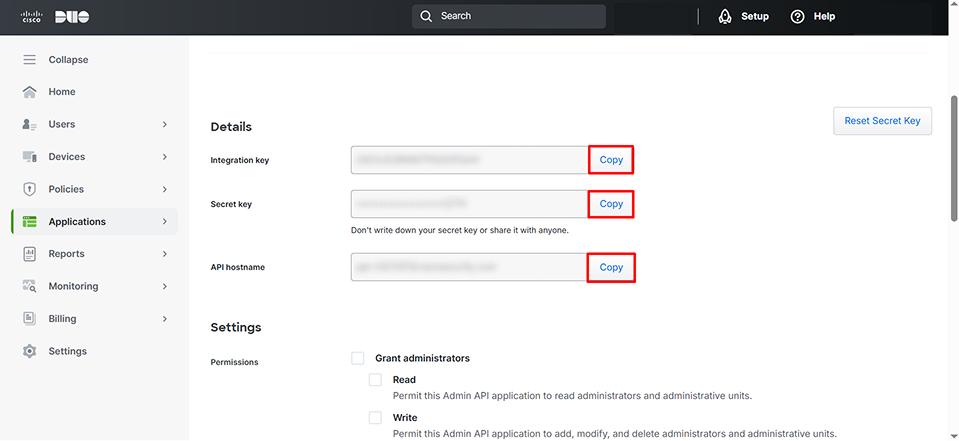
Once the Admin API application is created, DUO displays the API credentials:
- Integration Key
- Secret Key
- API Hostname
Click Copy next to each field to save them — these values are required when configuring the integration in Binadox.
Note:
Keep the Secret Key secure — never share it publicly.
4. Configure API Permissions
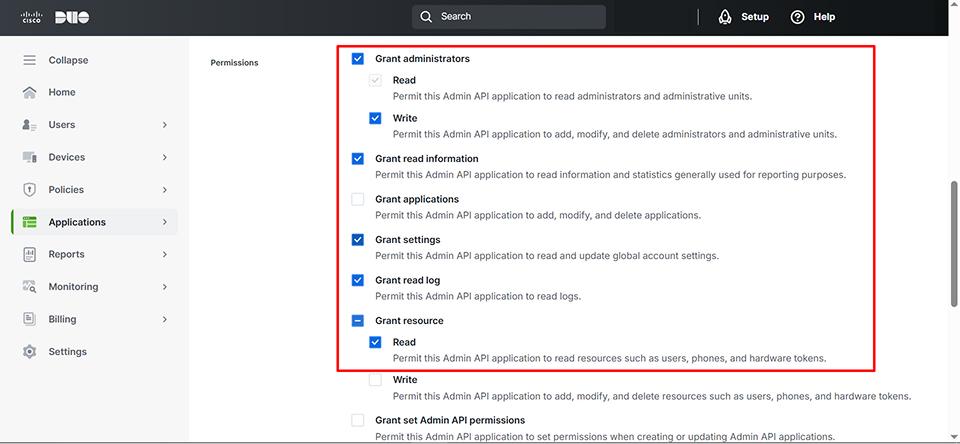
The Admin API app requires sufficient permissions to read DUO data. Scroll to the Permissions section in the application details.
Enable the following permissions:
- Grant administrators — Read & Write
- Grant read information
- Grant settings
- Grant read log
- Grant resource — Read
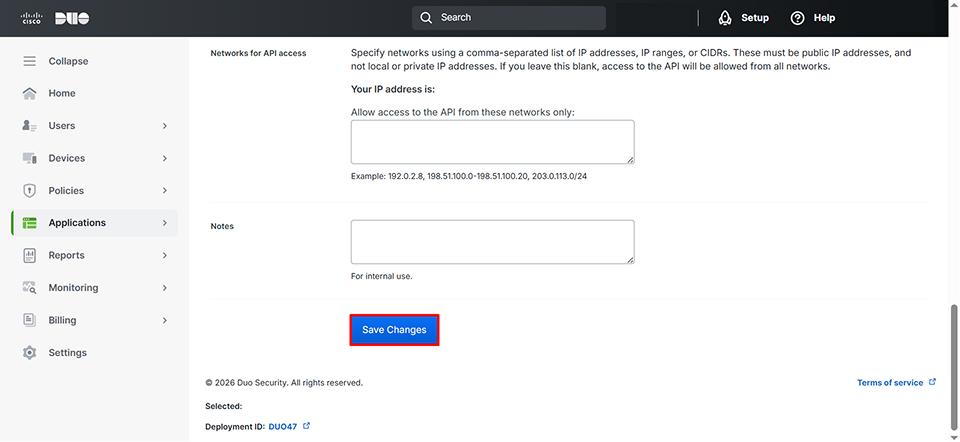
Click Save Changes.
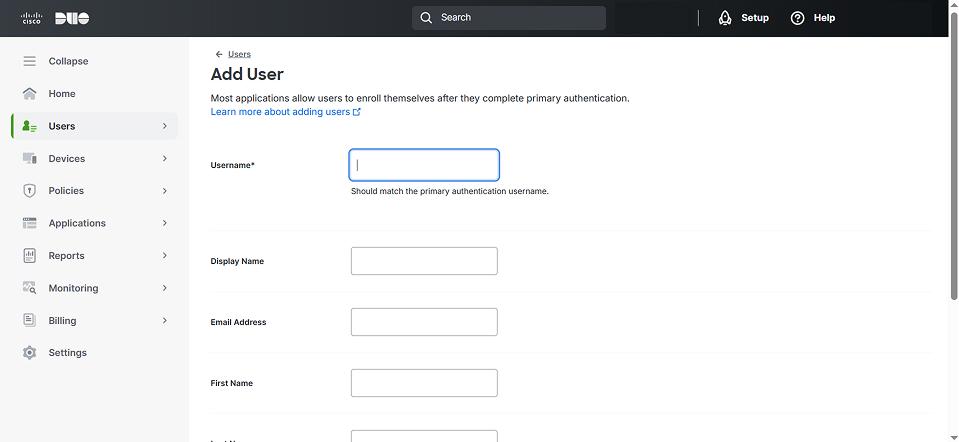
Step 5 — (Optional) Add Test Users
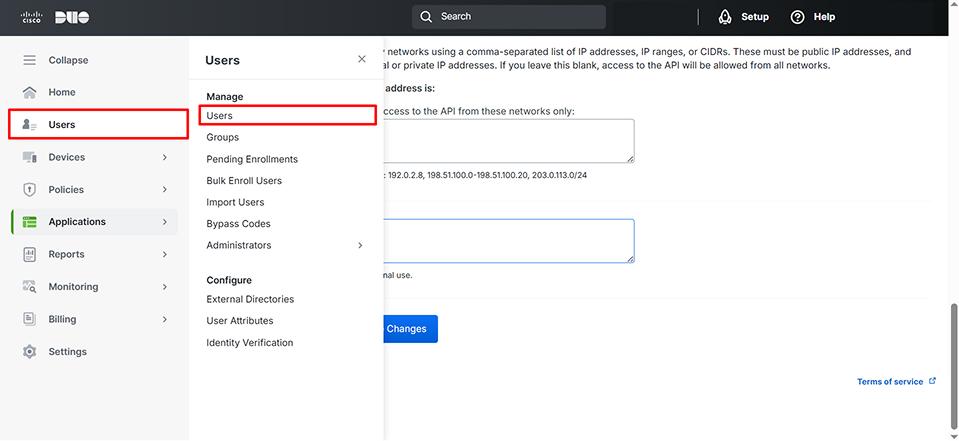
From the left menu, go to Users → Users.
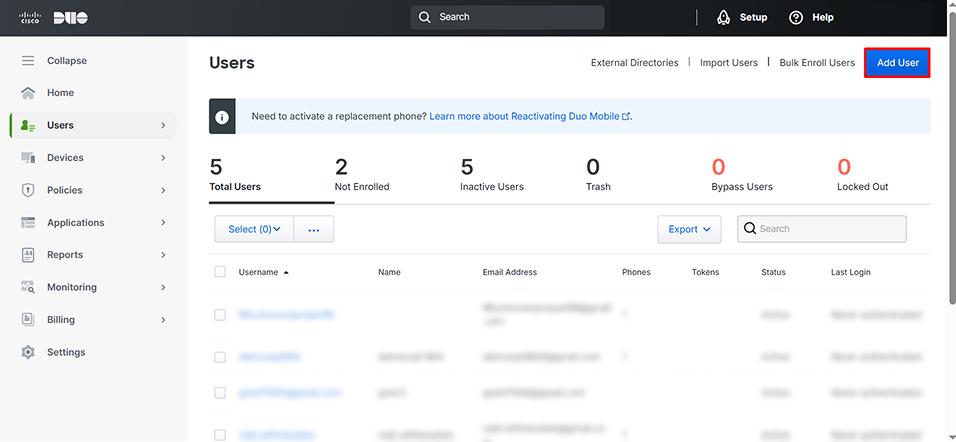
Click Add User.
Fill in the required fields:
- Username
- Email address
- First / Last Name
Complete the form and save.
6. Configure DUO Integration in Binadox
Log in to your Binadox portal. In the navigation pane on the left, click SaaS Connections.
Click on the DUO Security icon. To quickly locate the DUO Security software in the list of supported applications, type in its name in the search bar.
In the DUO Security view, type in the name in the Connection Name field. Click Continue.
Fill in the required fields with the data from the instructions above:
- Integration Key
- Secret Key
- API Hostname
Click Connect.
DUO Security connection with Binadox is established.
Troubleshooting
| Issue | Cause | Solution |
|---|---|---|
| Connection fails | Incorrect API credentials | Re-copy Integration Key, Secret Key, API Hostname |
| No data is fetched | Insufficient API permissions | Enable necessary read permissions in DUO Admin API |
| API access error | IP restrictions | Remove or update DUO API Access IP restrictions |