



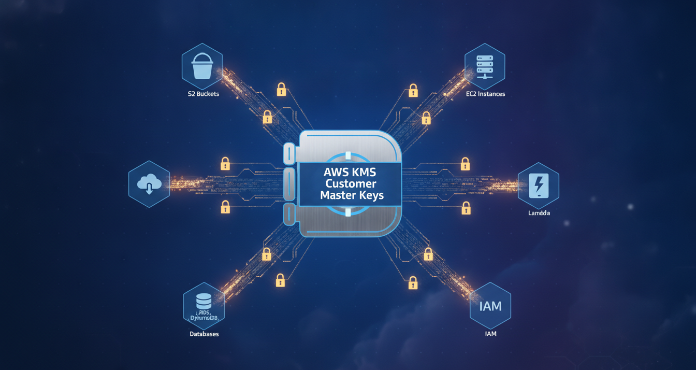
Managing data encryption at scale can feel complex, but it is a critical layer of any robust security posture. For teams using Amazon Web Services, the AWS Key Management Service (KMS) offers a centralized way to create and control the keys that encrypt your data. Specifically, understanding and utilizing AWS KMS customer master keys allows your team to enforce strong encryption standards across your cloud services automatically. This guide provides a practical walkthrough for setting up default encryption, ensuring your data is protected from the moment it’s created.
Key takeaways:
- There are three types of KMS keys: AWS Owned, AWS Managed, and Customer Managed Keys (CMKs), with CMKs offering the most granular control.
- Enabling default encryption for services like S3 and EBS is a simple, multi-step process that significantly enhances your security baseline.
- Key policies are the primary access control mechanism for KMS keys, working in tandem with IAM policies to enforce the principle of least privilege.
- Automatic key rotation, which can be enabled for customer-managed keys, helps meet compliance requirements by periodically changing the key’s cryptographic material.
What Are AWS KMS Customer Master Keys?
AWS KMS Customer Master Keys, now officially referred to as customer-managed keys (CMKs), are cryptographic keys in your AWS account that you create, own, and manage. Unlike AWS managed keys, which are created by AWS services on your behalf, customer-managed keys give you full control over their lifecycle. This includes setting their access policies, enabling or disabling them, and scheduling them for deletion.
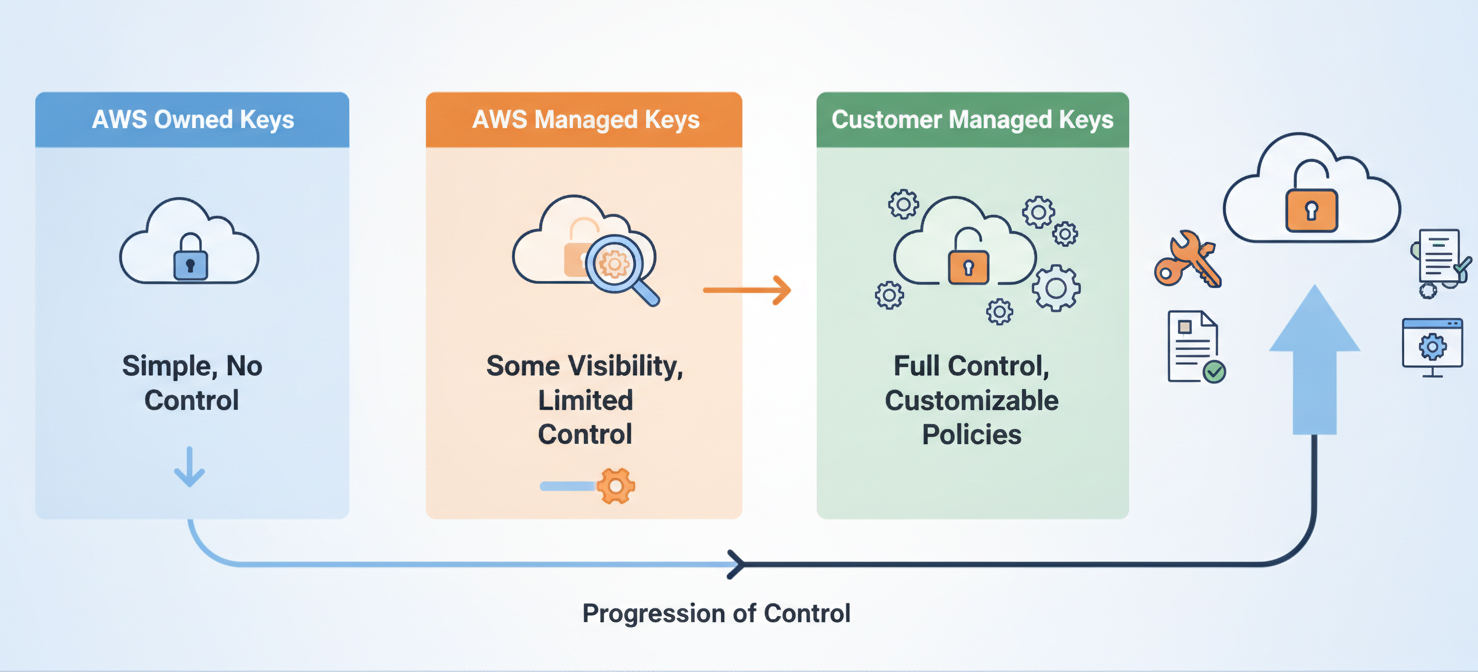
There are three main types of keys within AWS KMS:
- AWS Owned Keys: These are managed by AWS for use across multiple accounts. You have no visibility or control over these keys.
- AWS Managed Keys: These are created in your account by AWS services when you first encrypt a resource. You can view their policies and audit their use, but you cannot manage the keys directly.
- Customer Managed Keys (CMKs): These are the keys you create. You have complete control over who can use them and how they are used, making them ideal for enforcing specific security and compliance requirements.
CMKs can be either symmetric (using the same key for encryption and decryption) or asymmetric (using a public/private key pair). For most default encryption scenarios with services like S3 and EBS, you will use symmetric keys. A key benefit of using CMKs is the ability to enable automatic key rotation, a crucial security practice. AWS KMS can automatically rotate the backing cryptographic material for a CMK once per year, while the key’s ID and ARN remain unchanged, meaning no changes are needed for your applications.
Key Policies vs. IAM Policies: Controlling Access
Controlling who can use your encryption keys is as important as the encryption itself. AWS KMS uses a combination of key policies and AWS Identity and Access Management (IAM) policies to manage permissions.
Key Policies
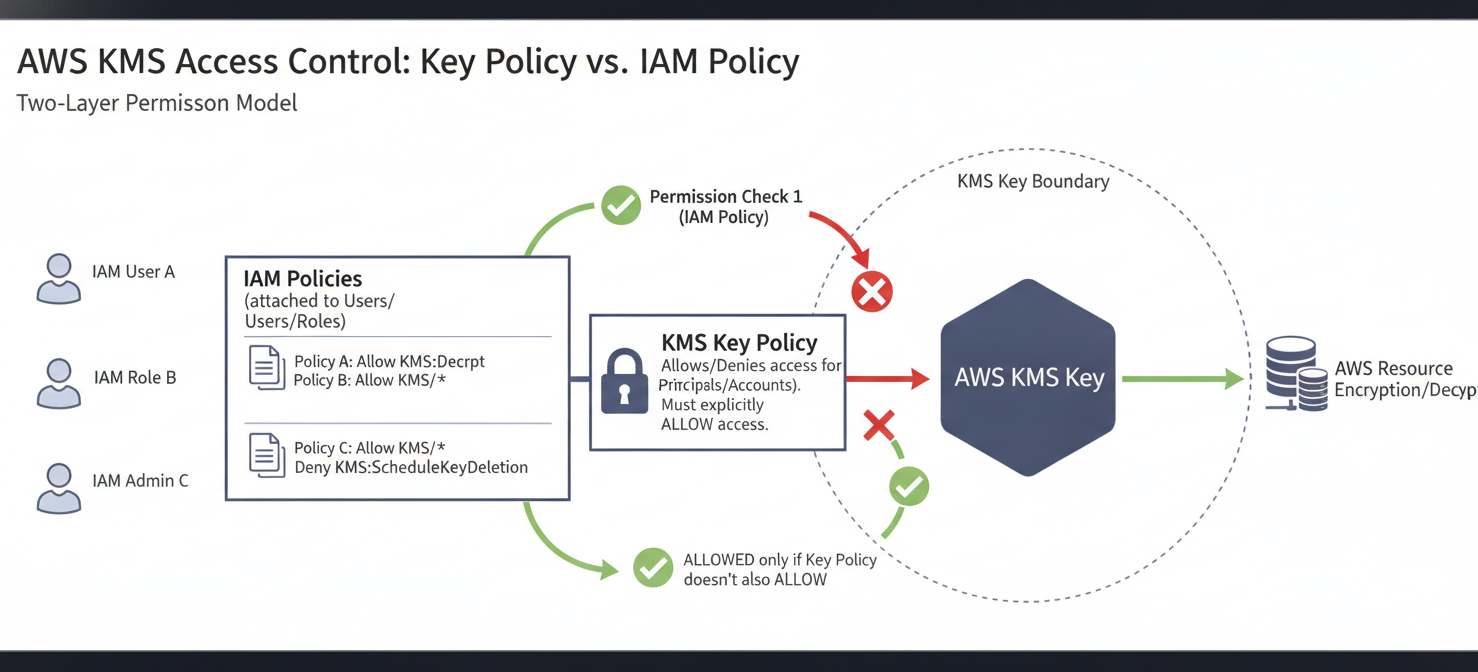
A key policy is the primary and mandatory access control mechanism for a KMS key. It’s a resource-based policy attached directly to the key itself. Crucially, no user or role—not even the account’s root user—can access a KMS key unless explicitly granted permission in the key policy. If a key policy doesn’t grant access, any IAM policy allowing access will have no effect.
When you create a customer-managed key, KMS provides a default key policy. This policy typically gives full control of the key to the root user of the account, which then allows for access to be delegated via IAM policies.
IAM Policies
IAM policies are attached to users, groups, or roles and define what actions they can perform on which resources. You can use IAM policies to grant permissions to use KMS keys, but only if the key’s policy allows it. For example, you can attach an IAM policy to an EC2 instance’s role that allows it to use a specific KMS key to decrypt data.
The relationship can be summarized this way:
- Key Policy: The ultimate authority for a specific key. It must grant permission for an action.
- IAM Policy: A way to grant permissions to identities. It can only grant permissions that are also allowed by the key policy.
For a robust security model, you should use both. Define coarse-grained access in the key policy (e.g., allowing key administration by a specific admin role) and then use IAM policies to grant fine-grained permissions to other users and roles as needed.
How to Enable Default Encryption for S3
Amazon S3 now enables server-side encryption with S3-managed keys (SSE-S3) by default for all new objects. However, for greater control and auditability, you should configure default encryption to use your own customer-managed key. This ensures all new objects uploaded to a bucket are automatically encrypted with a key you control.
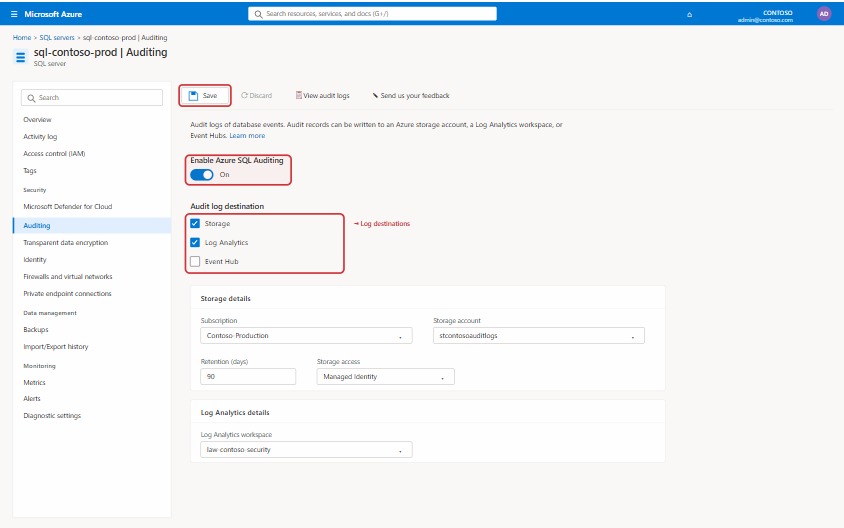
Here is the process to enable default encryption using a customer-managed key:
- Navigate to the S3 Console: Open the AWS Management Console and go to the S3 service.
- Select Your Bucket: Click on the name of the S3 bucket you wish to configure.
- Go to Properties: Select the “Properties” tab for the bucket.
- Edit Default Encryption: Scroll down to the “Default encryption” section and click “Edit”.
- Configure Encryption Settings:
- Select “AWS Key Management Service key (SSE-KMS)”.
- Under “AWS KMS key,” choose “Choose from your AWS KMS keys.”
- Select the customer-managed key you want to use from the dropdown list.
- Save Changes: Click “Save changes” to apply the new default encryption settings.
After these steps, any new object uploaded to this S3 bucket will be automatically encrypted using the specified KMS key.
How to Enable Default Encryption for EBS
Similarly, you can enforce encryption for all new Amazon Elastic Block Store (EBS) volumes created in a specific region. This is a simple but powerful way to ensure that data at rest on your EC2 instances’ storage is always protected.
Follow these steps to enable default EBS encryption:
- Navigate to the EC2 Console: Go to the EC2 service in the AWS Management Console.
- Select the Region: Ensure you are in the correct AWS region, as this setting is region-specific.
- Go to EC2 Settings: In the navigation pane, under “Account Attributes,” select “Settings.”
- Manage EBS Encryption: On the Settings page, find the “EBS encryption” section and click “Manage.”
- Enable Default Encryption:
- Select “Enable” under “Always encrypt new EBS volumes.”
- From the “Default encryption key” dropdown, you can keep the AWS managed default key or select a customer-managed key you have created.
- Update Settings: Click “Update EBS encryption” to save your changes.
Once enabled, all new EBS volumes and copies of snapshots created in that region will be encrypted by default, preventing accidental creation of unencrypted volumes.
Best Practices for Managing Your AWS KMS Customer Master Keys
Effectively managing your keys is essential for long-term security and operational health. Adopting a few best practices can help you maintain control and meet compliance needs.
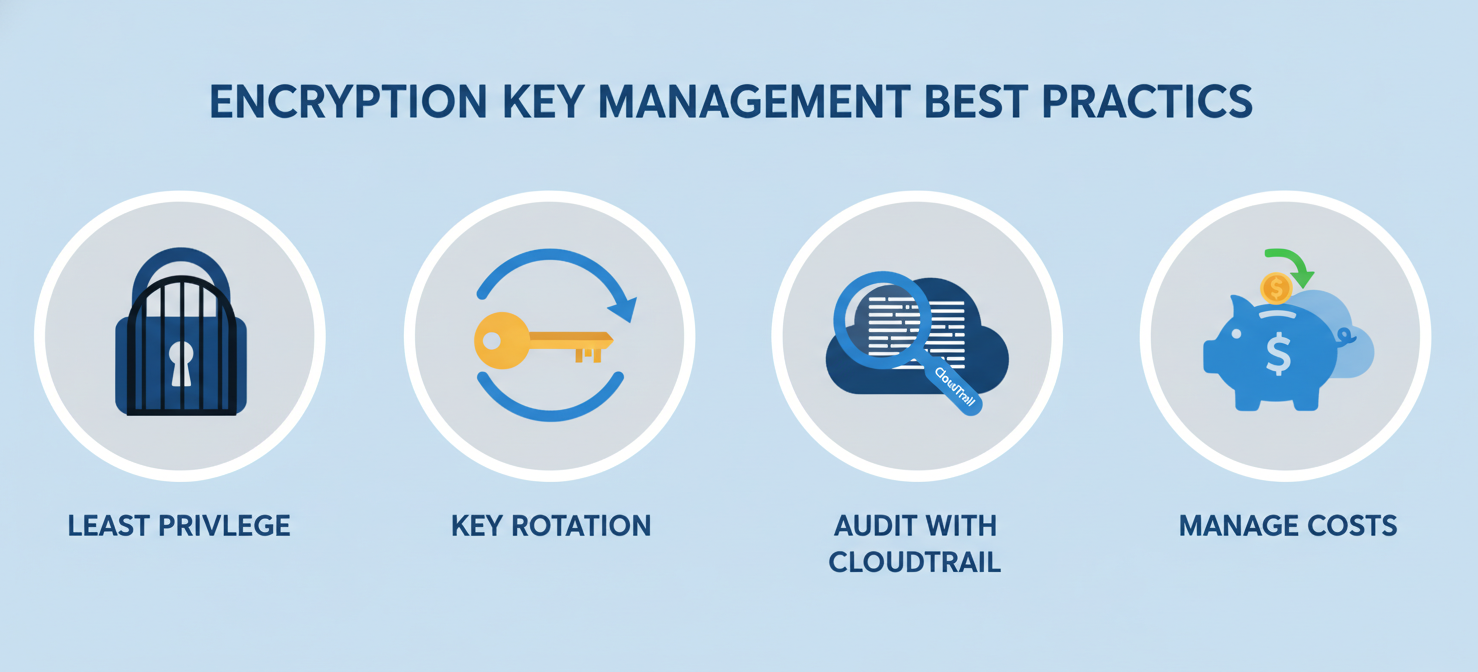
Implement the Principle of Least Privilege
Always grant the minimum permissions necessary for a user or service to perform its function. Use a combination of key policies and IAM policies to tightly control who can manage and use your keys. For example, developers might only have kms:Decrypt permissions for a specific key, while administrators have kms:Create* and kms:PutKeyPolicy permissions.
Enable Key Rotation
For customer-managed keys, enable automatic key rotation. AWS KMS will generate new cryptographic material for the key every year by default. This limits the potential impact if a key were ever compromised. The key’s ID and ARN remain the same, so you don’t need to update your applications that reference it.
Audit Key Usage with CloudTrail
AWS KMS is integrated with AWS CloudTrail, which logs all API calls made to KMS. Regularly review these logs to audit who is using your keys, on which resources, and when. This is critical for security analysis and compliance reporting. You can set up CloudWatch Alarms to be notified of sensitive events, such as a key being disabled or scheduled for deletion.
Manage Costs
Each customer-managed key you create costs a flat fee per month (e.g., $1/month), plus charges for API usage. While generally modest, these costs can add up in large environments. Plan your key management strategy to avoid unnecessary key proliferation. In some cases, a single key can be used across multiple applications by leveraging encryption context to enforce access controls.
Conclusion
Setting up default encryption with AWS KMS customer master keys is a foundational step toward a more secure cloud environment. By taking direct control over your encryption keys, you can enforce your organization’s security policies automatically, reducing the risk of human error and ensuring data is protected from its creation. While AWS provides simpler, managed options, the granular control offered by customer-managed keys is invaluable for teams that need to meet strict compliance and auditing requirements. Ultimately, the process is straightforward, the security benefits are significant, and ignoring it is a risk not worth taking.
To truly master your cloud security posture and gain the granular control discussed, explore how our platform simplifies key management. You can easily start a free trial to see it in action or book a demo with our experts for a personalized walkthrough.
 7-day free trial