



It’s a frustratingly common scenario for developers and operations teams. You spin down a virtual machine, pause a database, and walk away from a development project, believing your work is done and your cloud spend has dropped to zero. Then the bill arrives, revealing a slow, persistent trickle of charges. This is because of GCP charges for inactive projects, a situation that occurs when provisioned resources continue to incur costs even when they aren’t actively processing data. Understanding why this happens is the first step to preventing these surprise bills.
Key takeaways
- “Inactive” does not mean “free”: GCP charges for provisioned resources like storage, reserved IPs, and load balancers, not just active computation.
- Storage is the usual suspect: Persistent disks, database backups, and Cloud Storage buckets are the most common sources of idle charges.
- Shutting down is a 4-step process: To completely stop charges, you must identify costly resources, back up necessary data, delete the resources, and finally, shut down the project itself.
- Deletion is final (after 30 days): Shutting down a project stops all billing and starts a 30-day recovery period, after which all data is permanently deleted.
The Myth of ‘Inactive’: Why GCP Still Charges You
The core misunderstanding comes from the difference between “stopped” and “deprovisioned.” When you stop a Compute Engine virtual machine, you are no longer paying for the CPU and RAM usage per second. However, the persistent disk attached to that VM still exists. It occupies physical space in a Google data center, and you are billed for that allocated storage.
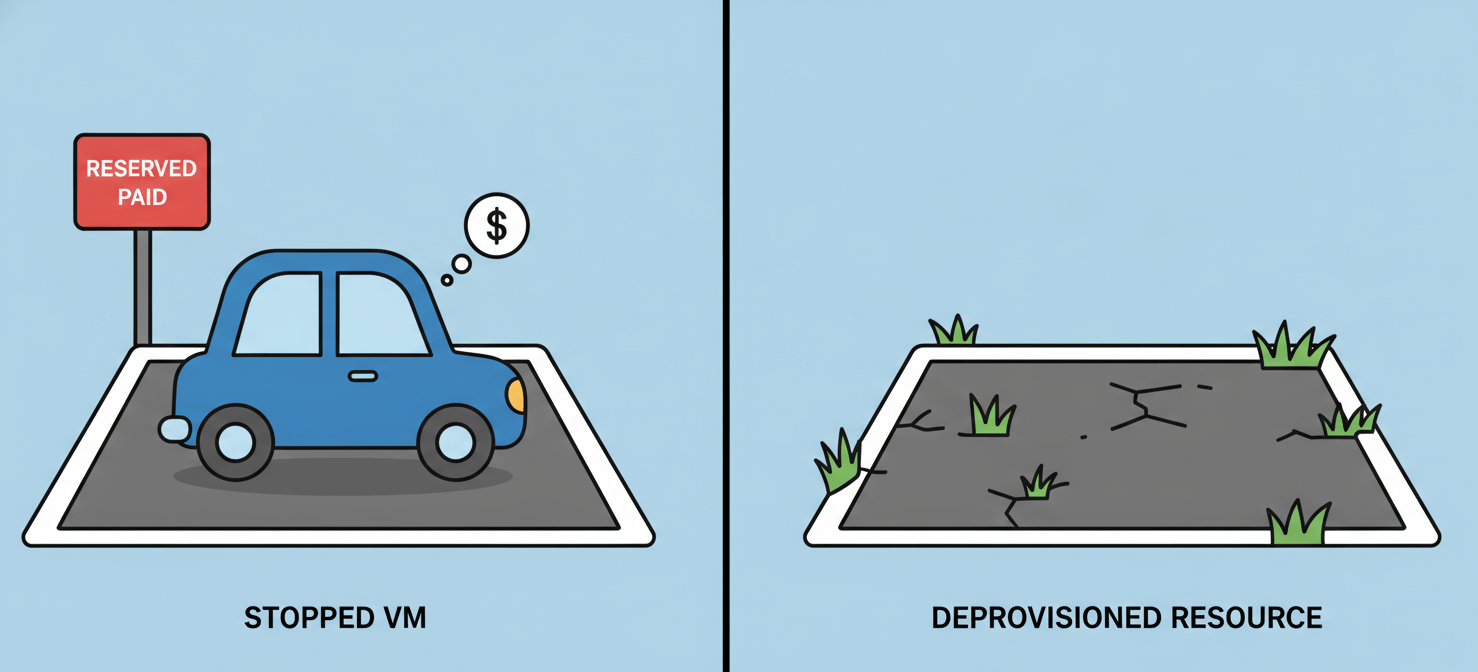
Think of it like a reserved parking spot. Even if your car isn’t in the space, you’re still paying to keep it available for your use. Similarly, Google Cloud Platform (GCP) continues to bill for any resource that remains allocated to your project. This pay-as-you-go model applies to the resources you consume, and “consuming” includes reserving capacity. Therefore, a project is only truly inactive from a billing perspective when all its billable resources have been deleted.
Common Culprits: Resources That Cost You Money While Idle
While a stopped VM is a frequent offender, several other services can accumulate costs in the background. Identifying these is crucial to managing your Google Cloud billing for an old project.
Persistent Storage and IPs
- Persistent Disks: As mentioned, these storage volumes attached to VMs are a primary source of idle costs. A standard persistent disk costs around $0.04 per GB per month.
- Static External IP Addresses: If you reserve a static IP address but don’t attach it to a running resource, you will be charged a small hourly fee.
- Cloud Storage: Data stored in buckets, especially across different storage classes like Nearline or Coldline, will always incur costs. Furthermore, features like soft-delete can mean you are billed for objects for a set period even after you delete them.
Networking and Other Services
- Load Balancers: Forwarding rules for load balancers that are left running without active backends can continue to generate charges.
- Cloud SQL and Other Databases: Even if a database instance is stopped, you are often still charged for its storage and any automated backups.
- Vertex AI: Deployed models on active prediction endpoints and dormant user-managed notebooks can incur costs from the underlying Compute Engine resources.
Your 4-Step Guide to Stopping GCP Charges for Inactive Projects
To effectively stop GCP charges, you need a systematic approach to deprovisioning. Simply disabling billing is an option, but it can lead to the removal of resources you might need later. A full project shutdown is the most definitive method.
-
Identify All Billable Resources: Go to the “Billing” section in the Google Cloud Console to get a detailed breakdown of costs by project and service. This will show you exactly which resources are still generating charges. For a more granular view, use the “Manage resources” page to see all active resources within a specific project.
-
Back Up Critical Data: Before deleting anything, ensure you have backups of any data you cannot afford to lose. This might involve creating snapshots of persistent disks or exporting data from Cloud Storage buckets to a local or alternative storage location.
-
Delete Resources Manually: Go through your project and systematically delete the resources you identified in step one. This includes deleting Compute Engine instances (which also deletes attached disks unless configured otherwise), Cloud Storage buckets, Cloud SQL instances, and reserved IP addresses.
-
Shut Down the Project: Once you have deleted all resources, you can proceed to shut down the project itself.
- Navigate to IAM & Admin > Settings in the Google Cloud Console.
- Select the project you wish to delete.
- Click “Shut down.”
- You will be prompted to enter the project ID to confirm the deletion.
This action stops all billing and resource usage immediately. The project then enters a 30-day grace period during which it can be restored, after which it and all its data are permanently deleted.
Proactive Strategies to Prevent Future Surprise Bills
Preventing unwanted charges is more efficient than cleaning them up later. Adopting a few key practices can save your team significant time and money.
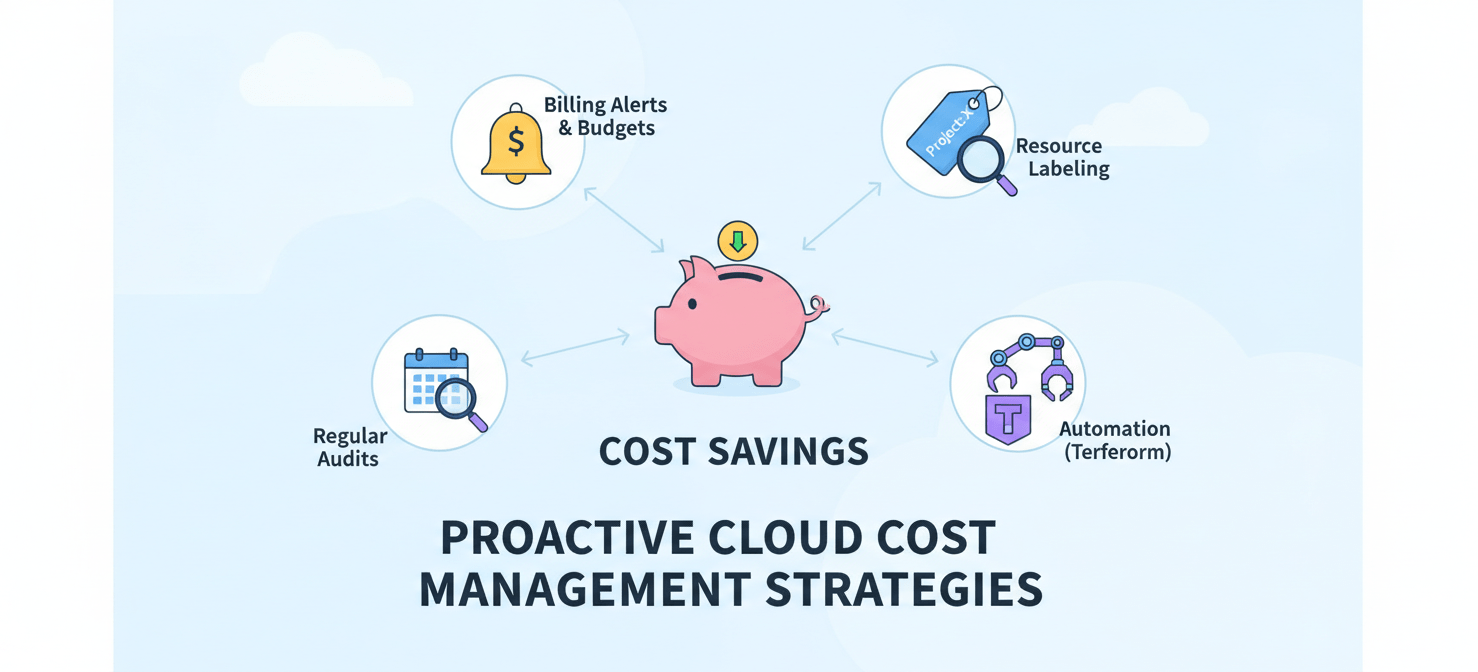
- Set Up Billing Alerts: Create budgets for your projects with alert thresholds. While these alerts won’t stop spending automatically, they provide crucial notifications when costs are approaching a certain level, allowing you to intervene.
- Use Labels: Enforce a labeling policy for all resources. Tagging everything with an owner, environment (e.g.,
dev,staging), or expiration date makes it much easier to identify and audit resources that are no longer needed. - Automate Cleanup: For development and testing environments, use Infrastructure as Code (IaC) tools like Terraform. Instead of manually deleting resources, you can simply run a
terraform destroycommand to tear down the entire environment cleanly. - Schedule Regular Audits: Make it a team ritual to review active projects and resources on a monthly or quarterly basis. This helps catch forgotten resources before they accumulate significant costs.
Conclusion
The surprise of GCP charges for inactive projects is a lesson in the realities of cloud resource management. The cloud doesn’t charge for intent; it charges for allocation. Resources that are provisioned—whether they are actively computing or simply holding data at rest—occupy capacity and therefore have an associated cost. The key to avoiding these lingering expenses is a disciplined approach to resource lifecycle management. By understanding which services incur idle costs, implementing a thorough deletion process, and adopting proactive strategies like budgeting and automation, your team can ensure that when a project is done, its bill is too.
To truly master resource lifecycle management and prevent those lingering expenses, Binadox can streamline your cloud operations; you can begin your free trial to experience it firsthand or schedule a demonstration to learn more.
 7-day free trial