



Handling your organization’s Microsoft 365 license renewal is more than just a routine administrative task; it’s a strategic opportunity to align your software investment with your current business needs. A thoughtful approach can lead to significant cost savings, enhanced security, and improved productivity for your team. Neglecting this process, on the other hand, can result in overspending on unnecessary licenses or, worse, a sudden disruption of essential services. Therefore, a proactive and informed renewal strategy is crucial for any business relying on Microsoft’s suite of tools.
Key takeaways
- Audit Before Renewing: Regularly analyze license usage to identify inactive accounts and underutilized services. Many businesses find that 10-20% of licenses can be downgraded or reallocated.
- Understand NCE: Microsoft’s New Commerce Experience (NCE) changes how you purchase and manage licenses, introducing term commitments and specific cancellation windows.
- Right-Size Your Licenses: Match license types (e.g., Business Basic, Standard, Premium) to the specific roles and needs of your employees to avoid paying for features they don’t use.
- Plan Ahead: Start your renewal process at least 3-9 months before the expiration date to allow ample time for evaluation, decision-making, and negotiation.
Understanding Your Current Microsoft 365 License Usage
Before you can make informed decisions about your renewal, you need a clear picture of your current license landscape. The first step is to conduct a thorough audit of your existing licenses. This involves more than just counting seats; it requires a deep dive into how your team is actually using the services you pay for.
Conducting a License Audit
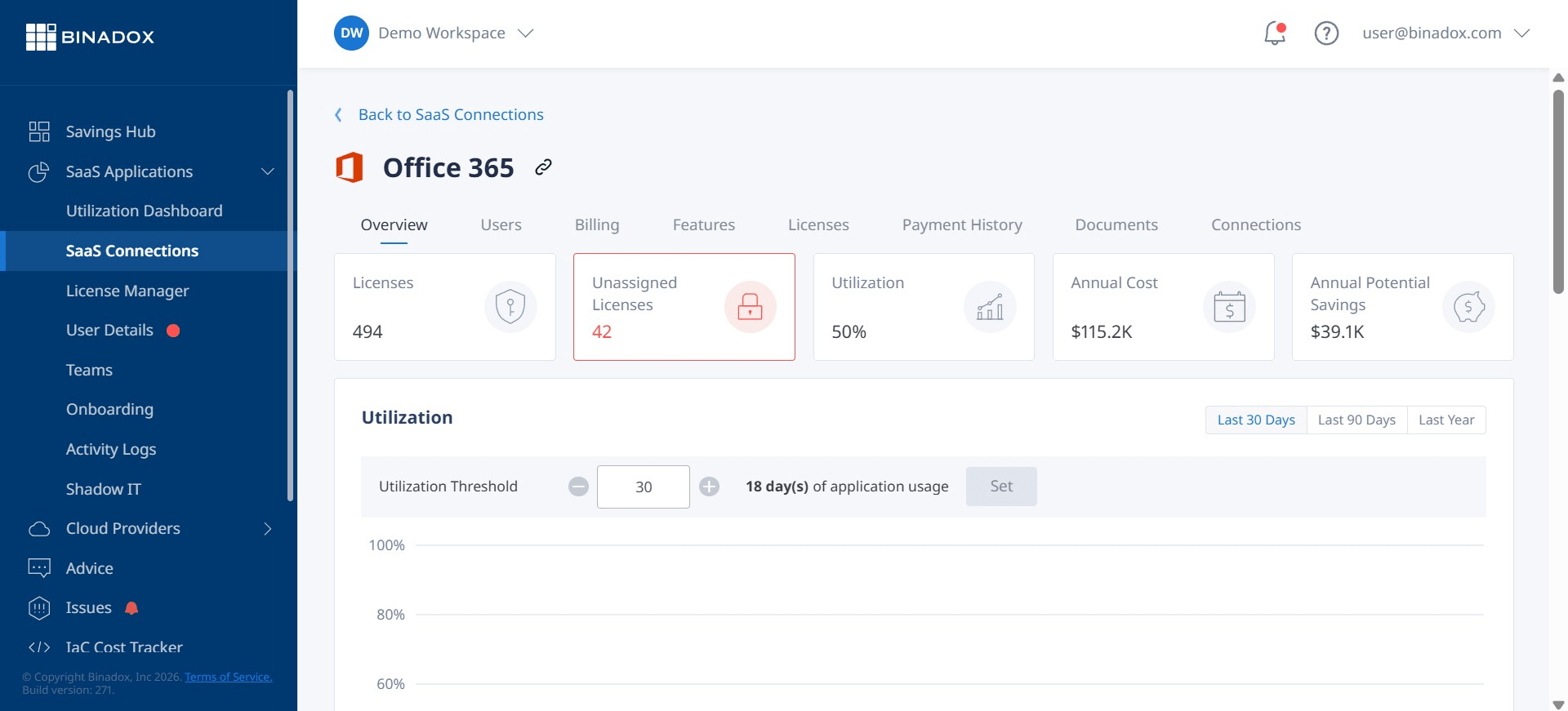
A comprehensive audit begins in the Microsoft 365 admin center. Here, you can access detailed usage reports that provide insights into user activity across various applications like Exchange, OneDrive, SharePoint, and Teams. These reports can help you identify:
- Inactive Users: Accounts that have not been accessed for an extended period (e.g., 60-90 days) are prime candidates for license reclamation.
- Underutilized Services: You might discover that many users with premium licenses are only using basic features, such as email and word processing.
- Unassigned Licenses: It’s common to have more licenses than active users. These unassigned licenses represent immediate cost-saving opportunities.
By analyzing this data, you can pinpoint areas of waste and create a data-driven plan for optimization. This process ensures you’re not just renewing the status quo but actively tailoring your subscription to your organization’s real-world needs.
Aligning Licenses with Employee Roles
Not every employee requires the same level of access to Microsoft 365 features. A one-size-fits-all approach often leads to overspending. Instead, segment your workforce by their roles and responsibilities to assign the most appropriate and cost-effective license for each group.
For example, frontline workers may only need access to email and Teams, making a Business Basic license sufficient. In contrast, your finance team might require the advanced Excel features and desktop applications included in a Business Standard plan. Meanwhile, executives and IT staff who need advanced security and compliance tools would be better suited for a Business Premium or Enterprise E5 license. This role-based licensing strategy can unlock significant savings, potentially as much as $372 per user annually by avoiding unnecessary upgrades.
The New Commerce Experience (NCE) and Its Impact on Renewals
Microsoft’s New Commerce Experience (NCE) has fundamentally changed the way businesses purchase and manage their Microsoft 365 subscriptions. Introduced to simplify licensing and provide cost predictability, NCE brings new rules and structures that you must understand before your next renewal.
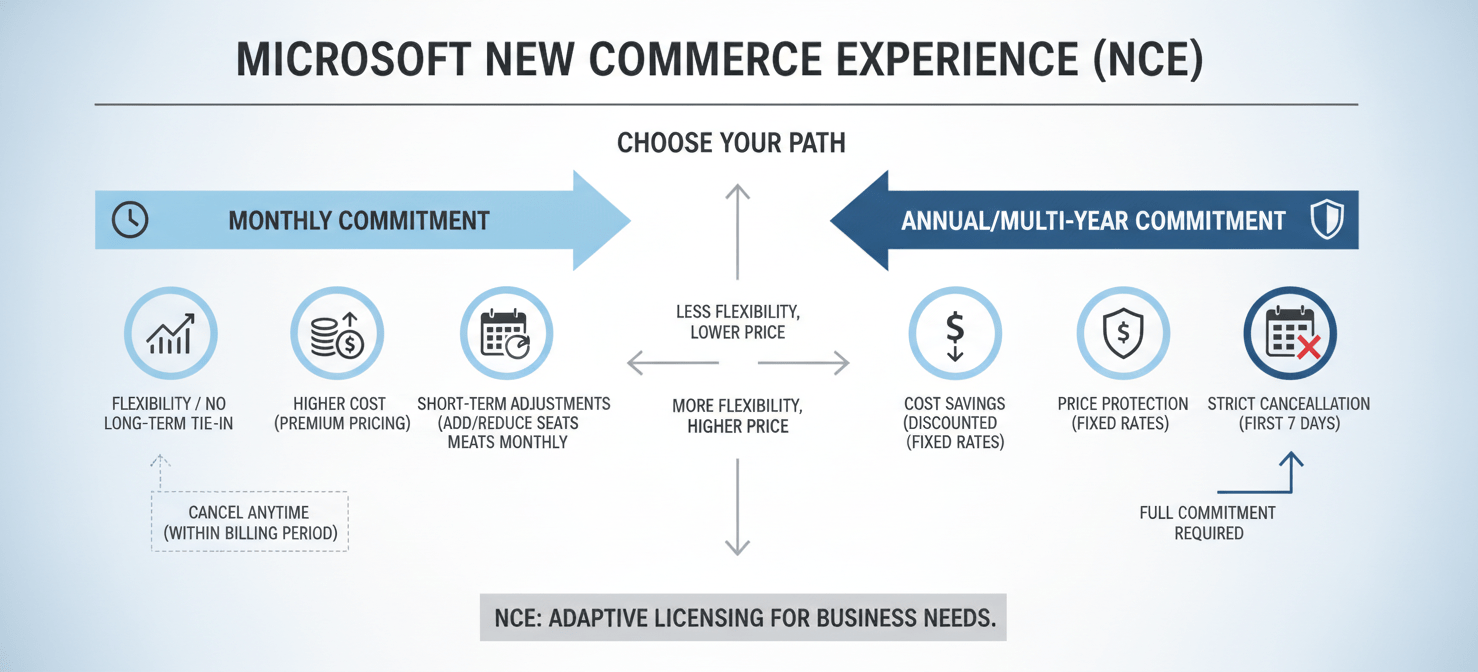
The primary goal of NCE is to encourage longer-term commitments by offering better pricing for annual or multi-year terms compared to monthly plans. This shift impacts flexibility, cancellation policies, and how you manage license counts throughout your subscription term.
Key Changes with NCE
Under NCE, there are several key changes to be aware of:
- Term Commitments: You can choose between monthly, annual, or even three-year terms. Annual and multi-year commitments offer price protection for the duration of the term, but monthly plans come at a premium for the added flexibility.
- Cancellation Policy: NCE enforces a strict cancellation window. You typically have only the first 72 hours after a purchase or renewal to cancel or reduce seat counts with a prorated refund. After this window, you are committed for the full term.
- Seat Reductions: Unlike the legacy model, you cannot reduce the number of licenses mid-term with an annual commitment. You can only decrease your seat count at the time of renewal. You can, however, add more licenses at any time.
Monthly vs. Annual Commitments
Choosing between a monthly and an annual commitment under NCE requires a careful evaluation of your organization’s needs.
- Annual Commitment: This option is ideal for stable workforces where the number of users is unlikely to decrease. It provides cost savings compared to the monthly plan and locks in your price for the year.
- Monthly Commitment: While more expensive, a monthly plan offers the flexibility to adjust your license count up or down each month. This is a good choice for businesses with seasonal workers or those anticipating workforce fluctuations.
A hybrid approach can also be effective. You can place your core, permanent staff on an annual commitment to secure better pricing and use monthly licenses for temporary staff or to test new features without a long-term obligation.
Steps for a Smooth Microsoft 365 License Renewal
A well-planned renewal process can prevent service interruptions and ensure you get the best value from your subscription. By following a structured approach, you can navigate the complexities of your M365 license expiration with confidence.
The Renewal Timeline
Proactive planning is essential. It’s recommended to begin the renewal process three to nine months before your subscription’s expiration date. This provides ample time to:
- Assess Current Usage: Conduct the detailed license audit discussed earlier.
- Evaluate Future Needs: Consider any planned hires, departmental changes, or new projects that might impact your licensing requirements.
- Explore Plan Options: Review different Microsoft 365 plans to see if a different tier or a new add-on could better serve your needs.
- Secure Budget Approval: Present your findings and recommendations to management to get the necessary budget approved in a timely manner.
How to Renew Your Subscription
When you’re ready to renew, the process is typically managed through the Microsoft 365 admin center.
- Log in to the admin center with your administrator credentials.
- Navigate to the Billing > Your products section.
- Select the subscription you wish to renew and choose the “Renew” option.
- During this process, you can adjust the number of licenses and confirm your payment information.
It’s also a good time to decide whether to use auto-renewal. Enabling auto-renewal can prevent accidental lapses in service, but it may also lead to renewing unnecessary licenses if you haven’t performed a recent audit.
Common Pitfalls to Avoid During Renewal
Navigating a Microsoft 365 license renewal can be complex, and several common mistakes can lead to unnecessary costs or service disruptions. Being aware of these pitfalls can help you make more strategic decisions.

One of the most frequent errors is letting your subscription expire. If a subscription is not renewed, it enters a series of stages. Initially, it goes into an “Expired” or grace period, which typically lasts for 30 days, during which services continue to function normally. After this, the subscription becomes “Disabled” for about 90 days, where users lose access, but admins can still retrieve data. Finally, the subscription is “Deleted,” and all associated data is permanently removed.
Another common issue is overlooking the strict NCE cancellation and seat-reduction rules. Forgetting that you can only decrease licenses during the renewal window for annual plans can lock you into paying for unused seats for another year. Similarly, missing the 72-hour window to correct any errors after renewal means you are financially committed for the entire term.
Finally, failing to clean up your user list before renewal is a costly mistake. Renewing licenses for former employees or duplicate accounts is a direct and easily avoidable expense. A regular audit of active users should be a standard part of your pre-renewal checklist.
Optimizing Costs at Renewal Time
The renewal period is the perfect opportunity to implement cost-saving strategies. By right-sizing your licenses and eliminating waste, you can significantly reduce your overall spend on Microsoft 365.
Right-Sizing and Downgrading Licenses
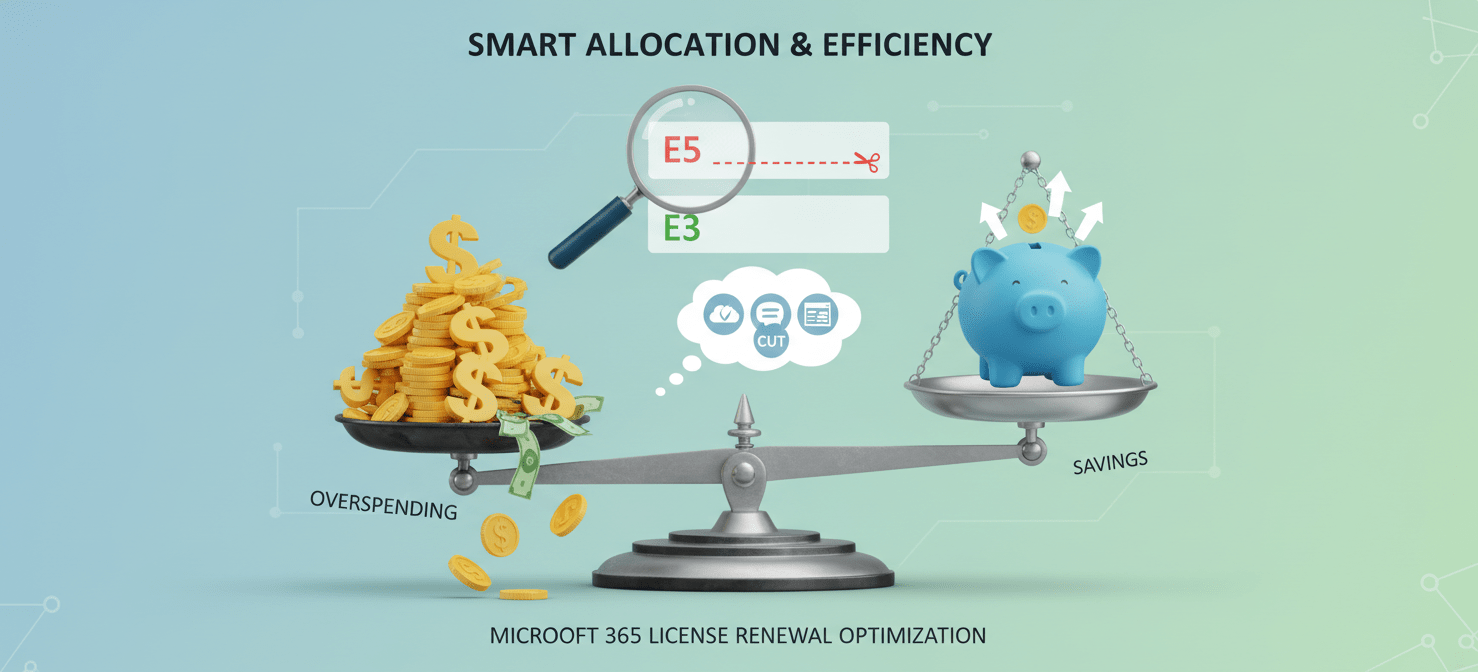
As previously mentioned, assigning licenses based on user roles is a powerful cost-optimization tactic. During your audit, identify users with premium licenses (like E5) who are not utilizing the advanced features such as Power BI Pro or advanced security tools. Downgrading these users to a more appropriate tier, such as E3 or Business Standard, can result in substantial savings without impacting their productivity.
Eliminating Redundant Third-Party Applications
Many organizations pay for third-party applications that offer functionality already included in their Microsoft 365 subscription. For example, you might be paying for separate solutions for file storage, video conferencing, or endpoint security when the tools available in your existing licenses (like OneDrive, Teams, and Microsoft Defender) are sufficient. By consolidating your tools and maximizing the use of the Microsoft ecosystem, you can eliminate redundant spending and simplify your IT environment.
Conclusion
Treating your Microsoft 365 license renewal as a strategic review rather than a simple transaction is key to maximizing its value. It is an annual checkpoint to ensure your technology investment is efficient, secure, and perfectly aligned with your team’s needs. By diligently auditing usage, understanding the nuances of the New Commerce Experience, and right-sizing your licenses, you can avoid the common pitfalls of overspending and service disruption. A successful Microsoft 365 license renewal doesn’t just keep the lights on; it fine-tunes the engine of your daily operations. Ultimately, failing to plan is planning to overpay.
To truly master your Microsoft 365 license renewals and ensure optimal value, consider a dedicated solution that simplifies this complex process. You can explore how Binadox can help by trying the platform free or by booking a personalized demonstration.
 7-day free trial