



Microsoft 365 is a core part of modern business, but its licensing model can easily lead to unnecessary costs. Organizations often purchase more licenses than they need or assign high-tier plans to employees who only require basic features. This guide offers a proactive approach to prevent M365 license overprovisioning, helping you optimize spending and ensure your team has the right tools for their roles. By implementing a structured strategy, you can avoid common pitfalls and gain better control over your software budget.
Key takeaways
- Conduct license audits at least quarterly to identify inactive or underutilized licenses.
- Implement role-based access control (RBAC) and group-based licensing to automate assignments and prevent sprawl.
- Establish a clear license reclamation policy for inactive users, often defined as 30-90 days of no activity.
- Right-size licenses by analyzing actual feature usage to avoid paying for premium tiers that go unused.
Understanding the True Cost of Inactive and Unused Licenses
The most direct impact of overprovisioning is financial waste. Paying for licenses that are not assigned or are assigned to inactive users directly hurts your bottom line. For example, a single unused Microsoft 365 E5 license can cost over $600 per year. When multiplied across an organization, these costs can become substantial. Research suggests that many businesses could reduce their M365 costs significantly by better managing inactive licenses.
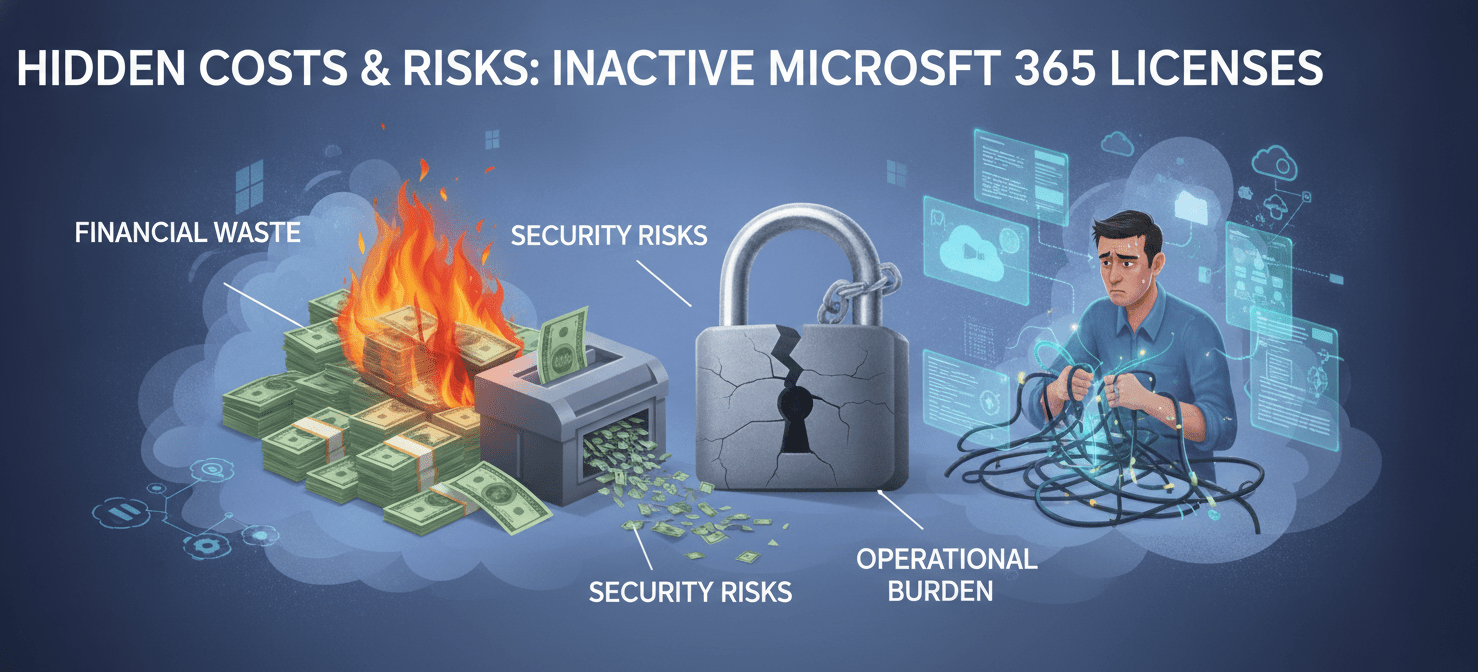
Beyond the direct subscription fees, inactive licenses also create security risks. Dormant accounts, especially those with administrative privileges, can become targets for unauthorized access. These accounts are often unmonitored, making them an attractive entry point for security breaches. Furthermore, over-licensing complicates compliance and auditing processes, making it difficult to track who has access to sensitive data.
Finally, there’s the operational cost. IT teams spend valuable time manually tracking, assigning, and reclaiming licenses. This administrative burden takes them away from more strategic initiatives. Without a clear system, license management becomes a reactive and inefficient process.
Step 1: Conduct Regular and Thorough License Audits
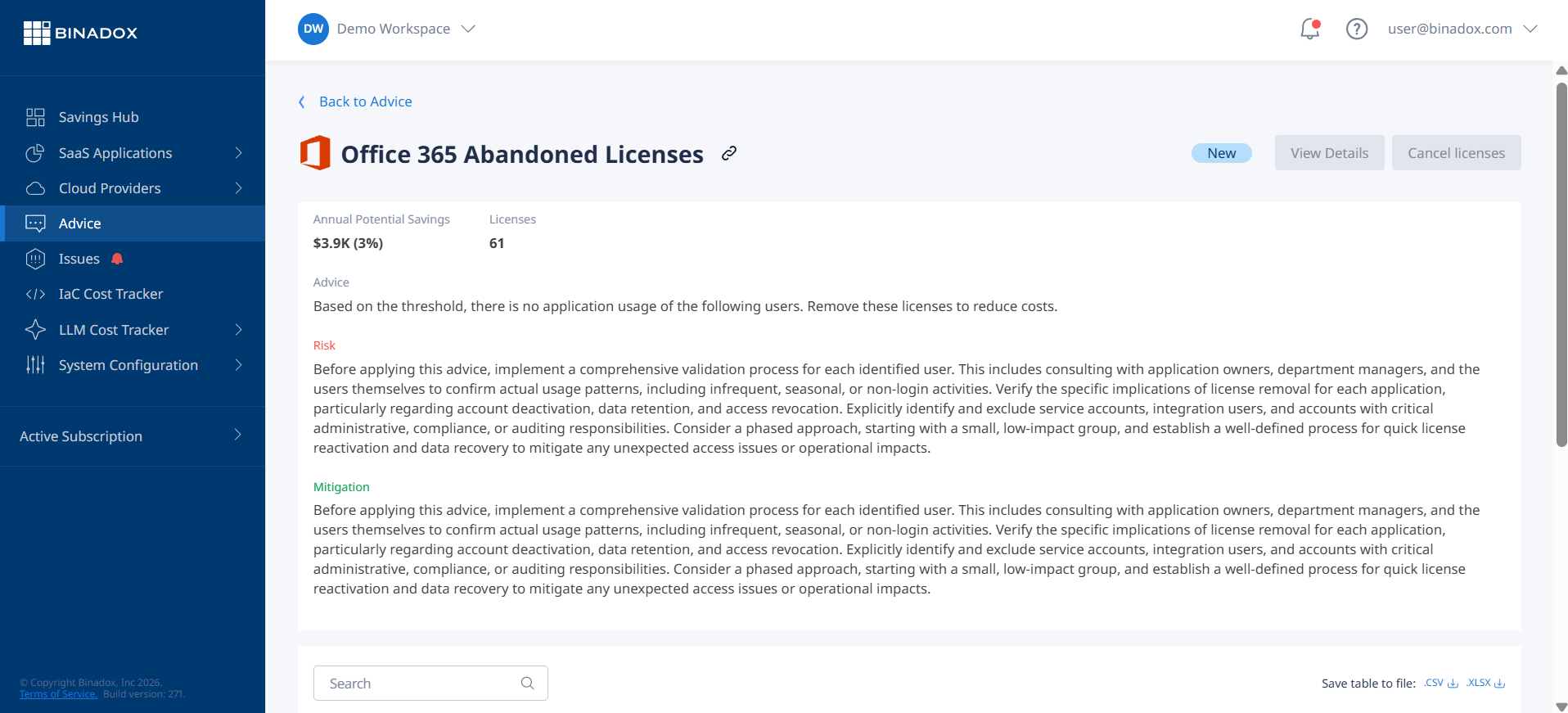
A foundational step in Microsoft 365 license management best practices is to perform regular audits. You cannot manage what you do not measure. An audit provides a clear snapshot of your current license landscape, revealing who has which licenses and whether they are being used.
Establishing an Audit Cadence
Start by establishing a consistent schedule for your audits. A quarterly review is a practical frequency for most organizations, allowing you to catch and correct overprovisioning before it leads to significant costs. During an audit, your primary goal is to identify several categories of waste:
- Unassigned Licenses: Licenses that you are paying for but have not been assigned to any user.
- Licenses for Inactive Users: Accounts assigned to former employees or those on extended leave.
- Underutilized Licenses: Premium licenses (like E5) assigned to users who only use features available in a lower-cost tier (like E3).
You can begin this process using the tools available in the Microsoft 365 admin center. The ‘Reports’ section offers usage data that shows the last activity date for users across services like Exchange and Teams. This data is crucial for identifying inactive accounts that are candidates for license reclamation.
Analyzing Usage Patterns
Simply looking at login dates is not enough. True optimization requires a deeper analysis of which specific services and features a user is actively consuming. For instance, a user might log in daily to check email but never use the advanced analytics or security features included in their expensive E5 license. This pattern indicates an opportunity to downgrade their license to a more appropriate and cost-effective plan without disrupting their workflow.
This level of detailed analysis helps you “right-size” your licenses, ensuring that you are only paying for the functionality your teams actually need.
Step 2: Implement Role-Based and Group-Based Licensing
Manual license assignment is prone to error and becomes unsustainable as an organization grows. A more strategic approach is to automate the process using role-based access control (RBAC) and group-based licensing within Microsoft Entra ID (formerly Azure AD).
Automating with Group-Based Licensing
Group-based licensing allows you to assign licenses to security groups rather than individual users. When a user is added to a group, they automatically receive the corresponding license. Conversely, when they are removed from the group, the license is automatically reclaimed. This method dramatically simplifies administration and reduces the risk of orphaned licenses.
For example, you can create groups for different departments or job roles, each with a pre-assigned license tier. A new member of the sales team is added to the “Sales” group and instantly gets their E3 license, while a temporary contractor added to the “External Contractors” group might receive a more basic plan. This ensures consistency and ties license allocation directly to a user’s role within the organization.
Enforcing Least Privilege with RBAC
Role-based access control is a security principle that ensures users only have access to the information and tools necessary for their jobs. Applying RBAC to license management helps prevent overprovisioning by default. Instead of assigning a high-level license “just in case,” you assign a license that precisely matches the user’s documented role requirements.
This approach requires defining user personas or profiles based on job functions. For example, frontline workers may only need an F1 or F3 license, which is more cost-effective than a full enterprise plan. By mapping licenses to these defined roles, you create a scalable and defensible licensing strategy.
Step 3: Develop a Clear License Reclamation Policy
One of the most significant sources of wasted spending is the failure to reclaim licenses from users who no longer need them. This includes employees who have left the company, changed roles, or are on long-term leave. A formal license reclamation policy is essential to prevent this drain on your budget.
Defining “Inactive”
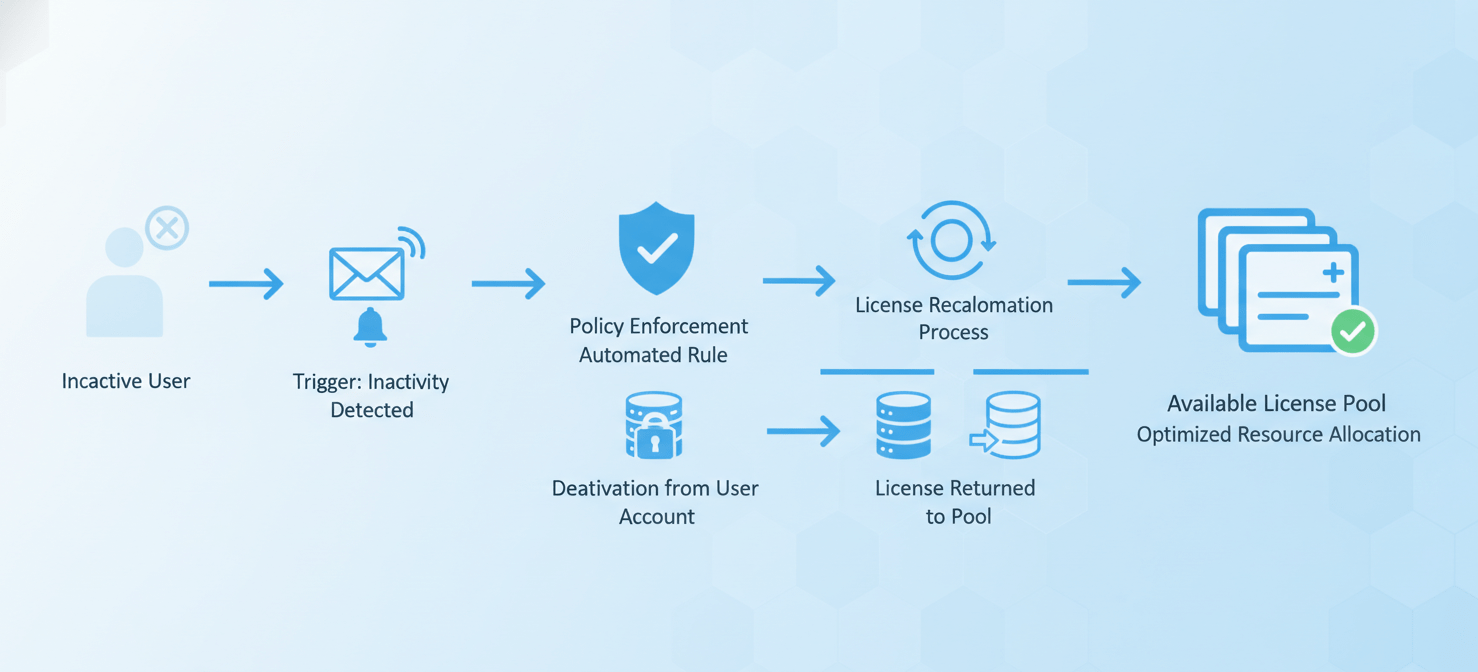
The first step is to create a clear and consistent definition of what constitutes an “inactive” user. Many organizations set this threshold at 30, 60, or 90 days of no sign-in activity. Once a user meets this criterion, an automated process should be triggered.
It is also important to identify exceptions to this policy. For example, accounts on legal hold or certain executive accounts may need to remain licensed regardless of activity. These exceptions should be clearly documented to ensure consistent enforcement.
Automating the Reclamation Workflow
An effective reclamation process should be automated to ensure reliability and scalability. The workflow typically involves these steps:
- Identification: An automated tool or script identifies a user who has been inactive for the defined period.
- Notification: An alert is sent to the user’s manager or the IT department. This provides an opportunity to confirm that the user no longer requires the license.
- Reclamation: If confirmed, the license is automatically unassigned and returned to the available pool for reallocation.
When a license is removed, the user’s data is not immediately deleted. Mailboxes and OneDrive files are typically retained for a default period of 30 days, which can be extended with retention policies. This provides a safety net in case a license needs to be reassigned.
Step 4: Integrate Licensing into HR and IT Workflows
To truly prevent M365 license overprovisioning, license management must be integrated into your core HR and IT processes. This ensures that licensing is considered at every stage of the employee lifecycle.
Onboarding and Offboarding
Your employee onboarding process should include the assignment of the correct M365 license based on the new hire’s role. This should be an automated step triggered by the HR system.
Even more critical is the offboarding process. When an employee leaves the company, the process for disabling their account must include immediate reclamation of their M365 license. Linking license management directly to HR events is a highly effective way to prevent the accumulation of orphaned licenses.
Role Changes and Transfers
Similarly, when an employee changes roles or moves to a different department, their license needs should be re-evaluated. A promotion might require an upgrade to a higher-tier license, while a transfer to a different function might allow for a downgrade. These checks should be a standard part of your internal transfer workflow.
By embedding license management into these routine operational workflows, you move from a reactive cleanup model to a proactive governance strategy.
Conclusion
Effectively managing Microsoft 365 licenses is not a one-time project but an ongoing discipline. The financial and security risks of overprovisioning are too significant to ignore. By conducting regular audits, automating assignments with group-based policies, establishing a firm reclamation process, and integrating licensing into standard business workflows, you can gain control over your M365 environment. These proactive steps will help you avoid unnecessary costs and ensure that your technology investments are aligned with your actual business needs. Ultimately, the goal is to prevent M365 license overprovisioning from becoming a hidden tax on your IT budget, which is a far better outcome than explaining to the finance department why you’re paying for software no one is using.
To prevent M365 license overprovisioning from becoming a hidden tax on your IT budget, consider how a dedicated solution can streamline your efforts. You can easily experience these benefits by exploring a free trial or connecting with our team to schedule a personalized demo.
 7-day free trial