



Microsoft 365 is a core part of modern business operations, but its complexity can lead to significant overspending. Many organizations pay for more licenses than they need or for premium features that employees never use. Effective saas spend optimization is not just about cutting costs; it’s about maximizing the value of your investment. By strategically aligning licenses with actual user needs, you can eliminate waste and ensure your team has the right tools without inflating your budget. This guide provides a structured approach to analyzing your usage, right-sizing your licenses, and implementing governance to maintain efficiency.
Key takeaways
- Right-size licenses: Don’t assign expensive E5 licenses by default. Instead, match license tiers to specific user roles and needs to save up to 70% per user.
- Eliminate inactivity: Regularly identify and reclaim licenses from inactive or former employees. An automated policy can remove licenses after a set period, like 60 or 90 days of inactivity.
- Analyze real usage: Go beyond basic sign-in data. Use detailed usage reports to see which specific applications and features employees are actually using to make informed downgrade decisions.
- Automate governance: Implement automated workflows for assigning and reclaiming licenses to reduce manual effort, prevent errors, and ensure continuous optimization.
Understanding Your Current Microsoft 365 Spend
Before you can optimize, you need a clear picture of your current licensing landscape. This involves more than just knowing your total bill. You need to understand who has which license, what it costs, and whether it’s actually being used. The goal is to create a detailed inventory that will serve as the foundation for your optimization efforts.
Conducting a comprehensive license audit
The first step is to get a complete list of all assigned licenses from the Microsoft 365 admin center. You can navigate to the Billing > Licenses page to see a detailed breakdown of your subscriptions, including the number of licenses available and assigned for each product. This initial export gives you a baseline of your committed spend.
However, this list only shows what is assigned, not what is used. The real waste is often hidden in active accounts with oversized licenses. Research indicates that 30-40% of SaaS licenses in a typical enterprise go unused, representing a significant portion of the software budget. Therefore, the next step is to gather usage data.
Analyzing actual usage vs. assigned licenses
Microsoft provides tools to help you understand how your team is using the platform. The Microsoft 365 admin center contains usage reports that show activity across services like Exchange, OneDrive, SharePoint, and Teams. These reports can help you identify users who have been assigned a license but show little to no activity.
For a deeper analysis, you can use the Microsoft Graph API to pull detailed user activity data. This allows you to see not just if a user is active, but which specific features they are using. For example, you can identify a user with a premium E5 license who only uses email and Office apps, making them a prime candidate for a less expensive E3 or Business Standard license. This level of detail is crucial for making data-driven decisions about downgrades and reallocations.
Identifying Key Areas for SaaS Spend Optimization
Once you have a clear understanding of your license assignments and usage patterns, you can begin to identify specific opportunities for cost savings. Optimization typically falls into three main categories: reclaiming unused licenses, right-sizing existing licenses, and eliminating redundant applications.
Reclaiming inactive and underutilized licenses
The most straightforward savings come from eliminating “shelfware”—licenses that are assigned but completely unused. This often happens with former employees whose accounts were never deprovisioned or with current employees who were assigned a license for a project that has since ended. Set a clear policy for inactivity, such as 60 or 90 days, and regularly run reports to identify accounts that meet this criterion.
Beyond completely inactive accounts, look for underutilized licenses. This includes standalone licenses for products like Power BI, Project, or Visio that were provisioned but never actively used. Reclaiming these licenses and reassigning them to new users can prevent you from purchasing new licenses unnecessarily.
Right-sizing licenses based on user personas
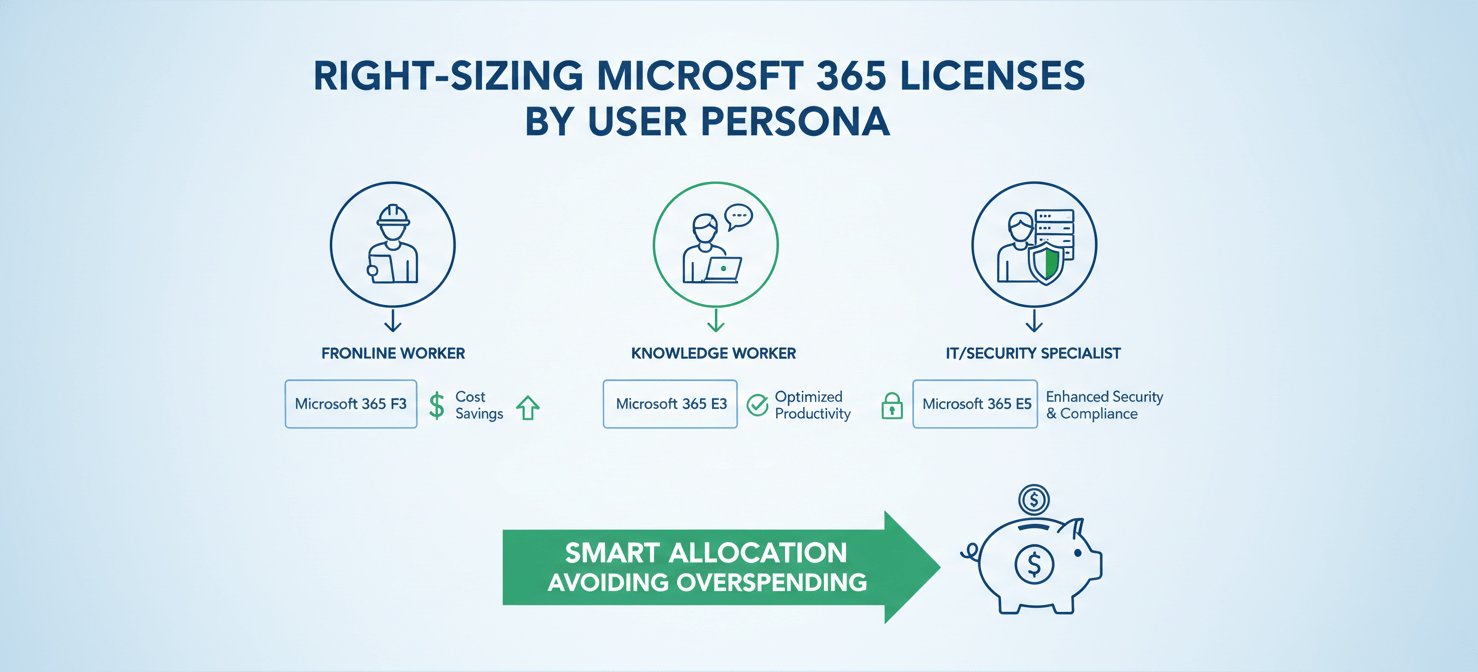
A one-size-fits-all approach to licensing is a primary driver of overspending. Instead of defaulting to a high-tier license like E5 for everyone, segment your users into personas based on their roles and needs.
- Frontline Workers: These employees may only need access to Teams and web-based Office apps. A Microsoft 365 F1 or F3 license is often sufficient and significantly cheaper than enterprise plans.
- Knowledge Workers: Most office-based employees fall into this category. They typically need desktop versions of Office apps, email, and collaboration tools. A Business Standard or E3 license is usually appropriate.
- IT and Security Staff: These users may be the only ones who genuinely require the advanced security and compliance features of an E5 license, such as Microsoft Defender for Endpoint and advanced eDiscovery.
By mapping licenses to these personas, you can ensure that you are not paying for premium features that the majority of your users will never touch. Moving a user from an E5 to an E3 license, for instance, can result in significant savings per user per month.
Consolidating overlapping and redundant tools
Many organizations pay for third-party applications that offer functionality already included in their Microsoft 365 subscription. For example, you might be paying for separate tools for file sharing, video conferencing, or endpoint security when OneDrive, Teams, and Microsoft Defender are already part of your existing licenses.
Conduct an inventory of your entire SaaS portfolio to identify these overlaps. By consolidating these redundant tools and driving adoption of the built-in Microsoft 365 features, you can reduce your overall software spend and simplify your IT environment.
Implementing a Microsoft 365 Cost Management Strategy
Optimizing your Microsoft 365 spend is not a one-time project; it’s an ongoing process. To maintain efficiency and prevent costs from creeping back up, you need to implement a sustainable cost management strategy. This involves automating license management, establishing clear governance policies, and preparing for renewals with data-backed insights.
Automating license provisioning and de-provisioning
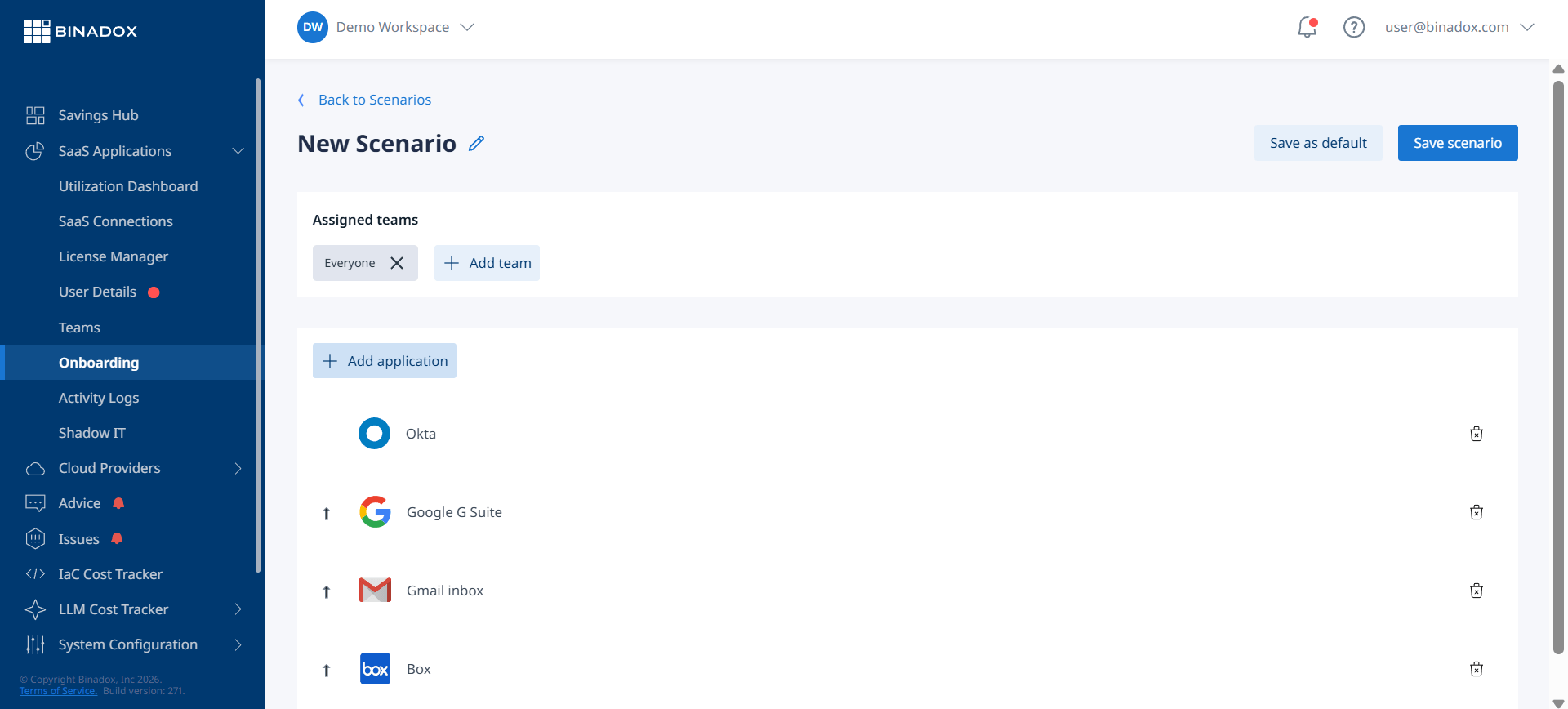
Manual license management is time-consuming and prone to errors. Automating the process of assigning and reclaiming licenses can significantly improve efficiency and reduce waste.
One effective method is to use group-based licensing in Microsoft Entra ID. You can create groups based on user roles or departments and assign specific licenses to each group. When a new user is added to a group, they are automatically assigned the correct license. Conversely, when a user is removed from the group, their license is automatically reclaimed. This ensures that licensing stays aligned with your defined user personas and that licenses from departing employees are immediately returned to the pool.
Establishing governance and regular reviews
To ensure your optimization efforts are sustainable, establish a regular review process. This should be a cross-functional effort involving IT, finance, and department heads. Conduct quarterly license recertification to validate that assignments are still appropriate and that usage patterns have not changed.
These reviews are also an opportunity to assess the adoption of new features and determine if any license tiers need to be adjusted. By treating license management as a continuous governance process rather than a pre-renewal scramble, you can avoid last-minute budget pressures and make more strategic decisions.
Leveraging usage data for contract negotiations
The data you collect on license usage is a powerful tool during contract negotiations with Microsoft. Instead of simply renewing what you already have, you can enter discussions with precise data on what your organization actually needs.
Presenting several months of activity data that shows which features are being used at what rate puts you in a much stronger negotiating position. This allows you to justify a reduction in the number of premium licenses or to negotiate better pricing based on your actual consumption. This data-driven approach transforms your renewal from a routine transaction into a strategic opportunity to optimize costs.
Conclusion
Effectively managing your Microsoft 365 investment requires a deliberate and continuous approach to saas spend optimization. By moving away from a default, one-size-fits-all licensing model to one based on detailed usage analysis and user personas, you can uncover significant savings. The process is straightforward: audit your current state, identify areas of waste through right-sizing and reclamation, and then lock in those savings with automated governance. This isn’t about nickel-and-diming your productivity suite; it’s about making smart, data-driven decisions that ensure you pay only for what you actually use. The result is a leaner, more efficient Microsoft 365 environment that delivers maximum value without the financial drag of unused features and licenses.
Ready to transform your Microsoft 365 investment into a lean, efficient asset? Discover how our platform can help you achieve this by exploring a free trial, or for a personalized walkthrough of its capabilities, schedule a demo with our experts.
 7-day free trial