


HTTPS Integration
Overview
This guide will help you connect your version control repositories to IaC Cost Tracker by Binadox using HTTPS authentication. Whether you’re using GitHub, Bitbucket, or other version control systems, this integration enables automatic cost analysis and optimization recommendations for your cloud resources. This guide demonstrates the process using Bitbucket as an example.
Integration Steps
1. Get HTTPS
Log in to your version control system. Navigate to your repository. Click the Clone button.

Select HTTPS from the dropdown. Copy the HTTPS address (Without git clone).

2. Create an API token in Bitbucket
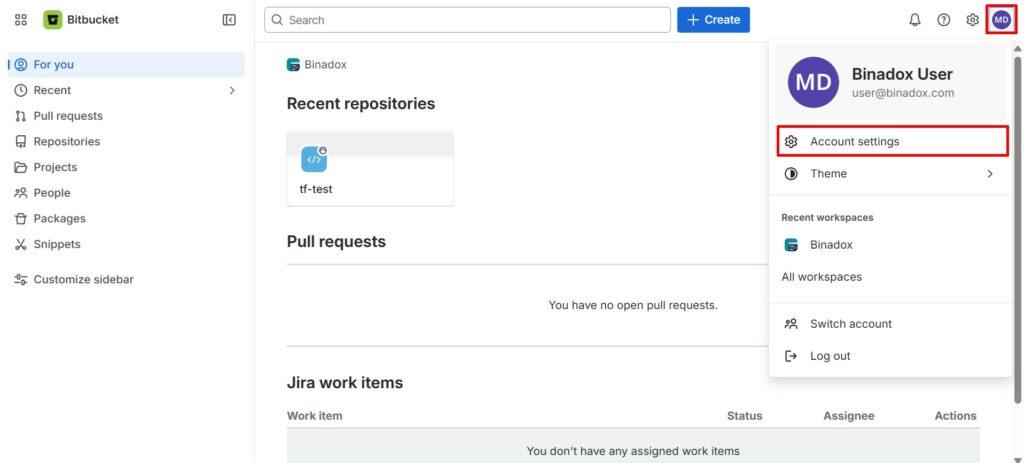
In Bitbucket, click your profile icon in the top right corner and open Account settings.
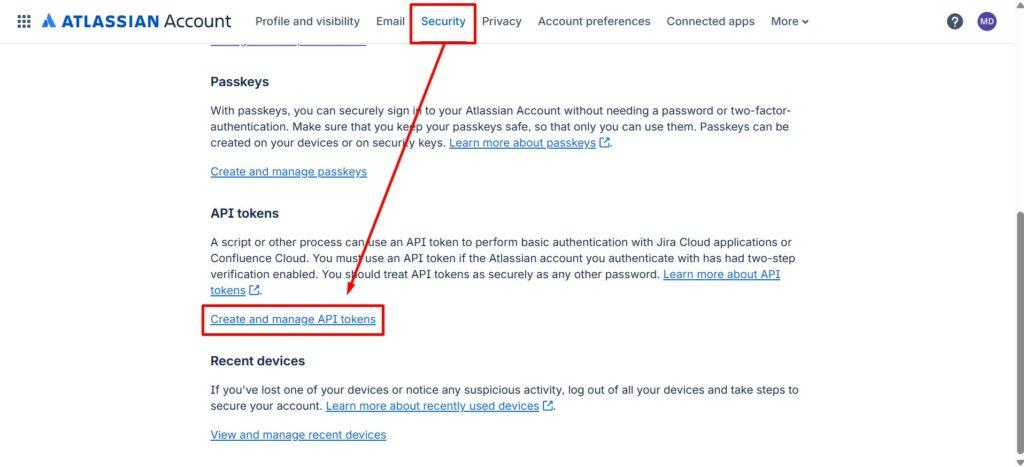
Go to the Security tab. In the API tokens section, click Create and manage API tokens
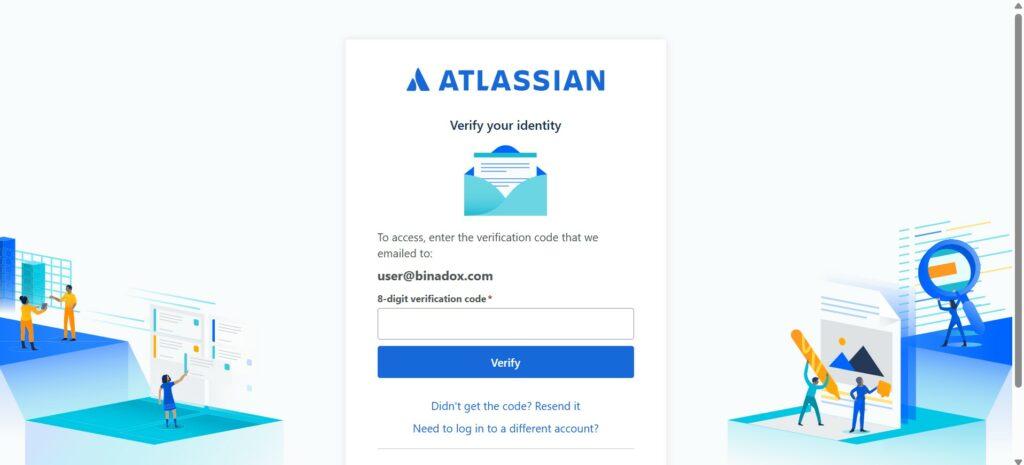
After clicking Create and manage API tokens, you may be prompted to verify your identity. In this case, Atlassian will send a one-time verification code to your email. Enter the code to proceed.
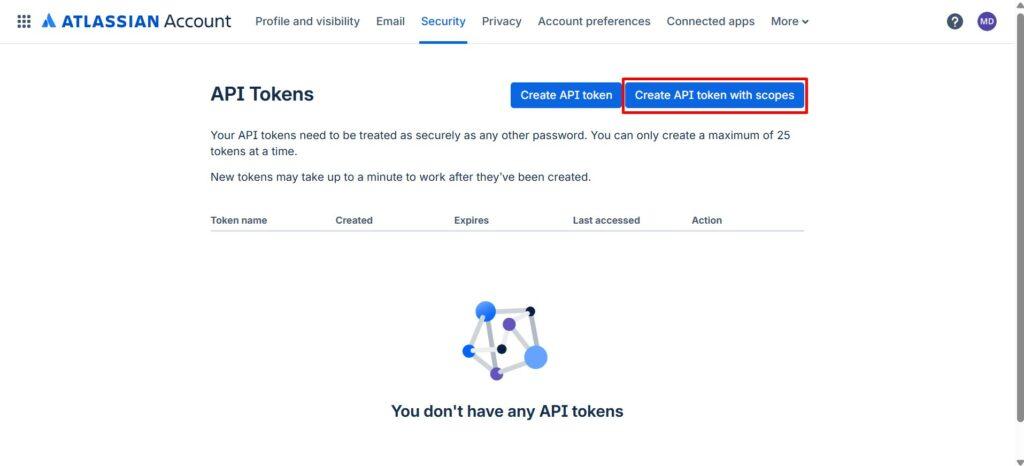
Click Create API token with scopes.
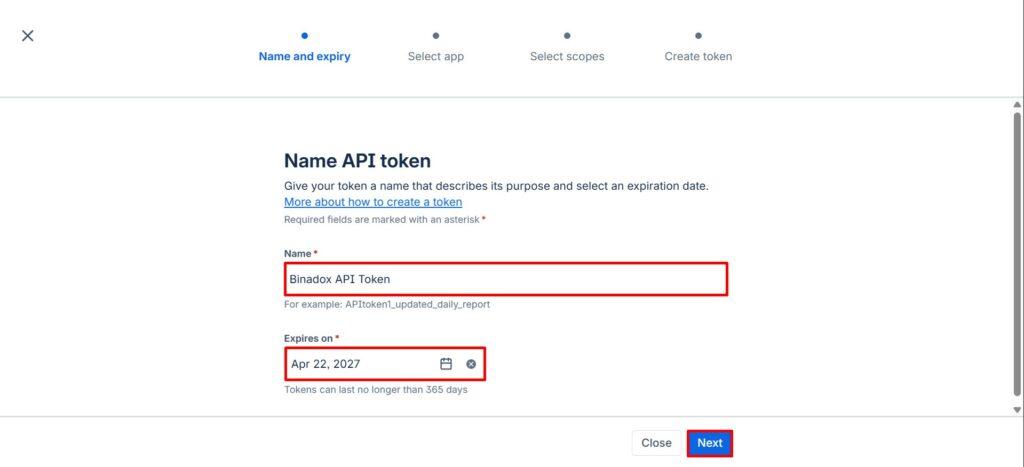
Enter the token details:
- In Name, specify a descriptive name (e.g., Binadox API Token).
- In Expires on, select an expiration date (maximum 365 days).
- Click Next.
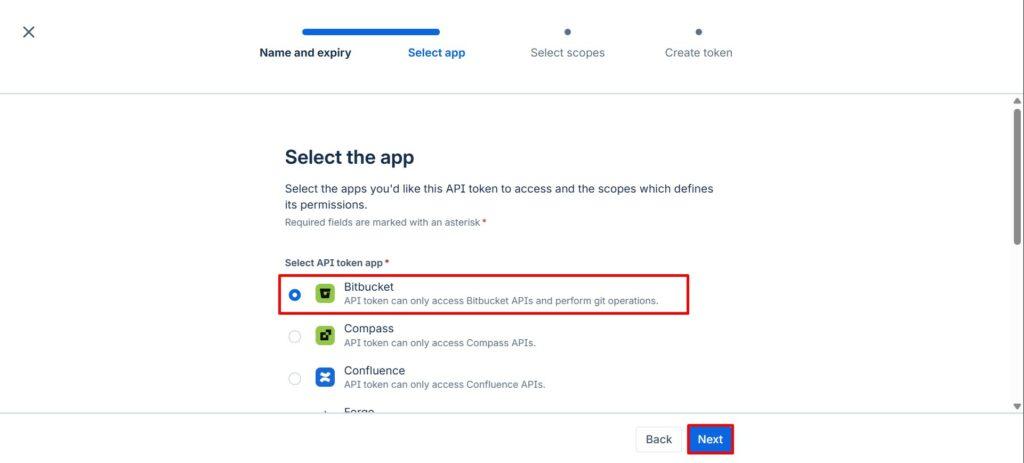
In Select the app, choose Bitbucket, then click Next.
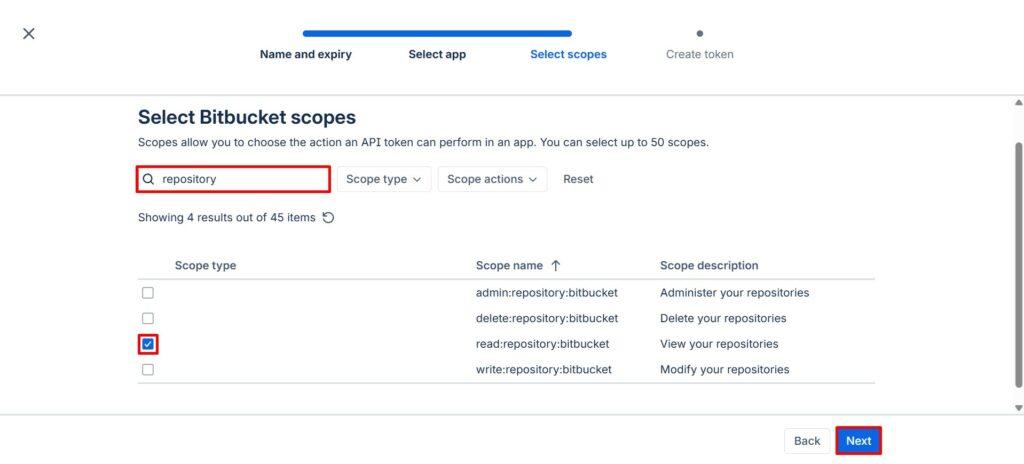
In the scopes selection step:
- Use the search field and enter
repository. - Select the checkbox read:repository:bitbucket (Read access to repositories).
- Click Next.
This scope allows viewing repository data required for integration.
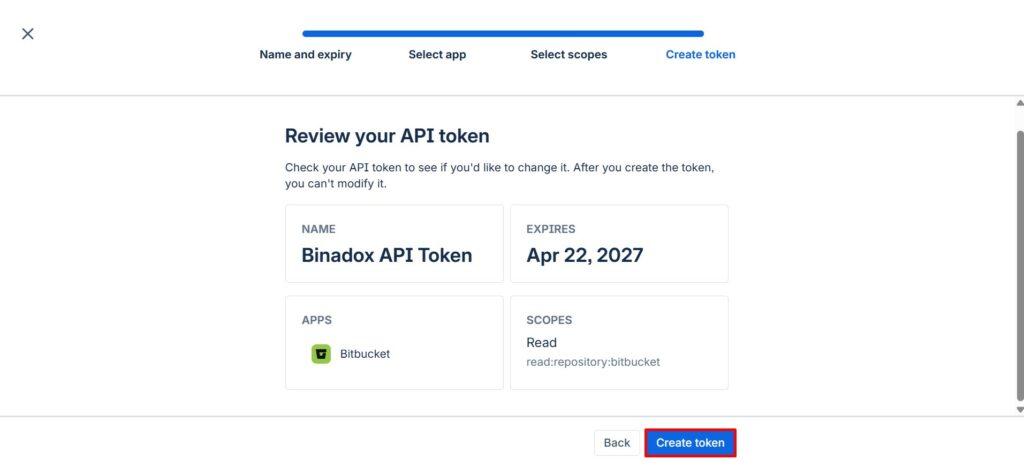
Review the token configuration and click Create token.
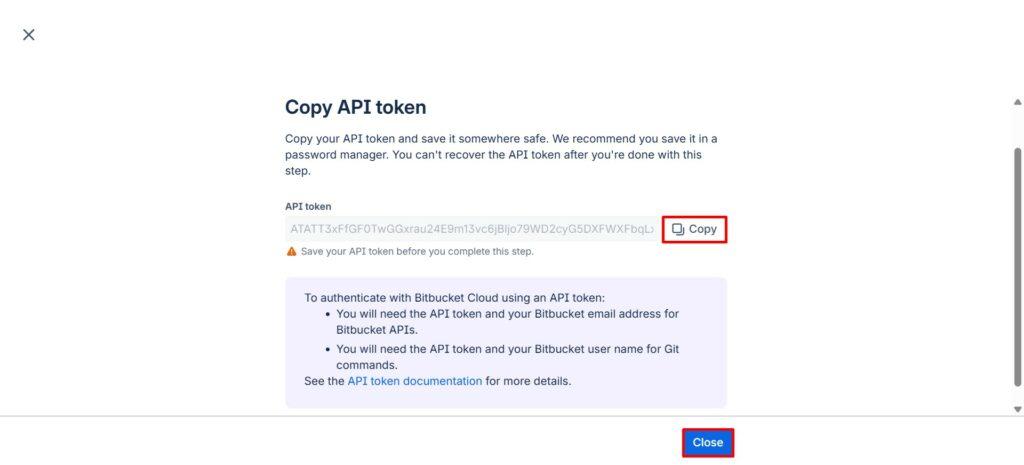
Copy the generated API token and store it securely.
Important:
You will not be able to view it again after closing the window.
3. Configure Binadox to Connect with Your Repository
Navigate to the IaC Cost Tracker page by selecting it from the left navigation menu. Click the Add project button.

In the Creating New Project dialog box, complete the following fields:
- Project name: Enter a descriptive name that clearly identifies this project within Binadox
- HTTPS: Paste the HTTPS URL of your repository that you copied in step 1. The format should be:
https://{username}@bitbucket.org/{your-repository}.git - Username: Enter your username
- Password: Paste the
API tokenyou created in step 2
Click the Next button.

Select the appropriate branch to track (typically “main” or “master”). Click the Next button.

Select the directory containing your infrastructure code. Click the Create project button.
You’ve successfully integrated with Binadox and can now track infrastructure costs automatically with each code change.