



The pay-as-you-go model is a core benefit of Google Cloud Platform (GCP), offering incredible flexibility. But that same elasticity can lead to a nasty shock at the end of the month if you’re not careful. Unexpected GCP charges can derail budgets and create friction between engineering and finance teams. The key is not just to react to a surprise bill, but to implement a system that makes billing predictable and transparent. This article provides a practical, step-by-step guide to diagnosing where your money is going, disputing incorrect charges, and building a resilient cost management practice to prevent future issues.
Key takeaways
- Export Your Data: The single most effective step is to enable billing export to BigQuery. This gives you granular, queryable data to find the exact source of any cost spike.
- Automate Alerts: Don’t rely on manually checking costs. Configure budget alerts to notify your team via email, Slack, or PagerDuty when spending exceeds set thresholds or is forecasted to.
- Clean Up Waste: A significant portion of cloud waste comes from idle or over-provisioned resources. Regularly identify and eliminate orphaned disks, unused static IPs, and oversized VMs.
- Commit, Don’t Just Spend: For predictable workloads, using Committed Use Discounts (CUDs) can save you up to 57% on most compute resources compared to on-demand pricing.
What Causes Unexpected GCP Charges?
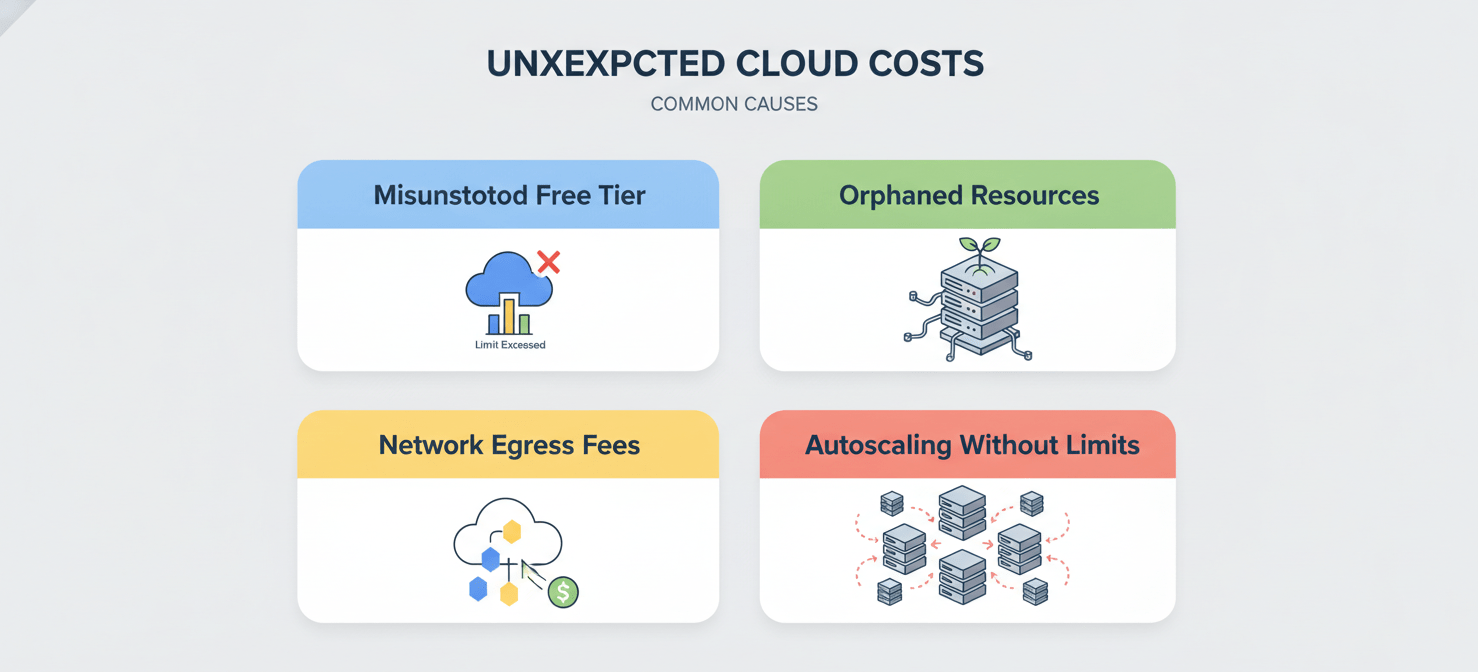
Surprise bills rarely come from a single, massive error. Instead, they are often the result of many small, unmonitored expenses accumulating over time. Understanding the common culprits is the first step toward controlling your cloud spend.
Misunderstanding the Free Tier
Google Cloud offers a generous free tier, which includes a 90-day trial with credits and an “Always Free” tier for specific services up to monthly limits. However, it’s easy to misunderstand the limitations. For example, the free tier for Compute Engine includes one e2-micro VM instance per month in specific US regions. If you deploy a larger instance or in a different region, you will be charged. Similarly, exceeding the free monthly limits for services like Cloud Storage (5 GB of regional storage) or Cloud Functions (2 million invocations) will result in charges.
Orphaned and Idle Resources
This is one of the most common sources of cost leakage.
- Unattached Persistent Disks: When you delete a virtual machine (VM) instance, its boot disk or any attached persistent disks are often not deleted by default. These “orphaned” disks continue to incur storage costs even though they are not being used.
- Unused Static IP Addresses: Reserving a static external IP address is useful, but if it’s not attached to a running resource, Google charges a small fee for it.
- Idle VMs and Databases: Development or test environments left running after hours or on weekends contribute significantly to unnecessary costs. A single forgotten high-memory database instance can add hundreds of dollars to a monthly bill.
Network Egress Fees
Data transfer costs are frequently overlooked. While ingress (data coming into GCP) is generally free, egress (data going out) is not. Costs can add up quickly from:
- Data transfer from GCP to the public internet.
- Data transfer between different GCP regions.
- Traffic from a load balancer to your backend instances.
For example, while the first 100 GB of network egress from North America is free each month, subsequent traffic is charged. These costs can be particularly surprising for applications that serve large media files or have a global user base.
Autoscaling Without Limits
Autoscaling is a powerful feature for handling variable traffic, but it can also be a source of unexpected GCP charges if not configured correctly. A poorly configured autoscaling policy, perhaps in response to a denial-of-service attack or a sudden, legitimate traffic spike, can cause your instance count to scale up dramatically. Without a budget alert or a hard quota in place, this can lead to a massive bill in a very short amount of time.
Logging and Monitoring Costs
While essential for observability, services like Cloud Logging and Cloud Monitoring can become expensive if not managed. High-volume applications can generate terabytes of logs, and storing them indefinitely in the default hot storage tier is costly. Similarly, a high frequency of custom metrics in Cloud Monitoring can also contribute to billing issues. Implementing data lifecycle policies to move older logs to cheaper storage tiers like Nearline or Coldline is a crucial optimization step.
How to Find the Source of Unexpected GCP Charges
When you receive a higher-than-expected bill, you need a systematic way to drill down and identify the root cause. GCP provides several tools to help you investigate.
Use the Cloud Billing Reports Page
The first place to look is the Cloud Billing reports page in the Google Cloud console. This dashboard provides a visual breakdown of your current and forecasted costs.
- Group By SKU: The most useful feature for diagnosing a spike is the “Group by” filter. Change it from “Service” to “SKU” (Stock Keeping Unit). This breaks down costs to the most granular level, such as “N2 Standard Machine Type” or “Regional Persistent Disk.” This will often immediately reveal the specific resource that caused the cost increase.
- Filter by Project and Time: Use the time range selector to compare the period of the high bill with a previous, normal period. You can also filter by project to isolate which team or application is responsible for the overage.
- Analyze Cost Trends: The report chart shows daily usage costs, which helps you pinpoint the exact day a cost spike began.
Export Billing Data to BigQuery for Deep Analysis
For the most powerful analysis, you must export your billing data to BigQuery. This sends detailed, hourly records of all your charges to a BigQuery dataset that you control. While the standard reports are good for a quick overview, BigQuery allows you to run complex SQL queries to answer very specific questions.
Setting Up the Export
Enabling the export is straightforward. In the Billing section of the console, navigate to “Billing export” and select the BigQuery dataset where you want the data to land. It’s a best practice to enable this as soon as you create a billing account, as the data is not backfilled.
Example Queries for Finding Anomalies
Once your data is flowing into BigQuery, you can use SQL to dissect it. Here are a few sample queries to get started:
-
Daily Cost by SKU: This query helps you see which specific SKUs are driving costs each day.
SELECT DATE(usage_start_time) AS usage_day, sku.description, ROUND(SUM(cost), 2) AS total_cost FROM `your_project.your_dataset.gcp_billing_export_v1_XXXXXX` GROUP BY 1, 2 ORDER BY 1 DESC, 3 DESC; -
Cost by Labeled Resource: If you use labels to tag resources by team or environment, this query can attribute costs directly.
SELECT
  labels.key,
  labels.value,
  ROUND(SUM(cost), 2) AS total_cost
FROM
  `your_project.your_dataset.gcp_billing_export_v1_XXXXXX`,
  UNNEST(labels) AS labels
WHERE
  labels.key = 'team'
GROUP BY
  1, 2
ORDER BY
  3 DESC;
Leverage the Cost Explorer
The Cost Explorer is another useful tool that combines billing data with utilization metrics from Cloud Monitoring. This allows you to not only see what you’re paying for but also how much you’re using it. It’s particularly effective for identifying over-provisioned resources, such as a large Compute Engine instance with consistently low CPU utilization.
How to Fight an Unexpected Google Cloud Bill
If after your investigation you believe a charge is incorrect or the result of a platform issue, you can contact Google Cloud support. Your approach and the likelihood of a successful resolution depend heavily on your support plan and the nature of the issue.
Understand Your Support Plan
Google Cloud offers several tiers of support, from Basic to Premium.
- Basic Support: This free plan is included with all billing accounts but is limited to billing and payment issues, not technical support. Response times are not guaranteed.
- Standard Support: This is a paid plan suitable for small to medium businesses. It offers technical support with response time targets (e.g., 4 hours for high-impact issues). The cost is a flat fee or a percentage of your monthly bill, whichever is higher.
- Enhanced and Premium Support: These higher-tier plans are designed for enterprises and offer much faster response times (as low as 15 minutes for critical issues with Premium support) and a dedicated Technical Account Manager.
Opening a Billing Support Case
To dispute a charge, you must open a case with Billing Support.
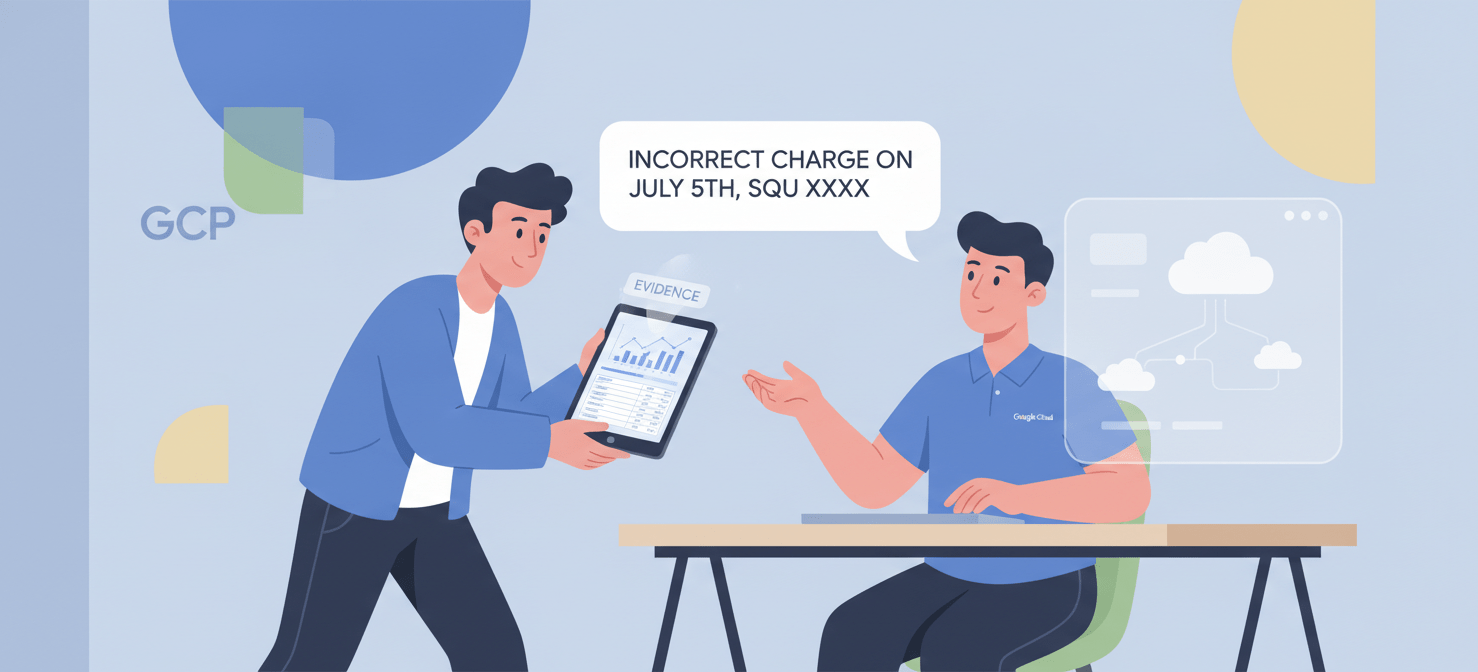
- Gather Your Evidence: Before contacting support, collect all relevant information. This includes screenshots from the Billing Reports page, results from your BigQuery queries, and any log files that might indicate a platform error or unauthorized access.
- Be Specific and Clear: When you create the support ticket, be precise. Instead of saying “My bill is too high,” state “I see a 400% increase in ‘Cloud Storage – Class A Operations’ costs starting on July 5th, which does not correspond to any known application change.”
- Reference the Terms of Service: If you believe the charge violates Google’s Terms of Service or a specific Service Level Agreement (SLA), cite the relevant section.
- Escalate if Necessary: If you are not satisfied with the initial response, especially on a higher-tier support plan, you can request to escalate the case to a manager.
While credits for self-inflicted errors (like forgetting to turn off a VM) are rare, Google is generally reasonable if the unexpected charge was caused by a platform bug, a documented issue, or unauthorized use of your account that you promptly reported.
How to Prevent Surprise GCP Bills in the Future
Reacting to billing issues is necessary, but preventing them is better. A proactive cost management strategy involves automation, governance, and smart architecture.
Implement Budgets and Alerts
This is the most critical preventative measure. In the GCP Billing console, you can create budgets for your entire billing account or for specific projects, services, or labels.
- Set Threshold Rules: Configure alerts to be sent when your actual or forecasted spend reaches a certain percentage of your budget (e.g., 50%, 90%, and 100%).
- Use Programmatic Notifications: Don’t just send alerts to an email inbox that might be ignored. Connect your budget alerts to a Pub/Sub topic. From there, you can trigger a Cloud Function to send a notification to a Slack channel, create a PagerDuty incident, or even programmatically disable billing on a non-production project to act as a “kill switch.”
Enforce Governance with Quotas and Labels
- Resource Quotas: GCP has quotas that limit the amount of a particular resource you can use, such as the number of VM instances per region. While primarily for preventing resource exhaustion, they also serve as a hard cap on spending. You can request to lower certain quotas to prevent accidental over-provisioning.
- Tagging and Labeling: Implement a mandatory labeling policy for all resources. Tags like
team,environment, andcost-centerare essential. This allows you to attribute costs accurately and create targeted budgets for individual teams.
Optimize Resource Usage
Waste reduction is a continuous process, not a one-time task.
- Right-Sizing: Use the recommendations from the GCP Recommender Hub to identify and resize over-provisioned VMs and persistent disks.
- Automate Shutdowns: For development and staging environments, use Cloud Scheduler to automatically shut down instances outside of business hours.
- Use Committed Use Discounts (CUDs): For workloads with predictable resource needs, purchasing a 1- or 3-year CUD offers significant savings over on-demand pricing. There are resource-based CUDs for specific machine types and flexible, spend-based CUDs that apply across regions and instance families.
- Leverage Sustained Use Discounts (SUDs): For VMs that don’t have a CUD, GCP automatically applies Sustained Use Discounts when they run for more than 25% of a billing month. The savings are less than with CUDs but require no commitment.
Regularly Review Costs
Make cost review a part of your team’s regular operational cadence. Schedule a monthly meeting to review the billing report, analyze trends from your BigQuery data, and discuss any anomalies. This creates a culture of cost-awareness and accountability.
Conclusion
Dealing with unexpected GCP charges is a common challenge in the cloud, but it doesn’t have to be a recurring crisis. The path from confusion to control begins with visibility. By exporting your billing data to BigQuery, you transform your bill from an opaque number into a rich dataset you can interrogate. From there, the strategy is twofold: automate your defenses with aggressive budget alerts and programmatic notifications, and relentlessly optimize by eliminating waste and choosing the right pricing models for your workloads. A surprise bill is a symptom of a process gap. By closing that gap with data, automation, and a culture of financial accountability, you can stop fighting fires and start making your cloud budget predictable, manageable, and, just maybe, a little less stressful.
By embracing a proactive approach with the right tools, you can transform your GCP cost management from a source of stress into a predictable advantage; to see how, you can sign up free today or book a demo for a personalized walkthrough.
 7-day free trial