



When you log in to review your cloud spend, the last thing you want is an incomplete picture. Many teams rely on Azure Cost Management to track expenses, but it can be alarming when you discover your Azure cost analysis not showing all subscriptions. This issue is more common than you might think, and it usually boils down to how access and visibility are structured within Azure’s framework. Understanding the underlying causes is the first step toward achieving a complete and accurate consolidated Azure billing report.
Key takeaways
- Permissions are paramount: The primary reason for missing subscriptions is insufficient access rights. Your account needs at least a “Reader” role at a scope that includes all relevant subscriptions.
- Scope defines visibility: Costs can be viewed from different scopes, such as management groups, billing accounts, or individual subscriptions. If your scope is too narrow, you won’t see the full picture.
- Agreement types matter: For Enterprise Agreements (EA), an administrator must enable the “Account owners can view charges” setting in the Azure portal for others to see cost data.
- It takes at least 3 steps to fix: Typically, resolving this involves identifying the correct scope, assigning the necessary roles (like Cost Management Reader or Contributor), and verifying the changes.
The Role of Scopes in Azure Cost Management
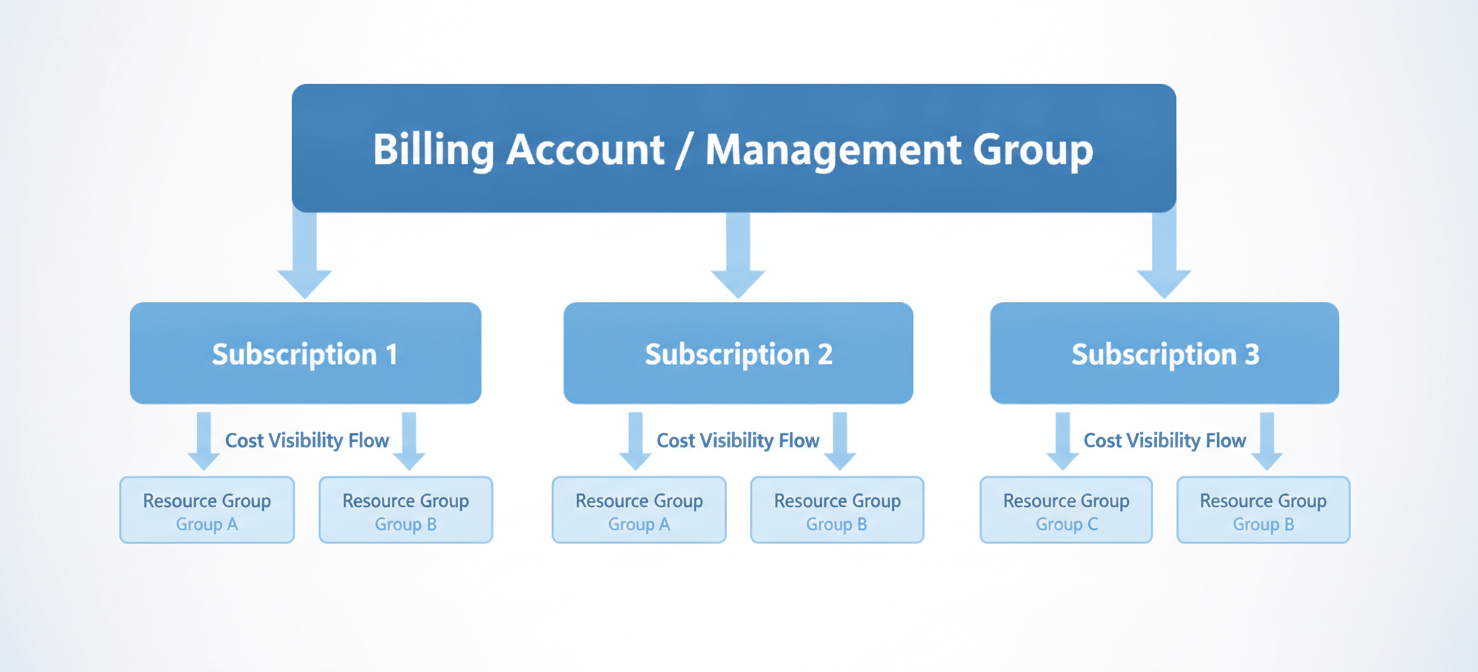
In Azure, a “scope” is the boundary for which you can manage resources and view costs. Think of it as a lens through which you view your cloud environment. If your lens is only pointed at a single subscription, you won’t see the costs associated with others. Azure Cost Management operates across several hierarchical scopes.
Understanding Different Scope Levels
Azure has two main types of scopes: those for resource management (Azure RBAC) and those for billing.
- Management Groups: These are containers that help you manage access, policy, and compliance across multiple subscriptions. If you have the right permissions at the management group level, you can see the costs for all subscriptions within it. This provides a high-level, consolidated view.
- Subscriptions: This is a primary unit for deploying and billing for Azure resources. Viewing costs at this scope limits you to only that specific subscription.
- Resource Groups: A resource group is a container that holds related resources for an Azure solution. This is the most granular RBAC scope for cost analysis.
- Billing Accounts: This scope is tied to your billing agreement, such as an Enterprise Agreement (EA) or a Microsoft Customer Agreement (MCA). Access at this level provides a comprehensive view of all costs associated with your billing profile.
If your Azure cost analysis not showing all subscriptions, it’s highly likely you are viewing it from a subscription or resource group scope instead of a higher-level management group or billing account.
Permission Issues and Role-Based Access Control (RBAC)
Even with the correct scope selected, you won’t see cost data without the proper permissions. Azure uses Role-Based Access Control (RBAC) to manage who can do what in your environment. For cost management, several key roles come into play.
If you can’t see the costs, you probably lack one of these roles at the appropriate scope. For example, having an “Owner” role on a single subscription doesn’t automatically grant you visibility into the costs of other subscriptions. To see everything, you need a role assigned at a parent management group or the overall billing account.
Key Roles for Cost Visibility
- Cost Management Reader: This role allows users to view cost data, configurations, and recommendations. It’s a good choice for team members who need visibility without the ability to make changes.
- Cost Management Contributor: This role includes all Reader permissions but also allows users to create and manage budgets and exports.
- Reader: This standard Azure role provides view access to all resources, which includes cost data at the assigned scope.
- Contributor/Owner: These roles have broader permissions to manage resources and inherently include the ability to view costs.
To resolve permission issues, an administrator with sufficient privileges (like a Billing Account Owner or User Access Administrator) must assign you the necessary role at a scope that encompasses all the subscriptions you need to see.
Enterprise Agreement (EA) and Microsoft Customer Agreement (MCA) Specifics
The type of billing agreement your organization has with Microsoft can introduce unique visibility settings. What works for a simple pay-as-you-go subscription may not apply to an Enterprise Agreement.
Enterprise Agreement (EA) Settings
For organizations with an Enterprise Agreement, a common culprit for missing cost data is a specific setting in the Azure portal. By default, Account Owners and Department Administrators might not be able to see cost and pricing information. An Enterprise Administrator must explicitly enable the “Account owners can view charges” and “Department Admins can view charges” policies. If this setting is disabled, users with access only at the subscription level will be blocked from viewing the financial data, even if they have an Owner role.
Microsoft Customer Agreement (MCA) Structure
With a Microsoft Customer Agreement, the billing structure is organized into billing profiles and invoice sections. Permissions are managed through billing roles like “Billing account owner” or “Invoice section contributor.” If you’re on an MCA and can’t see all subscription costs, it’s likely your permissions are confined to a specific invoice section rather than the entire billing profile. Furthermore, management groups are not always supported for cost management in MCA accounts, which can affect how you structure your consolidated Azure billing report.
How to Fix the Issue: A Step-by-Step Guide
Resolving the problem of Azure cost analysis not showing all subscriptions involves a systematic approach to check your scope and permissions.
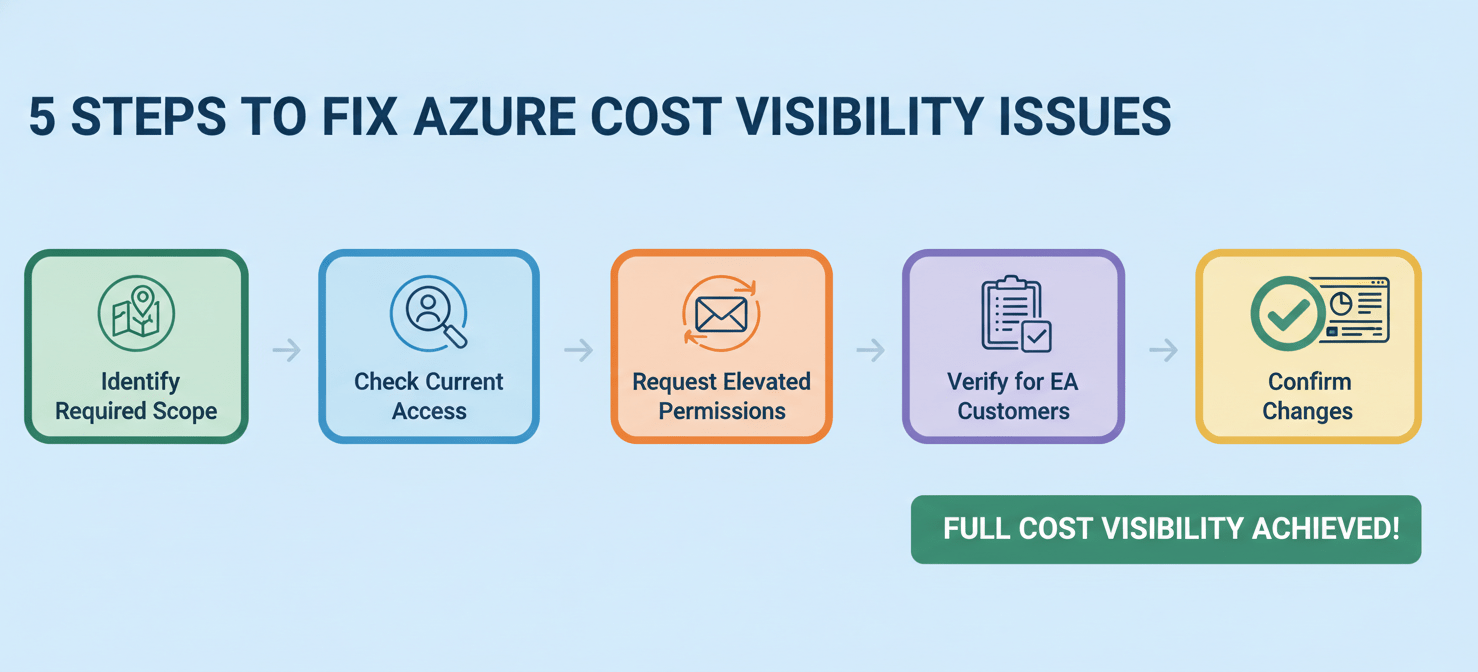
- Identify Your Required Scope: First, determine the highest level of visibility you need. Do you need to see costs for all subscriptions in the organization? If so, you’ll likely need access at the root management group or the billing account scope.
- Check Your Current Access: In the Azure portal, navigate to Cost Management + Billing. Use the scope picker at the top of the page to see what scopes you currently have access to. If you only see individual subscriptions, you’ve found the problem.
- Request Elevated Permissions: Contact your Azure administrator or billing administrator. You will need to request a role like Cost Management Reader or Reader at the management group or billing account scope that contains all the subscriptions. Be specific about the scope you need access to.
- Verify for EA Customers: If you have an Enterprise Agreement, ask your Enterprise Administrator to confirm that the “Account owners can view charges” policy is enabled in the portal.
- Confirm the Changes: Once the new permissions are granted, log back into the Azure portal. Go to Cost Analysis and use the scope picker again. You should now be able to select the higher-level scope and see the aggregated cost data for all underlying subscriptions.
Conclusion
When your Azure cost analysis not showing all subscriptions, the root cause is almost always a mismatch between the scope you’re viewing and the permissions you’ve been granted. It’s not a bug, but rather a feature of Azure’s structured approach to governance and security. By ensuring you have the right RBAC role—such as Reader or Cost Management Reader—at a sufficiently high scope like a management group or the billing account, you can achieve a complete and accurate view. Don’t just assume you have access; verify your scope and work with your administrators to get the visibility you need. After all, you can’t manage what you can’t see.

If gaining complete, consolidated visibility across all your cloud subscriptions remains a challenge, you can easily experience Binadox with a free trial or arrange a personalized demonstration of its capabilities.
 7-day free trial