



When you’re managing a sprawling Azure environment, management groups are essential for organizing subscriptions and applying governance at scale. A key benefit is the ability to view aggregated cost data across multiple subscriptions. However, it’s a common and frustrating problem to open Cost Analysis and find it empty. If you’re facing the “Azure cost analysis management group no data” issue, the fix usually involves correcting permissions or enabling specific settings in your billing account. This article walks you through the primary causes and provides a step-by-step guide to resolve them.
Key takeaways
- Incorrect Permissions: The most frequent cause is not having the ‘Cost Management Reader’ or a similar role assigned at the management group scope. Standard ‘Reader’ permissions are not sufficient.
- Enterprise Agreement (EA) Settings: For EA customers, an administrator must enable the “Account owners can view charges” policy within the billing account settings.
- Data Propagation Delay: After you apply the correct permissions or settings, it can take up to 24 hours for cost data to become fully visible in Cost Analysis.
- Check Your Scope: Ensure you are selecting the correct management group scope within the Cost Analysis view, not a billing scope, which is a common point of confusion.
Understanding the Scope: Why Management Groups are Different
Azure provides two primary ways to structure and manage resources: the resource hierarchy (management groups, subscriptions, resource groups) and the billing hierarchy (billing accounts, departments, enrollment accounts). While they are related, their permissions are managed separately. Management groups are part of the resource hierarchy, allowing you to apply Azure policies and role-based access control (RBAC) across many subscriptions.
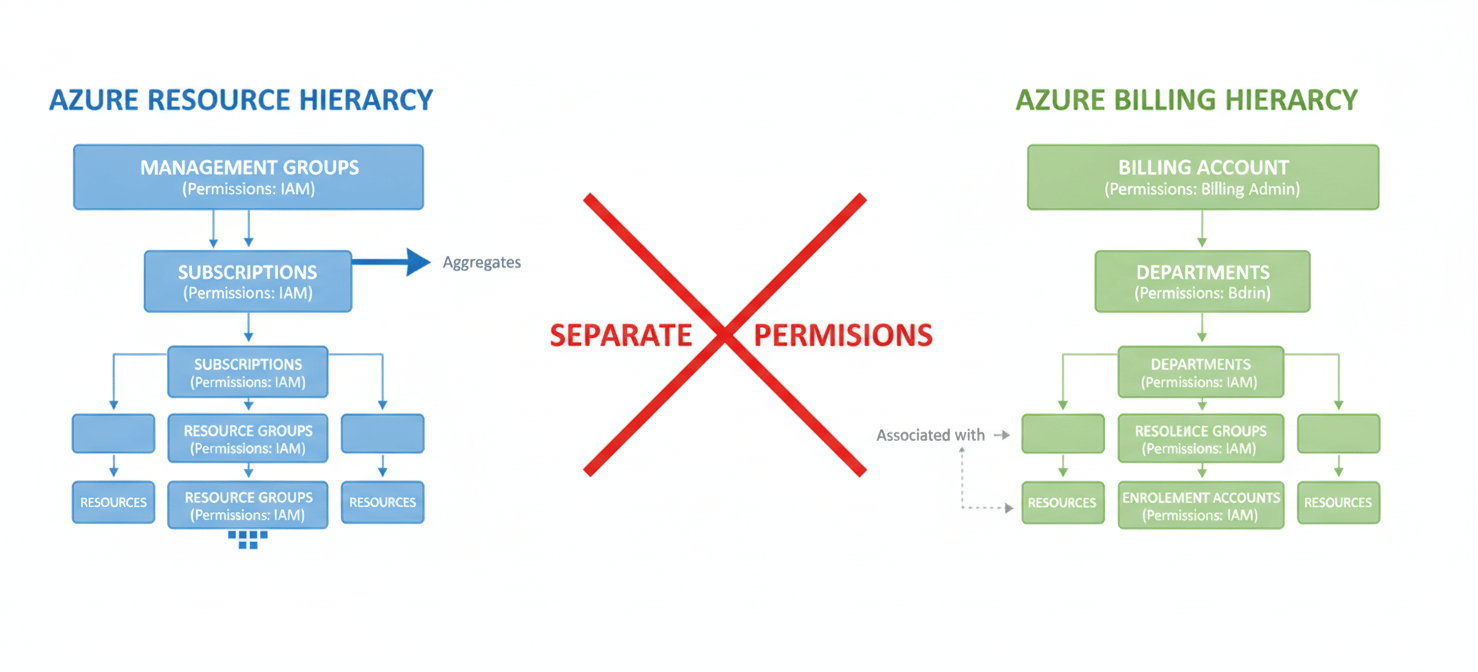
Viewing costs at a management group level means you are looking at an aggregation of all the subscriptions nested under it. Therefore, Azure requires explicit permission to be granted at that specific management group scope. Permissions inherited from individual subscriptions are not sufficient to view the aggregated data. This separation ensures that a user who can see costs for one subscription can’t automatically see costs for all subscriptions in a department or the entire organization.
The Primary Culprit: The ‘Cost Management Reader’ Role
For most users, the reason Cost Analysis is empty for a management group is a simple permissions issue. Standard roles like “Reader” or even “Contributor” do not inherently grant the ability to view cost data at an aggregated level. Azure has specific roles for this purpose.
To view costs, a user needs to be assigned, at a minimum, the Cost Management Reader role at the management group scope. This role provides read-only access to cost data and configuration.
Assigning the Necessary Role
An administrator with “Owner” or “User Access Administrator” permissions on the management group can assign the required role. The process involves navigating to the specific management group in the Azure portal, opening the Access control (IAM) blade, and adding a new role assignment for the user or group that needs access.
It’s crucial to apply the role directly to the management group. Assigning it to a parent management group will work, as permissions are inherited down the hierarchy. However, assigning it only to the child subscriptions will not enable the consolidated view.
For EA Customers: Enabling the ‘View Charges’ Setting
If your organization has an Enterprise Agreement (EA), there’s an additional layer of control that often causes the “Azure cost analysis management group no data” problem. EA billing accounts have specific policies that can prevent cost data from being displayed to anyone other than the billing administrators.
An Enterprise Administrator must enable these settings within the Azure portal. There are two key policies:
- Department Admins can view charges (DA view charges): Allows department administrators to see cost data.
- Account owners can view charges (AO view charges): Allows account owners and anyone with RBAC access to the subscriptions to see cost data.
For Cost Analysis to work at the management group level for non-billing admins, the “Account owners can view charges” setting must be turned on. Without this, even users with the correct RBAC roles (like Cost Management Reader) will see no data.
Step-by-Step Fix: How to Enable Azure Cost Analysis for Management Groups
Let’s walk through the process of fixing the issue, combining the solutions for permissions and EA settings.
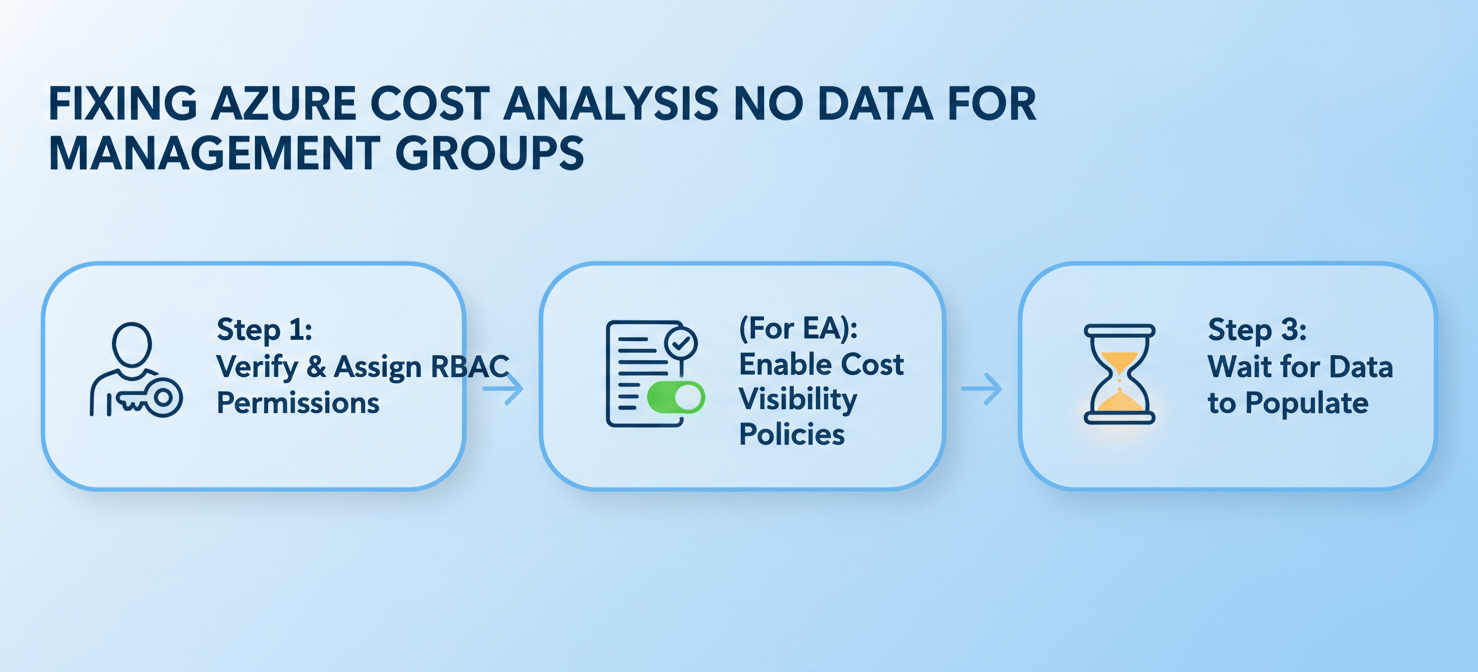
Step 1: Verify and Assign RBAC Permissions
First, ensure the correct RBAC role is assigned. You will need Owner or User Access Administrator rights on the management group to perform these actions.
- Sign in to the Azure portal.
- In the search bar, type “Management Groups” and select it.
- Navigate to the specific management group where you want to view costs.
- In the left-hand menu, click on Access control (IAM).
- Click the + Add button and select Add role assignment.
- In the “Role” tab, search for and select Cost Management Reader. If users also need to create budgets or exports, you might choose Cost Management Contributor.
- Click Next, and on the “Members” tab, select the users or groups who need access.
- Click Review + assign to complete the process.
Step 2: (For EA Customers) Enable Cost Visibility in Billing Policies
Next, if you have an Enterprise Agreement, an Enterprise Administrator must check the billing policies.
- In the Azure portal search bar, type Cost Management + Billing and select it.
- From the “Billing scopes” page, select your billing account.
- In the left-hand navigation menu under “Settings,” select Policies.
- Find the policy named Account owners can view charges and toggle it to On.
- Click Save.
Step 3: Wait for Data to Populate
After making these changes, be patient. It can take some time for the permissions to propagate and for the cost data to be processed and displayed. It is common for this to take up to 24 hours. If you check immediately and still see no data, wait a day before further troubleshooting.
When It’s Still Not Working: Other Potential Issues and Azure Cost Analysis Management Group No Data
If you’ve correctly set the permissions and EA policies and have waited 24 hours, but the Azure cost analysis management group no data issue persists, consider these other possibilities.
Incorrect Scope Selection
Double-check that you are viewing the correct scope in Cost Analysis. When you open Cost Analysis, the scope picker at the top of the page should be set to your management group. It’s easy to accidentally select a billing scope or an individual subscription, which would not show the aggregated data you expect.
Microsoft Customer Agreement (MCA) Limitations
Historically, there have been limitations on using management groups for cost management with Microsoft Customer Agreement (MCA) accounts. While support has improved, ensure your account type fully supports this functionality. Billing users under an MCA might not have access to management group scopes because they don’t fall directly under the billing account hierarchy.
Tenant Root Group Issues
Viewing costs at the absolute highest level, the “Tenant root group,” can sometimes present unique challenges. By default, no one has access to the root management group, and a Global Administrator must first elevate their access to become a User Access Administrator at that root scope before they can assign roles to others. If the issue is specific to the azure tenant root group no cost data, elevated permissions may be required to configure access properly.
Conclusion
Seeing an empty dashboard when you expect a comprehensive cost breakdown can be alarming. However, the problem of Azure cost analysis management group no data is almost always solvable through a methodical check of permissions and settings. The solution typically lies in assigning the ‘Cost Management Reader’ role at the correct management group scope and, for Enterprise Agreement customers, ensuring that the ‘Account owners can view charges’ policy is enabled. By following these steps, you can restore visibility and put the “analysis” back in your Cost Analysis, turning a blank screen into a valuable FinOps tool.
To move beyond basic fixes and gain truly comprehensive FinOps insights, we invite you to explore how Binadox can transform your cost management; you can easily schedule a demonstration to learn more or begin your complimentary trial today.
 7-day free trial