



When you’re trying to get a clear view of your cloud spend, few things are more frustrating than setting up a system to organize costs only to find it isn’t working as expected. AWS Cost Categories is a powerful feature for mapping your spending to your business structure, but when it fails, it can leave your financial reporting in disarray. If you’re struggling with “aws cost categories not working,” you’re not alone. This is a common hurdle, but the fixes are often straightforward.
This article will walk you through the most common reasons your AWS Cost Categories aren’t behaving as expected and provide clear, step-by-step solutions to get your cost allocation back on track.
Key takeaways
- Patience is a virtue: After creating or updating a cost category, it can take up to 24 hours for the changes to be reflected in AWS Cost Explorer and your Cost and Usage Reports (CUR).
- Tags vs. Categories: Cost Categories and cost allocation tags are not the same. Tags are applied to individual resources, while Cost Categories group costs at the billing level based on rules you define.
- Check your rules: The order of your rules matters. AWS evaluates rules from top to bottom, and the first rule that matches a cost line item determines its category.
- Permissions matter: Only the management account in an AWS Organization can create and manage Cost Categories.
Understanding the Lag: When Do Cost Categories Update?
One of the most common sources of confusion when AWS Cost Categories appear to be “not working” is the processing time. After you create a new cost category or edit an existing one, there is a delay before you will see the changes in your cost management tools.
According to AWS documentation, it can take up to 24 hours for your cost and usage information to be categorized and appear in AWS Cost Explorer, AWS Budgets, and the AWS Cost and Usage Report (CUR). During this period, the status of your cost category in the Billing console will show as “Processing.” Once it changes to “Applied,” your cost data will be updated according to your new rules.
It’s also important to note that changes to Cost Categories are applied from the beginning of the current month. For example, if you update a rule on the 15th of the month, the change will be retroactively applied to all costs incurred since the 1st of that month.
Common Configuration Errors and How to Fix Them
If you’ve waited more than 24 hours and your costs are still not categorized correctly, the issue likely lies in your configuration. Here are some of the most frequent errors and how to resolve them.
Incorrect Rule Logic
The power of Cost Categories lies in its rule-based engine. However, complex logic can sometimes lead to unexpected outcomes. Your rules can be based on several dimensions, including accounts, services, charge types, and tags.
- Solution: Carefully review the logic of each rule. Ensure that the dimensions and operators (e.g., “Is,” “Contains,” “Starts with”) are correctly configured to capture the intended costs. Use the cost preview panel when creating or editing rules to see an estimate of the impact of your changes.
Uncategorized Costs and Default Values
If you see a large portion of your spending labeled as “Uncategorized” or “No Cost Category,” it means that none of your rules matched those cost line items.
- Solution: Create a “catch-all” rule at the bottom of your rule list. You can also assign a default value to your cost category. This ensures that any costs not captured by your specific rules are still assigned a meaningful label, such as “Shared Infrastructure” or “Other,” rather than being left uncategorized.
Issues with Split Charge Rules
Split charge rules are used to allocate shared costs, like data transfer or enterprise support, across multiple category values. However, these allocations have a significant limitation: they are only visible on the Cost Categories details page and do not appear in Cost Explorer or the CUR.
- Solution: Be aware that split charge allocations are for internal reporting within the Cost Categories feature itself. If you need to see these splits in other cost management tools, you may need to handle that allocation outside of AWS or use a third-party cost management platform.
The Difference Between Cost Categories and Cost Allocation Tags
A frequent point of confusion is the distinction between Cost Categories and cost allocation tags. While they work together, they serve different purposes. If you’re experiencing aws cost allocation tags not showing, it could be a symptom of a misunderstanding between these two features.
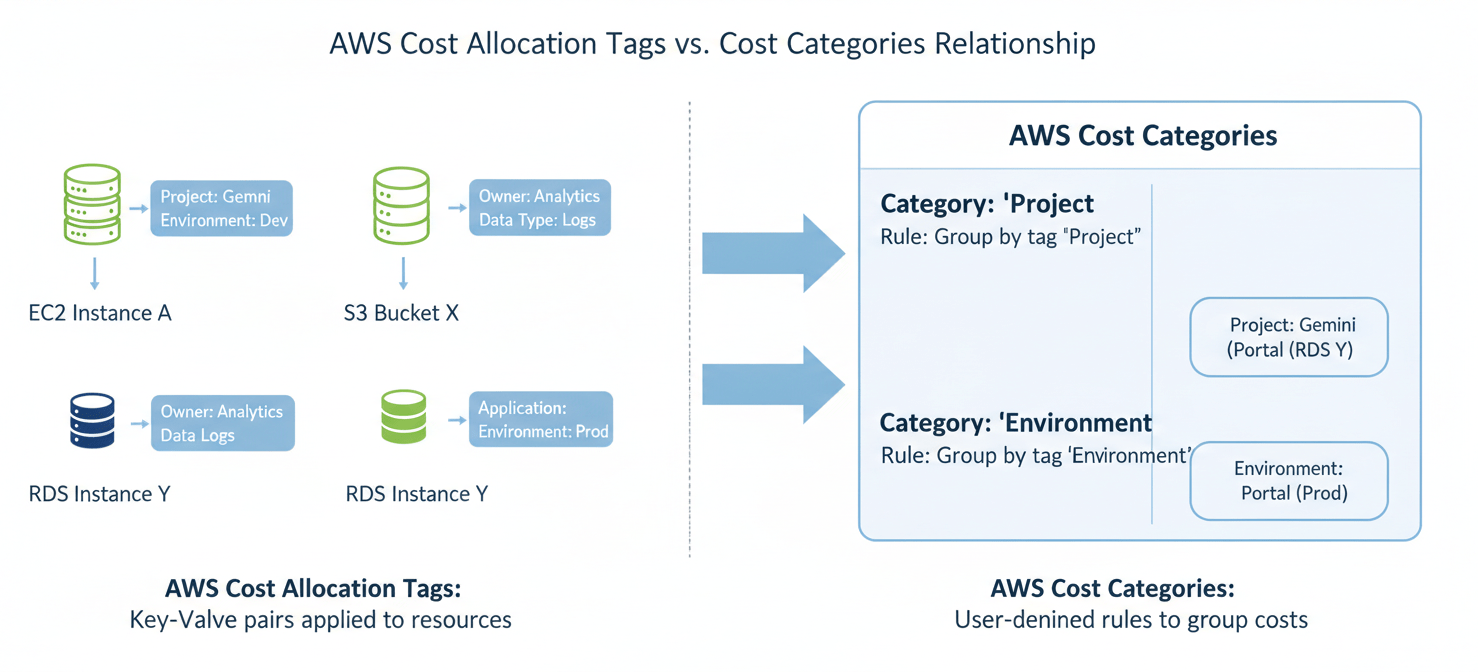
- Cost Allocation Tags: These are key-value pairs that you apply directly to individual AWS resources (like an EC2 instance or an S3 bucket). For a tag to be usable for cost analysis, it must be activated as a “cost allocation tag” in the Billing and Cost Management console. It can take up to 24 hours after activation for these tags to appear in Cost Explorer.
- AWS Cost Categories: This is a higher-level feature that groups your costs based on rules. These rules can use activated cost allocation tags as one of the dimensions for categorization. In essence, tags provide the raw metadata, and Cost Categories use that metadata to create a structured view of your spending.
If your Cost Categories that rely on tags are not working, first verify that the tags are correctly applied to the resources and have been activated in the Billing console.
AWS Cost Categories Not Working? Check Your Inheritance Rules
Cost Categories support two types of rules: regular and inherited. Inheritance is a powerful feature that allows you to create dynamic categories, but it can also be a source of errors if not configured correctly.
How Inherited Rules Work
An inherited value rule dynamically creates category values based on the values of a specific dimension. For example, you can create a rule that inherits values from the “Project” tag key. If you have resources tagged with Project:A, Project:B, and Project:C, the cost category will automatically create values for “A,” “B,” and “C.”
This is particularly useful for creating multi-level hierarchies. You could have one cost category for “Teams” and another for “Departments” that inherits its values from the “Teams” category, effectively grouping teams into departments.
Common Inheritance Issues
- Dimension Mismatch: Ensure the dimension you are inheriting from (e.g., a specific tag key) exists and has values associated with it during the billing period.
- Rule Order: Just like regular rules, the order of inherited rules matters. If a cost line item is captured by a higher-priority rule, the inherited rule will not be applied.
- Dynamic Nature: Because inherited values are dynamic, they can change as your tags or other dimensions change. This can be powerful, but it also means you need to maintain good tagging hygiene to ensure your categories remain accurate.
Advanced Troubleshooting: When the Basics Fail
If you’ve checked all the common issues and your Cost Categories are still not working, it’s time to dig a little deeper.
Check IAM Permissions
Remember that only the management account of an AWS Organization has the permissions to create, edit, and manage Cost Categories. If you are in a member account, you will not be able to make changes.
Review the JSON Editor
For complex rules, the visual Rule Builder in the AWS console might not provide enough flexibility. The JSON editor allows for more advanced logic, including nested conditions. If you are using the JSON editor, validate your JSON structure carefully to ensure there are no syntax errors.
Examine Your Cost and Usage Report (CUR)
The CUR is the most detailed source of your AWS billing data. When a cost category is applied, it appears as a new column in your CUR. If you are not seeing the expected values in Cost Explorer, examining the raw data in your CUR can help you pinpoint which line items are not being categorized correctly. This can reveal issues with specific services or charge types that your rules may be missing.
Consider Service-Specific Limitations
While tagging is widely supported, some AWS services or specific charge types cannot be tagged. These untaggable costs will not be captured by rules that rely solely on tags. In these cases, you will need to create rules based on other dimensions, such as the service name or account ID, to categorize these costs.
Conclusion
When you find your aws cost categories not working, the solution is usually found by methodically checking the three most common culprits: time, tags, and rule logic. First, give the system up to 24 hours to process any changes you’ve made. Next, ensure you understand the relationship between resource-level cost allocation tags and the billing-level rules of Cost Categories. Finally, meticulously review your rule configurations, paying close attention to their order, the logic they employ, and how they handle costs that don’t match any specific criteria. By addressing these areas, you can transform Cost Categories from a source of frustration into a reliable tool for clear and accurate financial oversight. After all, a cost management system that doesn’t correctly manage costs isn’t much of a system at all.
If these fixes still leave you wrestling with disorganized cloud spend, consider how a dedicated platform could help; you can easily begin a free Binadox trial to bring order to your finances or speak with our team to arrange a personalized demo.
 7-day free trial