



It’s a frustrating scenario for any IT administrator: you assign licenses to your users, only for them to mysteriously disappear. This disruption prevents users from accessing essential applications and services, leading to a flood of support tickets. If you’re dealing with the headache of Office 365 licenses unassigning automatically, you’re not alone. This issue is often rooted in the complexities of how licenses are managed and synchronized within the Microsoft 365 ecosystem. Understanding the underlying causes is the first step toward a permanent solution.
Key takeaways
- Group-Based Licensing is a primary cause: Most automatic unassignments stem from errors in Azure AD group-based licensing, such as insufficient licenses or service plan conflicts.
- Synchronization is critical: Errors with Azure AD Connect, which synchronizes your on-premises Active Directory with Azure AD, can lead to incorrect user data and license removal.
- Check the logs: The Microsoft 365 admin center’s “Errors & issues” tab and Azure AD audit logs are your best tools for diagnosing why a license was removed.
- Proactive management helps: Regularly auditing licenses and group memberships can prevent many of these issues from occurring in the first place.
The Usual Suspect: Group-Based Licensing in Azure AD
The most common reason for licenses vanishing is related to group-based licensing in Azure Active Directory (now Microsoft Entra ID). This feature is designed to simplify license management by allowing you to assign a license to a group rather than to individual users. When a user is added to the group, they automatically get the license. Conversely, when they are removed, the license is unassigned.
However, this automation can backfire. If a user is inadvertently removed from a licensed group, their access is immediately revoked. This can happen due to manual error, an automated script, or changes in dynamic group membership rules.
Common Group-Based Licensing Errors
Several specific errors can occur during the group-based assignment process that lead to users losing Office 365 license access:
- Insufficient Licenses: If you assign a product license to a group but don’t have enough available licenses for every member, some users will fail to receive one. The system may not assign any licenses to the group if it can’t cover all members.
- Conflicting Service Plans: A user cannot be assigned two service plans that are mutually exclusive. For example, if a user is in two different groups that assign conflicting plans (like certain Exchange Online plans), the license assignment will fail for one or both.
- Dependency Issues: Some service plans depend on others. If a license assignment attempts to enable a service without its required dependency, an error will occur, and the license may not be applied correctly.
You can identify these issues by navigating to the Billing > Licenses page in the Microsoft 365 admin center. Select the product and review the “Errors & issues” tab to see a list of affected users and the specific reason for the failure.
Directory Synchronization Errors (Azure AD Connect)
For organizations with a hybrid environment, Azure AD Connect plays a vital role in keeping the on-premises Active Directory and Azure AD in sync. M365 license sync issues can arise when this synchronization process encounters problems.
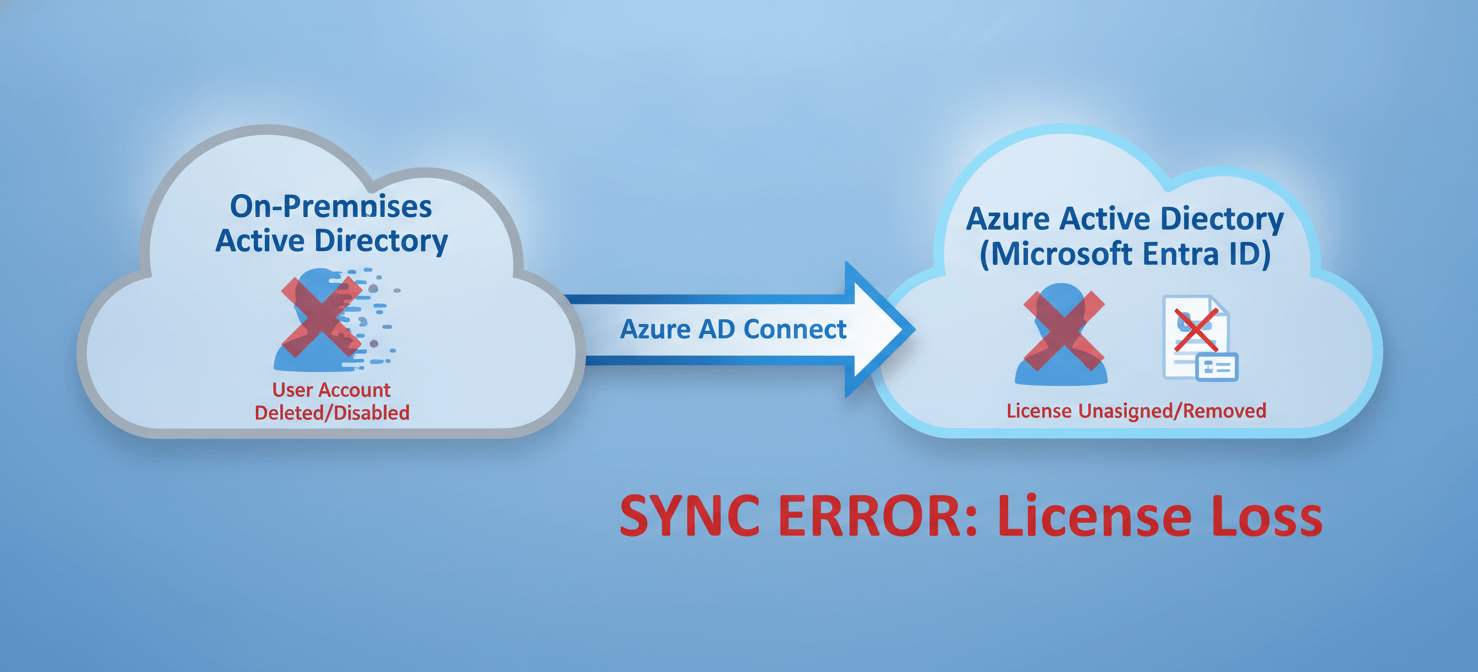
If a user object is accidentally deleted from your on-premises AD or moved to an organizational unit (OU) that isn’t being synced, Azure AD Connect will interpret this as a deletion. During the next sync cycle, the corresponding user in Azure AD will also be deleted, and their licenses will be unassigned.
Furthermore, attribute conflicts can cause sync failures. Azure AD requires certain attributes, like proxyAddresses and userPrincipalName, to be unique for each user. If a sync attempt finds a duplicate value, it can result in an error that prevents the user object from updating correctly, potentially impacting their license status.
Why Are My Office 365 Licenses Unassigning Automatically? Other Potential Causes
While group-based licensing and sync errors are the most frequent culprits, other factors can contribute to the problem of Office 365 licenses unassigning automatically.

Administrative Changes and Scripts
Manual or scripted administrative actions can have unintended consequences. For instance, an administrator might run a PowerShell script to bulk-update user attributes or group memberships. If that script contains a logic error, it could mistakenly remove users from a licensed group. Similarly, bulk-moving users between different license SKUs can trigger a reassignment process that fails if not configured correctly, leaving users without a license.
Dynamic Group Membership Changes
Dynamic groups in Azure AD automatically manage membership based on user attributes. For example, you can create a group where all users from the “Sales” department are automatically members. If a user’s department attribute is changed or cleared, they will be automatically removed from the dynamic group, and their license will be unassigned. It’s crucial to understand the rules governing your dynamic groups to prevent accidental license removal.
Proactive Steps to Prevent License Removal
Instead of just reacting to problems, you can take several proactive steps to minimize the chances of licenses being unassigned.
First, regularly audit your license assignments. Use the reporting tools in the Microsoft 365 admin center and Azure AD to monitor license usage and identify any assignment errors before they become widespread issues.
Second, implement a clear change management process. Any changes to licensed groups, Azure AD Connect configurations, or administrative scripts should be carefully reviewed and tested. For critical groups, consider using Azure AD’s privileged identity management features to control who can make membership changes.
Finally, leverage the audit logs. The Azure AD audit logs provide a detailed record of all activities, including group membership changes and license assignments. If a user loses a license, the audit log should be your first stop to determine who or what made the change and why.
Conclusion
Finding that your Office 365 licenses are unassigning automatically can be a significant disruption, but the cause is rarely random. The issue almost always traces back to a logical process, whether it’s an error in group-based licensing, a directory synchronization problem, or an administrative mistake. By understanding these common failure points—especially the nuances of group assignments and Azure AD Connect—you can move from a reactive to a proactive stance. A combination of regular audits, careful change management, and diligent use of audit logs will help ensure your users retain the access they need, keeping your team productive and your support queue manageable.
By understanding these common failure points and leveraging proactive tools, you can ensure your users retain the access they need; you can create your free Binadox account to gain better control over your licenses, or explore a personalized demonstration of its capabilities to streamline your management.
 7-day free trial