



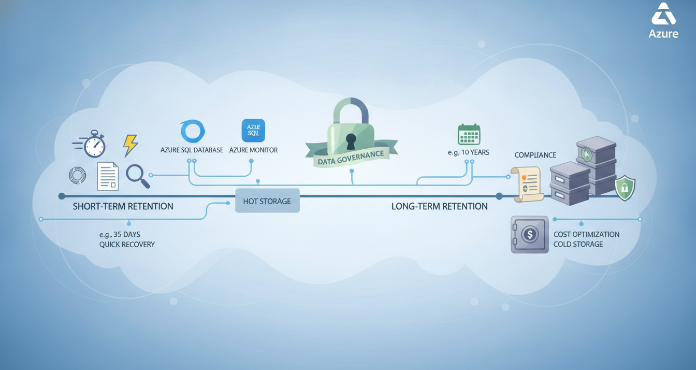
Properly configuring your database log retention in Azure is a critical task for compliance, disaster recovery, and operational insight. Without a deliberate retention strategy, you risk losing vital data needed for audits or troubleshooting. Furthermore, you might incur unnecessary costs by storing logs for too long. This guide provides a practical walkthrough of the key concepts and configuration steps for managing log retention across Azure’s database services.
Key takeaways
- Short-Term vs. Long-Term: Azure SQL Database offers automated short-term backups (Point-in-Time Restore) for up to 35 days and separate Long-Term Retention (LTR) for up to 10 years.
- Centralized Logging: Use Azure Monitor and Log Analytics workspaces to centralize and manage logs from various database resources for extended periods.
- Configuration is Key: Retention is not automatic beyond default periods. You must actively configure policies in the Azure portal, via CLI, or PowerShell to meet your specific needs.
- Cost Management: Be mindful of storage costs. Move older, less frequently accessed logs to cheaper storage tiers like Azure Storage Archive to optimize your budget.
Understanding the “Why”: Business and Compliance Drivers
The need to retain database logs isn’t just a technical requirement; it’s driven by significant business and regulatory needs. For many organizations, a 90-day retention period is insufficient for compliance with standards like SOC 2, HIPAA, or GDPR, which often mandate holding audit data for a year or longer. Failing to produce logs for an audit can result in significant penalties.
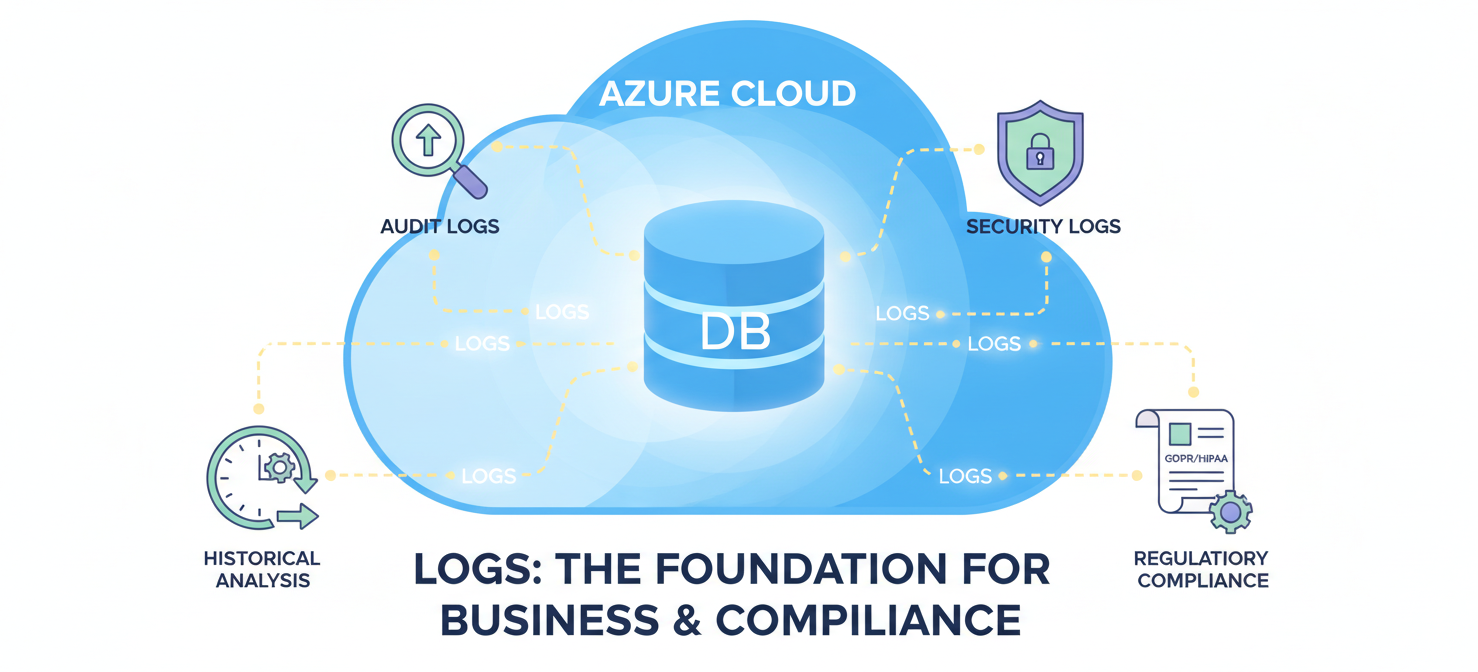
Beyond compliance, logs are your first line of defense in a security incident. A security breach might not be discovered for months. Without historical logs, tracing the attacker’s steps and understanding the full scope of the compromise becomes nearly impossible. From an operational standpoint, long-term logs provide invaluable data for trend analysis, performance tuning, and debugging complex, intermittent issues that may not be apparent in the short term.
Short-Term vs. Long-Term Retention
Azure makes a clear distinction between two types of backup and log retention: short-term and long-term. Understanding this separation is fundamental to building an effective strategy.
Short-Term Retention (Point-in-Time Restore)
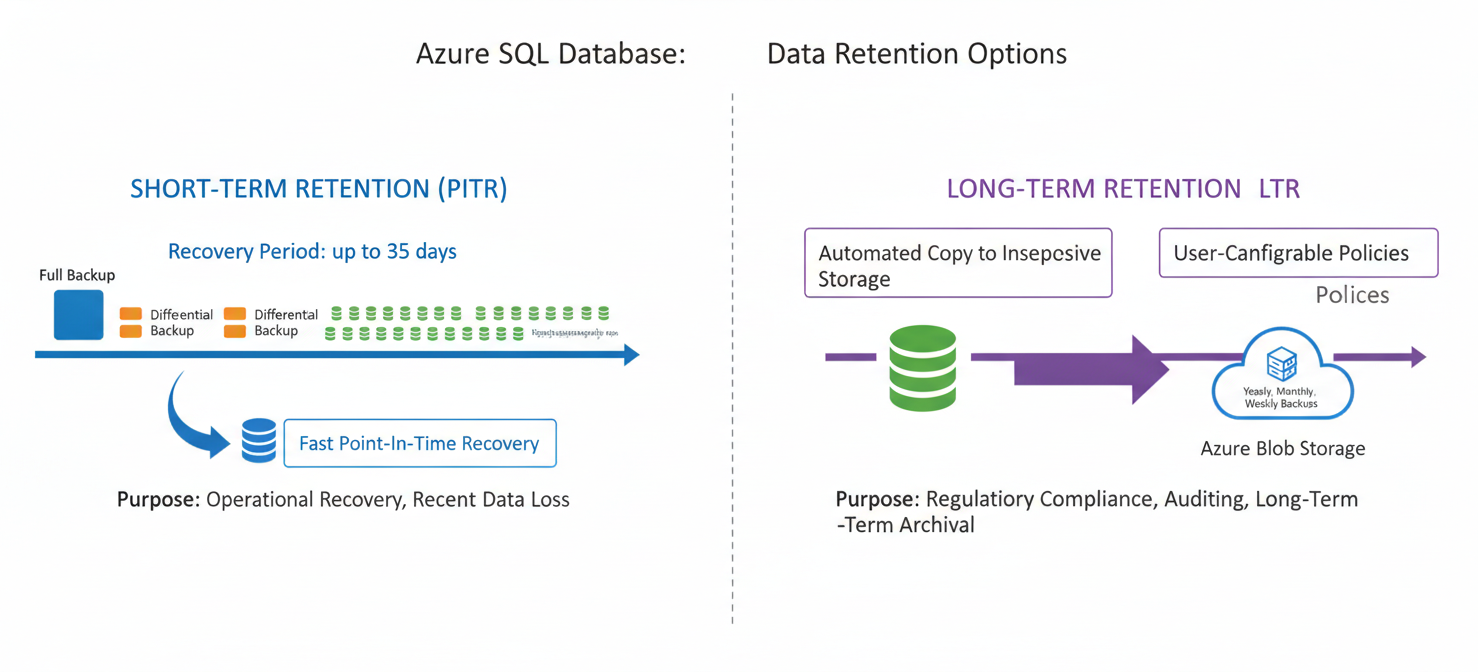
Short-term retention is designed for operational recovery—for instance, recovering from an accidental data deletion. For Azure SQL Database, this is known as Point-in-Time Restore (PITR).
- Functionality: PITR relies on a combination of full weekly backups, differential backups every 12-24 hours, and transaction log backups roughly every 10 minutes. This allows you to restore a database to any specific moment within your retention window.
- Duration: The retention period for these automated backups can be configured from 1 to 35 days. Basic service tiers may have a shorter default, often around 7 days.
- Purpose: Its primary use is for immediate operational recovery, not for meeting long-term compliance mandates.
Long-Term Retention (LTR)
For compliance and archival, Azure provides Long-Term Retention (LTR). This feature takes the automated full backups created for PITR and copies them to separate, redundant Azure Blob Storage for extended periods.
- Functionality: You define a policy specifying how long to keep weekly, monthly, and yearly backups. For example, you could keep the first backup of each month for 12 months and the first backup of each year for 7 years.
- Duration: LTR policies can be configured to retain backups for up to 10 years.
- Purpose: LTR is specifically designed for audit, compliance, and historical analysis needs, providing a durable, long-term storage solution.
Configuring Long-Term Backup Retention for Azure SQL
Setting up LTR for Azure SQL Database or Azure SQL Managed Instance is a straightforward process through the Azure portal. This ensures your data is protected beyond the 35-day short-term window.
Step-by-Step Configuration in the Azure Portal
- Navigate to Your SQL Server: In the Azure Portal, go to the logical SQL server or Managed Instance that hosts your databases, not an individual database.
- Open the Backups Blade: In the left-hand menu, under “Data management,” select Backups.
- Select Retention Policies: You will see two tabs: “Retention policies” and “Available backups.” Click on the Retention policies tab.
- Choose Databases: A list of databases on the server will appear. Select the checkbox next to the database(s) for which you want to configure LTR.
- Configure the Policy: Click the Configure policies button. In the pane that opens, you can set your desired retention periods for weekly, monthly, and yearly LTR backups. For example, you might set weekly backups to be retained for 8 weeks, monthly for 12 months, and yearly for 7 years.
- Apply Changes: Once you have defined your policy, click Apply to save the settings. It may take up to 7 days for the first LTR backup to become visible and available for restore.
Managing Diagnostic and Audit Logs with Azure Monitor
While backup retention handles disaster recovery, diagnostic and audit logs are essential for security and performance monitoring. These logs are managed through Azure Monitor and Log Analytics.
Sending Logs to a Log Analytics Workspace
By default, most diagnostic logs are not stored for long periods. The standard for Azure Activity Logs, for example, is a 90-day retention period at no cost. To retain them longer, you must route them to a durable storage solution.
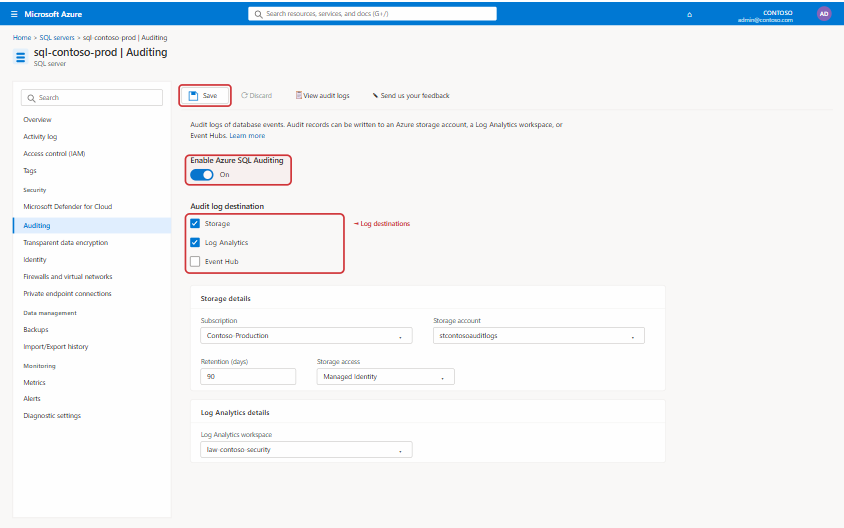
- Navigate to Diagnostic Settings: Go to your Azure SQL Database or other database resource in the Azure portal. Under the “Monitoring” section, select Diagnostic settings.
- Add a Diagnostic Setting: Click + Add diagnostic setting.
- Configure the Destination: Give the setting a name. Then, select the log categories you wish to capture, such as
SQLSecurityAuditEventsfor auditing. Choose Send to Log Analytics workspace as the destination. You can select an existing workspace or create a new one. - Set Retention in Log Analytics: Once logs are flowing into the workspace, you can manage their retention. Navigate to your Log Analytics workspace, select Usage and estimated costs, and then Data Retention. Here, you can adjust the retention period for the entire workspace, with options to retain data for up to 730 days (2 years) for interactive queries or archive it for up to 12 years.
Cost Implications and Optimization
Data retention is not free. Log Analytics pricing is based on two main factors: data ingestion and data retention. While a certain amount of retention is often included (typically the first 30-31 days), you pay a per-GB monthly fee for longer-term storage.
To manage costs, you can leverage data archiving. Archived data is significantly cheaper to store than data kept in the interactive “Analytics” tier. This is ideal for compliance scenarios where logs must be kept for many years but are rarely accessed. The cost for archived data can be around 80% less than for interactive data.
Using Recovery Services Vaults for Centralized Management
For more complex environments, especially those including SQL Server on Azure VMs, a Recovery Services vault provides a centralized entity to manage backups and recovery points. It acts as a storage container for your backup data and allows you to define and apply backup policies across multiple resources.
Key Benefits of a Recovery Services Vault
- Unified Management: It provides a single dashboard to perform on-demand backups, execute restores, and create consistent backup policies for various Azure services.
- Enhanced Security: Recovery Services vaults support features like soft delete and immutability, which protect your backup data from accidental or malicious deletion, including ransomware attacks.
- Policy-Based Control: You can create detailed policies that specify backup frequency (daily, weekly) and retention ranges for full, differential, and log backups, applying them consistently across your protected VMs.
To use a vault, you first create one in your subscription, then “discover” the databases in your VMs and assign a backup policy to them. This approach simplifies the management of database log retention in Azure at scale.
Conclusion
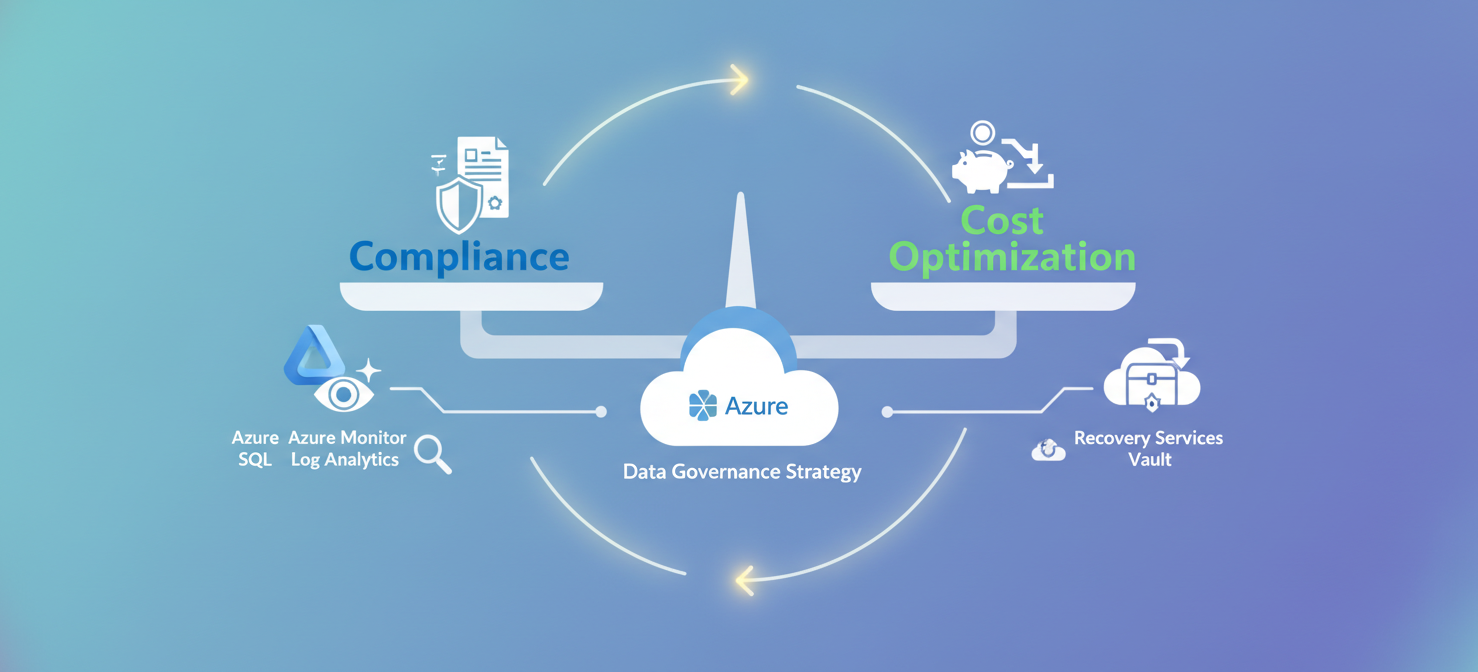
Configuring database log retention in Azure is not a one-size-fits-all task. It requires a thoughtful balance of compliance requirements, operational needs, and cost management. By leveraging the distinct capabilities of Long-Term Retention for backups and Azure Monitor with Log Analytics for diagnostic logs, you can build a robust and efficient strategy. Neglecting to configure these settings beyond their defaults is a common oversight that can lead to compliance failures or a critical lack of data during a security incident. Therefore, taking the time to define and apply clear retention policies is less an administrative chore and more a fundamental pillar of responsible cloud governance.
If managing these intricate retention policies across Azure feels overwhelming, a specialized platform can help automate and simplify the process. You can easily experience the benefits yourself by starting a free trial, or for a more in-depth look at how we can tailor a solution for your specific needs, we invite you to book a personalized demo.
 7-day free trial