



Collaborating with external partners is a business necessity. Microsoft’s Azure Active Directory (Azure AD) B2B collaboration feature simplifies this by allowing you to invite external users into your tenant. However, managing these azure ad guest users is critical for maintaining security and control over your corporate data. Unmanaged guest access can expose your organization to unnecessary risks, including data leakage and unauthorized access. Therefore, understanding and configuring the available invitation restrictions and permissions is not just an administrative task—it’s a foundational security measure.
Key takeaways
- Azure AD provides three distinct levels of access permissions for guest users, with the default being “limited access.”
- You can restrict who can invite guests to three levels: anyone, members and specific admins, or no one.
- Properly configured external collaboration settings are a crucial step in preventing unauthorized data enumeration by external accounts.
- Changes to guest user access settings can take up to 15 minutes to propagate across all Microsoft services.
Understanding Guest User Access in Azure AD
When you invite an external user to collaborate, they are added to your directory as a guest user object. This allows them to use their own credentials—whether from another Azure AD tenant or a social identity provider—to access the resources you share. This process avoids the administrative burden of creating and managing new credentials for every external collaborator.
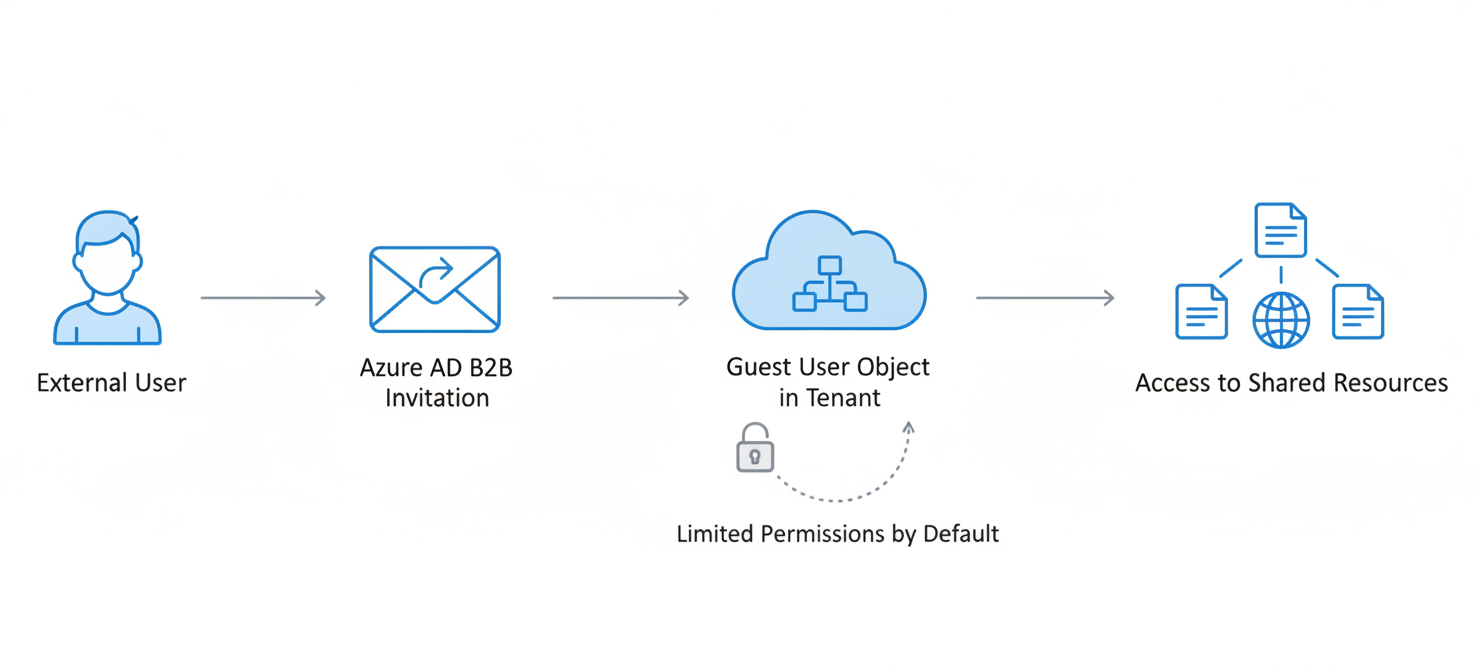
By default, these guest users have limited permissions within your directory. They can manage their own profiles and see some information about other users and groups they are a part of, but they cannot enumerate all users, groups, or other directory objects. This default setting is a security measure to prevent guests from gaining a broad overview of your organization’s structure. However, these defaults can be insecure if not properly reviewed and adjusted to fit your organization’s security posture.
How to Configure Guest User Invitation Settings
You can centrally manage how your organization interacts with external collaborators through the “External collaboration settings” in the Microsoft Entra admin center. These settings allow you to define who can invite guests and what level of access they have by default.
To access these settings, you will need to:
- Sign in to the Microsoft Entra admin center as at least a User Administrator.
- Navigate to Identity > External Identities.
- Select External collaboration settings.
Here, you will find the core controls for managing guest user invitations and permissions. These settings are global and apply to all guest users in your tenant unless overridden by more specific policies.
Restricting Who Can Invite Azure AD Guest Users
One of the most important controls is determining who has the authority to invite external users. Overly permissive invitation settings can lead to a sprawl of unmanaged guest accounts. Azure AD provides granular options to lock this down.
Invitation Permission Levels
Under “Guest invite settings,” you can select one of three options:
- Anyone in the organization can invite guest users including guests and non-admins (most inclusive): This is the default setting. It allows any member or even existing guest users to invite other external users. While convenient for collaboration, it poses a significant security risk.
- Member users and users assigned to specific admin roles can invite guest users: This option strikes a balance by allowing regular employees to invite collaborators while preventing existing guests from inviting others.
- Only users assigned to specific admin roles can invite guest users (most restrictive): This is the most secure option. It limits the ability to invite guests to users with specific administrative roles, such as Global Administrator or User Administrator. This ensures that all guest invitations go through a centralized and controlled process.
For most organizations, restricting invitations to specific admin roles is the recommended best practice to maintain a secure and controlled environment.
Setting Guest User Permissions and Restrictions
Beyond controlling who can send invitations, you must also define what azure ad guest users can see and do once they are in your directory. This is managed under the “Guest user access restrictions” section.
Guest Access Levels
There are three levels of access you can grant to guest users:
- Guest users have the same access as members (most inclusive): This setting grants guests the same level of directory access as your internal member users. This is a high-risk setting and should be avoided unless there is a specific business requirement.
- Guest users have limited access to properties and memberships of directory objects: This is the default permission level. Guests can see the membership of groups they belong to but cannot enumerate the full user or group list in the directory.
- Guest user access is restricted to properties and memberships of their own directory objects (most restrictive): This setting provides the highest level of security. When enabled, guests can only view their own user profile. They cannot see other users or view the membership of groups they are in.
For a strong security posture, the “most restrictive” option is highly recommended. This ensures that guest accounts have the minimum necessary permissions to perform their collaborative tasks without having visibility into your internal directory structure.
In addition to these primary settings, you can also implement collaboration restrictions to allow or deny invitations to specific domains. This allows you to create an allowlist of trusted partner domains, preventing invitations from being sent to or received from any unapproved organization.
Conclusion
Effectively managing azure ad guest users is a balancing act between enabling collaboration and maintaining robust security. The default settings in Azure AD are a starting point, but they are often too permissive for organizations with stringent security requirements. By navigating to the external collaboration settings, you can precisely define who is allowed to invite guests and what those guests are permitted to see. Restricting invitation rights to specific administrators and setting guest permissions to the most restrictive level are fundamental steps toward securing your tenant. Failing to configure these settings properly is not just an oversight; it’s leaving a door open for potential data enumeration and unauthorized access. Therefore, take the time to review and tighten these controls—your security team will thank you.

To truly master your external collaboration security and ensure your Azure AD guest users are managed with precision, consider how a dedicated solution can simplify these complex configurations. You can explore its capabilities by starting a free trial or by scheduling a personalized demo to see it in action.
 7-day free trial