



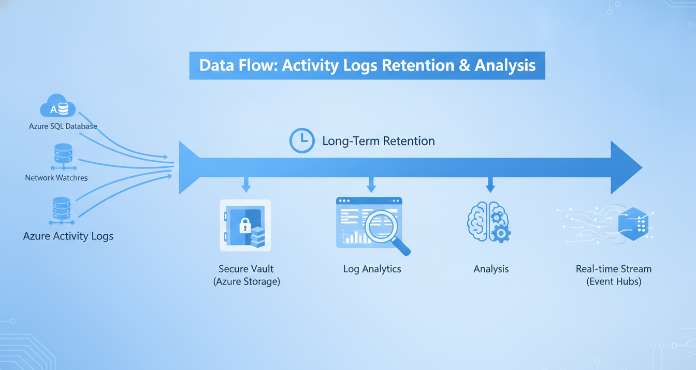
Understanding your Azure Activity Logs is fundamental to maintaining a secure, compliant, and efficient cloud environment. These logs provide a detailed audit trail of all subscription-level events, tracking who did what and when. From provisioning a new virtual machine to modifying a network security group, every control-plane action is recorded. Therefore, effectively managing the retention and export of these logs is not just a best practice—it’s a core operational necessity for any team running workloads on Azure.
Key takeaways
- Default Retention: Azure keeps Activity Log events for only 90 days, after which they are permanently deleted.
- Long-Term Storage: To retain logs beyond 90 days for compliance or forensic analysis, you must export them to an external location like Azure Storage, a Log Analytics workspace, or Azure Event Hubs.
- Modern Method: Diagnostic Settings are the current, recommended way to configure log exports, offering more features and consistency than the legacy Log Profiles method.
- Legacy Deprecation: The legacy Log Profile method for exporting activity logs is being retired and will be automatically transitioned to Diagnostic Settings by September 30, 2026.
What Are Azure Activity Logs?
Azure Activity Logs are subscription-level logs that record management-plane operations. Think of them as the official record for your Azure subscription. They answer critical questions for auditing and troubleshooting, such as:
- What operation occurred?
- Who initiated the operation?
- When did the operation take place?
- What was the status of the operation?
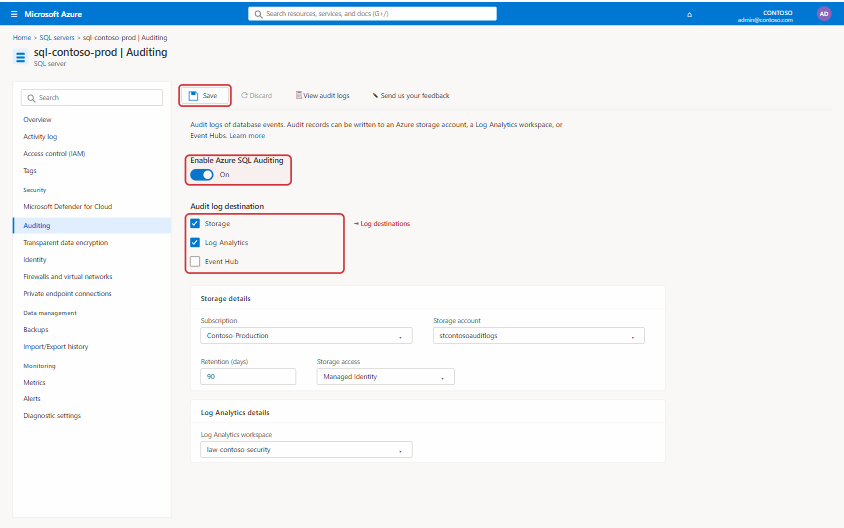
There is a single Activity Log for each Azure subscription. It captures write operations (PUT, POST, DELETE) for your resources, providing a clear history of changes. For example, when a user creates a virtual machine, modifies a firewall rule, or deletes a storage account, a corresponding entry appears in the Activity Log. However, it’s important to note that these logs do not typically track read operations, like viewing the contents of a resource.
These logs are automatically enabled and collected by Azure Monitor at no cost. You can view them in the Azure portal, or query them using PowerShell, the Azure CLI, or the REST API.
Understanding Azure Activity Log Retention
By default, Azure stores Activity Log events for a period of 90 days. During this time, you can query and view them without incurring any charges. After 90 days, the events are permanently deleted from the platform.
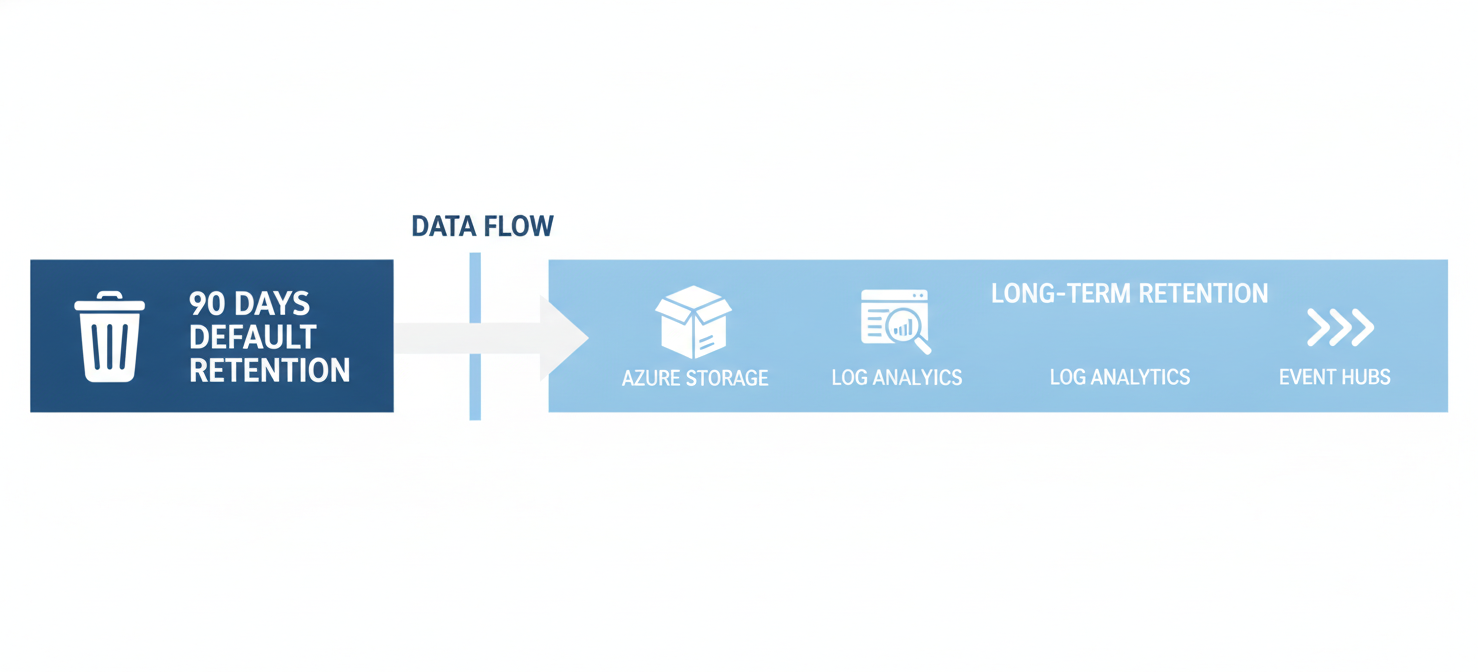
This 90-day window is often insufficient for many organizations. For instance, compliance frameworks like PCI-DSS or HIPAA can mandate log retention periods of one to six years. Furthermore, a short retention period creates a significant visibility gap for security investigations, which may need to analyze historical data long after an incident occurred.
To overcome this limitation, you must proactively export your Azure Activity Logs to a service that offers long-term storage. This ensures you have a complete and durable audit trail for as long as your governance policies require. Exporting logs is crucial for forensic analysis, long-term trend monitoring, and meeting compliance requirements.
How to Export Azure Activity Logs
To retain logs for longer than 90 days, you need to configure a diagnostic setting to send them to a different location. This process is straightforward and provides several flexible destinations for your data.
Destination Options
You can export your Activity Logs to one or more of the following destinations:
- Azure Storage Account: This is a cost-effective option for long-term archival. It’s ideal for audit, static analysis, or backup when you need to keep data for many months or years but don’t need to query it frequently.
- Log Analytics Workspace: Sending logs to a Log Analytics workspace is the best choice for in-depth analysis and monitoring. It allows you to use powerful Kusto Query Language (KQL) queries to correlate activity logs with other monitoring data, create complex alerts, and build visualizations with Azure Workbooks. Data ingestion into a Log Analytics workspace is subject to Azure Monitor pricing.
- Azure Event Hubs: This option is designed for streaming data to external locations. Use Event Hubs to send your logs to third-party Security Information and Event Management (SIEM) tools, custom telemetry platforms, or other real-time analytics solutions outside of Azure.
Setting Up the Export
You can configure the export through the Azure portal:
- Navigate to Azure Monitor in the Azure portal.
- Select Activity Log from the menu.
- Click on Export Activity Logs.
- Select + Add diagnostic setting.
- On the Diagnostic setting screen, you will choose the log categories to export (it’s best practice to select all of them) and specify one or more destinations.
- Give the setting a name and click Save.
For large-scale environments, you can automate this configuration across all subscriptions using Azure Policy.
Diagnostic Settings vs. Legacy Export Profiles
When you go to export your logs, you might encounter two different mechanisms: Diagnostic Settings and Log Profiles. It is critical to understand the difference.
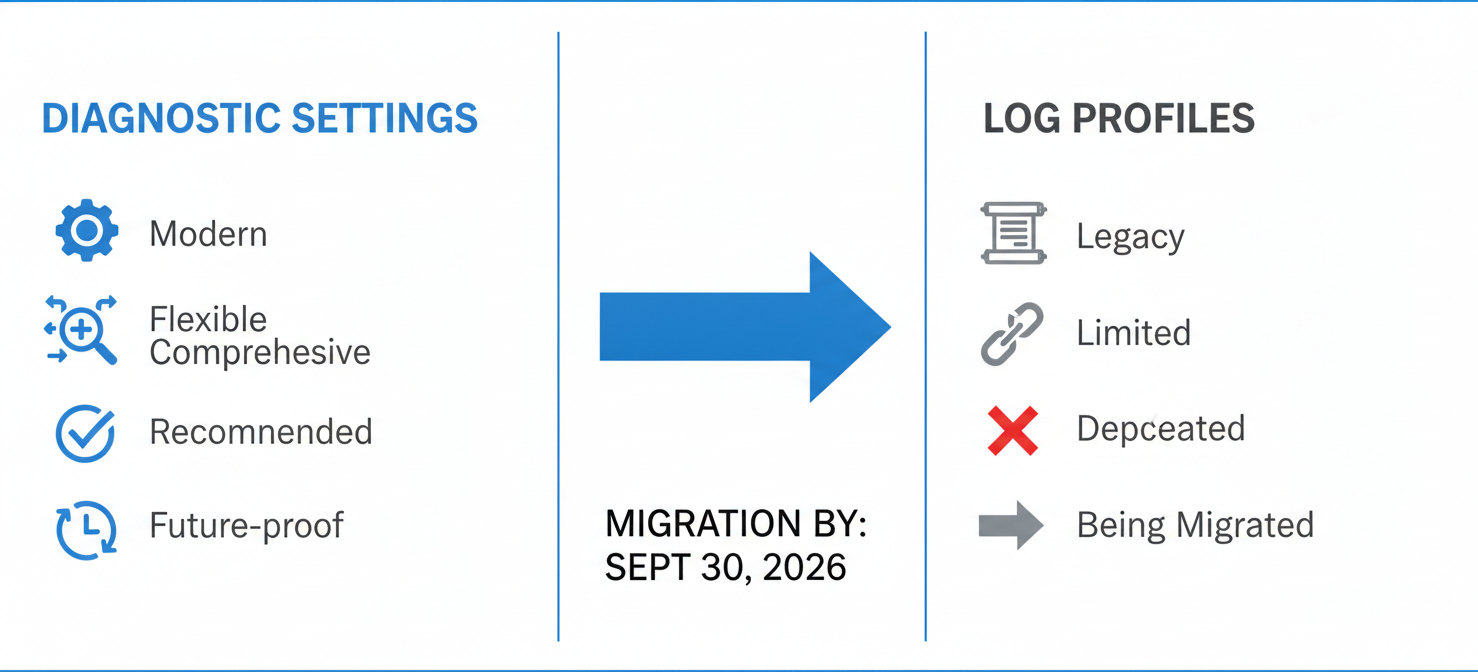
Diagnostic Settings are the modern, recommended method for exporting all platform logs, including activity logs. They offer a unified and more capable way to route data, providing consistency with how you manage logs for individual Azure resources. They support a richer set of log categories, including security, policy, and service health events.
Log Profiles are the legacy method. This older mechanism is less flexible and does not support the full range of log categories available through Diagnostic Settings. Microsoft is phasing out Log Profiles, and any existing configurations will be automatically migrated to Diagnostic Settings on September 30, 2026. If your team has any automation built around the legacy Log Profile APIs, you must update it to use the new Diagnostic Settings API to avoid disruption.
Therefore, your team should exclusively use Diagnostic Settings for all new configurations and plan to migrate any remaining Log Profiles as soon as possible.
Conclusion
Managing your Azure Activity Logs is not a passive task. While Azure provides a 90-day window by default, relying on it is a significant operational risk. For any serious security, compliance, or troubleshooting posture, you must take control of your log retention. By configuring Diagnostic Settings to export logs to Azure Storage, a Log Analytics workspace, or Event Hubs, you transform a temporary data stream into a permanent, invaluable asset. This simple configuration is a foundational step in building a governable and secure cloud environment. Neglecting your azure activity logs is like trying to solve a mystery with the last few pages of the book torn out—it’s possible, but unnecessarily difficult.

To truly master your Azure environment and ensure full compliance, explore how our platform simplifies this crucial task by experiencing the benefits yourself with a free trial or by seeing it in action when you book a personalized demo.
 7-day free trial