




Staying ahead of security threats in a sprawling cloud environment is a significant challenge. Your team needs to know the moment a potential threat emerges. Therefore, effectively managing your azure security solution alerts is not just an IT task; it is a core business function. These alerts are your first line of defense, providing the critical, real-time information needed to investigate and neutralize threats before they can cause significant damage. Without a robust system for monitoring, responding to, and updating these notifications, you are essentially flying blind in a complex threat landscape.
Key takeaways
- Prioritize and Triage: Classify alerts by severity (High, Medium, Low) to focus your team’s efforts on the most critical threats first.
- Automate Responses: Use Azure Logic Apps to automate routine responses, such as notifying stakeholders or isolating a compromised resource, which can reduce response times by over 50%.
- Stay Current: Microsoft continuously updates its detection algorithms; regularly review and apply these updates to keep pace with the evolving threat landscape.
- Reduce Noise: Combat alert fatigue by creating suppression rules for known benign activities or low-priority notifications, ensuring your team focuses on actionable threats.
What Are Azure Security Alerts?
Azure security alerts are notifications generated by Microsoft Defender for Cloud when it detects potential threats to your resources across Azure, hybrid, and even multicloud environments. Think of them as your digital smoke detectors. Defender for Cloud continuously analyzes log data from your Azure resources, the network, and connected partner solutions like firewalls to identify suspicious activity. When it finds something that matches a known threat pattern or anomalous behavior, it triggers an alert.
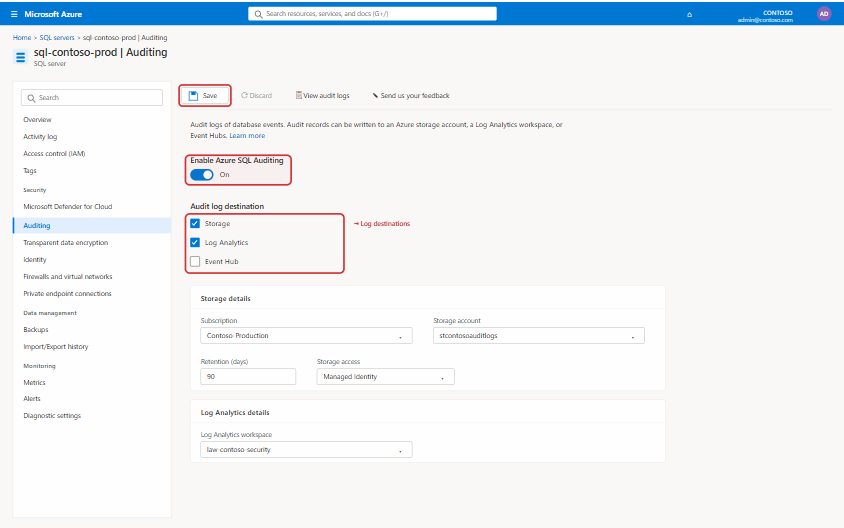
Each alert provides crucial details to help you investigate quickly, including a description of the threat, the affected resources, and recommended steps for remediation. To help you prioritize, alerts are assigned a severity level—High, Medium, or Low—based on how confident Defender for Cloud is in the finding and the potential malicious intent.
- High-severity alerts indicate a high probability that a resource is compromised and require immediate attention.
- Medium-severity alerts flag suspicious activity that could indicate a compromise.
- Low-severity alerts may be benign but should still be investigated.
Furthermore, to provide a clearer picture of an attack, Defender for Cloud often correlates multiple alerts into a single “security incident.” This gives you a unified view of an entire attack campaign, showing the sequence of actions an attacker took and which resources were impacted.
Key Sources of Azure Security Solution Alerts
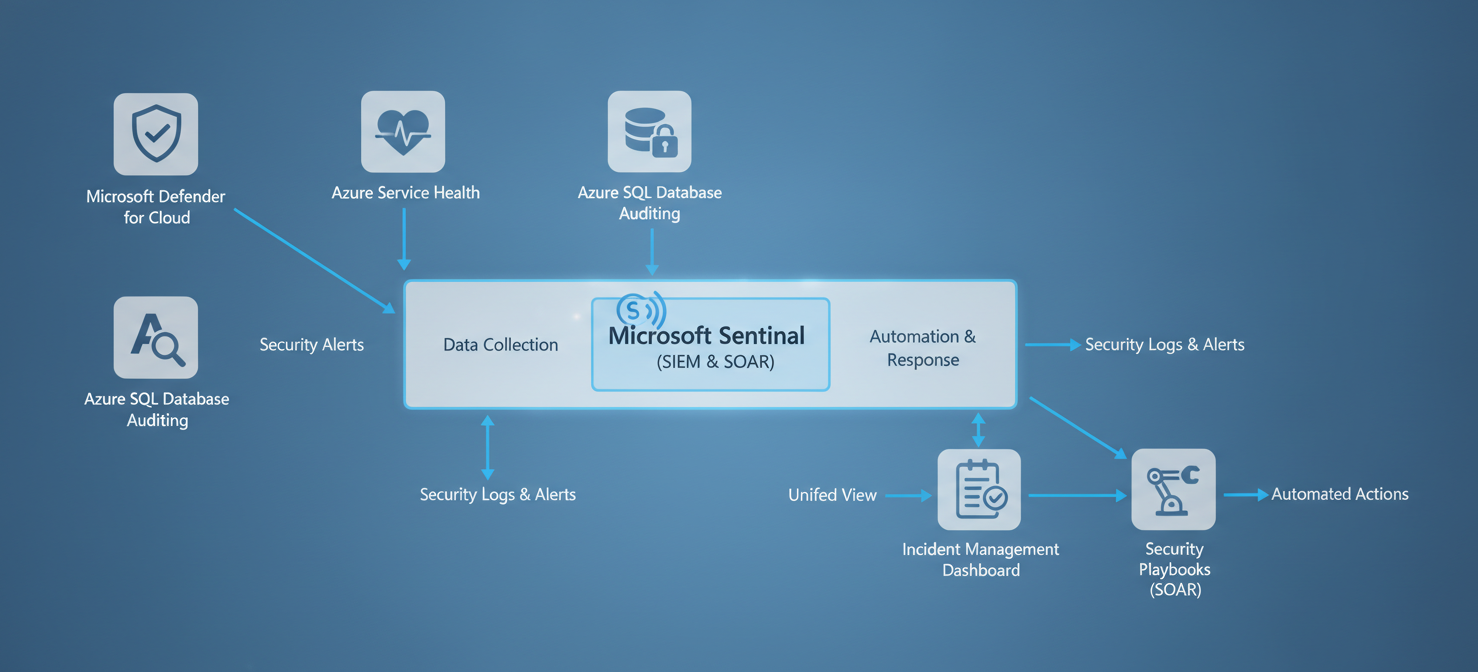
Azure generates security notifications from several integrated services, each providing a different layer of protection. Understanding these sources helps your team build a comprehensive monitoring strategy. The primary source for threat detection alerts is Microsoft Defender for Cloud.
Microsoft Defender for Cloud
This is the central hub for security alerts in Azure. Defender for Cloud’s workload protection plans generate alerts when threats are detected across your various resources. It uses advanced analytics and threat intelligence to identify malicious activity. The types of alerts you receive depend on which Defender plans you have enabled for your resources. These can cover a wide range of services, including:
- Virtual machines (Windows and Linux)
- SQL Databases and Azure Synapse Analytics
- Azure Storage and Azure Cosmos DB
- Containers and Kubernetes clusters
- Azure App Service and Key Vault
Azure Service Health
In addition to resource-specific threats, Azure also notifies you about broader security issues. Azure Service Health provides “Security advisories” that address widespread threats which could potentially affect your environment. You can and should configure Service Health alerts to ensure that your operations and security teams are notified about any platform-level security events identified by Microsoft.
Microsoft Sentinel
While Defender for Cloud generates the alerts, Microsoft Sentinel acts as the central nervous system for managing them. As a cloud-native Security Information and Event Management (SIEM) and Security Orchestration, Automation, and Response (SOAR) solution, Sentinel allows you to collect alert data from Defender for Cloud and many other sources. You can then use Sentinel’s powerful analytics, hunting capabilities, and automation playbooks to investigate and respond to threats at scale.
How to Proactively Monitor Your Alerts
Effective monitoring is more than just waiting for an email. It requires a structured approach to triaging, investigating, and managing the flow of security information. Without a clear process, your team can quickly become overwhelmed by “alert fatigue,” where important notifications get lost in the noise.
The Security Alerts Dashboard
Your primary interface for viewing and managing alerts is the Security alerts page within Microsoft Defender for Cloud in the Azure portal. Here, you can see a prioritized list of all active alerts. The dashboard allows you to filter alerts by subscription, severity, resource, status, and time. This filtering capability is crucial for focusing on the most pressing issues first, such as all high-severity alerts from the last 24 hours.
Investigating an Alert
When you select an alert, a detailed pane opens, providing essential information for your investigation. This includes:
- Description and Severity: A clear explanation of the detected activity and its potential impact.
- Affected Resources: The specific resources that are involved in the alert.
- MITRE ATT&CK® Tactics: Many alerts are mapped to the MITRE ATT&CK framework, which helps you understand the attacker’s intent and techniques.
- Remediation Steps: Defender for Cloud provides concrete steps to mitigate the threat and recommendations to prevent similar attacks in the future.
After your investigation, you can change the status of an alert to Dismissed if it’s a false positive or Resolved once you have remediated the issue.
Tuning and Suppressing Alerts
Not all alerts require immediate, drastic action. To manage noise and prevent alert fatigue, you can create suppression rules. These rules automatically dismiss alerts that match specific criteria you define. For example, you might suppress an informational alert that is consistently triggered by a known, benign administrative task. This allows your team to concentrate on genuine threats. You can create suppression rules directly from an existing alert or through the suppression rules page in Defender for Cloud.
Configuring Alert Notifications and Automated Responses
Manually responding to every alert is inefficient and prone to error. A key part of managing azure security solution alerts is setting up robust notification channels and automating your response workflows. This ensures the right people are informed quickly and that initial containment actions happen automatically.
Setting Up Email Notifications
A fundamental first step is to configure email notifications for security alerts. In the environment settings for your subscription within Microsoft Defender for Cloud, you can specify email addresses and phone numbers for security contacts. You can define who should receive notifications based on the severity of the alert. For instance, you can ensure that all high-severity alerts immediately trigger an email to your security operations team.
Automating Responses with Azure Logic Apps
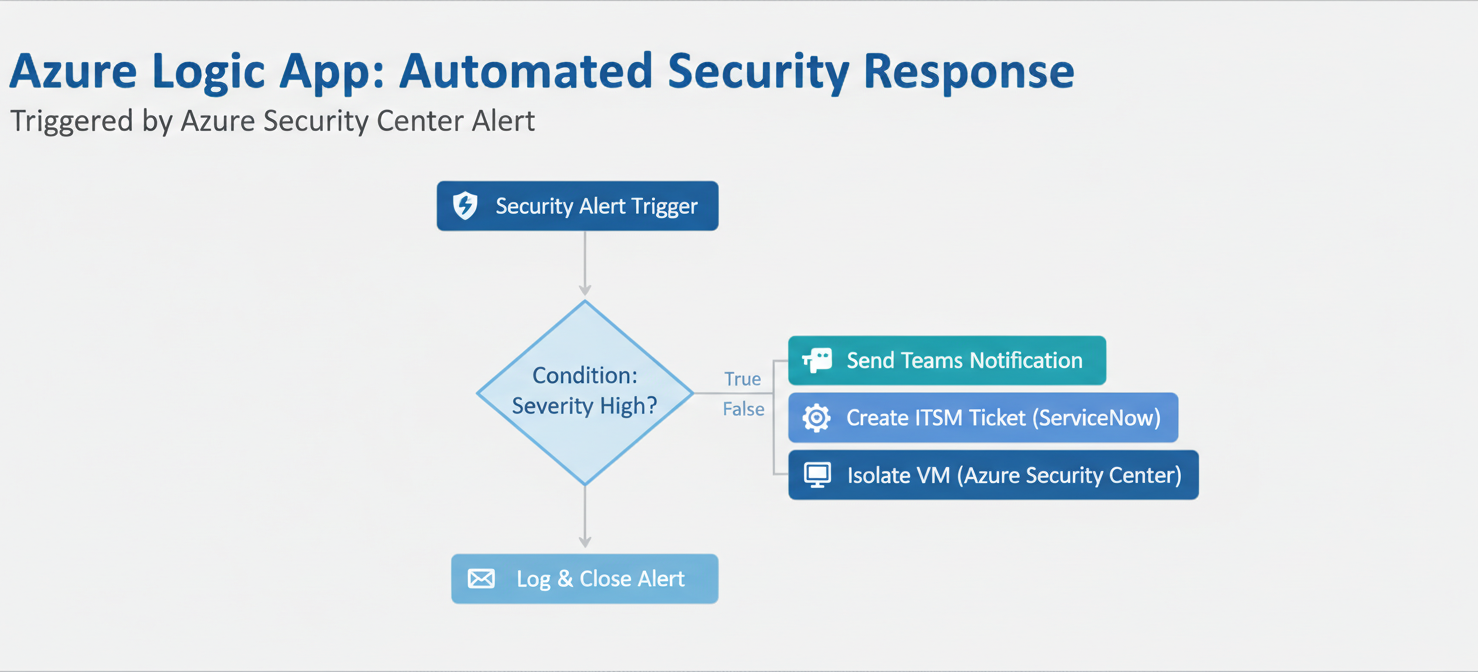
For a more advanced and rapid response, you can leverage Workflow Automation in Defender for Cloud to trigger Azure Logic Apps. Logic Apps allow you to create automated workflows that execute a series of actions in response to a security alert. This is a powerful way to orchestrate your incident response process.
For example, when a specific type of alert is triggered, you can have a Logic App automatically:
- Send a detailed notification to a Microsoft Teams or Slack channel.
- Create a ticket in your IT Service Management (ITSM) tool, like ServiceNow.
- Isolate a compromised virtual machine by modifying its Network Security Group (NSG) rules.
- Revoke a user’s sign-in sessions in Microsoft Entra ID.
By automating these initial steps, you reduce manual overhead and significantly shorten the time it takes to contain a potential threat.
Keeping Your Azure Security Alerts Up-to-Date
The threat landscape is constantly changing, with new attack vectors and techniques emerging daily. As a result, Microsoft’s security research and data science teams continuously update the detection algorithms and analytics used by Defender for Cloud. This means the types of alerts and the intelligence behind them are always evolving to help you stay ahead of attackers.
Your team’s responsibility is to stay informed about these changes and adapt your monitoring and response strategies accordingly. Microsoft provides documentation and release notes detailing new and updated alerts. Regularly reviewing this information is critical.
Furthermore, you should periodically review your own configurations. This includes:
- Alert Suppression Rules: Review your suppression rules to ensure they are still relevant and not inadvertently hiding important threats. A rule that made sense three months ago might now be masking a new attack pattern.
- Notification Settings: Verify that your notification contacts are current. When team members change roles, update your email notification settings to ensure alerts are going to the right people.
- Automation Workflows: Test and update your Logic App workflows to handle new alert types or to refine your response procedures based on lessons learned from past incidents.
An unmonitored alert is a missed opportunity to stop an attack. By treating your alert system as a dynamic and evolving component of your security posture, you can ensure it remains an effective defense mechanism.
In conclusion, managing your azure security solution alerts is a continuous cycle of monitoring, responding, and adapting. It’s not a “set it and forget it” task. The alerts provide the visibility you need, but their value is directly proportional to the attention and process you build around them. Neglecting them is akin to ignoring the fire alarm because you’ve heard it before; the one time it’s real is the one time it truly matters.
To elevate your Azure security posture and ensure no critical alert goes unnoticed, discover how our platform can transform your operations; you can easily begin a free trial to explore its capabilities or schedule a personalized demo with our experts.
 7-day free trial