


Google BigQuery’s serverless architecture offers incredible power for data analytics, but its flexibility can also lead to surprising costs if you aren’t careful. Understanding the components of your bill—from query processing and compute capacity to storage and data operations—is the first step toward effective cost management. This article explains how BigQuery pricing models work, breaking down the key cost drivers so you can analyze your spending and prevent budget overruns.
Key takeaways
- BigQuery has two main compute pricing models: on-demand (pay per terabyte scanned) and capacity-based (pay for dedicated processing power per hour).
- Storage costs are separate from compute and are about 50% cheaper for data that hasn’t been modified in 90 consecutive days.
- A single inefficient query, such as
SELECT *on a large table, can significantly inflate your on-demand bill by scanning unnecessary data. - Switching from on-demand to capacity pricing may become cost-effective when your organization consistently processes several hundred terabytes per month.
Understanding BigQuery Pricing Models
BigQuery pricing has two primary components: compute and storage. Compute costs relate to processing queries, while storage costs are for the data you keep in BigQuery. For compute, you have a choice between two distinct models.
On-Demand Pricing
On-demand is the default model, where you pay for the amount of data your queries scan. The typical rate is around $6.25 per terabyte (TiB) processed, with the first 1 TiB each month being free. This model is ideal for getting started, for teams with unpredictable query patterns, or for workloads that fluctuate significantly.
The key thing to remember is that you are charged based on the data in the columns you select, not the number of rows returned. Even if you use a LIMIT clause, the query still scans the full columns referenced, and you are billed accordingly.
BigQuery Capacity Pricing
The alternative is the capacity-based model, where you pay for dedicated query processing power, measured in “slots.” A slot is a unit of computational capacity (virtual CPUs) used to execute SQL queries. Instead of paying per byte scanned, you pay a flat rate per slot-hour.
This model, offered through BigQuery Editions (Standard, Enterprise, and Enterprise Plus), provides more predictable costs and performance, making it suitable for high-volume, consistent workloads. You can purchase commitments for one or three years at a discounted rate or use a pay-as-you-go option with autoscaling.
How Query Processing and Compute Capacity Affect Costs
The pricing model you choose directly determines how your query and compute costs are calculated. The same query can have vastly different costs under each model depending on its characteristics.
BigQuery On-Demand vs Capacity Pricing
With on-demand pricing, cost is directly proportional to the bytes processed. A query that scans 5 TB of data will cost five times more than a query that scans 1 TB, regardless of how long it takes or how complex it is. This makes on-demand expensive for simple queries that scan wide tables but cheaper for complex computations on smaller amounts of data.
Under BigQuery compute pricing (the capacity model), the cost depends on the number of slots used and for how long. A computationally intensive query that runs for a long time will be more expensive, while a simple scan that finishes quickly will be cheap, regardless of the data volume. This makes capacity pricing cost-effective for predictable workloads that consistently scan large volumes of data.
Slots and Reservations
In the capacity model, you manage slots through “reservations.” A reservation is a pool of slots you purchase. You can assign specific projects or folders to a reservation, which helps isolate workloads and guarantee that critical jobs have the necessary resources. For example, you can create separate reservations for your data science team and your production ETL pipelines to prevent them from competing for resources.
Storage, Data Operations, and Other Potential Charges
Beyond query processing, several other factors contribute to your total BigQuery bill.
Active vs. Long-Term Storage
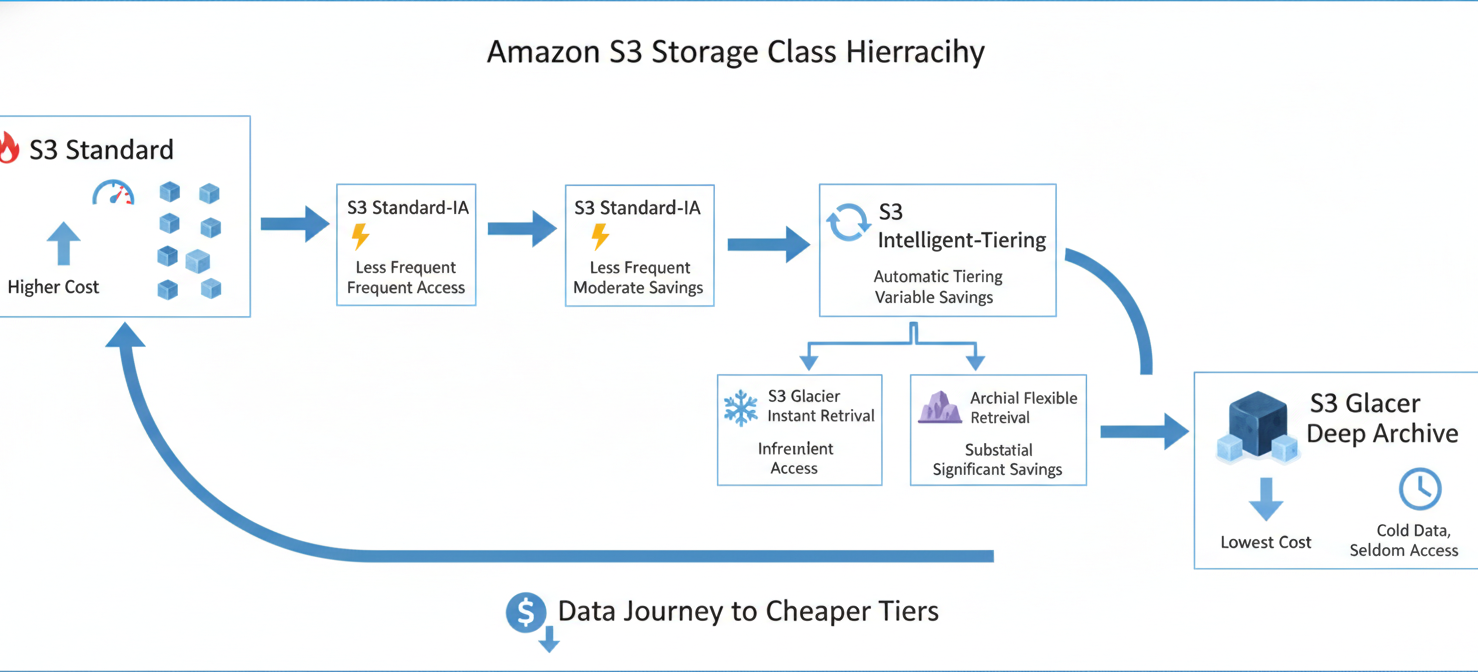
BigQuery bills for storage separately from compute. There are two main storage pricing tiers:
- Active Storage: This applies to any table or table partition that has been modified in the last 90 days. The approximate cost is $0.02 per GB per month.
- Long-Term Storage: If a table or partition is not modified for 90 consecutive days, the storage price automatically drops by about 50% to approximately $0.01 per GB per month.
This transition happens automatically without any impact on performance or availability. Querying, reading, or exporting data does not reset the 90-day counter.
Data Ingestion and Extraction
How you get data into and out of BigQuery also has cost implications:
- Ingestion: Batch loading data from sources like Google Cloud Storage is free. However, streaming data in real-time using the Storage Write API incurs a charge, typically around $0.025 per GiB.
- Extraction: Exporting data via a batch job is free. But reading data at high throughput with the Storage Read API is a paid operation, costing around $1.10 per TiB after a monthly free tier.
How to Interpret BigQuery Usage Metrics and Billing SKUs
To manage costs, you first need to understand your bill. In the Google Cloud Console, your BigQuery charges are broken down by various Stock Keeping Units (SKUs). While the list can seem long, the most significant charges usually fall under a few key areas.
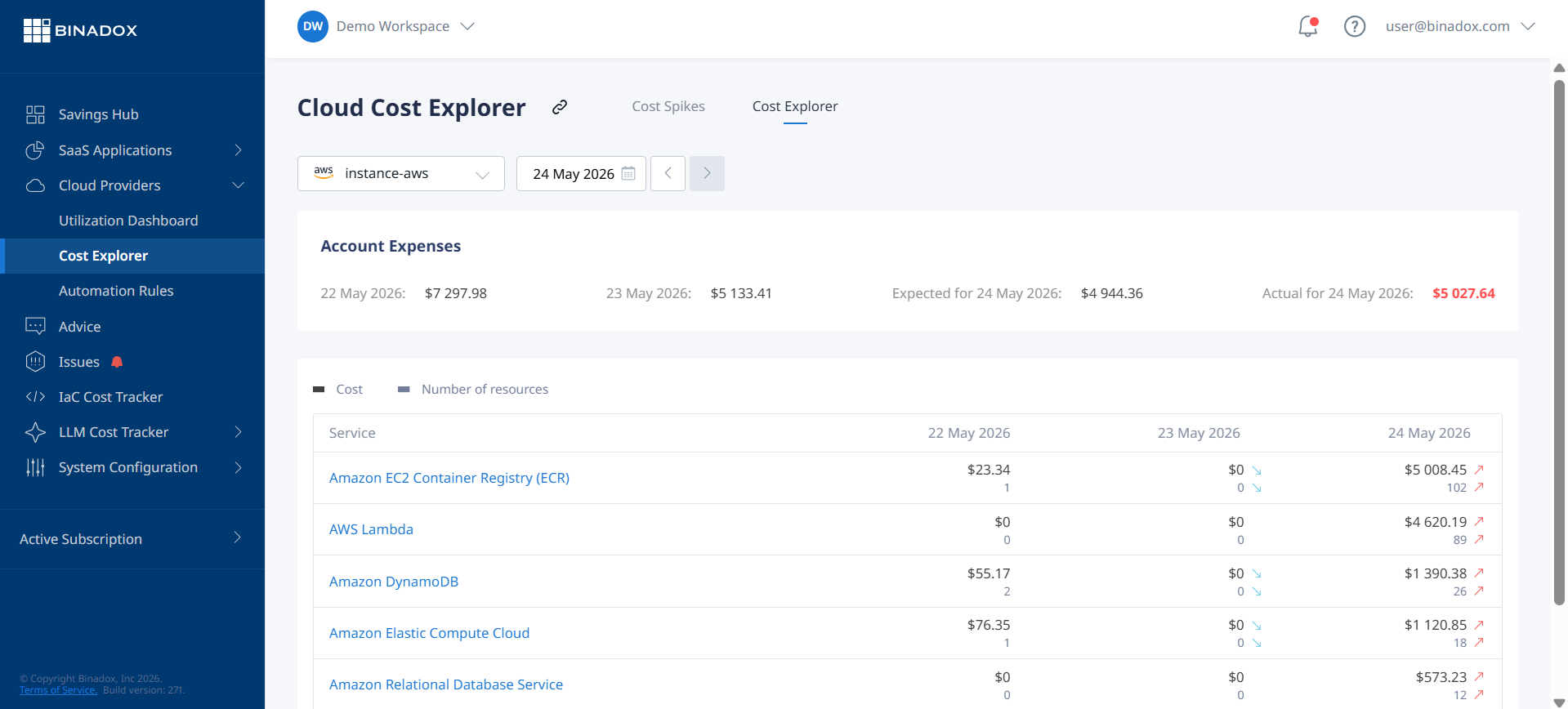
Common SKUs you might see include “On-demand Query,” “BigQuery Storage,” and SKUs related to specific BigQuery editions if you’re using the capacity model. The billing reports allow you to filter costs by project, service, and SKU, helping you see where your money is going. However, these reports don’t show which specific user or query is responsible for the costs out of the box.
To get a more detailed BigQuery cost breakdown, you need to analyze the INFORMATION_SCHEMA views within BigQuery itself. These metadata tables contain detailed records of every job run, including the user who ran it, the query text, the bytes billed, and the slot-milliseconds consumed.
How to Identify Expensive Queries and Unexpected Costs
Unexpected cost spikes are often caused by a few inefficient queries. The goal is to find these queries and optimize them.
Analyzing Query History
You can query the INFORMATION_SCHEMA.JOBS view to find queries that scan the most data or consume the most slot time. By grouping results by user or by patterns in the query text, you can identify the most expensive queries, users, or automated jobs. For example, you can look for queries with a high total_bytes_billed value in on-demand projects or a high total_slot_ms in capacity-based projects.
Common Causes of High Costs
SELECT *Queries: Selecting all columns from a wide table is a common mistake that forces BigQuery to scan much more data than necessary.- Lack of Filtering: Queries without specific filters, especially on partitioned tables, can lead to full table scans, which are very expensive.
- Frequently Run Dashboards: A business intelligence dashboard that refreshes every few minutes and runs heavy queries can quickly drive up costs.
Before running a query in the BigQuery console, you can see an estimate of the data it will process. This dry-run feature is a great way to avoid accidentally running a very expensive query.
How Binadox Helps Analyze BigQuery Costs
While you can analyze costs using Google’s built-in tools, third-party platforms like Binadox can provide deeper insights and automate much of the work. Binadox offers a unified view of your cloud spending, including detailed BigQuery billing analysis.
Binadox helps you interpret BigQuery-related charges by:
- Providing Granular Visibility: It can track costs across multiple projects and attribute spending to specific teams, users, or services.
- Detecting Anomalies: The platform uses machine learning to monitor spending patterns and automatically alert you to unusual spikes in BigQuery costs, helping you catch runaway queries before they become a major problem.
- Offering Optimization Recommendations: Binadox can analyze your usage patterns and provide intelligent recommendations for optimizing your infrastructure, such as identifying inefficient queries or suggesting when to switch between pricing models.
By connecting your Google Cloud billing data, Binadox gives you a single dashboard to monitor, analyze, and govern your BigQuery spending alongside your other cloud and SaaS investments.
Best Practices for Managing BigQuery Spending
Effectively managing BigQuery costs requires a combination of technical best practices and good governance.
- Avoid
SELECT *: Always specify only the columns you need in your queries. - Use Partitions and Clusters: Partitioning tables by date and clustering them by frequently filtered columns can dramatically reduce the amount of data queries need to scan.
- Materialize Results: For multi-stage queries, consider writing intermediate results to a table. This avoids re-scanning the source data repeatedly and can lower costs.
- Set Cost Controls: Use custom quotas to limit the amount of data a user or project can process per day. You can also set a “maximum bytes billed” property on a query to prevent it from running if it exceeds a certain threshold.
- Leverage Caching: BigQuery automatically caches the results of queries for 24 hours. Running the exact same query again within this window is free and returns results instantly.
- Choose the Right Pricing Model: Regularly analyze your usage to determine if you would save money by switching from on-demand to capacity pricing. Tools like Google’s slot estimator can help with this analysis.
By understanding how BigQuery pricing models work and actively monitoring your usage, you can keep your data analytics costs under control. It’s not about limiting what your team can do with data; it’s about ensuring that every dollar spent on analysis delivers real business value. A query that costs a few dollars is a bargain if it uncovers a million-dollar opportunity, but a query that costs a hundred dollars to populate an unused dashboard is just waste. The key is knowing the difference.
To gain granular control over your BigQuery spending and optimize your cloud investments, you can schedule a demonstration of Binadox’s features or access a free trial of Binadox to begin your analysis immediately.
 7-day free trial