


Understanding your Google Cloud Storage cost is essential for managing your cloud budget effectively. The pricing isn’t just about the volume of data you store; it’s a combination of storage class, data operations, retrieval fees, and network transfers. Breaking down these components is the first step toward optimizing your spending and ensuring you only pay for what you truly need. This article provides a detailed Google Cloud storage cost breakdown to help you navigate its billing model.
Key takeaways
- Google Cloud Storage pricing has four main components: data storage (per GB/month), operations (per 10,000 requests), data retrieval (for colder storage classes), and network egress.
- Storage classes range from Standard for frequently accessed data at ~$0.020/GB-month to Archive for long-term retention at ~$0.0012/GB-month, with colder tiers adding retrieval fees and minimum storage durations.
- Operations are split into Class A (writes, lists) and Class B (reads), with costs that can become significant for workloads with millions of small files.
- Tools like Binadox provide unified dashboards to monitor usage patterns, identify cost anomalies, and automate optimization across your cloud resources.
Understanding Google Cloud Storage Pricing
Google Cloud’s object storage pricing is based on a pay-as-you-go model. You are billed for the resources you consume, which offers flexibility but requires careful monitoring. The total cost is determined by several factors, not just the amount of data stored.
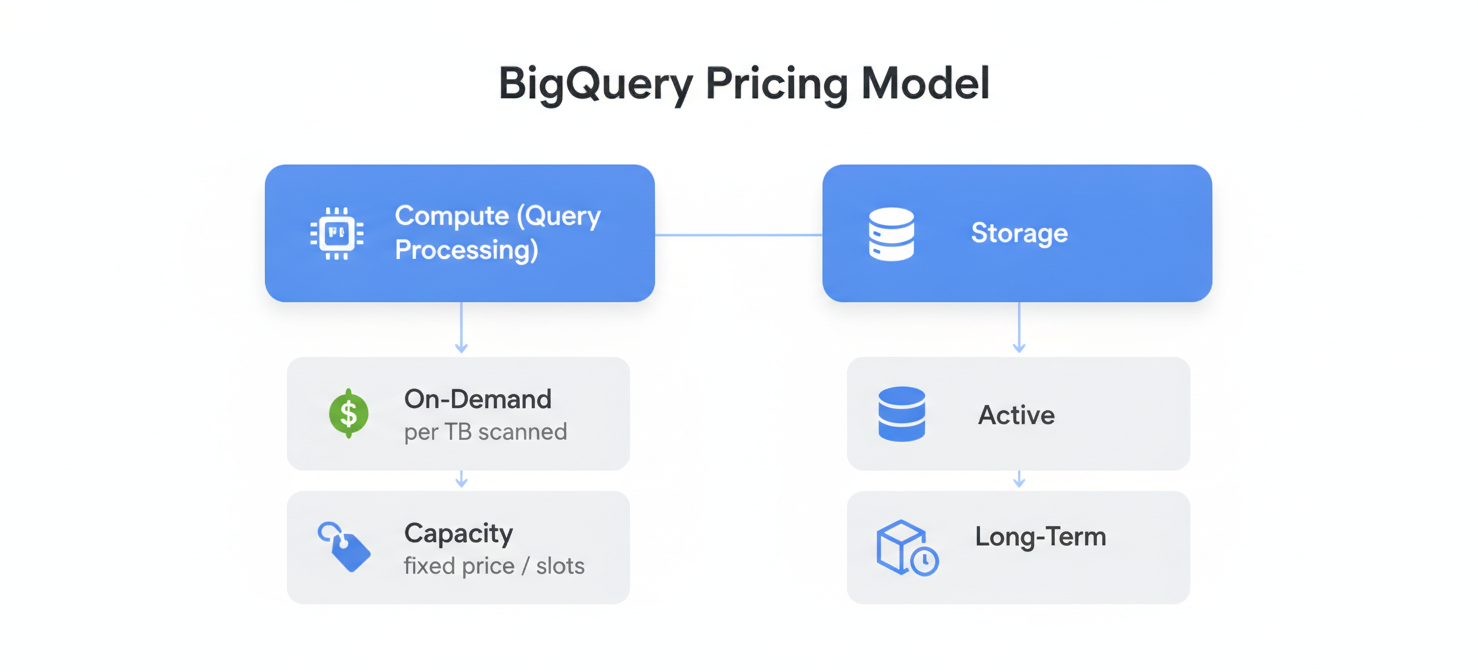
The primary components of your bill are:
- Data Storage: The core cost, calculated per gigabyte per month (GB/month). Rates vary significantly based on the storage class and the geographic location of your data buckets.
- Data Processing: This includes charges for operations performed on your data, such as adding, reading, or moving objects. It also covers retrieval fees for accessing data in certain storage classes.
- Network Usage: This covers the cost of moving data out of Google Cloud Storage (egress). Ingress, or moving data into a bucket, is generally free.
Each of these elements contributes to your final monthly bill. Therefore, a comprehensive understanding of how Google Cloud Storage pricing works involves looking beyond the headline per-GB storage rate.
How Storage Classes, Capacity, and Retention Affect Costs
The most significant factor influencing your storage bill is the choice of storage class. Google offers several classes designed for different data access patterns, each with a unique price point and performance profile.
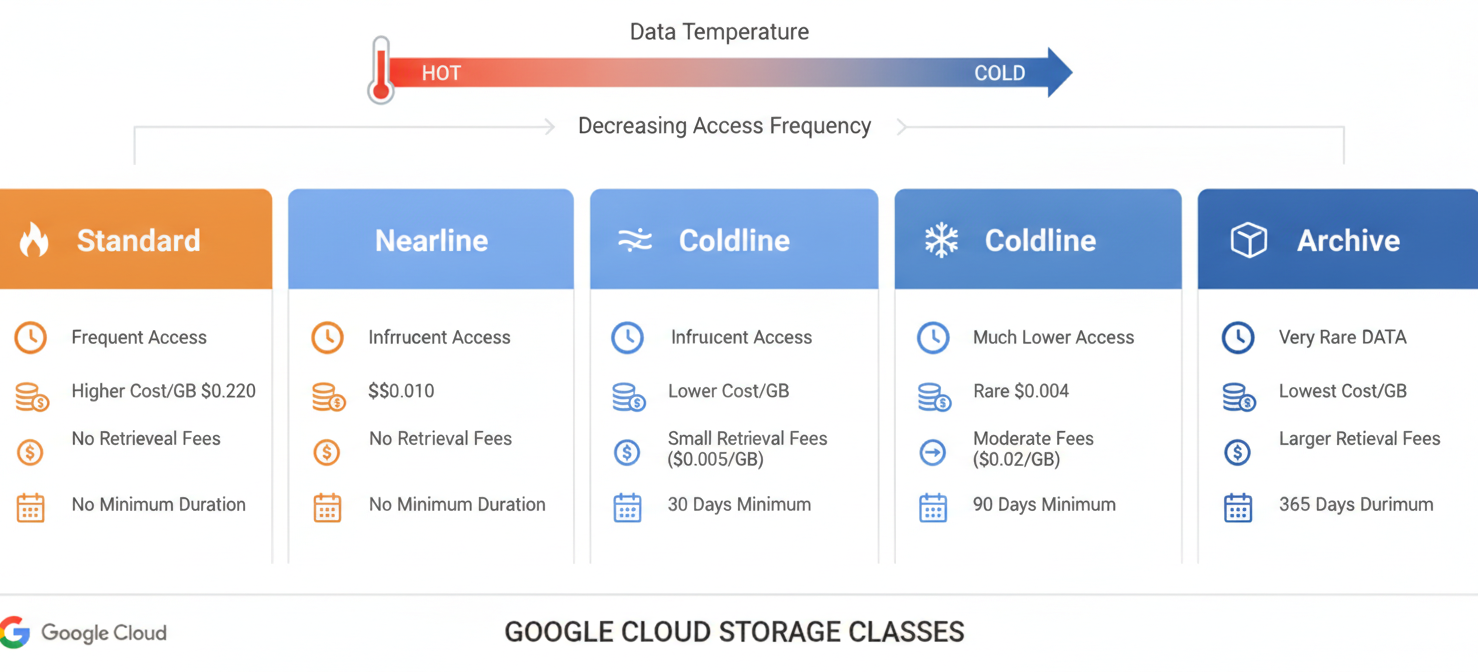
Storage Class Pricing Tiers
- Standard Storage: Designed for “hot” data that is frequently accessed, such as website content or active application data. It has the highest per-GB storage cost but no retrieval fees. A typical rate for regional storage is around $0.020 per GB/month.
- Nearline Storage: A low-cost option for data you expect to access less than once a month, like backups. It has a lower storage rate (around $0.010/GB-month) but introduces a small retrieval fee and a 30-day minimum storage duration.
- Coldline Storage: Suited for data accessed less than once a quarter, such as disaster recovery archives. The storage cost is even lower (around $0.004/GB-month), but retrieval fees are higher, and it has a 90-day minimum storage duration.
- Archive Storage: The most economical option for long-term data archiving and compliance, intended for data accessed less than once a year. It boasts the lowest storage rate (~$0.0012/GB-month) but has the highest retrieval fees and a 365-day minimum storage duration.
Choosing a colder storage class can dramatically reduce at-rest storage costs. However, misplacing frequently accessed data in a cold tier can lead to unexpectedly high bills due to retrieval fees.
Operations, Data Retrieval, and Network Transfer Charges
Beyond storing data, how you interact with it directly impacts your Google Cloud Storage costs. These charges fall into three main categories: operations, retrieval, and network transfer.
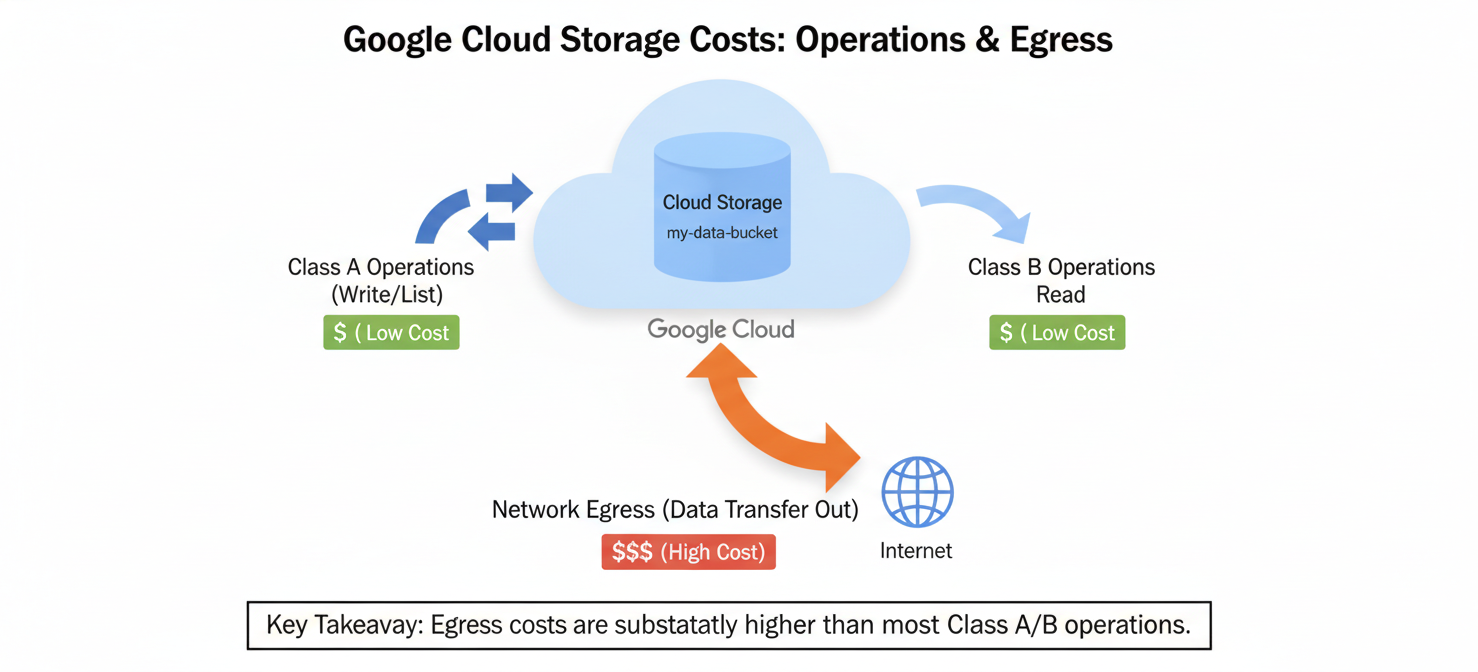
Operations and Retrieval Fees
Operations are actions you perform on your data, like uploading, copying, or listing objects. Google divides these into different classes:
- Class A Operations: These are generally modification actions, such as creating objects, changing storage classes, or listing the contents of a bucket. For Standard storage, these cost approximately $0.05 per 10,000 operations.
- Class B Operations: These are typically read-only actions, like retrieving object data or metadata. They are less expensive, costing around $0.004 per 10,000 operations for Standard storage.
- Free Operations: Some actions, like deleting objects, are free.
For Nearline, Coldline, and Archive storage, an additional data retrieval fee applies whenever you read, copy, or move data. This fee is charged per GB retrieved and increases with the “coldness” of the storage class, ranging from $0.01/GB for Nearline to $0.05/GB for Archive.
Network Data Transfer Costs
Network charges, or egress fees, apply when data is read from a Cloud Storage bucket and sent to a destination outside of Google’s network or to a different Google Cloud region.
- Internet Egress: Downloading data to the public internet is typically the most expensive type of transfer. Prices are tiered, starting around $0.12 per GB for the first terabyte.
- Intra-Google Cloud Transfers: Moving data between Google Cloud services within the same region is often free. However, transferring data between different regions incurs costs.
For workloads that serve large amounts of data to external users, network egress can easily become a more significant part of the bill than the storage itself.
How to Interpret Cloud Storage SKUs and Billing Records
To understand your Google Cloud Storage billing, you need to become familiar with the reports in the Google Cloud Console and the concept of SKUs (Stock Keeping Units). A SKU is the most granular, billable component of a Google Cloud service.
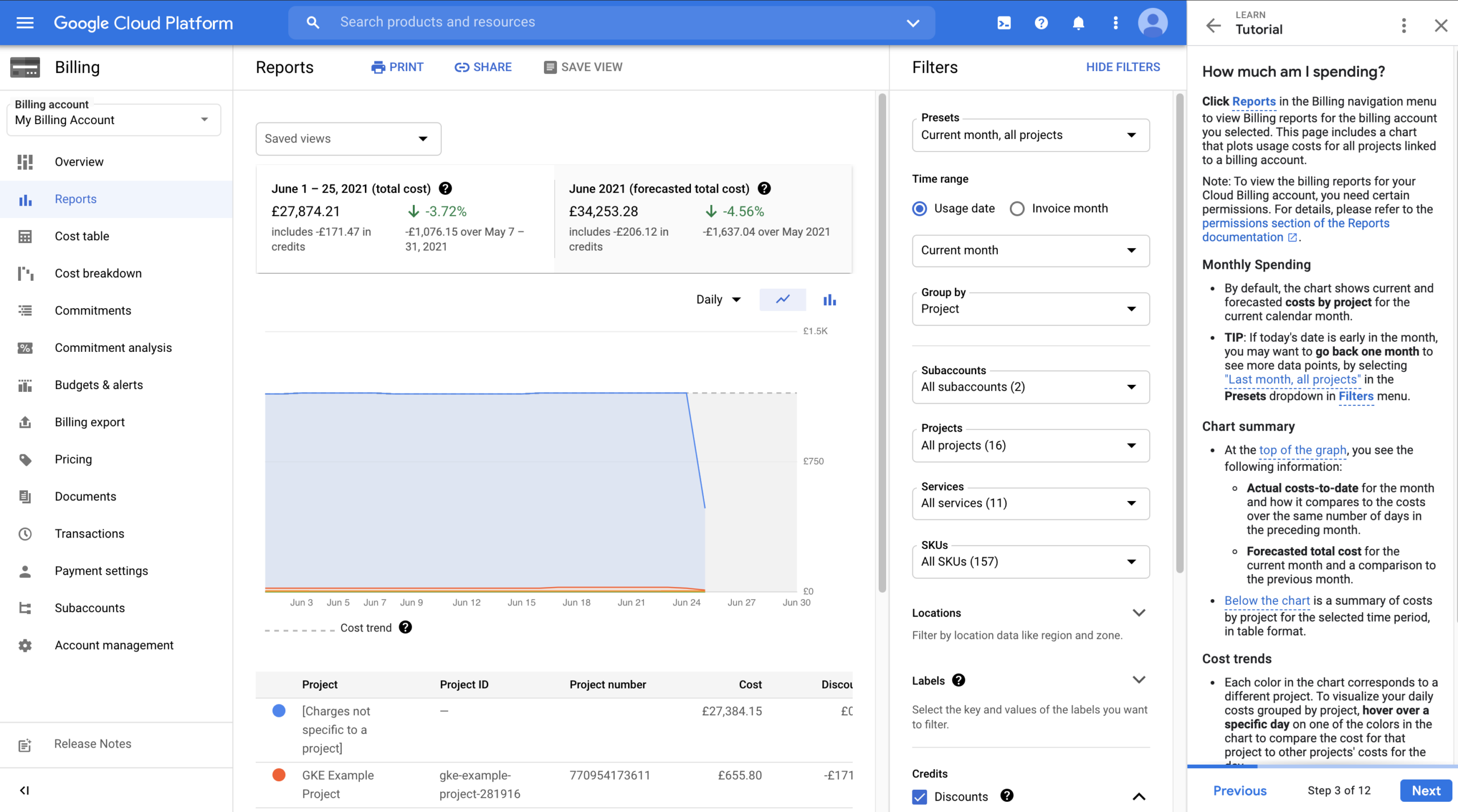
When you review your billing report, you can group costs by service and then drill down by SKU. For Cloud Storage, you will see distinct SKUs for different cost components, such as:
- Storage Volume SKUs: These represent the cost of data stored at rest. The SKU description will specify the storage class (e.g., “Standard Storage”) and the region (e.g., “us-central1”).
- Operation SKUs: These line items correspond to Class A and Class B operations, showing the number of requests you were billed for.
- Egress SKUs: These detail the network transfer costs, often broken down by destination (e.g., “Egress to Americas”).
- Retrieval SKUs: If you use colder storage tiers, you will see SKUs for data retrieval charges.
By filtering your billing reports by SKU, you can pinpoint exactly which services and activities are generating costs. For even deeper analysis, you can export your billing data to BigQuery, which allows you to run detailed queries and join cost data with resource metadata.
How to Identify the Main Drivers of Storage Costs
Identifying the primary sources of your Google Cloud Storage expenses is crucial for effective cost management. Start by using the Google Cloud Billing reports to get a high-level overview. Group your costs by project and then by service to see how much Cloud Storage contributes to your overall bill.
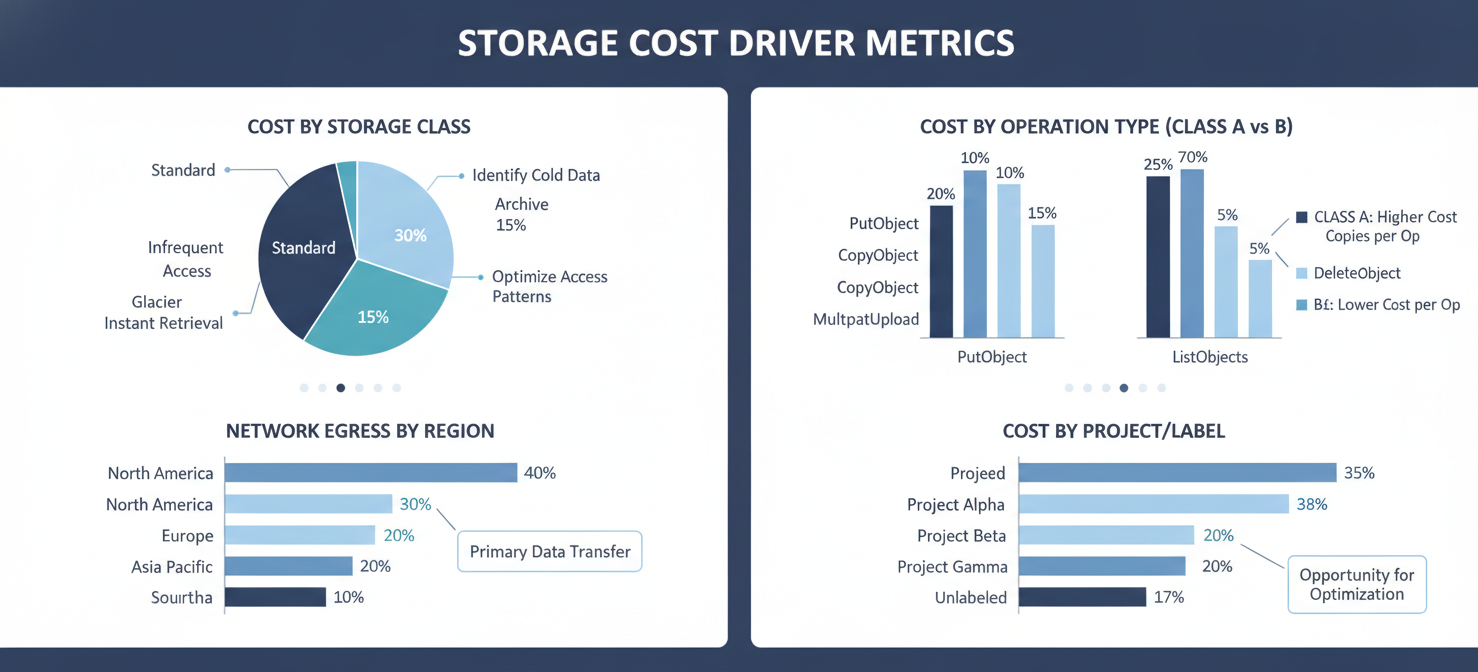
Next, dive deeper into the Cloud Storage costs by grouping them by SKU. This will reveal the breakdown between data storage, operations, and network egress. Look for trends and anomalies. For example, a sudden spike in Class A operation costs could indicate an application is writing an excessive number of small files. A high egress cost might point to a need for a Content Delivery Network (CDN) to cache frequently accessed assets.
Labeling your buckets and resources is another powerful technique. By applying labels based on team, project, or environment, you can filter your billing reports to attribute costs accurately. This helps you understand which applications or departments are responsible for the largest share of storage spending.
How Binadox Helps Analyze Google Cloud Storage Costs
While Google’s native tools are useful, third-party platforms like Binadox can provide deeper insights and simplify the analysis of your Google Cloud Storage costs. Binadox offers a unified dashboard that consolidates spending data from multiple cloud providers, including Google Cloud.
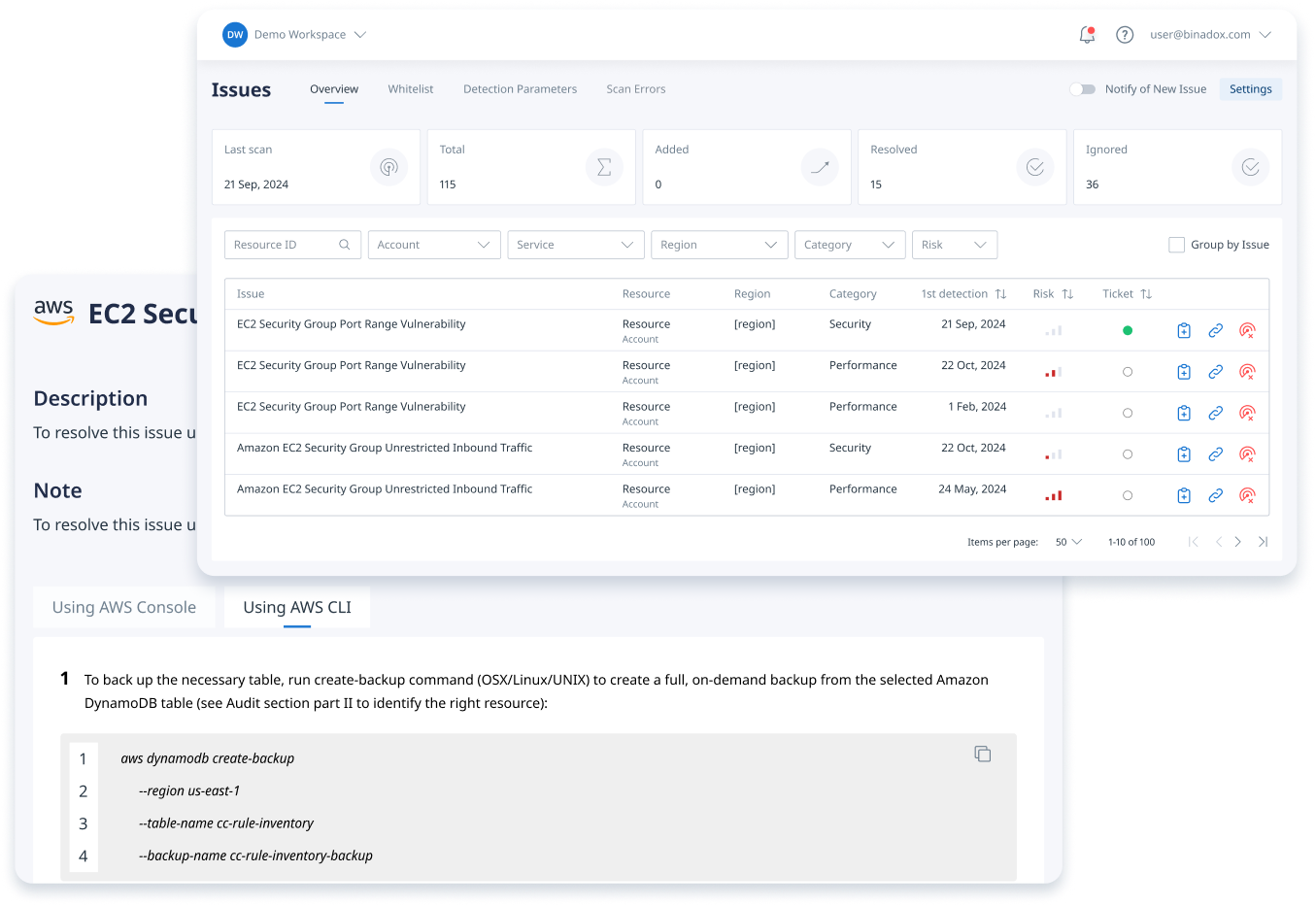
With Binadox, you can:
- Gain Granular Visibility: The platform provides real-time tracking of cloud spending, helping you visualize cost patterns and trends across all your resources. This makes it easier to spot anomalies and understand the drivers behind your storage bill.
- Automate Cost Optimization: Binadox can automatically identify underutilized resources and cost-saving opportunities. It provides data-driven recommendations, such as identifying data that could be moved to a cheaper storage class based on access patterns.
- Improve Budgeting and Forecasting: By analyzing historical usage data, Binadox helps you create more accurate IT budget forecasts. You can set up alerts to get notified when spending approaches predefined thresholds, preventing budget overruns.
- Streamline Multi-Cloud Management: For organizations using multiple cloud platforms, Binadox centralizes cost management into a single interface. This unified view simplifies tracking and optimizing expenses across your entire cloud infrastructure.
By connecting your Google Cloud account, Binadox can ingest billing and usage data, providing actionable insights to help your team make informed decisions and reduce waste.
Best Practices for Managing Cloud Storage Spending
Effectively managing your Google Cloud Storage spending involves a continuous cycle of monitoring, analyzing, and optimizing. Here are some best practices to keep your costs in check:
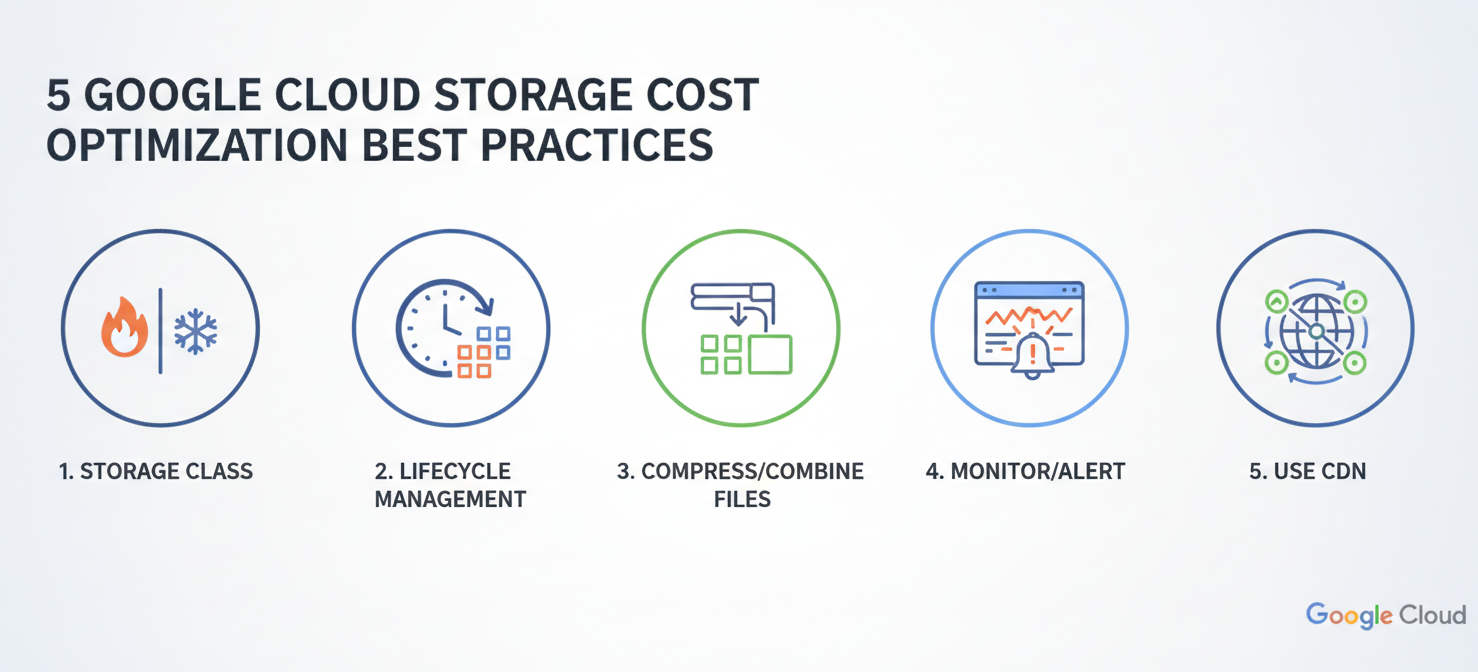
- Choose the Right Storage Class: Align your data’s storage class with its access frequency. Use Standard for active data, and transition less-used data to Nearline, Coldline, or Archive.
- Implement Lifecycle Management: Use Object Lifecycle Management policies to automate the process of moving data to colder, more cost-effective storage classes as it ages. This “set it and forget it” approach is one of the most effective ways to control long-term storage costs.
- Compress and Combine Files: Before uploading, compress text-heavy files like logs and JSON. Since operations are charged per request, combining many small files into larger archives can also significantly reduce operation costs.
- Monitor and Alert: Regularly review your usage in the Google Cloud Console or a tool like Binadox. Set up budget alerts to be notified of unexpected spending spikes before they become a major problem.
- Use a CDN for Frequent Egress: If you serve static assets to the public, use Cloud CDN. A CDN caches content closer to users, which can dramatically reduce your network egress fees and improve performance.
By adopting these practices, you can ensure your use of Google Cloud Storage remains both powerful and cost-efficient.
Conclusion
Navigating the Google Cloud Storage cost structure requires more than just looking at the price per gigabyte. A true understanding comes from analyzing the interplay between storage classes, operation volumes, retrieval patterns, and network traffic. By carefully selecting storage tiers, automating data lifecycle policies, and using tools to monitor spending, you can prevent your storage bill from becoming an unwelcome surprise. Ultimately, a proactive approach to managing your Google Cloud Storage cost ensures that you get the most value from this scalable and durable service without overspending.
To gain full control over your Google Cloud Storage costs and unlock optimization opportunities, you might want to experience Binadox for yourself by initiating a free trial or scheduling a personalized demo.
 7-day free trial