


Google Compute Engine (GCE) provides powerful and scalable virtual machines, but its pay-as-you-go model can make costs feel unpredictable. A clear understanding of Google Compute Engine billing is essential for managing your cloud budget effectively. This article breaks down how GCE charges for its core components—instances, storage, and networking—and shows you how to analyze your spending to prevent surprises.
Key takeaways
- Compute Engine bills for vCPU and memory resources separately, with per-second billing after a one-minute minimum.
- You can significantly reduce costs by up to 57% with one- or three-year Committed Use Discounts (CUDs) for predictable workloads.
- Network egress (data leaving Google’s network) is a common source of unexpected charges; traffic between zones in the same region costs about $0.01/GB each way.
- Regularly analyzing your billing data by project, service, and SKU is the first step to identifying and eliminating wasted spend.
Understanding Google Compute Engine Pricing
Google Compute Engine operates on a pay-as-you-go basis, which means you only pay for the resources you provision. The final bill is a combination of several distinct usage metrics. Instead of a single price for a virtual machine (VM), costs are broken down into their fundamental components.
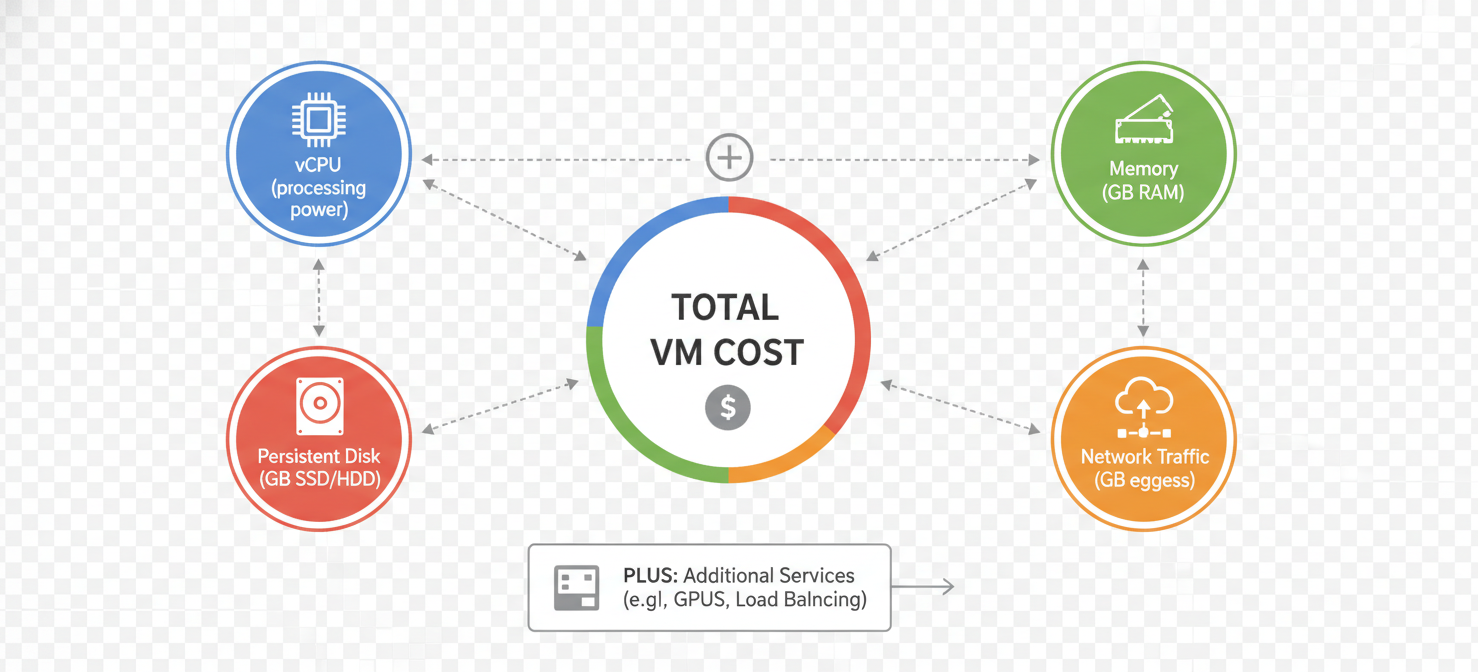
The primary cost drivers for any GCE instance are:
- vCPU and Memory: The number of virtual CPUs and the amount of RAM allocated to your instance.
- Storage: The type and size of persistent disks attached to your VMs.
- Network Traffic: Data transferred out of your VM to the internet or even to other regions or zones within Google Cloud.
In addition to these core components, other factors like premium operating system licenses (e.g., Windows Server or RHEL) and attached GPUs also add to the total cost. Google bills for VM usage per second, after a one-minute minimum, offering granular control over spending for short-lived instances.
How Machine Types, Runtime, and Discounts Affect Google Compute Engine billing
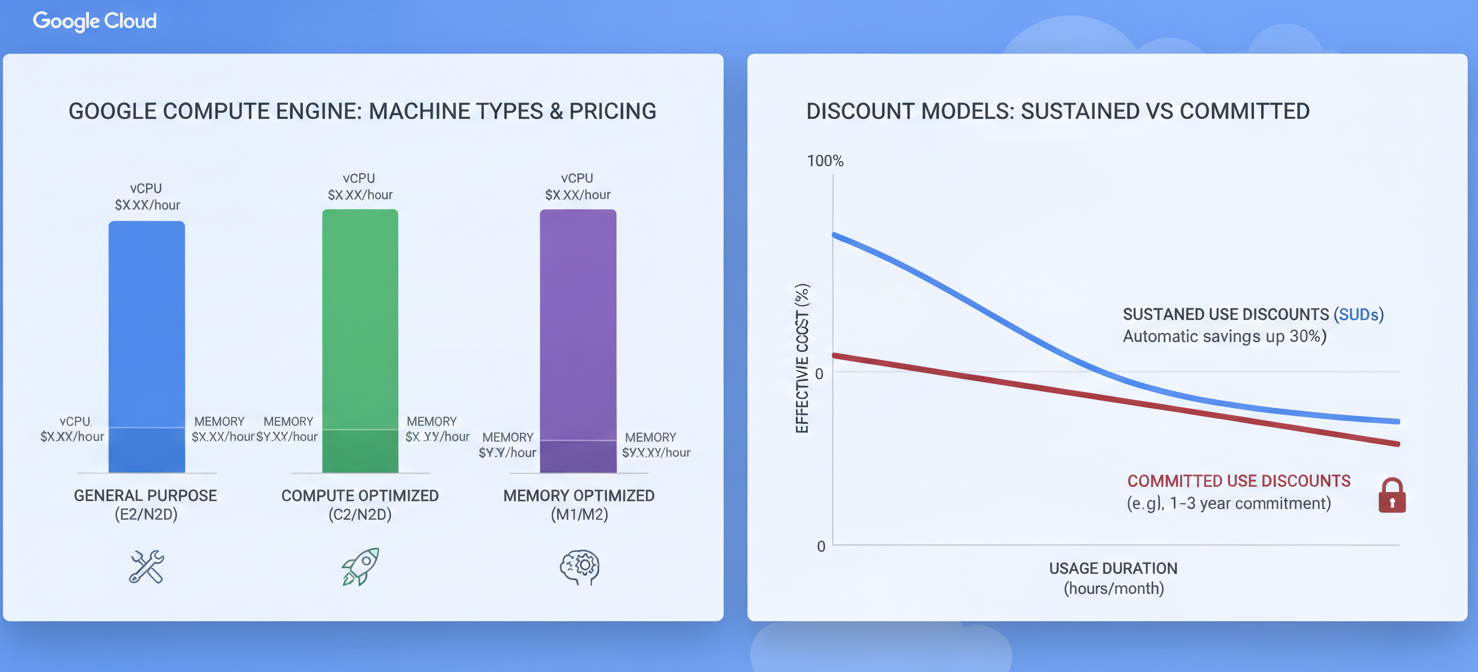
The specific machine family you choose has a significant impact on your costs. Google offers a wide range of predefined and custom machine types optimized for different workloads, from general-purpose E2 and N2 series to compute-optimized C3 or memory-optimized M3 instances. Each family has a different price for its vCPU and memory resources.
vCPU and Memory Costs
Google bills for vCPU and memory resources independently. This unbundling is visible on your bill, where you’ll see separate line items for the vCPU hours and RAM GB-hours your instances consumed. This approach provides transparency and allows you to see exactly where your money is going. For example, a memory-intensive application might show higher costs for RAM than for vCPU.
Automatic and Commitment-Based Discounts
Google provides two primary ways to lower your compute costs without changing your infrastructure:
-
Sustained Use Discounts (SUDs): These discounts are applied automatically when an eligible VM runs for more than 25% of a billing month. The discount increases with usage, reaching up to 30% for instances that run for the entire month. SUDs require no action on your part but only apply to certain machine families like N1, N2, and C2.
-
Committed Use Discounts (CUDs): For workloads with predictable resource needs, CUDs offer much deeper savings. By committing to a certain level of vCPU and memory usage for a one- or three-year term, you can receive discounts of up to 57% on general-purpose machines and up to 70% on memory-optimized types. CUDs are ideal for stable, long-running applications and provide significant budget predictability. It’s important to note that CUDs are applied before SUDs, and the two discounts do not stack on the same usage.
Persistent Disks and Network Traffic Charges
Beyond the instance itself, attached storage and network activity are two major components of your Google Cloud Storage billing.
Persistent Disk Pricing
Each Compute Engine VM requires at least one boot disk, and you are billed for the entire provisioned size of the disk, regardless of how much space you actually use. Google offers several types of persistent disks, each with a different performance profile and price point:
- Standard (HDD): The most affordable option, best for data-intensive workloads with sequential I/O, like log processing.
- Balanced: A cost-effective middle ground offering SSD-like performance for most general-purpose applications.
- SSD: High-performance storage for databases and other latency-sensitive applications.
- Extreme: Designed for the most demanding database workloads, offering exceptionally high IOPS.
Pricing is calculated per GB per month. For example, a Balanced Persistent Disk costs around $0.11/GB-month in many US regions. Snapshots for backing up your disks incur separate storage costs.
Network Traffic Costs
Network costs can be one of the most surprising parts of a cloud bill. While data entering a Google Cloud network (ingress) is generally free, data leaving it (egress) is not.
Key network charges to watch for include:
- Internet Egress: Traffic from your VM to the public internet. This is often the most expensive type of data transfer, with prices for the Premium Tier starting around $0.12 per GB for the first terabyte.
- Inter-region Egress: Traffic between VMs in different Google Cloud regions.
- Inter-zone Egress: Traffic between VMs in different zones within the same region. This is a frequently overlooked cost, typically priced around $0.01 per GB in each direction.
Traffic between VMs in the same zone using internal IP addresses is free. Therefore, designing your application to minimize cross-zone and cross-region communication is a key cost-optimization strategy.
How to Interpret Compute Engine SKUs and Usage Metrics
To effectively manage costs, you need to understand how to read your billing report. Google Cloud billing analysis tools break down all charges into specific Stock Keeping Units (SKUs). An SKU is the most granular representation of a billable resource, like “N2 vCPU running in us-central1” or “SSD Persistent Disk storage in europe-west1.”
When you analyze Compute Engine billing data, you will encounter SKUs for each component:
- Compute SKUs: These often include the machine family, the resource (vCPU or Memory), and the region. For example,
CP-COMPUTEENGINE-VMIMAGE-N2-VCPU. - Storage SKUs: These specify the disk type and region, such as
PD-SSD. - Networking SKUs: These detail the type of data transfer, like
Compute Engine - Internet Egress.
By grouping your costs by SKU in the Google Cloud Billing reports, you can see exactly which resources are contributing most to your bill. This level of detail is crucial for pinpointing inefficiencies.
How to Identify Expensive Instances and Unexpected Charges
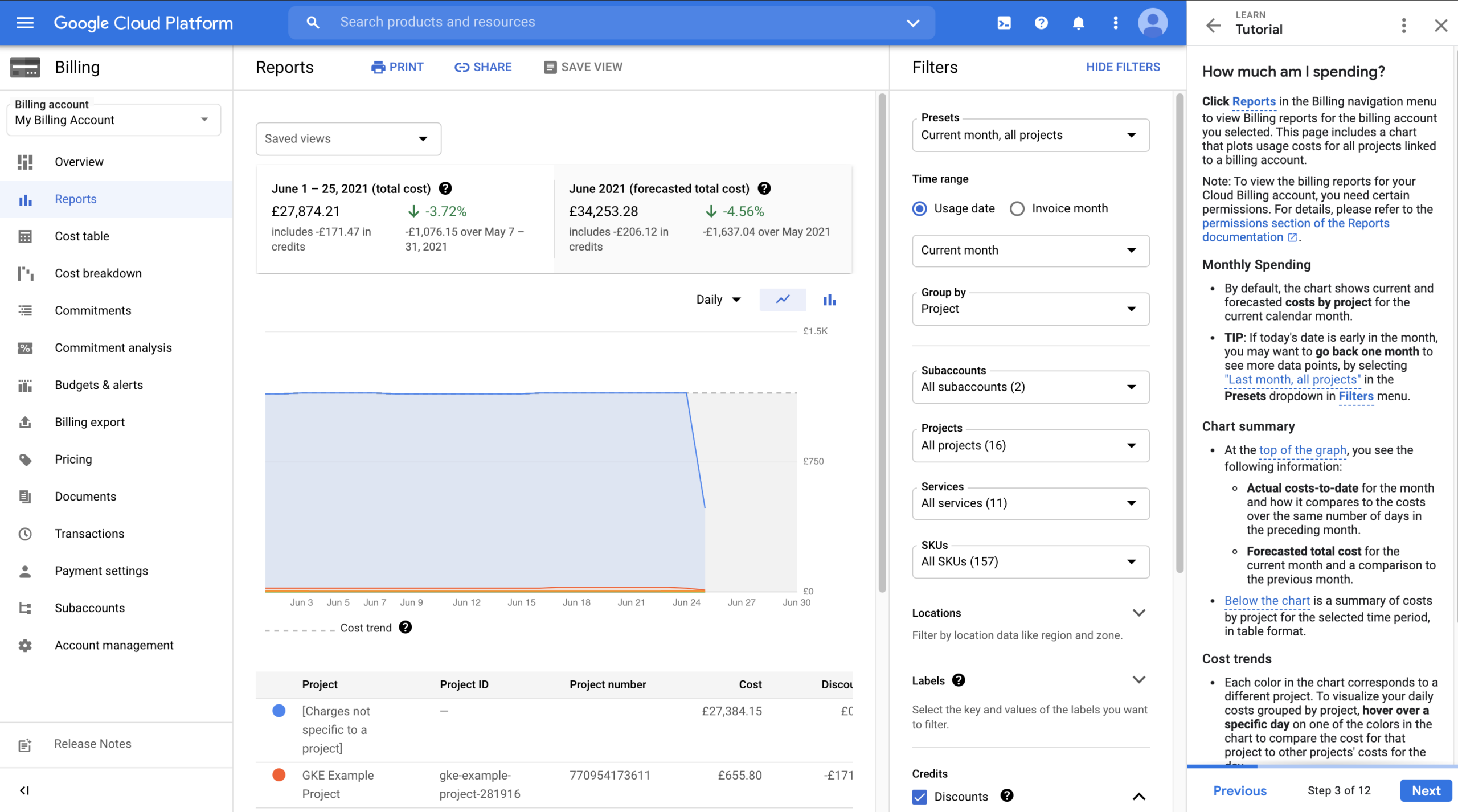
The first step in any cost optimization effort is to inspect your current spending. Google Cloud’s native billing reports are powerful tools for this. By filtering and grouping your data, you can uncover the biggest contributors to your compute spending.
Start by grouping your billing report by Project to see which applications or teams are incurring the most cost. From there, you can drill down and group by Service to isolate Compute Engine costs. Finally, grouping by SKU will reveal the specific machine types, disk types, or network traffic patterns that are driving the bill.
Look for common red flags:
- High costs for a single VM: This could indicate an overprovisioned machine that needs to be right-sized.
- Unexpectedly high network egress: This might point to an application that is inefficiently transferring data across zones or to the internet.
- Costs for idle resources: The Recommender Hub in Google Cloud can automatically identify and flag idle VMs and unattached persistent disks.
How Binadox Helps Analyze Compute Engine Costs
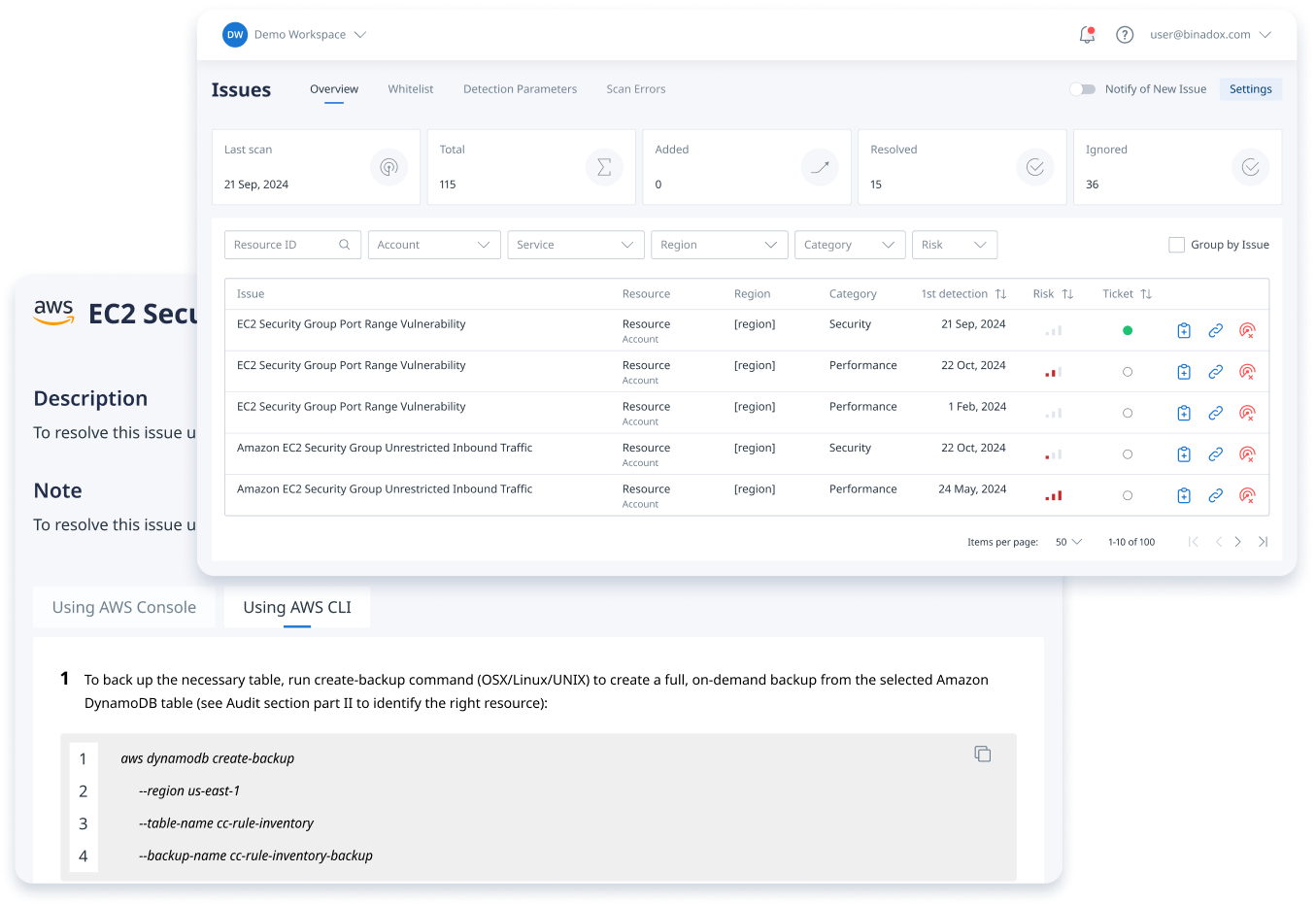
While Google’s native tools are useful, a dedicated Google Cloud billing analysis tool like Binadox can provide deeper insights and automate optimization efforts. Binadox offers a unified platform to visualize, analyze, and manage your cloud spending across all projects and services.
With Binadox, your team can:
- Gain Granular Visibility: Get detailed cost breakdowns across Compute Engine, Storage, and BigQuery to understand spending patterns.
- Identify Optimization Opportunities: The platform automatically identifies idle resources, overprovisioned VMs, and opportunities for storage tier optimization.
- Manage Discounts: Binadox provides smart recommendations for purchasing Committed Use Discounts based on your historical usage patterns, ensuring you maximize savings without overcommitting.
- Automate Governance: Set up budget alerts and automated policies to proactively manage costs and prevent bill shock.
By consolidating cost data into a single dashboard, Binadox makes it easier to track spending, enforce budgets, and hold teams accountable.
Best Practices for Managing Compute Engine Spending
Effectively managing your Compute Engine costs requires a continuous, proactive approach. Here are some best practices to implement:
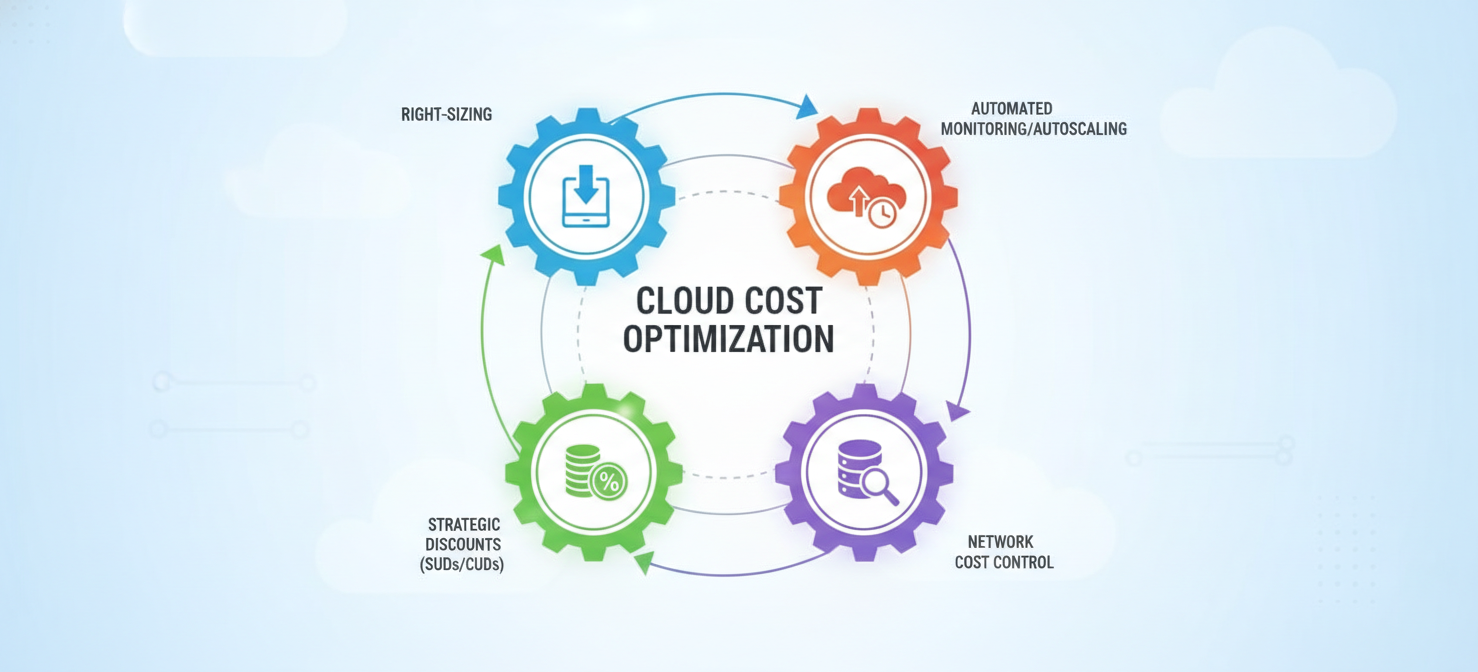
- Right-Size Instances: Regularly monitor the CPU and memory utilization of your VMs and downsize overprovisioned instances. Tools like Google’s Recommender or Binadox can automate these recommendations.
- Use Discounts Strategically: Apply Committed Use Discounts to your stable, predictable workloads to maximize savings. Let Sustained Use Discounts automatically cover more variable workloads.
- Optimize Storage: Don’t pay for storage you don’t need. Delete unattached persistent disks and regularly audit disk sizes to ensure they match actual usage. Choose the most cost-effective disk type for your workload’s performance requirements.
- Control Network Costs: Whenever possible, keep traffic within a single availability zone. For serving content to the internet, use a Content Delivery Network (CDN) to reduce expensive egress traffic.
- Automate and Monitor: Use autoscaling to match your compute capacity with demand, shutting down resources when they are not needed. Implement budget alerts and use cost management platforms to continuously monitor your spending against forecasts.
Conclusion
Mastering Google Compute Engine billing is not about spending less; it’s about spending smarter. By understanding how costs are calculated for machine types, storage, and networking, you can move from reactive bill analysis to proactive cost management. The key is to use the detailed data available in billing reports and SKUs to your advantage. Tools like Google’s built-in reports provide the necessary data, while platforms like Binadox can accelerate your analysis and automate savings. Ultimately, a disciplined approach to rightsizing, applying discounts, and monitoring usage will ensure you get the most value from your investment in Google Cloud without letting costs spiral out of control. A well-managed Google Compute Engine billing process is the foundation of a cost-efficient cloud strategy.
To truly master your Google Compute Engine billing and accelerate your cost optimization efforts, you can easily start your free Binadox trial today or book a demo to see how our platform can provide deeper insights.
 7-day free trial