


Google Cloud SQL provides a fully managed relational database service for MySQL, PostgreSQL, and SQL Server, but its pricing can be complex. Understanding the various cost components is the first step toward effective budget management. This article explains how Google Cloud SQL billing works and offers practical guidance on how to analyze Google Cloud SQL costs to prevent unexpected charges and optimize your spending.
Key takeaways
- Cloud SQL pricing is a sum of multiple components: compute (vCPU and memory), storage, backups, and network egress.
- A high-availability (HA) configuration, which provides failover support, roughly doubles the compute and storage costs of a standalone instance.
- Committed Use Discounts (CUDs) can reduce vCPU and memory costs by up to 52% for a three-year commitment, but they do not apply to storage, networking, or licensing.
- Analyzing costs involves more than just looking at the instance price; you must examine billing SKUs, monitor usage metrics, and attribute spending to specific applications.
Understanding Google Cloud SQL Pricing
Google Cloud SQL pricing is not based on fixed instance types but on the resources you provision. This pay-as-you-go model offers flexibility but requires careful monitoring to control costs. The total bill is composed of several distinct charges, each contributing to your monthly total.
The primary cost drivers are compute resources—virtual CPUs (vCPUs) and memory (RAM)—which are billed per hour. In addition to compute, you pay for provisioned storage, backups, and network traffic leaving the Google Cloud network. For users of Cloud SQL for SQL Server, Microsoft licensing fees are also added on a per-core, per-hour basis.
Google offers two main editions: Enterprise and Enterprise Plus. The Enterprise Plus edition provides higher performance and availability features, such as larger machine types and near-zero downtime maintenance, at a roughly 30% higher cost for vCPU and memory.
How Instance Configuration and Runtime Affect Costs
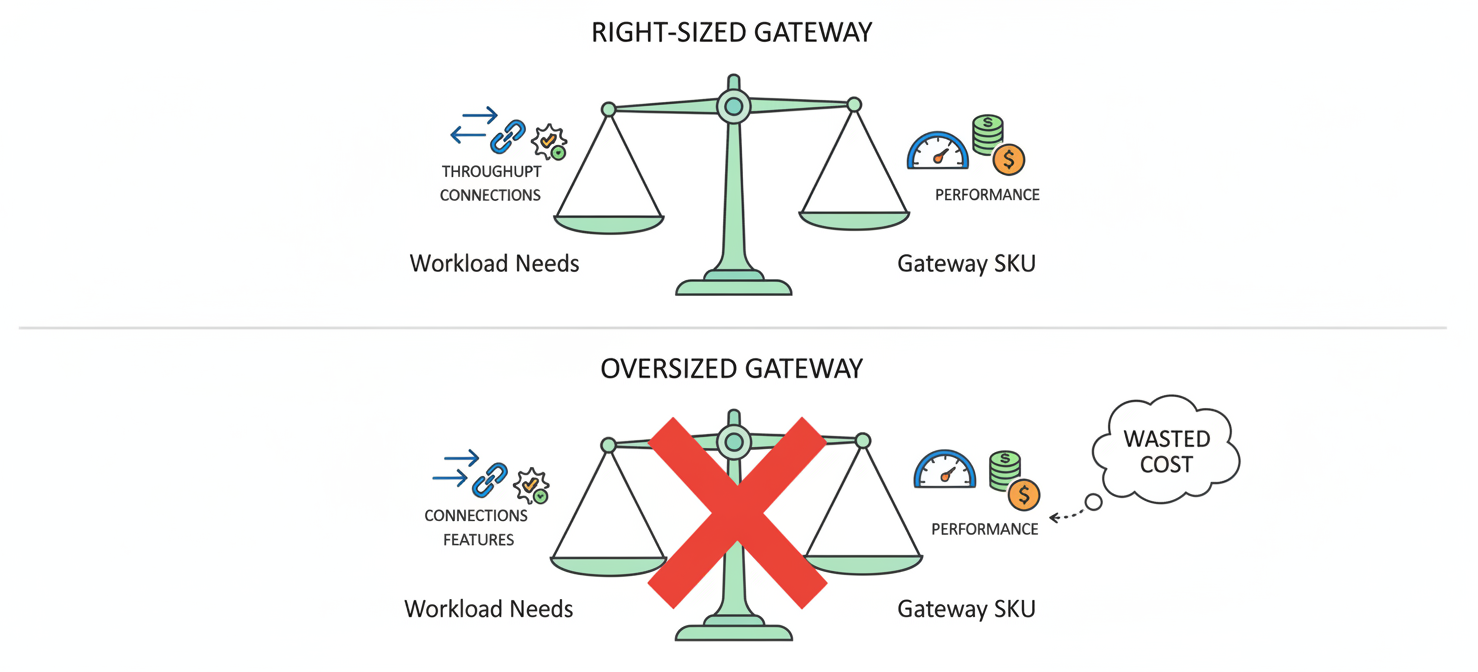
The core of your Cloud SQL bill comes from the instance’s vCPU and memory configuration. You can choose from shared-core instances for small, non-critical workloads or dedicated-core instances for production applications.
CPU and Memory Costs
For dedicated-core instances, you select the number of vCPUs and the amount of memory your database needs. Pricing varies significantly by region, with some regions like us-central1 (Iowa) often being more affordable. For example, a small dedicated-core instance with 4 vCPUs and 15 GB of memory might cost around $282 per month on-demand.
High-availability (HA) configurations, which create a standby replica in a different zone for automatic failover, will approximately double your compute costs because you are paying for a second, identical instance. Read replicas, used to scale read-heavy workloads, are billed at the same rate as standalone instances.
For predictable workloads, you can purchase Committed Use Discounts (CUDs). By committing to a certain level of vCPU and memory usage for one or three years, you can receive discounts of up to 52%. However, these discounts only apply to compute resources and not to shared-core instances.
Database Engine Pricing Considerations
The choice of database engine also impacts cost. While MySQL and PostgreSQL pricing is based on the same structure for compute and storage, Cloud SQL for SQL Server includes additional licensing fees. These licenses are charged per core per hour, and there is a four-core minimum for each instance. This means even an instance with fewer than four vCPUs will be billed for four licenses.
Storage, Backups, and Network Traffic Charges
Beyond compute, several other factors contribute to your Cloud SQL bill. Storage, backups, and networking are significant components that can grow with your application’s usage.
How Cloud SQL Storage and Backups Affect Pricing
You are charged for the amount of storage you provision, not just what you use. Cloud SQL offers two main types of storage: Solid-State Drives (SSD) and Hard Disk Drives (HDD). SSD storage offers higher performance and costs more, making it suitable for production workloads, while HDD storage is a cheaper option for less I/O-intensive tasks.
Automated backups are essential for data protection, and their cost depends on the amount of storage consumed by the backups. You can configure the retention period for automated backups, which directly impacts storage costs. Retaining more backups for longer periods will increase your monthly bill.
Network Traffic Costs
Network traffic, specifically data egress (data leaving Google’s network), is another variable cost. Ingress traffic (data coming into your instance) is generally free. However, you are charged for data transferred out of your database to the internet or even to other Google Cloud regions. These charges can add up quickly, especially for applications that serve large amounts of data to users across different geographical locations.
How to Interpret Cloud SQL SKUs and Usage Metrics
To effectively manage your Cloud SQL spending, you need to understand how to read your Google Cloud bill. The Cost Table report in the Google Cloud Console provides a detailed breakdown of charges by project, service, and SKU (Stock Keeping Unit).
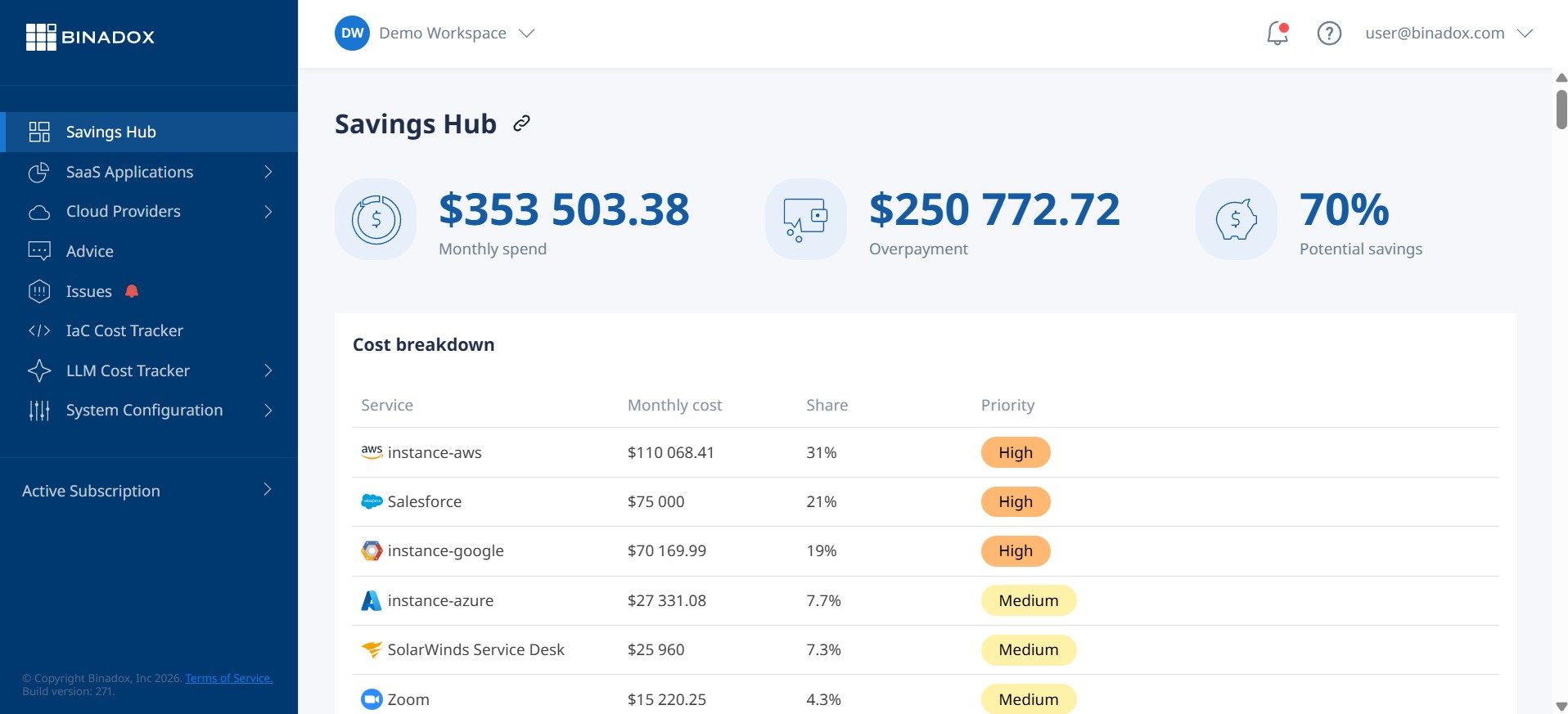
Each line item on your bill corresponds to a specific SKU. For example, you will see separate SKUs for vCPU hours, memory, SSD storage, and network egress. By filtering these reports, you can see exactly which resources are contributing most to your costs. For instance, you might find that a particular instance’s vCPU usage is driving a large portion of the bill, or that backup storage has grown unexpectedly.
Monitoring usage metrics is also crucial. Tools like Cloud SQL’s Query Insights can help you identify expensive queries that are consuming significant CPU and memory resources. By optimizing these queries, you can often reduce the load on your database, potentially allowing you to downsize the instance and save money.
How to Identify Expensive Instances and Unexpected Charges
The first step in cost optimization is identifying where your money is going. Use the Google Cloud Console’s billing reports to group costs by project or resource to pinpoint the most expensive Cloud SQL instances. Look for instances with low utilization, which may be candidates for downsizing. The Google Cloud Recommender can automatically identify over-provisioned or idle instances, providing specific recommendations for rightsizing.
Unexpected charges often come from a few common sources:
- Forgotten Instances: Development or staging instances left running can accumulate significant costs.
- Over-provisioned Resources: Choosing an instance size that far exceeds your workload’s actual needs.
- Backup Retention: Long retention periods for backups can lead to escalating storage costs.
- Network Egress: High volumes of outbound data traffic can result in surprisingly large bills.
Regularly review your billing data and set up budget alerts to be notified when spending exceeds a certain threshold. This proactive approach helps you catch unexpected cost spikes before they become a major problem.
How Binadox Helps Analyze Cloud SQL Costs
While Google’s native tools are useful, third-party platforms like Binadox can provide deeper insights and simplify the process of how to analyze Google Cloud SQL costs. Binadox offers a unified dashboard for multi-cloud cost management, allowing you to track spending across all your cloud services in one place.
Binadox helps turn raw billing data into clear, categorized views of your resource consumption. Instead of sifting through thousands of billing SKUs, you can see a high-level breakdown of your spending, making it easier to identify major cost drivers. The platform’s real-time cost analytics and predictive forecasting can help you detect anomalies and prevent budget overruns.
For example, Binadox can help you visualize cost trends over time, correlate spending with specific projects or teams, and receive intelligent recommendations for rightsizing instances and optimizing storage. This level of visibility and automation simplifies cloud financial management and empowers your team to make data-driven decisions about resource allocation.
Best Practices for Managing Cloud SQL Spending
Optimizing your Cloud SQL costs is an ongoing process, not a one-time task. Here are some best practices to keep your spending in check:
- Right-size Your Instances: Regularly review instance performance and utilization to ensure you are not paying for unused capacity. Use tools like the Active Assist Recommender to get automated suggestions.
- Use Committed Use Discounts: For stable, long-term workloads, CUDs offer significant savings on CPU and memory.
- Optimize Storage and Backups: Choose the right storage type for your workload and implement a backup retention policy that balances data protection with cost.
- Monitor and Optimize Queries: Use Query Insights to find and fix inefficient queries that drive up CPU usage.
- Automate Cost Management: Leverage tools like Binadox to automate monitoring, receive alerts on cost anomalies, and get actionable recommendations for optimization.
By combining careful configuration with continuous monitoring and analysis, you can effectively manage your Cloud SQL costs without sacrificing performance or reliability.
Ultimately, understanding and controlling your Cloud SQL bill is a matter of diligence. The pricing model has many moving parts, and overlooking any one of them can lead to budget surprises. A clear strategy for how to analyze Google Cloud SQL costs, whether through native tools or a platform like Binadox, is not just good financial practice—it’s essential for running a sustainable and efficient cloud operation. Don’t let your managed database manage your budget.
To effectively manage your Cloud SQL costs and ensure your budget stays on track, consider exploring Binadox’s capabilities by starting your free trial or arranging a personalized demo.
 7-day free trial