



Effective Microsoft 365 license management is a critical discipline for any organization that wants to maximize its investment and ensure productivity. It involves more than simply assigning a license to a new user; it’s an ongoing process of tracking, optimizing, and aligning the licenses you own with the actual needs of your team. Without a clear strategy, it’s easy to overspend on unnecessary licenses or, conversely, under-provision employees, leaving them without the tools they need to perform their roles effectively. This guide provides a comprehensive overview of how to take control of your M365 environment.
Key takeaways
- Continuous Optimization is Key: License management is not a one-time task but a continuous process of auditing, reclaiming, and reassigning licenses to adapt to organizational changes.
- Right-Size Your Licenses: Avoid assigning one-size-fits-all licenses. Instead, match user roles and actual application usage to the appropriate license tier (e.g., E1, E3, E5) to prevent overspending.
- Embrace Automation: Leverage tools like group-based licensing in Azure AD to automate the assignment and removal of licenses, reducing administrative overhead by up to 50% in some cases.
- Monitor Usage Regularly: Use the Microsoft 365 admin center and third-party tools to track application usage, identify inactive licenses, and make data-driven decisions for cost savings.
What is Microsoft 365 License Management?
Microsoft 365 license management is the systematic process of overseeing and controlling the licenses for the suite of applications and services within your organization’s subscription. This practice ensures that every user has the appropriate access to tools like Teams, SharePoint, and OneDrive without incurring unnecessary costs from unused or underutilized licenses.
At its core, management involves several key activities:
- Assigning and Unassigning: Properly provisioning licenses for new employees and reclaiming them when individuals leave the company or change roles.
- Tracking and Auditing: Maintaining a clear inventory of all purchased licenses, knowing who they are assigned to, and regularly reviewing their usage.
- Optimization: Analyzing usage data to ensure that employees are on the correct license tier. For example, a user who only needs web versions of Office apps may not require a premium E5 license.
The primary hub for these activities is the Microsoft 365 admin center, which allows administrators to view and manage user licenses directly. However, for larger organizations, managing licenses individually becomes impractical, which is where more advanced strategies and tools come into play.
Understanding License Types
Microsoft offers a wide array of license plans tailored to different organizational needs, broadly categorized into Business, Enterprise, and Frontline worker plans.
- Business Plans: Designed for small to medium-sized businesses with a cap of 300 users. These include tiers like Business Basic (web and mobile apps), Business Standard (adds desktop apps), and Business Premium (adds advanced security and device management).
- Enterprise Plans (E1, E3, E5): Intended for larger organizations, these plans have no user limit and offer more advanced features around security, compliance, and analytics. An E1 license provides core services like email and file sharing, while E3 adds desktop applications and more security features. The E5 license includes everything in E3 plus advanced security, voice capabilities, and analytics tools like Power BI Pro.
- Frontline Worker Plans (F1, F3): These are lower-cost licenses designed for employees who are often mobile and do not work at a desk, providing essential communication and collaboration tools.
Choosing the right mix of these licenses is a foundational step in effective office 365 license optimization.
Why is Managing M365 Licenses So Difficult?
Managing Microsoft 365 licenses presents a persistent challenge for many organizations, leading to wasted resources and operational inefficiencies. The complexity stems from several interconnected factors that can easily spiral out of control without active oversight.
One of the most significant issues is a lack of visibility. Many IT departments struggle to get a clear and accurate picture of what licenses they own, who is using them, and to what extent. This poor visibility often leads to “license sprawl,” where the number of active licenses far exceeds the actual need, resulting in unnecessary spending.
Another common pitfall is the failure to reclaim licenses. When an employee leaves the company or changes roles, their license is often forgotten and left assigned to an inactive account. This means the organization continues to pay for a subscription that provides no value. Similarly, organizations frequently make the mistake of assigning the wrong license type, such as giving a premium E5 license to a user who only requires basic email and web applications.
Furthermore, the sheer variety of Microsoft 365 plans and add-ons creates a complex landscape that is difficult to navigate. Without a deep understanding of the features included in each tier, it’s easy to either over-provision users with features they don’t use or under-provision them, hindering their productivity. This is compounded by a lack of ongoing user training and adoption initiatives, which means even correctly assigned licenses may be underutilized.
Finally, relying solely on manual tracking methods, such as spreadsheets, is simply not scalable for most organizations. As the number of users and the complexity of license plans grow, manual processes become prone to error and consume an enormous amount of administrative time.
How to Manage Microsoft 365 Licenses: A 5-Step Process
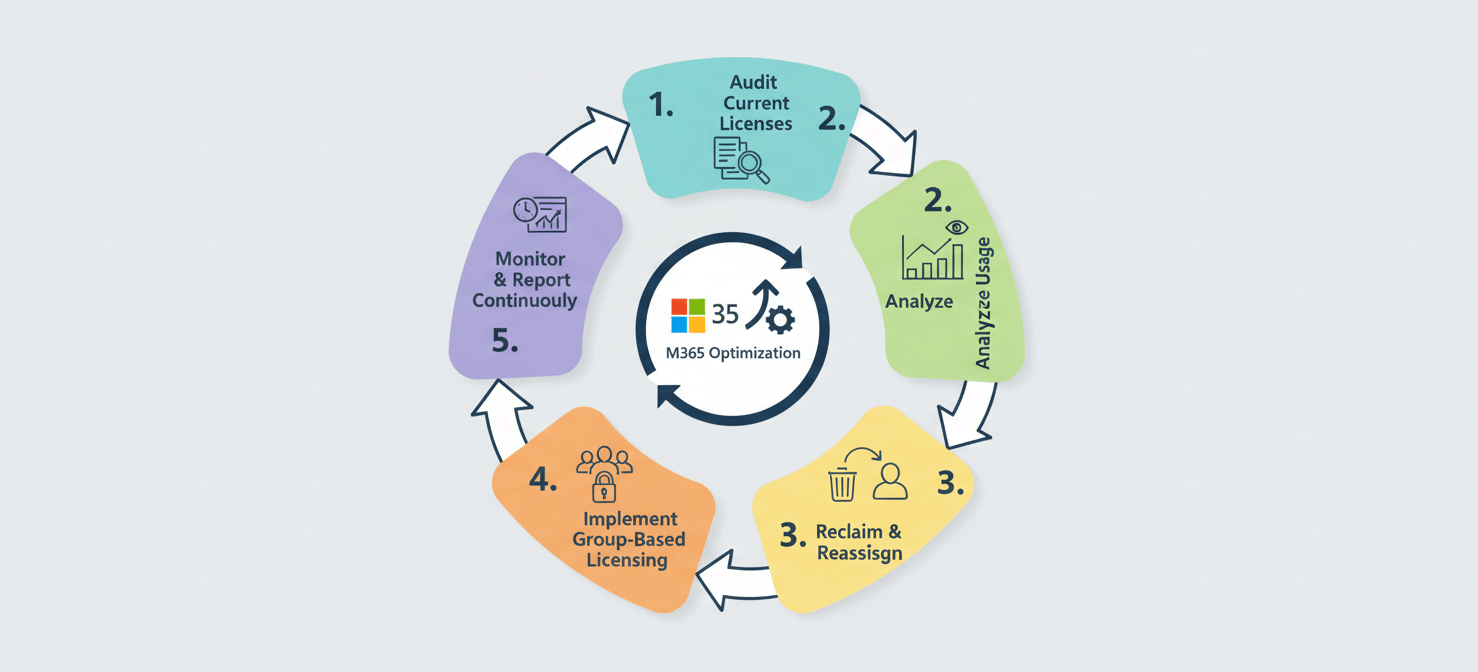
A structured approach is essential for effective Microsoft 365 license management. Following a clear, repeatable process helps ensure that you are maximizing value and minimizing waste. This 5-step process provides a framework for gaining control over your licensing environment.
Step 1: Audit Your Current Licenses
The first step is to gain a comprehensive understanding of your existing license inventory. You cannot manage what you cannot see. This involves a thorough audit to determine exactly what licenses your organization owns, how many are assigned, and how many are currently available.
You can start this process in the Microsoft 365 admin center by navigating to the “Billing > Licenses” page. This dashboard provides an overview of all your subscriptions, showing the total number of licenses for each plan and how many are in use. For a more detailed analysis, you can export this data to a CSV file. During this audit, pay close attention to identifying any subscriptions for services that are no longer in use or that may have been purchased for projects that have since concluded.
Step 2: Analyze Usage and User Activity
Once you know what you have, the next step is to understand how it’s being used. Analyzing user activity is crucial for identifying opportunities for office 365 license optimization. The goal is to determine if the assigned licenses match the actual needs and work patterns of your employees.
The admin center’s “Reports > Usage” section offers valuable insights into how users are interacting with different M365 services like Exchange, OneDrive, and Teams. These reports can help you pinpoint inactive licenses—those assigned to users who have not accessed any services for an extended period (e.g., 90 days). Identifying these inactive accounts is a quick way to find licenses that can be reclaimed. Furthermore, analyze the feature usage to see if users with premium licenses (like E5) are actually using the advanced features that justify the higher cost.
Step 3: Reclaim and Reassign Unused Licenses
With a clear picture of inactive and underutilized licenses, the next logical action is to reclaim them. This is a critical step in cost optimization. When an employee leaves the organization, their license should be immediately unassigned as part of the offboarding process.
Licenses can be unassigned from individual users through the “Active users” page in the admin center. Simply select the user, go to the “Licenses and Apps” tab, and uncheck the box for the license you wish to remove. These reclaimed licenses are then returned to your available pool and can be reassigned to new employees, preventing the need to purchase additional licenses unnecessarily. For users who are still with the company but are on the wrong license tier, you can reassign them to a more appropriate, lower-cost plan that better fits their usage patterns.
Step 4: Implement Group-Based Licensing
Manually assigning licenses to each user is time-consuming and prone to error, especially in larger organizations. A more efficient and scalable approach is to use group-based licensing through Azure Active Directory (Azure AD). This feature allows you to assign one or more product licenses to a group.
When a user is added to that group, they are automatically assigned the corresponding licenses. Conversely, when they are removed from the group, the licenses are automatically revoked. This automates a significant portion of the license lifecycle management process. You can create groups based on department, role, or location and assign a specific license package to each. For example, you can create a “Sales Team” group and assign Microsoft 365 E3 licenses to it, ensuring every new salesperson automatically gets the right tools.
Step 5: Monitor and Report Continuously
Microsoft 365 license management is not a one-off project; it requires continuous monitoring and reporting to remain effective. Organizational needs change, employees come and go, and usage patterns evolve. Therefore, you should establish a regular cadence for reviewing your license landscape.
Schedule periodic reports to track key metrics such as license consumption, inactive users, and subscription costs. This allows you to stay on top of your license usage and make proactive adjustments. You can also set up alerts to notify you when you are running low on available licenses for a particular subscription. By continuously monitoring your environment, you can ensure that your license management strategy remains aligned with your business objectives and that you are always getting the most value from your Microsoft 365 investment.
Best Practices for Microsoft 365 License Management
Beyond the foundational steps, adopting a set of best practices will elevate your strategy from reactive to proactive, ensuring sustained efficiency and cost savings. These practices focus on refining your approach to license allocation, user lifecycle management, and long-term planning.
Right-Sizing Licenses for User Roles
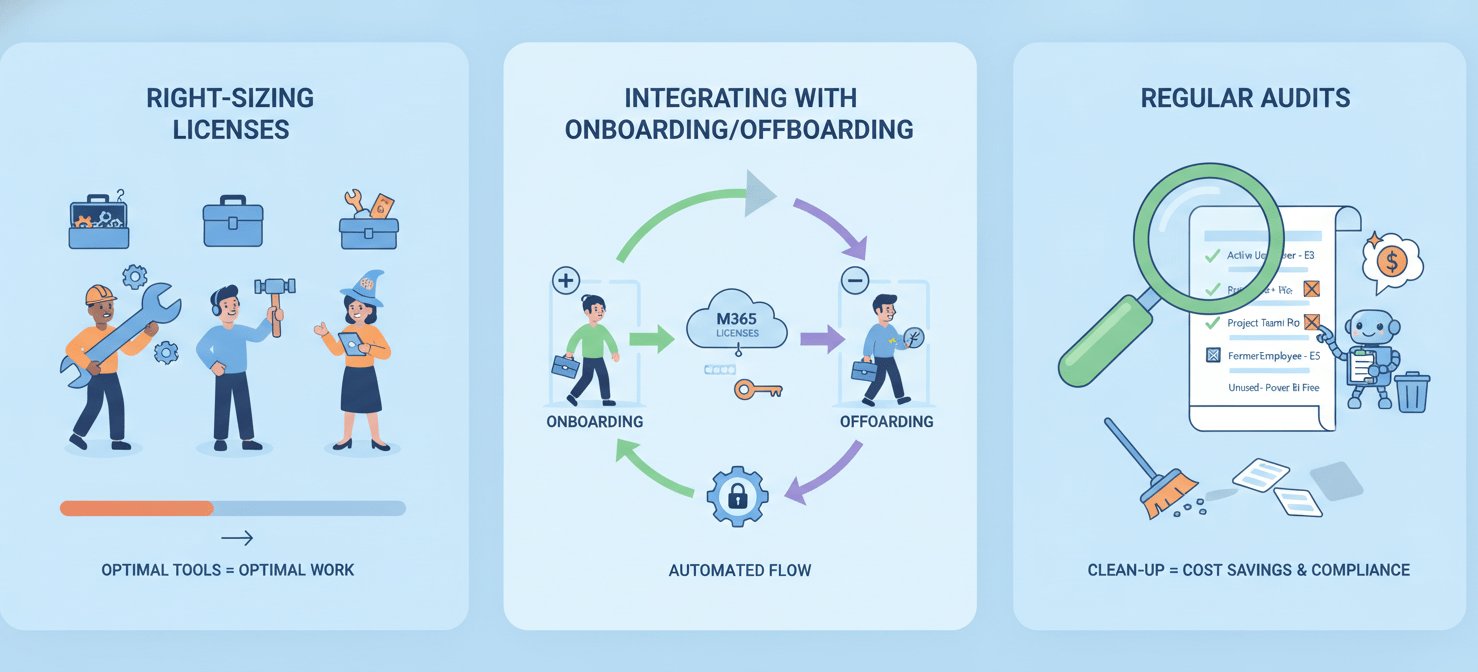
One of the most impactful best practices is to move away from a one-size-fits-all licensing approach. Instead, focus on right-sizing licenses by aligning them with the specific requirements of different user roles within your organization. Not every employee needs the full suite of features available in a premium E5 license.
Begin by creating user personas or profiles based on job functions. For example, an executive assistant who heavily uses advanced Excel features, Power BI, and Teams phone system may genuinely need an E5 license. However, a frontline worker who primarily needs access to email and Teams on a mobile device would be better served by a less expensive F3 license. Regularly review these personas and audit usage to ensure that the assigned licenses still make sense. This practice of matching license tiers to actual job needs can lead to significant cost reductions.
Integrating Licensing with Onboarding and Offboarding
To prevent the accumulation of inactive licenses, it is crucial to tightly integrate license management into your employee onboarding and offboarding workflows. This ensures that licensing tasks are handled promptly and consistently.
- Onboarding: When a new employee joins, the process of assigning the correct license should be automated as much as possible. Using group-based licensing, you can simply add the new user to the appropriate Azure AD group, and the correct licenses will be provisioned automatically.
- Offboarding: Even more critical is the offboarding process. When an employee leaves the company, there must be a standardized procedure to immediately unassign their M365 license. This frees up the license to be used by another employee or allows you to reduce your total license count, directly impacting your subscription costs.
Regular Audits and Clean-Up
The digital workplace is dynamic, and your licensing needs will change over time. Therefore, conducting regular audits of your Microsoft 365 environment is essential. Schedule quarterly or semi-annual reviews to perform a comprehensive clean-up of your licenses.
During these audits, focus on:
- Identifying and reclaiming licenses from all inactive or disabled accounts.
- Reviewing usage reports to find users who may be candidates for a license downgrade.
- Checking for duplicate licenses where a user might have been assigned multiple licenses that provide overlapping services.
Treating license management as an ongoing housekeeping task, rather than an annual fire drill, will keep your environment optimized and your costs under control.
Automation in M365 License Management
As organizations grow, manually managing hundreds or thousands of Microsoft 365 licenses becomes unsustainable. Automation is the key to scaling your license management efforts efficiently, reducing the risk of human error, and freeing up IT staff to focus on more strategic initiatives.
The Role of Group-Based Licensing
The cornerstone of M365 license automation is group-based licensing in Azure AD. This feature eliminates the need for administrators to assign or remove licenses for users one by one. Instead, you assign licenses to a security group, and Azure AD automatically handles the provisioning for all members of that group.
This approach is particularly powerful when combined with dynamic groups. You can create rules that automatically add or remove users from a group based on their attributes, such as department, location, or job title. For example, you could create a dynamic group for all users in the “Marketing” department. When a new user’s profile is updated to show they are in Marketing, they are automatically added to the group and assigned the appropriate licenses. This ensures that license assignments are always in sync with your HR data.
Leveraging PowerShell for Bulk Operations
For more complex or large-scale tasks, PowerShell is an invaluable tool for automating Microsoft 365 license management. While the admin center is useful for individual changes, PowerShell scripts allow you to perform bulk operations across your entire tenant.
With PowerShell, you can:
- Generate custom reports on license usage that go beyond the standard reports in the admin center.
- Bulk-assign or remove licenses for a large list of users.
- Identify all users with a specific license and change their license plan.
- Automate the process of reclaiming licenses from inactive accounts based on their last login date.
While it requires some technical expertise, mastering a few key PowerShell cmdlets can dramatically improve the efficiency of your license management workflows.
Third-Party Management Tools
While Microsoft’s native tools are powerful, a market of third-party solutions has emerged to provide even more advanced automation and reporting capabilities. These SaaS Management Platforms often offer a more user-friendly interface and can provide deeper insights into license usage and optimization opportunities.
These tools can help you:
- Automate the reclamation of underutilized licenses by setting up rules-based workflows. For instance, a policy could be created to automatically downgrade a user from an E5 to an E3 license if they haven’t used any E5-specific features in 90 days.
- Provide detailed cost analysis and chargeback reports for different departments.
- Integrate with other IT systems, like your HR platform, to create a single source of truth for user data and automate the entire license lifecycle.
For large enterprises with complex licensing needs, investing in a third-party tool can provide a significant return by uncovering substantial cost savings and streamlining administrative tasks.
Conclusion
Ultimately, effective Microsoft 365 license management is a matter of discipline, not destiny. It requires moving from a reactive, set-it-and-forget-it mindset to a proactive cycle of auditing, analyzing, and optimizing. The tools are readily available, from the foundational controls in the Microsoft 365 admin center to the powerful automation of group-based licensing and PowerShell. The primary obstacles are often organizational inertia and a lack of visibility.
By implementing a structured process, right-sizing licenses to user needs, and automating repetitive tasks, you can transform licensing from a source of budget anxiety into a well-oiled machine. This not only prevents wasteful spending on “shelfware” but also ensures your team is properly equipped to do their work. Neglecting Microsoft 365 license management doesn’t just waste money; it creates a drag on efficiency and introduces unnecessary complexity. The path to optimization is clear, and it begins with the decision to actively manage what you own.
To truly master your M365 environment and ensure your team has exactly what they need without overspending, consider exploring a dedicated solution. You can gain immediate insights by signing up for a free trial, or for a more tailored discussion of your specific challenges, connect with our experts to arrange a demo.
 7-day free trial