



As your organization grows, its technology needs to evolve. For many businesses using Microsoft 365, this means confronting a crucial decision: when and how to move from a Business plan to a more robust Enterprise license. The process to migrate M365 Business to Enterprise plans can seem complex, but with a clear strategy, it becomes a manageable and valuable transition. This guide provides a practical roadmap for planning and executing your license upgrade, ensuring your team gets the tools it needs without disrupting workflow.
Key takeaways
- Understand the “Why”: Enterprise licenses are necessary when you exceed 300 users or require advanced compliance, security, and data management features not found in Business plans.
- Plan Meticulously: A successful migration hinges on a 5-step process: assessing needs, auditing your environment, communicating with users, performing a pilot test, and then executing the switch.
- It’s a Technical Switch: The core of the migration involves purchasing new Enterprise licenses and reassigning them to users in the Microsoft 365 admin center.
- Post-Migration is Crucial: After the switch, you must configure new features, provide user training, and decommission the old licenses to optimize costs and security.
Why Upgrade from M365 Business to Enterprise?
The primary driver for an upgrade is growth. Microsoft 365 Business plans, including the popular Business Premium, are designed for small to medium-sized businesses with a hard limit of 300 users. Once your organization surpasses this number, moving to an Enterprise plan (like E3 or E5) is not just an option—it’s a requirement.
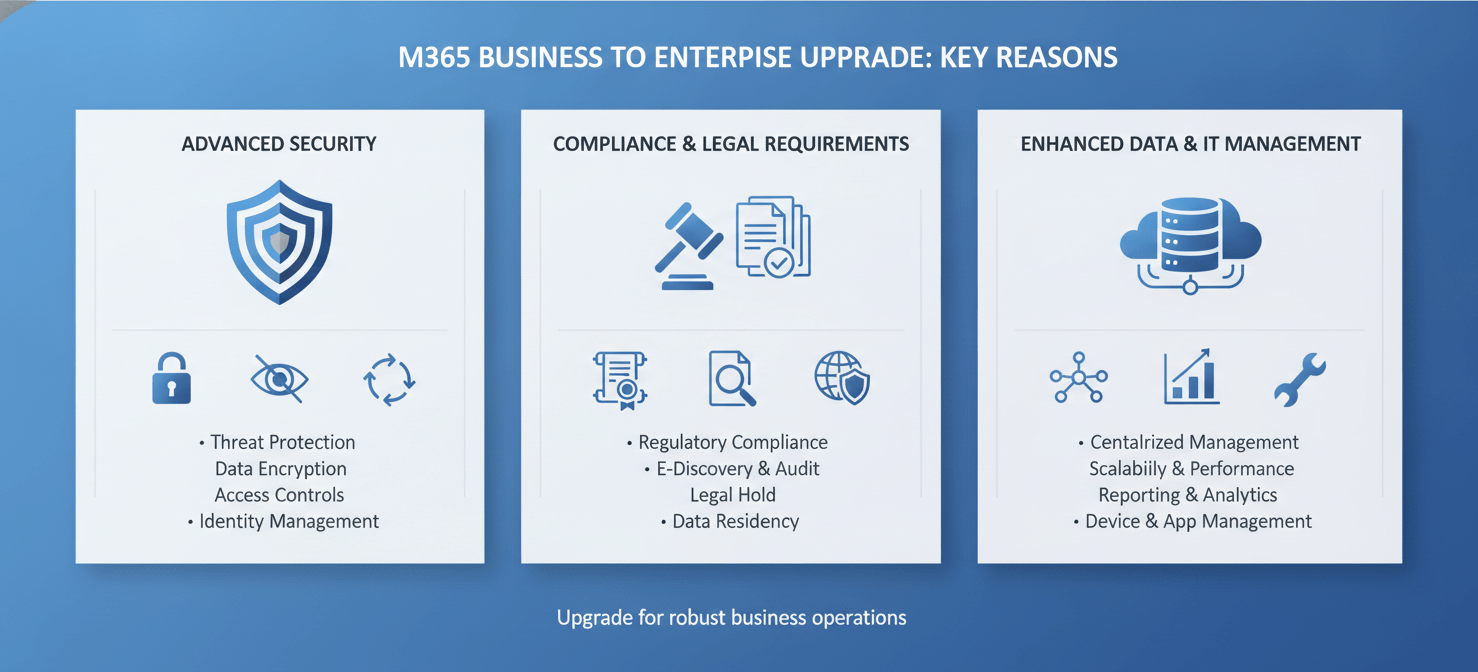
However, user count is not the only reason. Many organizations well under the 300-seat limit choose to upgrade for the advanced capabilities that Enterprise licenses offer. These often fall into three main categories:
- Advanced Security: While Business Premium offers strong security, Enterprise plans provide more granular control. This includes features like more robust Data Loss Prevention (DLP) policies, advanced mobile device management, and deeper integration with Microsoft’s security ecosystem.
- Compliance and Legal Requirements: Businesses in regulated industries such as finance, healthcare, or legal often need sophisticated compliance tools. Enterprise plans (especially E5) include advanced eDiscovery, legal hold, and comprehensive auditing capabilities that are essential for meeting standards like GDPR or HIPAA.
- Enhanced Data and IT Management: Enterprise licenses offer larger mailbox and OneDrive storage capacities. For instance, M365 E3 includes an Exchange Plan 2 with a 100 GB mailbox, compared to the 50 GB in Business Premium. Furthermore, E3 provides more powerful admin controls for managing complex IT environments, including on-premises servers.
Key Differences: M365 Business Premium vs. E3/E5
Understanding the specific differences between plans is key to justifying the investment in an upgrade. While both Business Premium and Enterprise plans include the core Office applications (Word, Excel, Outlook), the distinctions lie in scale, security, and governance.
M365 Business Premium vs. E3
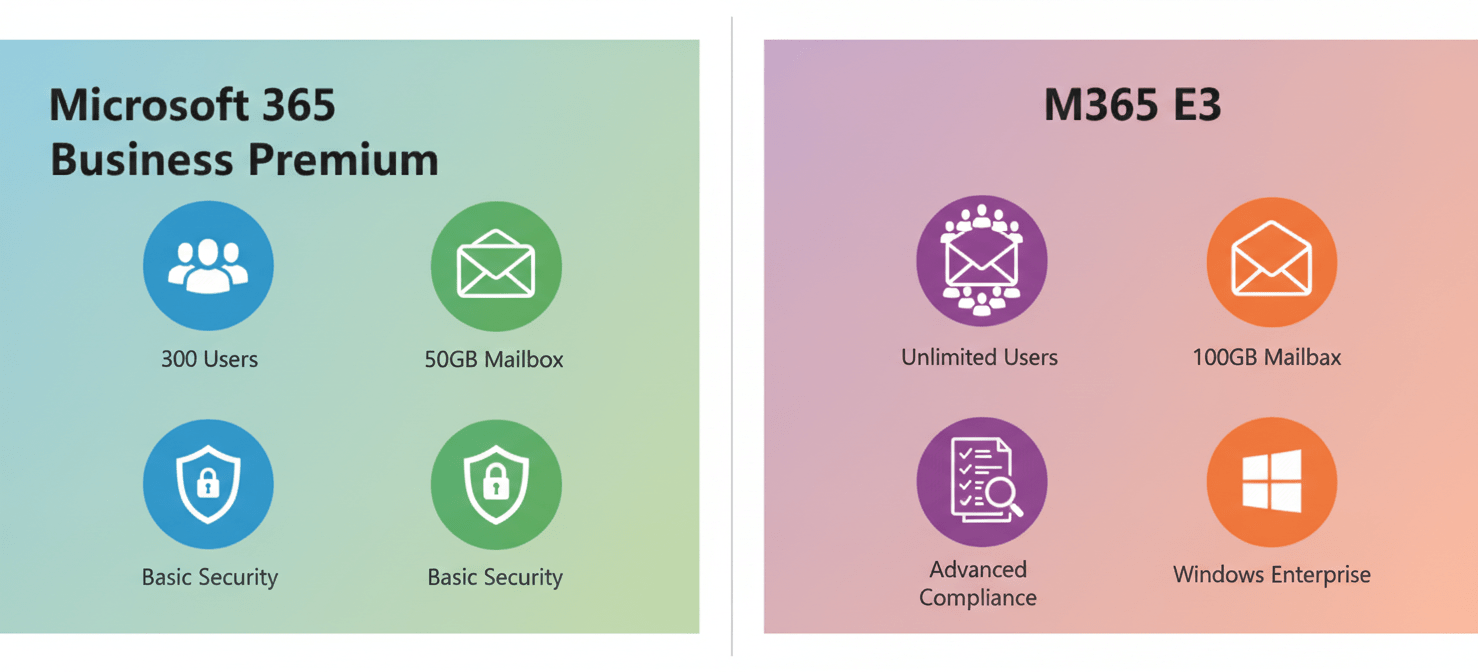
The most common upgrade path is from Business Premium to Microsoft 365 E3. Here’s a direct comparison:
| Feature | Microsoft 365 Business Premium | Microsoft 365 E3 |
|---|---|---|
| User Limit | 300 users | Unlimited users |
| Mailbox Size | 50 GB (Exchange Plan 1) | 100 GB + archive (Exchange Plan 2) |
| OneDrive Storage | 1 TB per user | Up to 5 TB per user (and more by request) |
| Security | Microsoft Defender for Business, Defender for Office 365 P1 | Standard protection, requires add-ons for advanced features |
| Compliance | Basic DLP, sensitivity labels, message encryption | Advanced eDiscovery, legal hold, more granular retention policies |
| Windows OS | Upgrade rights to Windows 10/11 Business | Includes a full Windows 11 Enterprise license |
| Cost | ~$22/user/month (annual commitment) | ~$36/user/month (annual commitment) |
The Leap to E5
The Microsoft 365 E5 license includes everything in E3 plus Microsoft’s most advanced security, compliance, and analytics tools. The upgrade to E5 is typically driven by a need for:
- Advanced Threat Protection: Including Microsoft Defender for Endpoint Plan 2 and Defender for Office 365 Plan 2.
- Comprehensive Governance: Features like Insider Risk Management and advanced auditing.
- Business Intelligence: Power BI Pro is included.
- Unified Communications: Adds Teams Phone for a cloud-based phone system.
Planning Your Migration: A 5-Step Checklist
A smooth transition requires careful planning. Rushing the process can lead to data loss, workflow disruption, and user frustration. Follow this checklist to prepare your team.
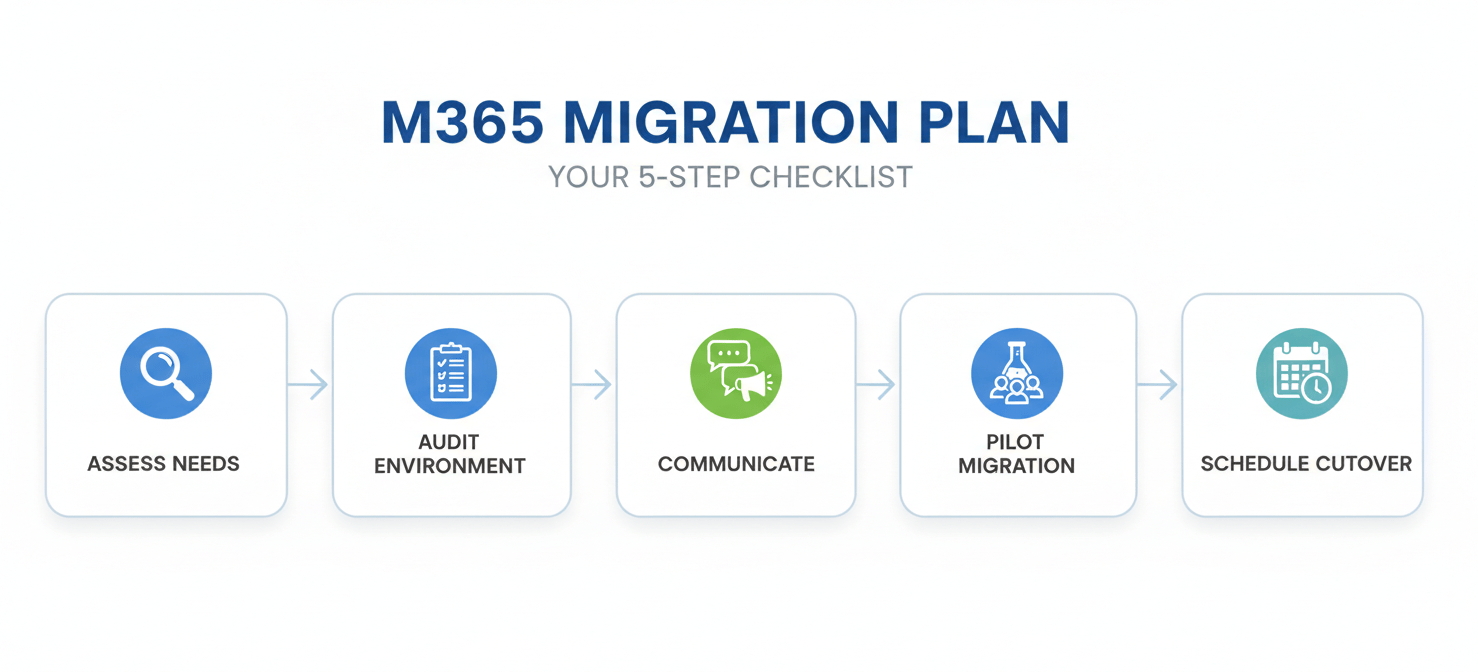
- Assess Your Needs: Document the specific reasons for the upgrade. Are you hitting the user limit? Do you need specific compliance features? A clear “why” helps justify the cost and guides the implementation.
- Audit Your Current Environment: Create an inventory of your existing setup. This includes counting user mailboxes, identifying shared mailboxes and distribution lists, and noting any third-party integrations that rely on M365.
- Communicate with Stakeholders: Inform your users about the upcoming changes. Explain the benefits, outline the timeline, and manage expectations. A well-informed team is less likely to be frustrated by minor hiccups.
- Run a Pilot Migration: Before migrating everyone, test the process with a small group of users from different departments. This pilot phase helps identify potential issues and refine your migration plan without affecting the entire organization.
- Schedule the Cutover: Choose a time for the final migration that minimizes disruption, such as a weekend or after business hours. Ensure your IT team is available to manage the process and address any immediate issues.
The Technical Process to Migrate M365 Business to Enterprise
Technically, you are not “upgrading” a license in place but rather purchasing new Enterprise licenses and reassigning them to your users. The process is managed through the Microsoft 365 admin center.
Purchasing and Assigning Licenses
- Buy New Licenses: First, purchase the required number of Microsoft 365 E3 or E5 licenses. You can do this directly in the admin center under Billing > Purchase services. Make sure you buy enough licenses for every user you intend to migrate.
- Assign New Licenses to Users: Navigate to Users > Active users. You can assign licenses individually or in bulk.
- For a single user: Select the user, go to the “Licenses and apps” tab, select the new Enterprise license, and uncheck the old Business license.
- For multiple users: Select the checkboxes next to the users, click “Manage product licenses,” choose “Replace,” and then assign the new license while removing the old one.
- Verify the Change: Once licenses are reassigned, the changes should propagate automatically. Users may need to sign out and back into their Office applications to activate the new features.
Handling Windows Enterprise Upgrade
One key benefit of an M365 Enterprise license is the inclusion of Windows 11 Enterprise. Unlike the Office apps, the operating system does not upgrade automatically just by changing the license. You will need to perform an in-place upgrade by changing the product key on each device to the new Enterprise key.
Post-Migration: What to Do Next
The work isn’t over once the licenses are switched. Proper follow-up ensures you get the full value from your new investment.
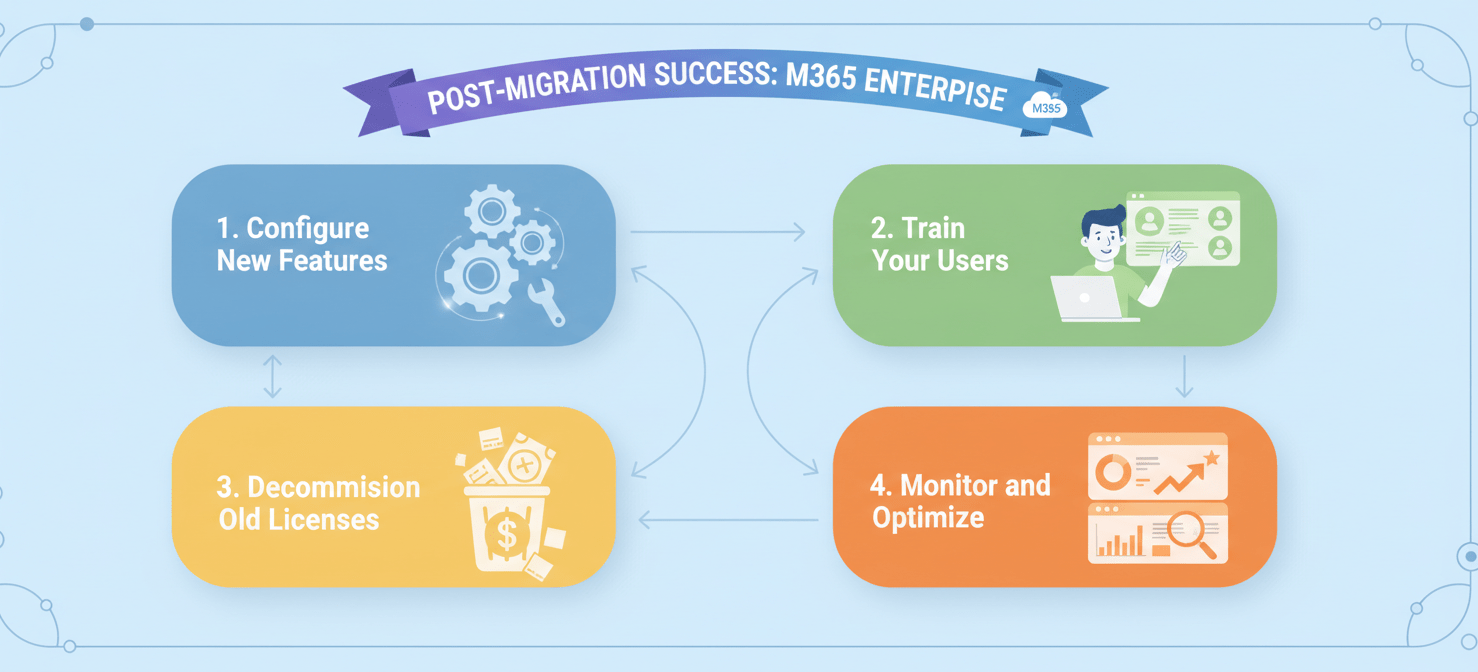
- Configure New Features: This is the time to set up the advanced security and compliance tools you upgraded for. Configure DLP policies, set up eDiscovery cases, and explore the capabilities of Microsoft Intune for endpoint management.
- Train Your Users: Your team will need guidance on how to use the new tools effectively. Host short training sessions on new features in Teams, OneDrive, and Outlook.
- Decommission Old Licenses: After confirming that all users have been successfully migrated and everything is working correctly, you can cancel your old Business subscription to avoid paying for unnecessary licenses.
- Monitor and Optimize: Keep an eye on usage and adoption rates. Use the analytics in the admin center to ensure you are maximizing your investment and that security policies are functioning as intended.
Common Pitfalls and How to Avoid Them
Even with a solid plan, issues can arise. Being aware of common pitfalls can help you avoid them.
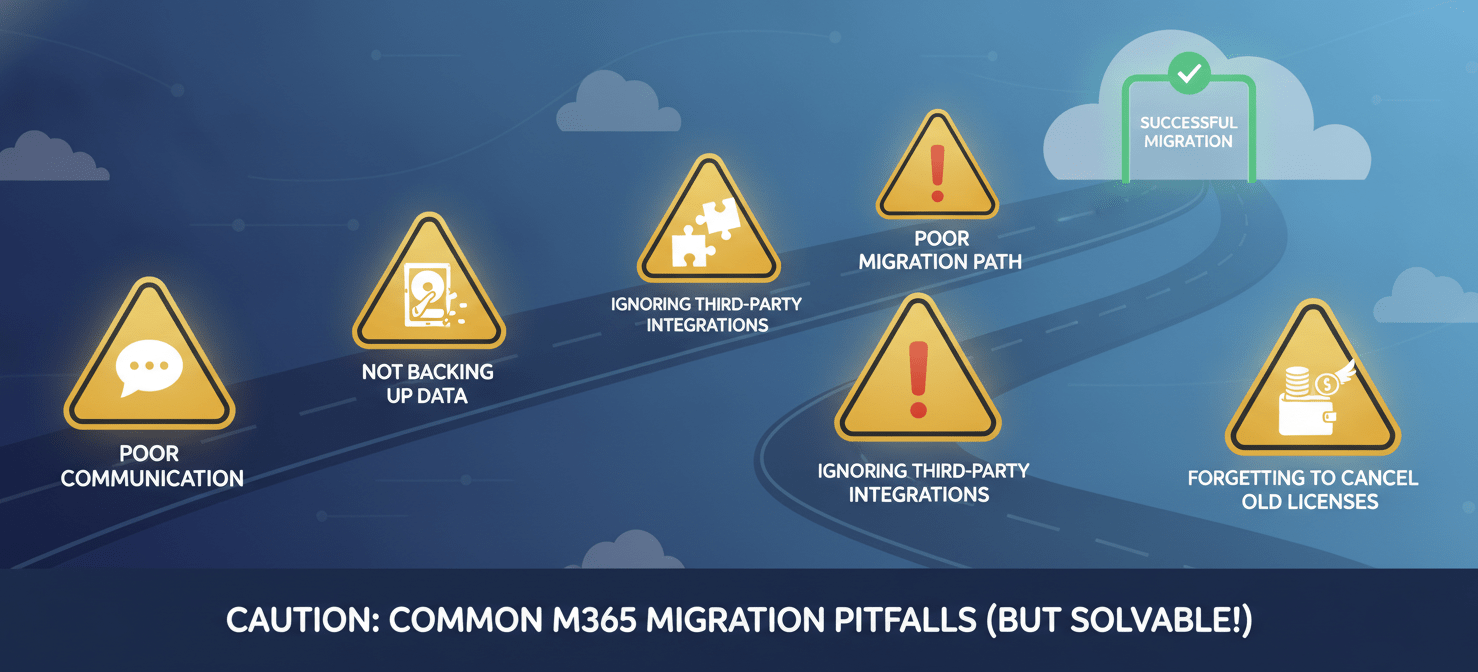
- Poor Communication: Failing to inform users leads to confusion and a flood of helpdesk tickets. Create a clear communication plan and stick to it.
- Not Backing Up Data: While a license switch generally doesn’t affect user data, it’s always a best practice to back up critical information before making major changes to your environment.
- Ignoring Third-Party Integrations: Applications that connect to M365 may need to be re-authenticated or reconfigured after the license change. Audit these integrations during your planning phase.
- Forgetting to Cancel Old Licenses: A simple but costly mistake is continuing to pay for licenses you no longer need. Set a reminder to cancel the old subscription once the migration is fully complete and validated.
Conclusion
Ultimately, the decision to migrate M365 Business to Enterprise licenses is a strategic one, driven by growth and the need for more sophisticated tools. While the process requires careful planning and execution, the benefits of enhanced security, compliance, and scalability are substantial for a growing organization. The technical steps are straightforward, but success lies in the details: thorough preparation, clear communication, and diligent post-migration management. Get the planning right, and the transition will be less of a headache and more of a seamless step up.
To further streamline your M365 migration and ensure a truly seamless transition, you can connect with our experts to book a demo or start your free Binadox trial to manage your licenses with ease.
 7-day free trial