


Cloudflare Integration
This guide provides information on how to integrate a Cloudflare account with the Binadox multi-cloud cost management and optimization platform to plan, analyze and reduce infrastructure costs.
To successfully integrate Binadox with a Cloudflare account, it is required to create an API token with read-only access to billing data and to specify this token in the connection settings.
Note:
Cloudflare provides billable usage data for Pay-as-you-go accounts only. Enterprise contract accounts and Free plan accounts are not supported. An account with no billable usage during the last month will not display cost data in Binadox.
1. Create an API token in Cloudflare
Sign in to the Cloudflare dashboard with an account that can manage billing.
In the upper right corner of the dashboard, click on the profile icon. Select My Profile in the drop-down list. Open the API Tokens tab and click the Create Token button.
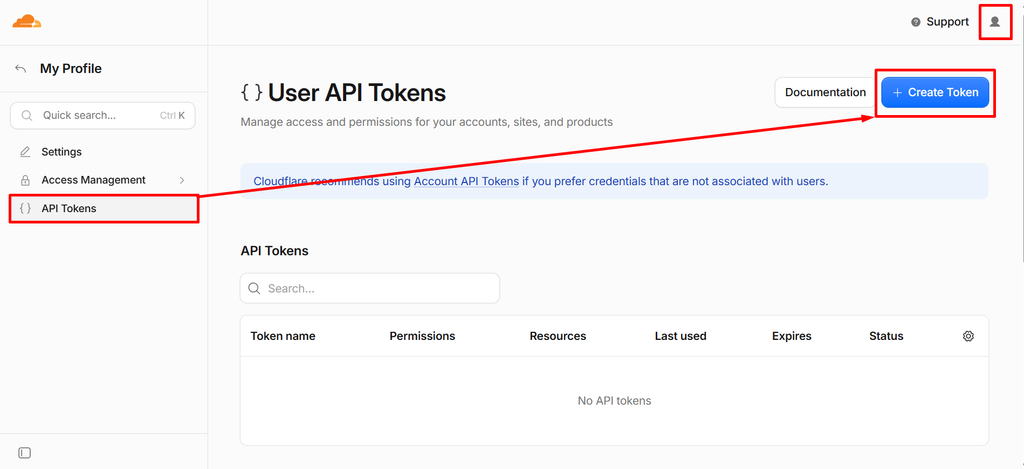
In the Custom token section, click Get started next to Create Custom Token.
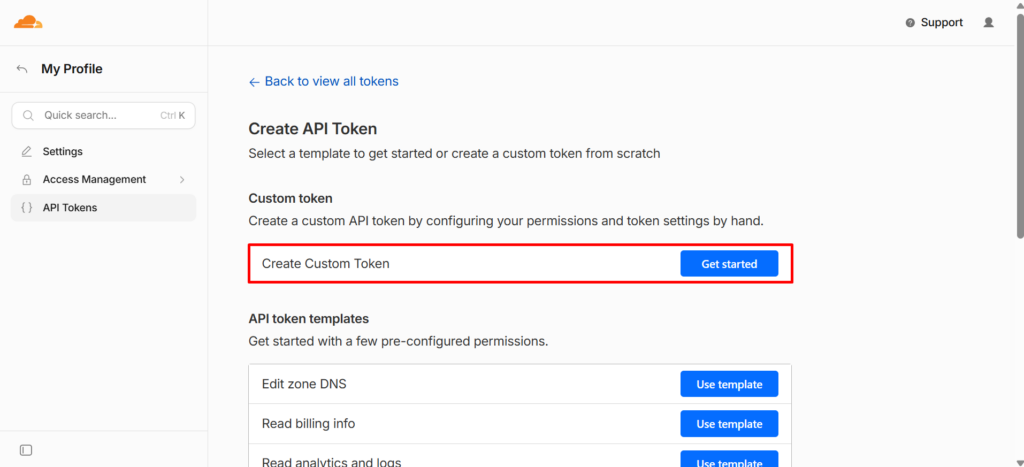
Enter a token name in the Token name field.
In the Permissions section, add a single row: Account > Billing > Read. No other permissions are required.
In the Account Resources section, select Include and choose the Cloudflare account to be connected. To grant access to all available accounts, select All accounts.
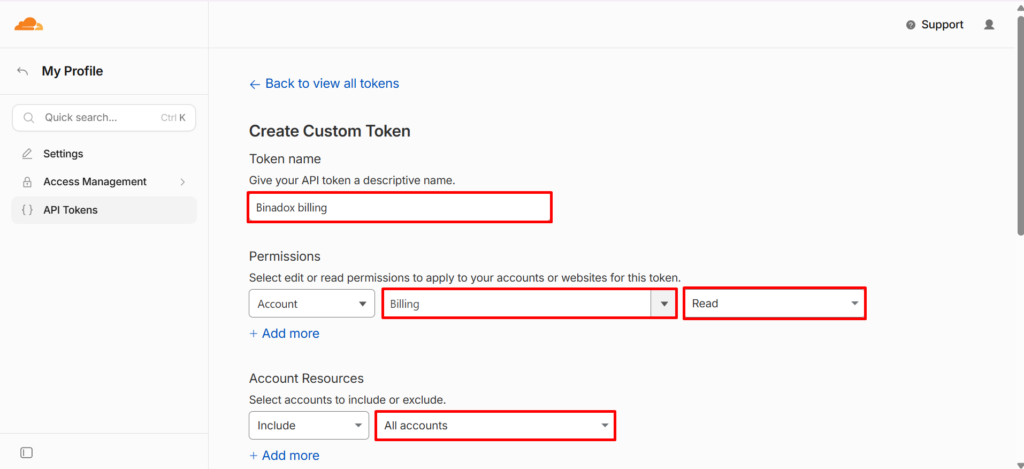
Click the Continue to summary button.
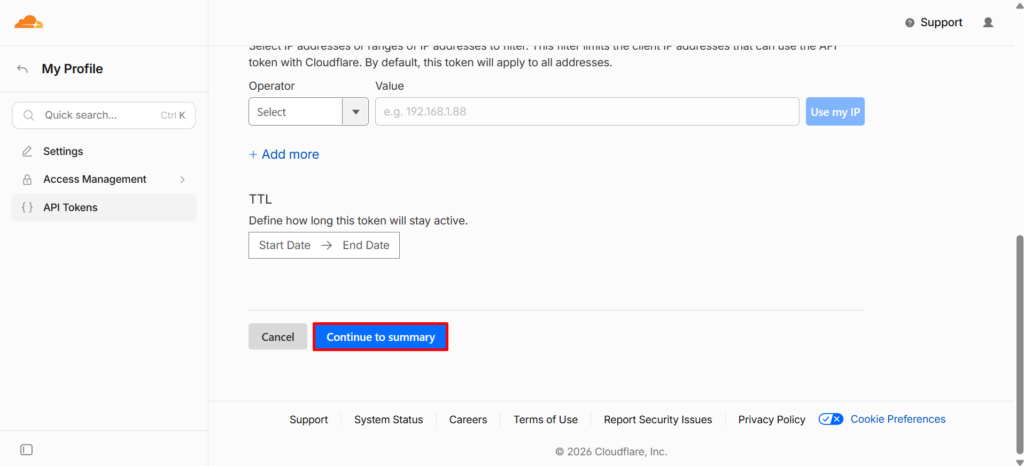
Review the token scope. Make sure that it contains Billing:Read for the intended account or accounts, and click the Create Token button.
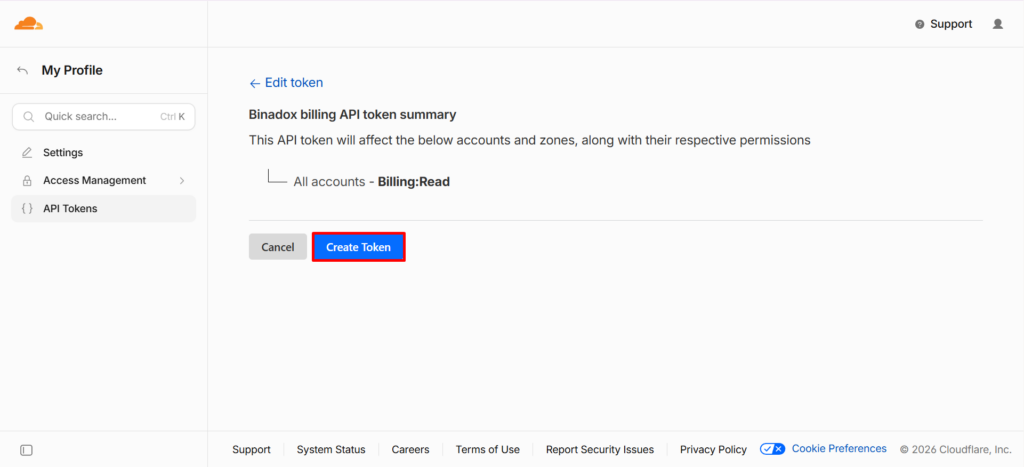
Click on the Copy icon and save the token.
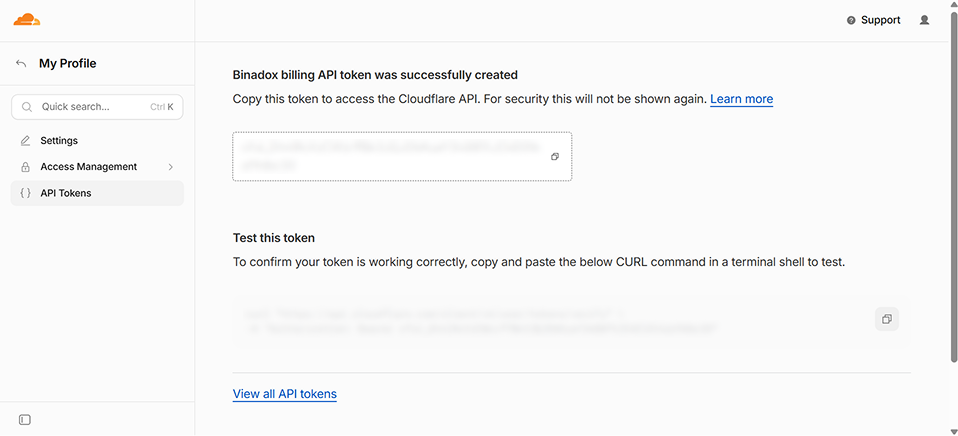
Note:
This is the only time that the API token can be viewed or copied. You cannot recover it later. However, you can create a new token at any time.
2. Locate a Cloudflare Account ID
Note:
This clause is optional. If the API token grants access to a single Cloudflare account, Binadox identifies the account automatically and the Account ID field can be left empty. Complete this clause if the token grants access to several accounts.
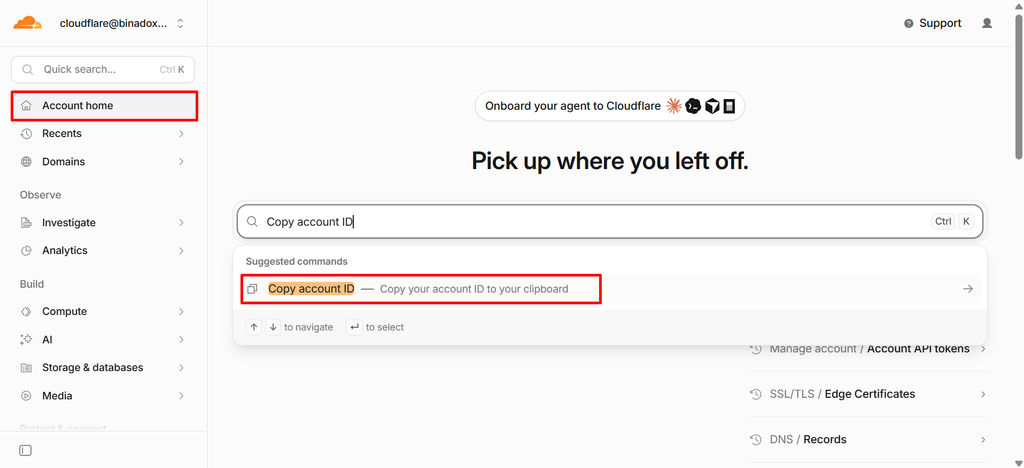
Click Account Home in the navigation pane on the left.
Click Quick search or press Ctrl + K.
Enter Copy account ID in the search field.
Select Copy account ID in the list of suggested commands. The account ID is copied to the clipboard.
3. Use the Cloudflare token to integrate with Binadox
Log into your Binadox account.
Click Home in the navigation pane on the left. Select the Cloud Providers card and click Manage.
You will be redirected to the Utilization Dashboard page. Open the Cloud Accounts tab, scroll down and click the Add account button.
In the dialogue box click on the Cloudflare icon.
You will be redirected to the Connection page. Enter the Connection Name.
Enter security credentials:
- API token (see Clause 1)
- Account ID (see Clause 2)
Click Connect.
4. Available Data
Cloudflare reports billable line items instead of resources. For example, R2 usage is reported as several separate items: Data Storage, Class A Operations, Class B Operations and Infrequent Access Storage. Each item has its own daily cost, quantity and unit rate.
After the integration is completed, the following data is available in Binadox:
- Daily cost per product family: Workers, R2, D1, Durable Objects, Containers, Workers AI, KV, Queues and others.
- Every billable line item within a product family, with quantity and unit of measurement.
- An effective unit rate per item, which allows you to track price changes over time.
- Usage within free allowances, which allows you to monitor the remaining limit before it is exceeded.
- Budgets, cost history and anomaly detection, as for other supported cloud providers.
Troubleshooting
| Alert | Cause and solution |
|---|---|
| Invalid API Token | The token was revoked, expired or entered incorrectly. Cloudflare tokens can have an expiry date. Check the token status in My Profile > API Tokens and create a new token if required (see Clause 1). |
| Token can see no account | The token was created without an account specified in the Account Resources section. Edit the token in Cloudflare and include the required account. |
| Cannot see account | The specified account ID is not covered by this token. Clear the Account ID field to let Binadox resolve the account automatically, or add the account to the token resources. |
| Connection is established, no cost data | In most cases the account is an Enterprise contract account or a Free plan account. See the Prerequisites section of this guide. Otherwise, confirm that the account has had billable usage during the last month. |
| Connection fails | If the token has the Account > Billing > Read permission and the connection still fails, add the Account > Account Settings > Read permission and repeat Clause 3. |