




Paying for Microsoft 365 licenses that nobody uses is one of the quietest budget leaks in IT. These costs accumulate silently, often from former employees whose accounts were never fully decommissioned or from roles that have since changed. Learning how to find unused mailboxes in Office 365 is the first step toward cutting waste and securing your environment. This article provides a practical guide to identifying these mailboxes and reclaiming their valuable licenses.
Key takeaways
- Define Inactivity: Establish a clear policy for what “inactive” means, typically 30-90 days of no sign-in or application activity.
- Use Admin Tools: Leverage the Microsoft 365 admin center and PowerShell scripts to generate reports on user sign-in activity and last logon times.
- Convert, Don’t Delete: Convert user mailboxes to shared mailboxes to retain data without needing a license, provided the mailbox is under 50 GB.
- Automate and Audit: Implement a regular, automated process for reviewing license usage at least quarterly to prevent future waste.
Why Unused Mailboxes Accumulate and Why It Matters
Unused mailboxes often pile up for simple reasons. When an employee leaves, their account might be disabled but the license remains assigned “just in case.” Similarly, role changes can leave a user with a high-tier license they no longer need. While seemingly minor, these instances add up.

Each licensed but inactive account represents a needless monthly cost. For larger organizations, this can translate into thousands of dollars annually wasted on “shelfware.” Beyond the financial drain, these dormant accounts pose a security risk. An unmonitored, licensed account is a prime target for compromise, as malicious activity may go unnoticed for longer. Regularly conducting an inactive mailbox report in O365 is therefore a matter of both fiscal responsibility and security hygiene.
How to Find Unused Mailboxes in Office 365
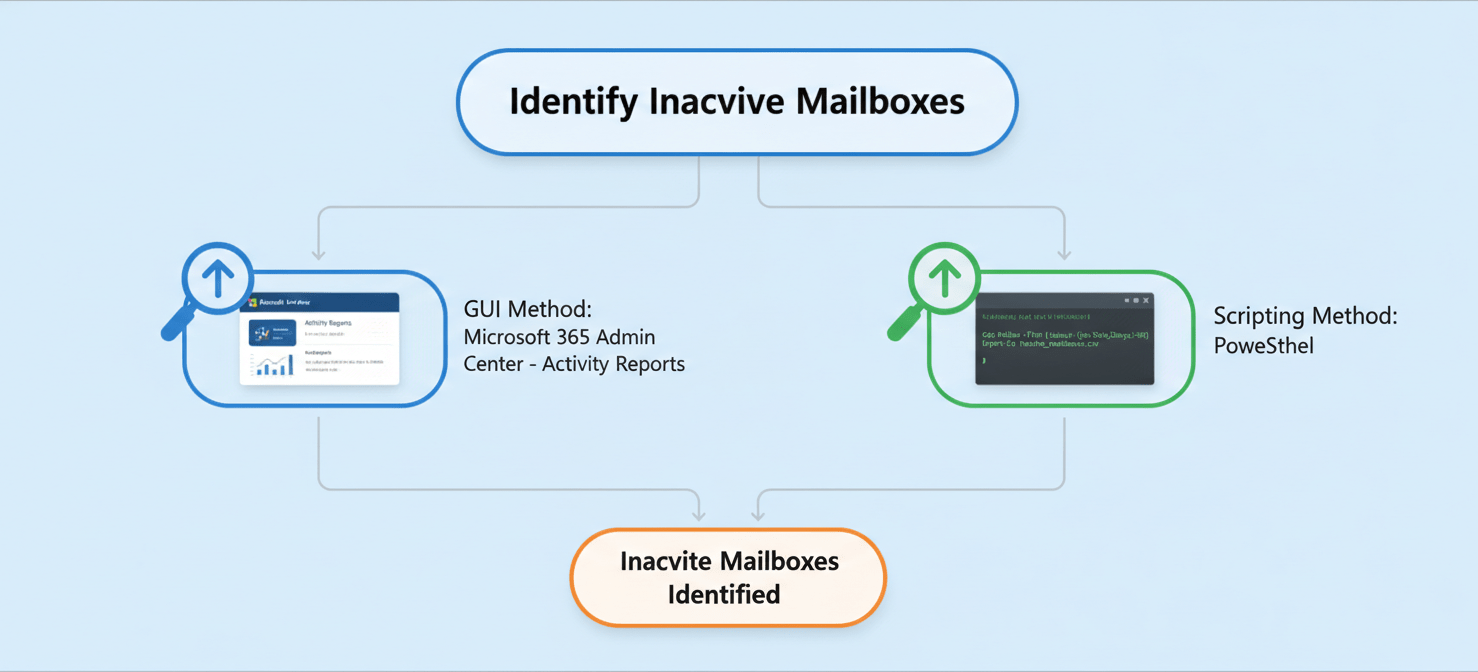
Identifying inactive mailboxes requires a clear definition of “inactive.” Most organizations consider an account inactive after 30 to 90 days of no sign-in or app usage. Once your team establishes a threshold, you can use several methods to find these accounts.
Using the Microsoft 365 Admin Center
The most direct method is through the Microsoft 365 admin center. Here, you can view user activity reports and check last sign-in dates.
- Navigate to the Admin Center, then go to Users > Active users.
- Review the Last sign-in column to spot users who have not accessed their accounts recently.
- For more detail, go to Reports > Usage. These reports show user activity across services like Exchange, OneDrive, and Teams over various timeframes.
While effective for smaller organizations, manually checking each user in the admin center can be tedious for larger enterprises.
Leveraging PowerShell for Automation
For a more scalable approach, PowerShell is indispensable. Using specific cmdlets, you can script a process to find and export a list of all mailboxes that haven’t been accessed within your defined inactivity window.
A common approach involves combining Get-Mailbox with Get-MailboxStatistics to retrieve the LastLogonTime for each mailbox. You can then filter this list for mailboxes that have been inactive for more than, for example, 90 days. More advanced scripts can even incorporate data from Microsoft Entra ID sign-in logs for a more comprehensive view of user activity. This provides a reliable, automated way to generate an inactive mailbox report for O365.
Methods for Reclaiming Licenses
Once you have identified unused mailboxes, the next step is to reclaim the M365 licenses associated with them. It’s crucial to have a process that preserves necessary data while freeing up the license for reallocation.
Converting to a Shared Mailbox
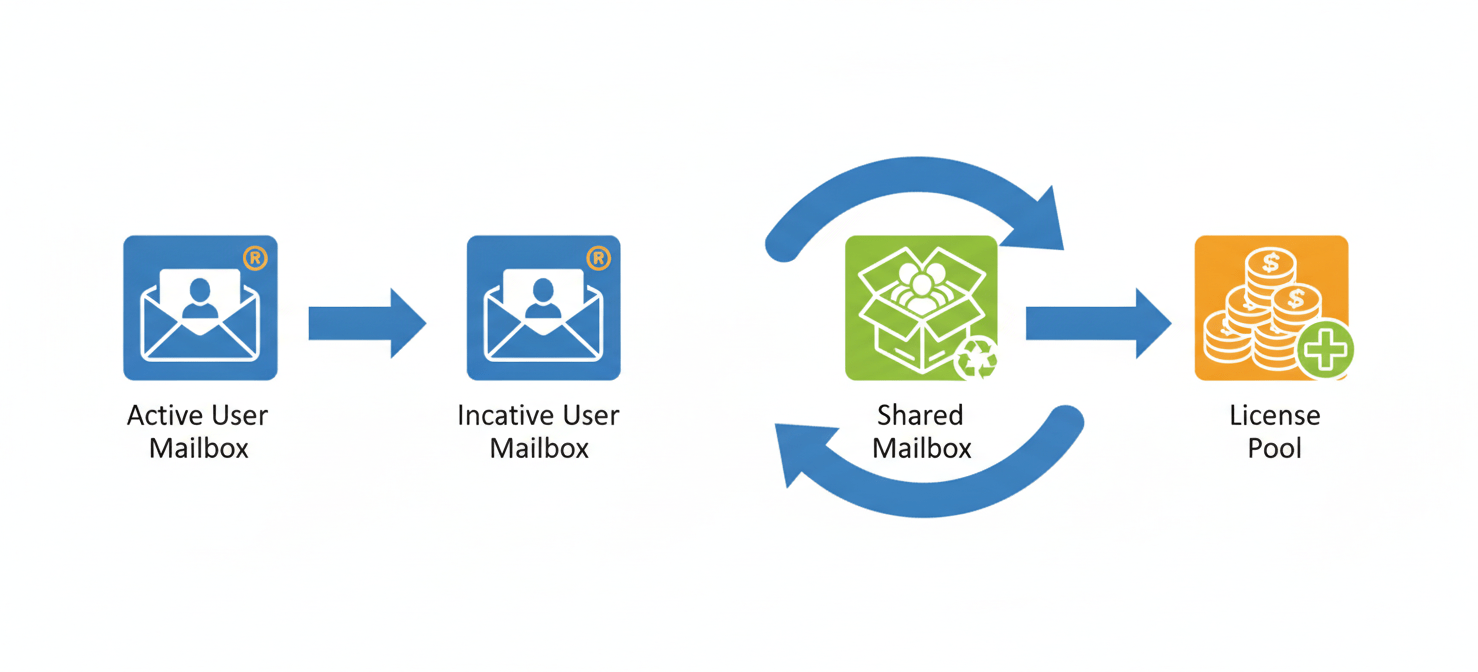
For former employees, simply deleting the account is often not an option due to data retention policies. Instead of leaving the license assigned, the best practice is to convert the user’s mailbox to a shared mailbox.
A shared mailbox under 50 GB does not require a license but preserves all existing email data. The conversion can be done directly from the Microsoft 365 admin center or Exchange admin center. After converting, you can safely remove the license from the user account, which should be kept (but disabled) to act as an anchor for the shared mailbox.
Removing or Reassigning Licenses
For active employees who are over-licensed (e.g., a user with an E5 license who only needs E3 features), you can downgrade their license. For users who are truly inactive, you can remove the license entirely. This action returns the license to your pool, ready to be assigned to a new user.
Before removing a license, it’s wise to notify the user or their manager to confirm the account is no longer needed. Always ensure any critical data in the user’s OneDrive or other associated services is backed up or transferred. Removing a license from a user account blocks access to services, but the data is typically held for a 30-day grace period before permanent deletion.
Conclusion
Letting unused licenses accumulate is like leaving the lights on in an empty room—a needless expense that offers no benefit. By establishing a clear process to find unused mailboxes in Office 365, you can turn that waste into savings. A disciplined, quarterly review using the admin center or automated PowerShell scripts will help your team reclaim M365 licenses effectively. This not only tightens your budget but also shrinks your security footprint. Ultimately, managing licenses isn’t just an IT chore; it’s a straightforward business practice that pays for itself.
To streamline your license management and ensure you’re only paying for what you use, you can create your free Binadox account to begin optimizing your M365 environment, or simply book a demo to explore its full capabilities.
 7-day free trial