


Amazon Relational Database Service (RDS) provides incredible power and scalability for your databases, but its flexibility can make costs difficult to predict. A surprise bill can strain your budget and create friction between engineering and finance teams. Understanding the components of AWS RDS billing is the first step toward controlling your cloud database spending. This article breaks down how RDS charges are calculated, how to analyze your usage, and how you can optimize your monthly bill.
Key takeaways
- Your RDS bill is determined by five main components: instance hours, storage, I/O, backup storage, and data transfer.
- You can achieve significant savings—up to 72%—by switching from On-Demand to Reserved Instances for predictable workloads.
- Backup storage is free up to 100% of your total provisioned database storage in a region; you only pay for the excess.
- Data transfer into RDS from the internet is always free, but data transfer out to the internet incurs charges.
Understanding Amazon RDS Pricing and AWS RDS Billing
Amazon RDS uses a pay-as-you-go model, which means there are no upfront fees or long-term commitments required to get started. This model offers flexibility, allowing you to pay only for the resources you use. However, this same flexibility can make your final bill hard to forecast.
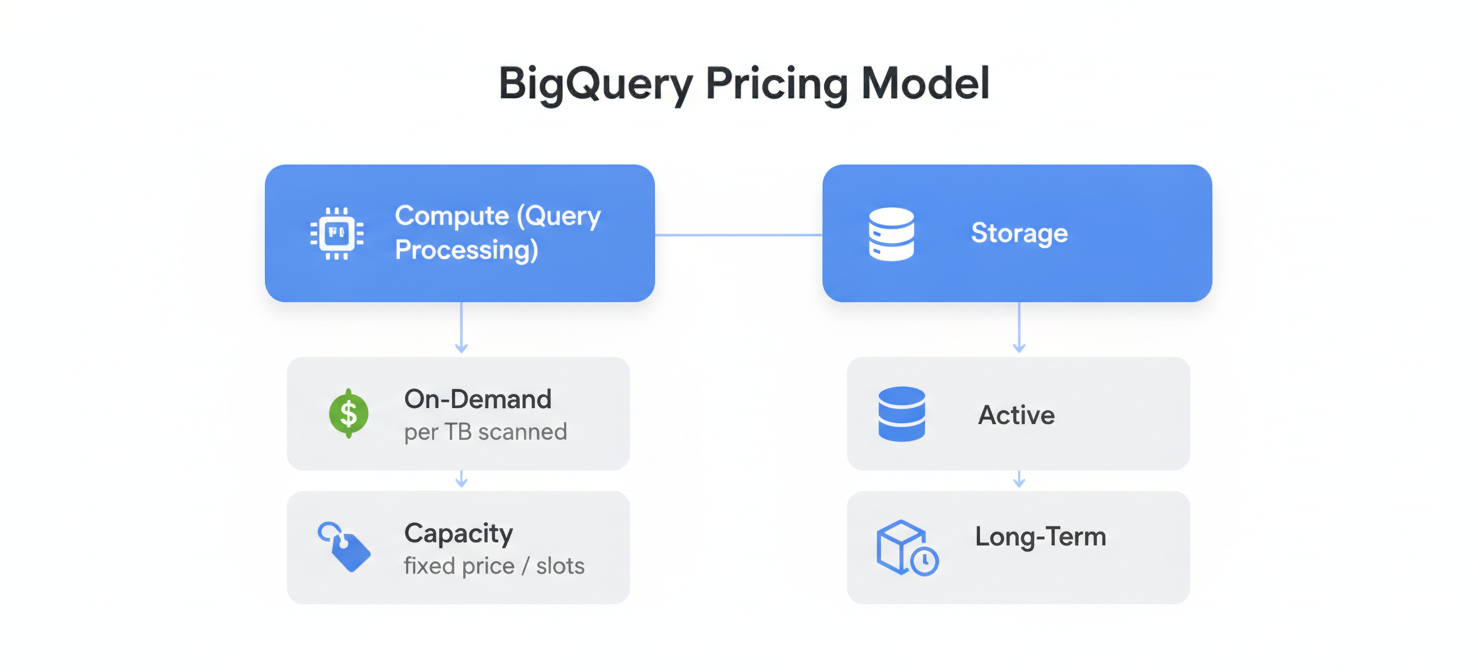
Your total monthly cost is a sum of several distinct factors. Each resource you consume is metered and billed, often down to the second or the gigabyte. The primary drivers of your RDS bill are the database instances themselves, the amount and type of storage you provision, I/O operations, backups, and the volume of data you transfer.
How Database Instances and Runtime Affect Costs
The most significant portion of your RDS bill often comes from the database instance hours. This is the charge for keeping your database server running. AWS bills for instance usage in one-second increments, with a 10-minute minimum.
On-Demand vs. Reserved Instances
RDS offers two main pricing models for instances:
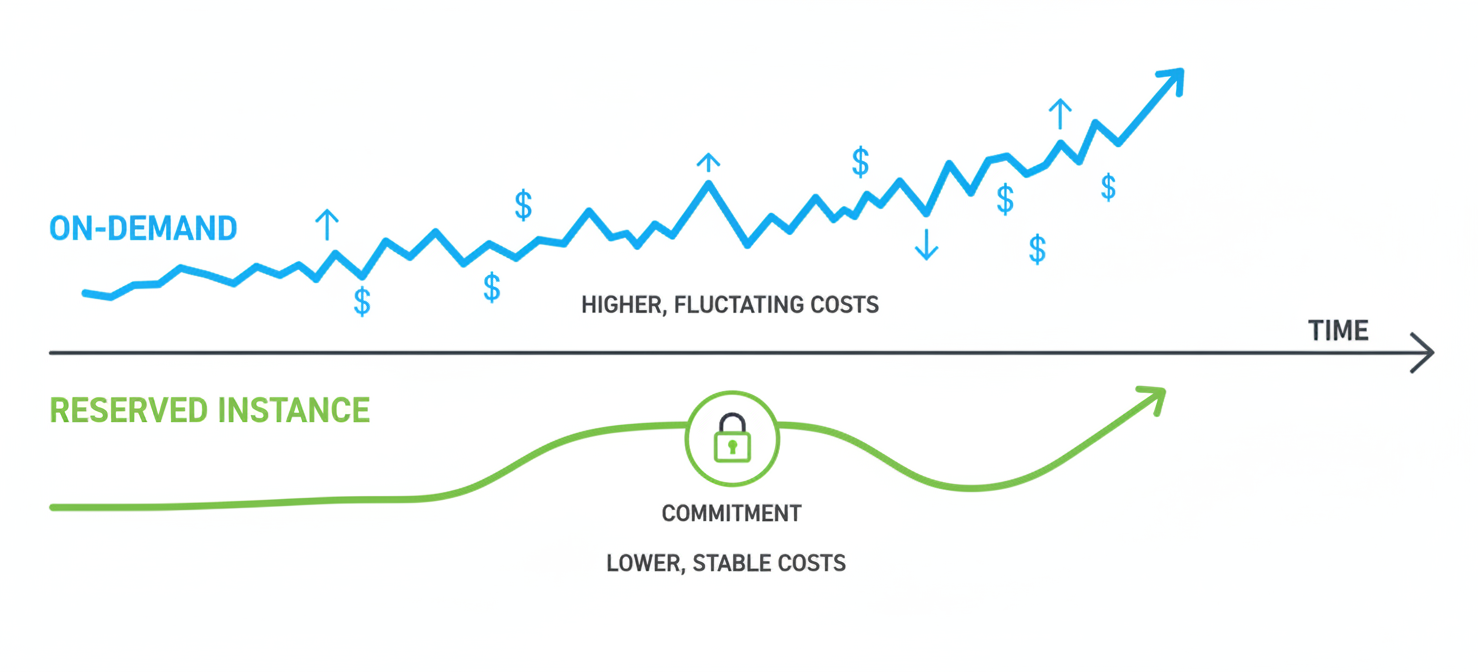
- On-Demand Instances: You pay for compute capacity by the hour or second with no long-term commitment. This model is perfect for applications with unpredictable workloads, or for development and testing environments. However, it is the most expensive option for continuously running databases.
- Reserved Instances (RIs): With RIs, you commit to using a specific database instance for a one- or three-year term. In exchange for this commitment, you receive a substantial discount compared to On-Demand pricing. RIs are a billing discount applied to matching On-Demand instances in your account and are ideal for stable, production workloads.
Choosing the right instance family (e.g., General Purpose, Memory-Optimized) is also crucial. Selecting an instance that is too large for your workload leads to unnecessary aws instance costs, while an undersized instance can cause performance bottlenecks.
Storage, Backups, I/O, and Data Transfer Charges
Beyond the instance itself, several other components contribute to your monthly aws ec2 charges. These costs can add up quickly if not monitored.
Database Storage Costs
Amazon RDS uses Elastic Block Store (EBS) volumes for its storage. You are billed per gigabyte-month for the storage you provision. RDS offers several storage types, each with different performance characteristics and pricing:
- General Purpose SSD (gp2 and gp3): A good balance of price and performance suitable for a wide variety of database workloads.
- Provisioned IOPS SSD (io1 and io2 Block Express): Designed for I/O-intensive workloads that require high performance, such as large transactional databases. You pay for the storage you provision as well as the number of I/O operations per second (IOPS) you specify.
Backup Storage Explained
RDS automatically creates backups of your database. Backup storage is the space consumed by these automated backups and any manual snapshots you create. AWS provides free backup storage equivalent to 100% of your total provisioned database storage for your active databases in a specific region. For example, if you have 500 GB of provisioned storage, you get 500 GB of backup storage at no charge. You are only billed (per gigabyte-month) for backup storage that exceeds this allowance.
I/O Operations (IOPS)
I/O charges apply to the total number of storage input/output requests made by your database. With Provisioned IOPS storage (io1 and io2), you are billed for the rate you provision, regardless of whether you use all of it. For other storage types, I/O costs are often bundled, but high-traffic databases can still see these charges appear as a notable line item.
Data Transfer Fees
Data transfer is a frequently misunderstood part of AWS RDS billing. The rules are straightforward:
- Data transfer in: Transferring data into your RDS instance from the internet is free.
- Data transfer out: Transferring data out of RDS to the internet is charged per gigabyte, with rates varying by region.
- Internal transfers: Data transferred between RDS and other AWS services (like EC2) in the same Availability Zone is typically free. However, transferring data across different Availability Zones or regions will incur costs.
How to Read RDS Usage Metrics and Billing Line Items
To understand your spending, you need to know where to look. The AWS Cost and Usage Report (CUR) provides the most detailed data about your charges. This report breaks down costs into granular line items for each unique combination of product, usage type, and operation.
In the CUR or AWS Cost Explorer, you might see line items like:
InstanceUsageorBoxUsage: These typically refer to On-Demand instance hours for RDS and EC2, respectively.TimedStorage: This represents the cost of your provisioned database storage.ChargedBackupUsage: This is the bill for any backup storage that exceeds your free allowance.DataTransfer-Out-Bytes: This line item tracks data transferred out of AWS to the internet, which is a common source of unexpected ec2 instance costs.
By filtering these reports by service (Amazon RDS) and applying tags to your database instances, you can start to connect specific resources to their associated costs.
How to Identify Expensive Databases and Unexpected Charges
Once you understand the line items, you can begin your investigation. The key is to look for trends and anomalies.
Use AWS Cost Explorer to visualize your RDS spending over time. You can group costs by instance type, region, or tags. A sudden spike in your RDS:StorageIOUsage could indicate an inefficient query causing millions of extra read operations. A steady increase in RDS:ChargedBackupUsage might mean you need to re-evaluate your snapshot retention policies.
Another useful tool is AWS Trusted Advisor, which can identify idle DB instances that are costing you money without providing any value. Shutting down or deleting these unused resources is a quick way to reduce your aws rds costs.
How Binadox Helps Analyze RDS Costs
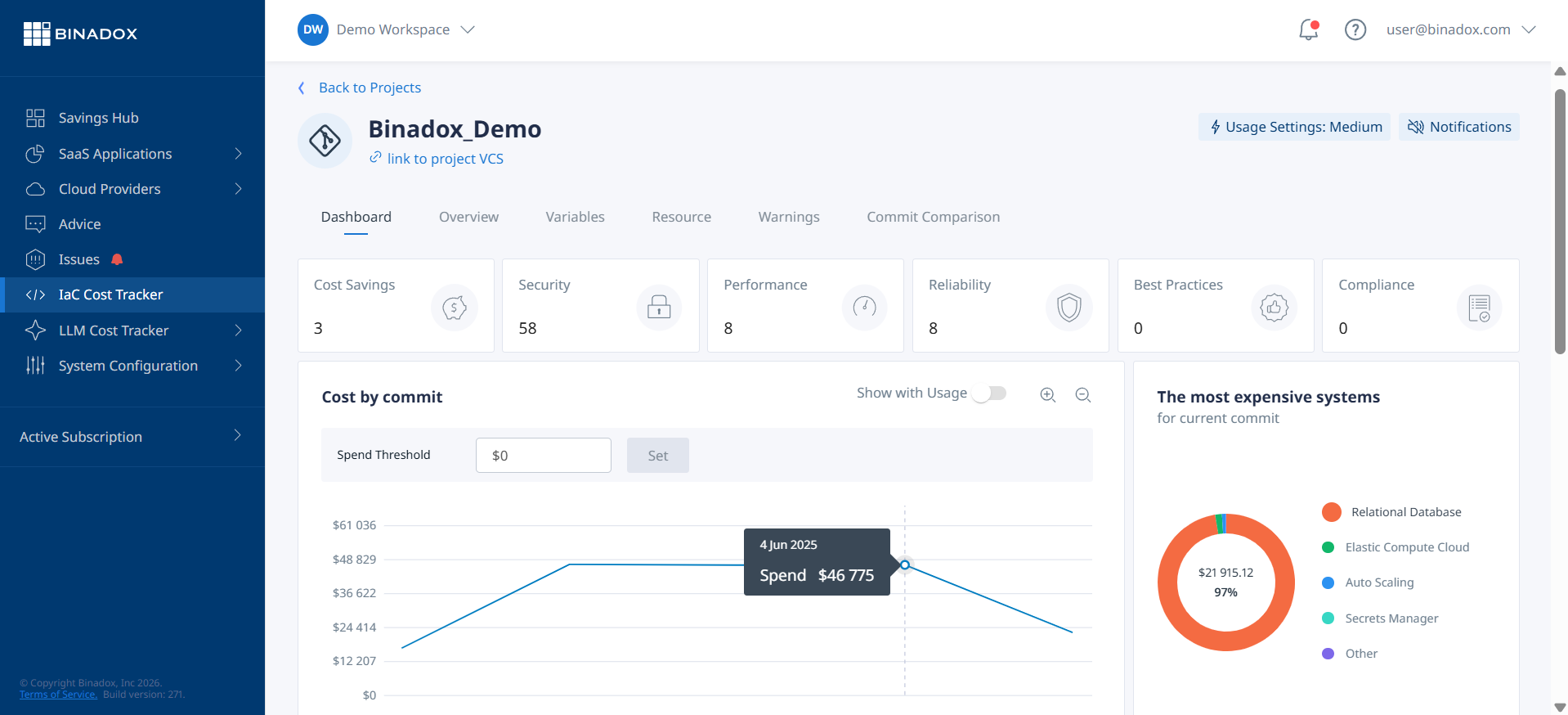
While AWS provides native tools, they often require significant expertise to configure and interpret. A cloud cost management platform like Binadox simplifies this process. Binadox offers a unified dashboard to help you gain real-time visibility into your SaaS and cloud spending.
For RDS, Binadox can help your team by:
- Providing Clear Visualizations: It translates complex billing data into easy-to-understand charts and reports, showing you exactly which databases are driving costs.
- Automating Anomaly Detection: Binadox can automatically alert you to sudden spending spikes, allowing you to investigate and resolve issues before they lead to a massive bill.
- Categorizing Usage: The platform helps categorize cloud costs, making it easier to distinguish between compute, storage, and data transfer charges without manually parsing raw billing files.
- Streamlining FinOps: By aligning financial and operational goals, Binadox supports FinOps practices that help engineering teams become more cost-aware.
Instead of spending hours digging through AWS Cost and Usage Reports, you can use Binadox to quickly pinpoint cost drivers and get actionable insights for optimization.
Best Practices for Managing RDS Spending
Effectively managing your amazon rds monthly cost is an ongoing process. Here are some best practices to implement:
- Right-Size Your Instances: Regularly monitor your database’s CPU and memory utilization using Amazon CloudWatch. If an instance is consistently underutilized, downsize it to a smaller and cheaper option.
- Use Reserved Instances or Savings Plans: For databases with predictable, long-term workloads, commit to a one- or three-year term with Reserved Instances or Savings Plans to significantly lower your hourly rate.
- Optimize Storage: Choose the right storage type for your workload. For many use cases, migrating from older
gp2volumes togp3can reduce costs while providing better performance. - Clean Up Old Snapshots: Manual snapshots are not deleted automatically and can accumulate over time, increasing your backup storage costs. Periodically review and delete snapshots that are no longer needed.
- Leverage Open-Source Engines: If possible, use open-source database engines like PostgreSQL or MySQL. These options avoid the additional licensing fees associated with commercial engines like Oracle or SQL Server.
Conclusion
Navigating AWS RDS billing doesn’t have to be a source of stress. By breaking down your bill into its core components—instance hours, storage, I/O, backups, and data transfer—you can gain a clear understanding of where your money is going. Tools like AWS Cost Explorer provide the raw data, while platforms like Binadox offer the clarity and automation needed to turn that data into actionable insights. Ultimately, managing your AWS RDS billing is a continuous cycle of monitoring, analyzing, and optimizing. Get it right, and you can ensure your database is both powerful and cost-effective.
To move beyond understanding your AWS RDS bill to actively optimizing it, you can explore a personalized demonstration of Binadox’s capabilities or simply begin your journey with a complimentary trial.
 7-day free trial