



As a DevOps engineer, your focus is on reliability, performance, and cost-efficiency. When traffic hits your applications in Azure, the gateway tier—comprised of services like Application Gateway and Front Door—is your first line of defense and a critical control plane. However, a default setup is rarely an optimized one. An un-tuned gateway can lead to performance bottlenecks, unnecessary costs, and security gaps. This guide provides a practitioner-focused approach to help you optimize Azure Gateway configuration, ensuring your infrastructure is lean, fast, and resilient.
Key takeaways
- Right-size your SKU and instances: Start by choosing the V2 SKU for Application Gateway to leverage autoscaling and performance benefits. Set your minimum instance count to handle average traffic, preventing scale-up delays of 6-7 minutes during initial traffic bursts.
- Tune your Web Application Firewall (WAF): Don’t just enable the WAF; tune it. Use detection mode initially to identify false positives, create rule exclusions, and migrate from older WAF configurations to modern WAF Policies for more granular control.
- Optimize health probes: Switch health probes from the default GET method to HEAD requests. This simple change prevents the server from sending a full response body, significantly reducing egress traffic and origin load, especially for services like Front Door that probe from numerous global locations.
- Leverage caching strategically: For Azure Front Door, implement caching rules to serve static assets and anonymous API responses from the edge. This reduces origin load, lowers latency, and can cut data transfer costs.
Choosing the Right Gateway: Application Gateway vs. Front Door
The first step in optimization is ensuring you’re using the right tool for the job. Azure offers two primary Layer 7 load balancing services, Application Gateway and Front Door, and their roles are distinct.
-
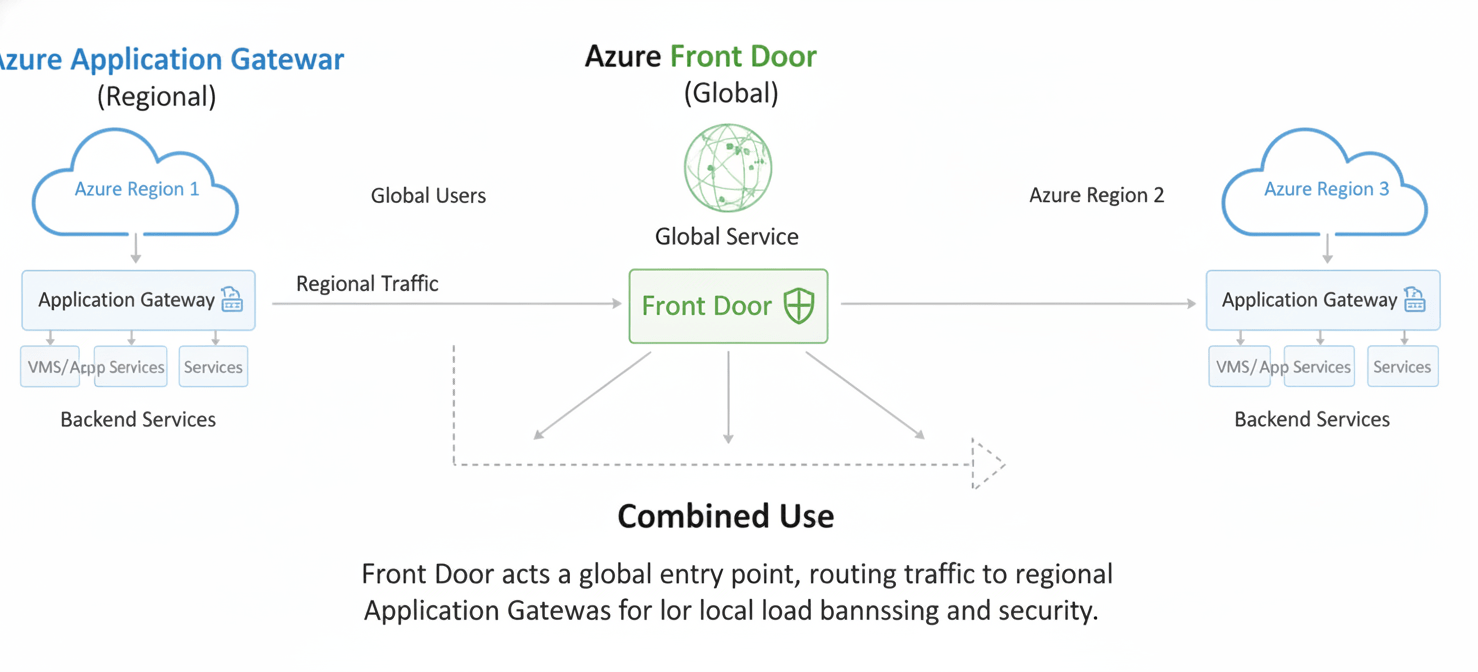
Azure Application Gateway is a regional load balancer. It operates within a specific virtual network (VNet) and is ideal for balancing traffic between VMs, containers, or App Services within a single Azure region. Its strengths lie in deep VNet integration, features like connection draining for graceful server updates, and the ability to handle SSL/TLS termination close to your application resources.
-
Azure Front Door is a global service that operates on Microsoft’s global edge network. It directs traffic to the best backend based on latency and availability across multiple regions. Think of it as the global entry point for your application, providing features like CDN caching, URL-based routing, and protection against large-scale DDoS attacks at the network edge.
For many real-world applications, the optimal solution isn’t choosing one over the other but using them together. In this powerful architecture, Front Door acts as the global traffic manager, routing users to the nearest regional deployment. Within that region, an Application Gateway then takes over, providing fine-grained load balancing and security for the services inside your VNet. This hybrid approach gives you global scale and regional control.
How to optimize Azure Gateway configuration for cost
Cost is a primary KPI for any DevOps team. Gateway services are consumption-based, meaning misconfigurations can lead to significant and unnecessary monthly expenses. Therefore, a key part of your role is to optimize Azure Gateway configuration to control these costs without sacrificing performance.
Rightsizing SKUs and Instance Counts
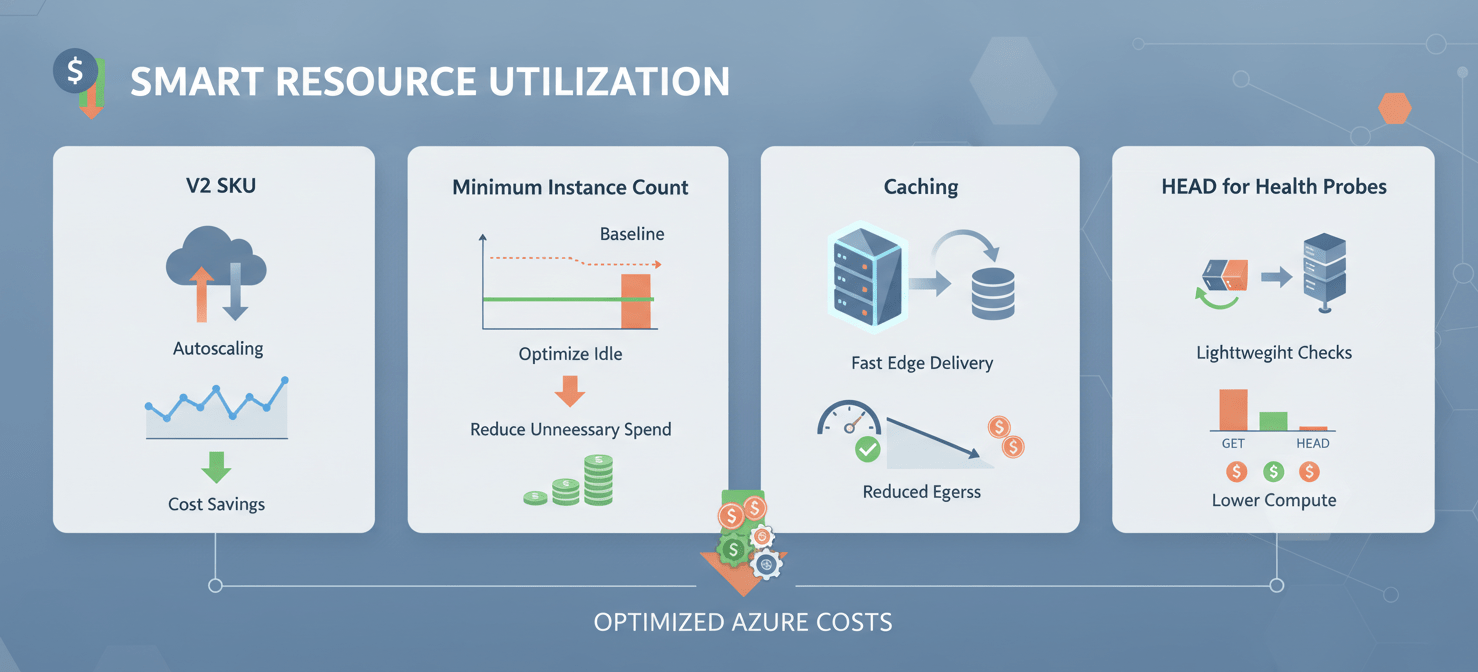
For Application Gateway, always choose the V2 SKU over the legacy V1 SKU. The V2 SKU offers autoscaling, zone redundancy, and better performance, which are critical for modern, dynamic workloads. While V1 requires manual scaling, V2 adjusts its capacity based on traffic, which is far more cost-efficient.
Autoscaling, however, is not a “set it and forget it” feature. You need to configure it intelligently:
- Minimum Instance Count: Set a minimum instance count that can handle your baseline traffic. Autoscaling can take six to seven minutes to provision new instances. If your minimum is set too low, a sudden traffic spike can overwhelm your existing instances before the gateway has time to scale out, leading to latency or dropped requests.
- Maximum Instance Count: This setting acts as a cost control mechanism. It prevents a sudden, unexpected traffic surge (like a DDoS attack or a viral marketing campaign) from scaling your gateway to its maximum 125 instances and running up a massive bill.
Optimizing Azure Front Door Routing Rules for Cost
Azure Front Door pricing is based on a monthly fee per profile, outbound data transfers, and the number of requests. While the Standard tier starts at a lower base fee (around $35/month), the Premium tier (around $330/month) includes a built-in WAF and Private Link support, which can be more cost-effective than adding those features separately.
To manage costs, focus on reducing data transfer and request volume to your origin servers.
- Implement Caching: Configure caching rules for static assets (images, CSS, JavaScript) and public, non-personalized API responses. When Front Door serves content from its edge cache, it doesn’t need to forward the request to your origin, saving you egress costs from your backend services.
- Use HEAD for Health Probes: By default, health probes use a GET request, which returns the full response body. Switching the probe method to HEAD tells the server not to return a message body. This small change can dramatically reduce the egress traffic generated by Front Door’s globally distributed health probes, which can otherwise add up to hundreds of thousands of requests per day per origin.
Performance Tuning Your Gateway
For a DevOps engineer, performance is measured in milliseconds. Latency in the gateway tier directly impacts user experience and application responsiveness.
SSL/TLS Offloading
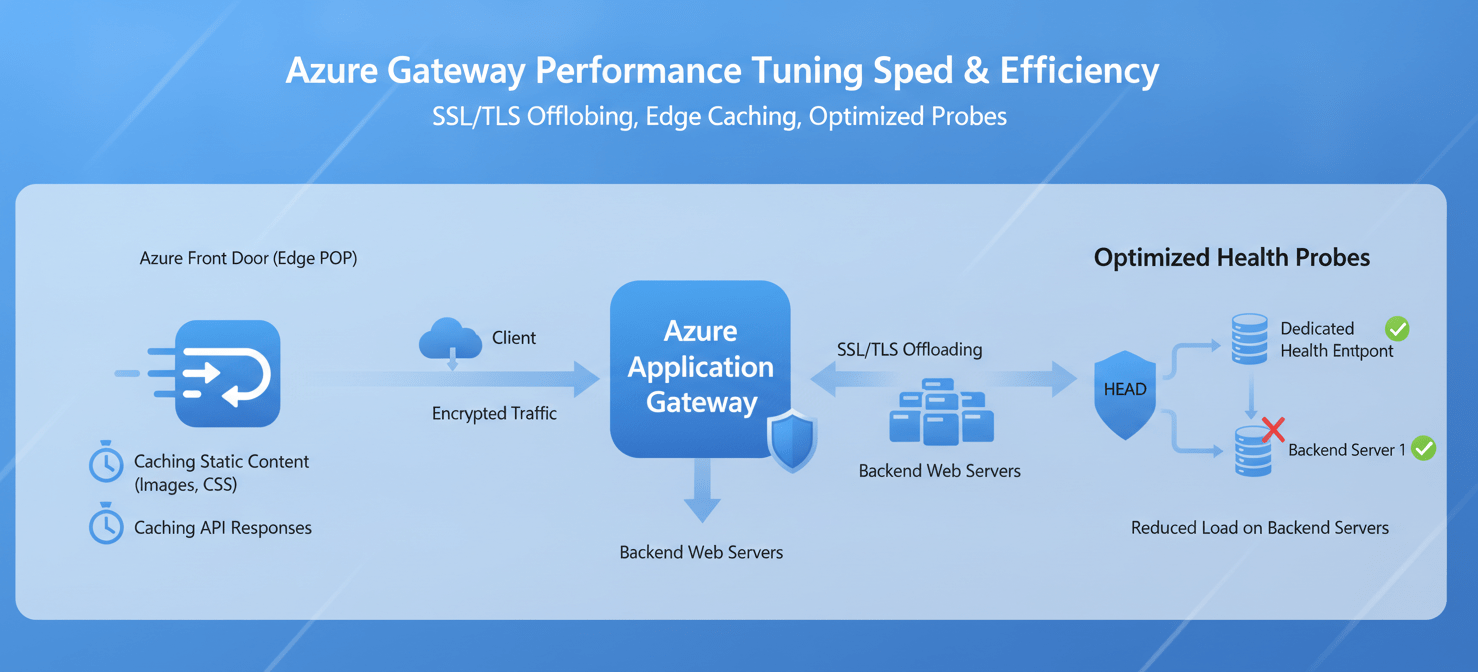
Terminating SSL/TLS connections is a CPU-intensive process. Offloading this task to the Application Gateway frees up your backend servers to focus on their core function: running your application. This improves the overall throughput of your application and simplifies certificate management, as you only need to manage certificates on the gateway instead of on every backend server.
Caching Strategies
For Azure Front Door, an effective caching strategy is crucial for performance.
- Cache Static Content: Always cache static assets like images, CSS, and JavaScript files at the edge. This ensures users receive this content from the closest Front Door Point of Presence (POP), dramatically reducing latency.
- Cache Anonymous API Calls: Identify API endpoints that return public data (e.g., product catalogs, public user profiles) and are safe to cache. Caching these responses can significantly reduce the load on your origin servers and improve API response times.
- Query String Behavior: Be mindful of how query strings affect your cache key. Configure caching to ignore query strings that don’t change the response content (like tracking parameters) to improve your cache-hit ratio.
Health Probe Optimization
Properly configured health probes are essential for high availability. They ensure traffic is only sent to healthy backend instances.
- Probe Interval: Set a probe interval that balances responsiveness with overhead. A very short interval detects failures faster but increases traffic to your backends. A longer interval reduces load but increases the time it takes to detect an outage.
- Probe Path: Create a dedicated health check endpoint on your application (e.g.,
/healthz) that performs a quick, lightweight check of its dependencies. Avoid using a heavy page, like your application’s homepage, as the health probe path. - HEAD vs. GET: As mentioned for cost, using HEAD requests for health probes also improves performance by reducing the processing load on your backend servers.
Securing Your Gateway with WAF
A Web Application Firewall (WAF) is your primary defense against common web exploits like SQL injection and cross-site scripting. However, simply enabling the WAF is not enough. A poorly configured WAF can block legitimate traffic (false positives) or miss real threats.
Migrating to WAF Policies
If you are using the older WAF configuration built directly into the Application Gateway resource, migrate to WAF Policies. WAF Policies are standalone resources that can be centrally managed and applied to multiple Application Gateways or Front Door profiles. This provides more granular control, allowing you to apply different policies per-site (listener) or even per-URI (path-based rule).
Tuning WAF Rules
The process of tuning your WAF is iterative and critical for its effectiveness.
- Start in Detection Mode: Initially, deploy your WAF policy in “Detection” mode. In this mode, the WAF logs traffic that would have been blocked but doesn’t actually block it. This allows you to observe its behavior without impacting users.
- Analyze Logs for False Positives: Monitor the WAF logs to identify legitimate requests that are being flagged as malicious. These are your false positives.
- Create Exclusions: For each false positive, create a specific exclusion in your WAF policy. This tells the WAF to ignore a specific rule for a particular request header, cookie, or query string parameter.
- Enable Prevention Mode: Once you are confident that you have addressed the majority of false positives, switch the WAF policy to “Prevention” mode. Now, the WAF will actively block malicious requests.
- Use Custom Rules: Augment the managed rule sets with custom rules to address application-specific threats or to implement security logic unique to your business, such as geo-blocking traffic from specific countries.
Monitoring and Automation
As a DevOps practitioner, you live by metrics and automation. Your gateway configuration should be no different.
Key Metrics to Monitor
Azure Monitor provides a rich set of metrics for both Application Gateway and Front Door. Focus on these key indicators to understand the health and performance of your gateways:
- Application Gateway:
- Healthy/Unhealthy Host Count: The most critical metric for backend availability. Alert on any unhealthy hosts.
- Application Gateway Total Time: The total time it takes for a request to be processed. Spikes can indicate backend performance issues.
- Current Capacity Units: For V2 SKUs, this metric shows your consumption across compute, connections, and throughput, which drives your autoscaling behavior and cost.
- Azure Front Door:
- Cache Hit Ratio: The percentage of requests served from the cache. A higher ratio means better performance and lower origin load.
- Origin Health Percentage: Tracks the availability of your backend origins as seen by Front Door’s health probes.
- Total Latency: The overall response time for requests passing through Front Door.
Automating Configuration with IaC
Your gateway configuration should be treated as code. Use Infrastructure as Code (IaC) tools like Terraform or Bicep to define and manage your Application Gateway and Front Door resources. This approach provides several key benefits:
- Repeatability: Ensures consistent configurations across all your environments (dev, staging, prod).
- Version Control: Track changes to your gateway configuration over time, making it easy to roll back if a change causes issues.
- Automation: Integrate gateway deployments into your CI/CD pipelines, allowing you to automatically provision or update your infrastructure alongside your application code.
- Disaster Recovery: Quickly redeploy your entire gateway infrastructure in a new region if a disaster occurs.
Conclusion
Optimizing your Azure gateway configuration is not a one-time task but an ongoing process of refinement. It requires a deep understanding of your application’s traffic patterns and a commitment to treating your infrastructure as a dynamic, programmable system. By moving beyond the default settings and applying the principles of right-sizing, performance tuning, security hardening, and automation, you can transform your gateways from simple traffic cops into highly efficient, intelligent, and cost-effective control planes. Don’t just deploy a gateway; own its configuration. After all, an unmonitored, un-tuned gateway is just a future outage waiting for a bill. The goal is to optimize Azure Gateway configuration to ensure it serves your application’s needs reliably and efficiently.
To truly master your Azure gateway configurations and elevate your DevOps practice, you can explore how a free Binadox trial streamlines these efforts, or gain personalized guidance by booking a demo with our team.
 7-day free trial